

A fix for a USB drive (or any USB device) not working in VirtualBox

Overview
This post describes how to enable VirtualBox to work with USB devices if you’re getting the error seen above when you click on USB device in VirtualBox. You may see this if you’ve installed USBPcap as part of a Wireshark installation on Windows.

Detail
If you can’t see your USB drive in VirtualBox and you see the error posted above when you click on the USB drive (text reproduced here):
USB device ‘SanDisk Cruzer Glide’ with UUID {e3304ddc-b8c7-43c8-aba8-6f81e66d5c8d} is busy with a previous request. Please try again later.
Result Code:
E_INVALIDARG (0x80070057)
Component:
HostUSBDeviceWrap
Interface:
IHostUSBDevice {c19073dd-cc7b-431b-98b2-951fda8eab89}
Callee:
IConsole {872da645-4a9b-1727-bee2-5585105b9eed}
…you may want to try uninstalling USBPcap.
USBPcap records USB traffic. It is installed during a Wireshark installation. USBPcap is not compatible with VirtualBox.
Steps
1. Remove USBPcap
1.a. Open the Control Panel
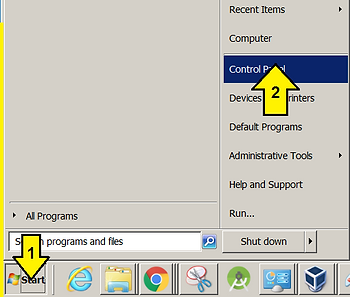
1.b. Click Uninstall a program

1.c. Select Wireshark then click Uninstall

1.d. Click Next >

1.e. Click Next > again
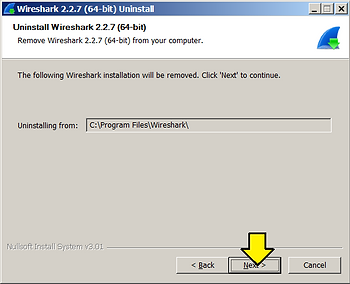
1.f. Just select the USBPcap check box and click Uninstall

1.g. Click the Uninstall button in the confirmation popup window

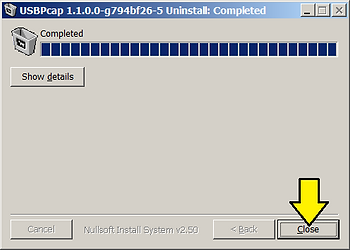
1.h. Click Close
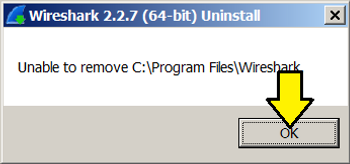
1.i. Ignore the popup that says the the program was unable to remove c:\Program Files\Wireshark. Just click OK.
1.j. You should see the following output in the Uninstall window. Click Next >.

1.k. Click Finish

2. Try again
Things that Don’t Work
-
It doesn’t work to just unplug the USB key then plug it back in
-
It also doesn’t work to unplug the USB key, restart VirtualBox and plug it back in
A process that does work
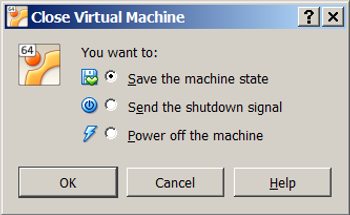
2.a. Close your running Virtual Machine.

2.b. You don’t have to power off the Virtual Machine. You can save its state.
2.c. Exit VirtualBox
2.d. Restart Windows
2.e. Open VirtualBox
2.f. Restart the Virtual Machine
2.e. Plug the USB drive in
2.f. Select the USB drive
2.g. If it worked you should see a pop up
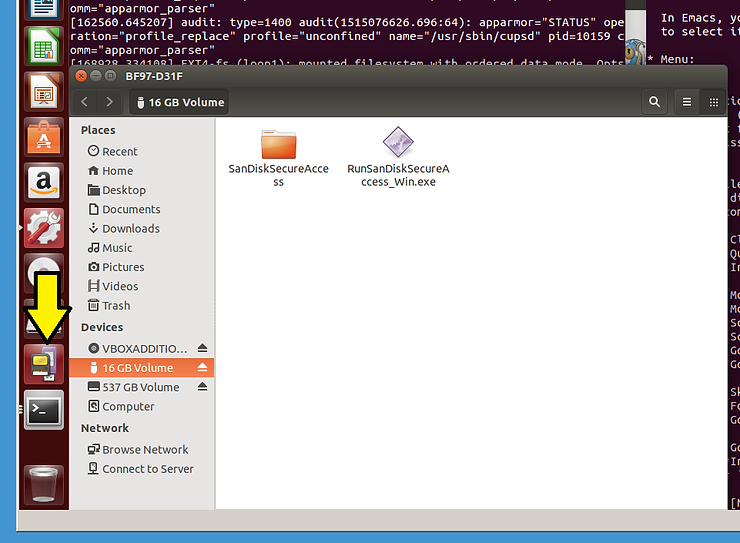
Note: You can give the USB drive back to Windows by clicking on the USB key again

Specific configuration
T460 running Windows 7 Professional SP1 (more detail)
Wireshark 2.2.7 (64-bit)
WinPcap 4.1.3
USBPcap 1.1.0.0-g794bf26-5
VirtualBox 5.1.30 r118389 (Qt5.6.2)
Virtual Machine with 8 GB RAM and 64 GB Disk running Ubuntu 14.04.5 Desktop