

Add a Google G Suite User

This post shows how to add a user to your Google G Suite.
Steps
1. Sign-in to https://admin.google.com/
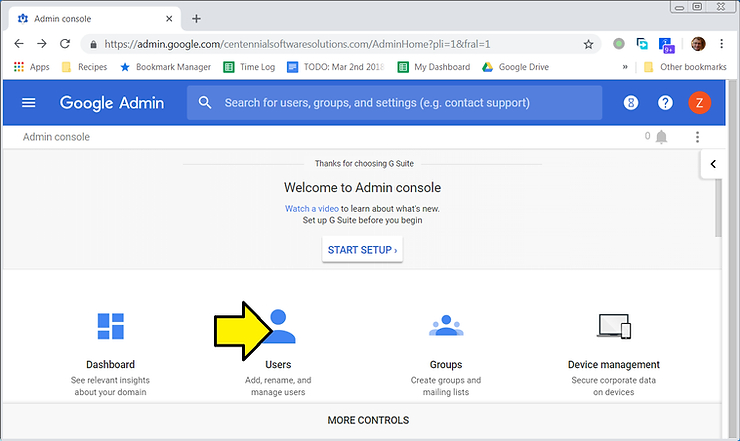
2. Click Users
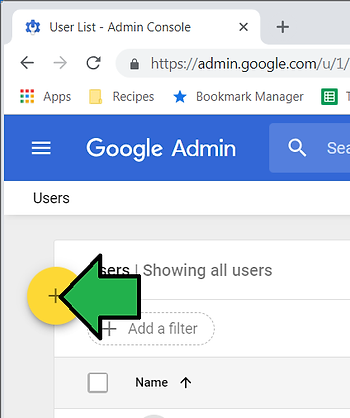
3. Put your mouse over the circle with a +
Note: depending on the size of your window, the ‘+’ will be in the upper left corner or lower right corner.
You should see:
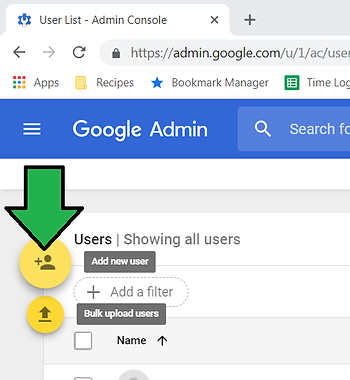
4. Click on the ‘+’
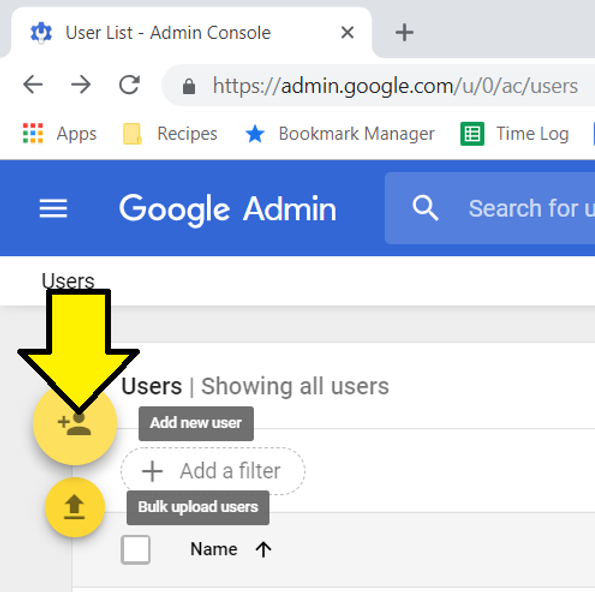
You should see the Add new user screen:
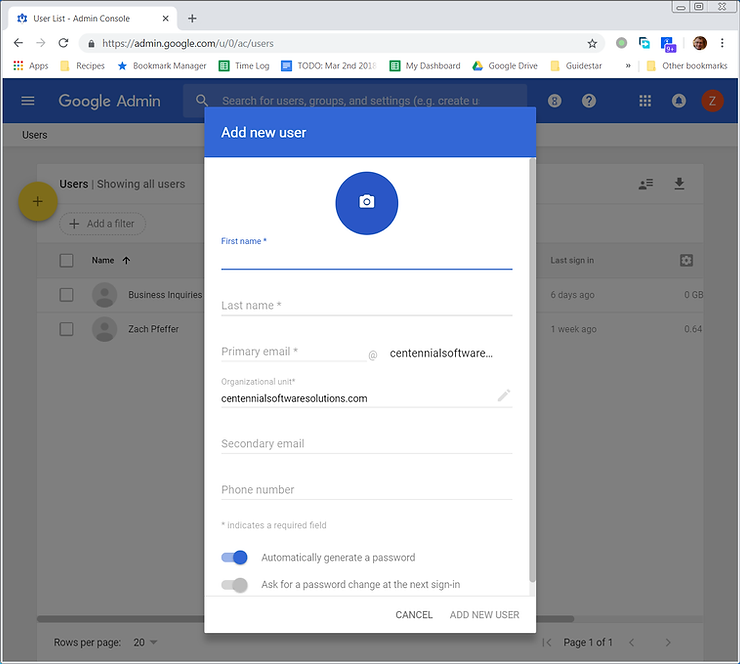
5. Fill in the new user’s details and click ADD NEW USER
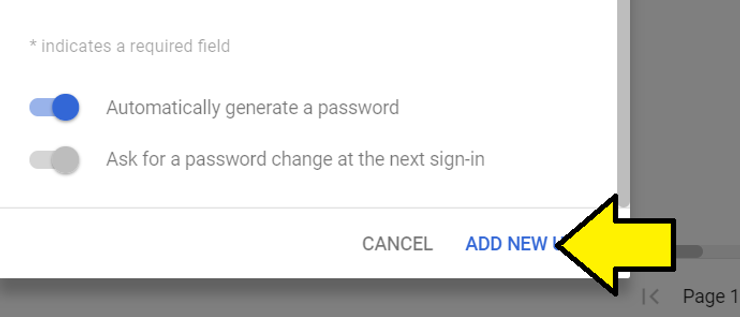
6. Click DONE

References