

Add Vitis 2023.1 to an Existing Vivado Install

This post shows step-by-step how to add Vitis 2023.1 to an existing Vivado install. It also contains links to all of the license agreements you’ll need to agree to so you can view them outside of the installer.
Notes
Vivado was installed in this directory:
~/tools/amd/vivadoml/2023.1
We’ll install Vitis to:
~/tools/amd/
This post is the continuation of:
https://www.centennialsoftwaresolutions.com/post/install-2023-1-vivado-ml-enterprise-on-ubuntu-22-04-1
Requirements
209.28 GB disk needed
Run the installer
~/Xilinx_Unified_2023.1_0507_1903/xsetup
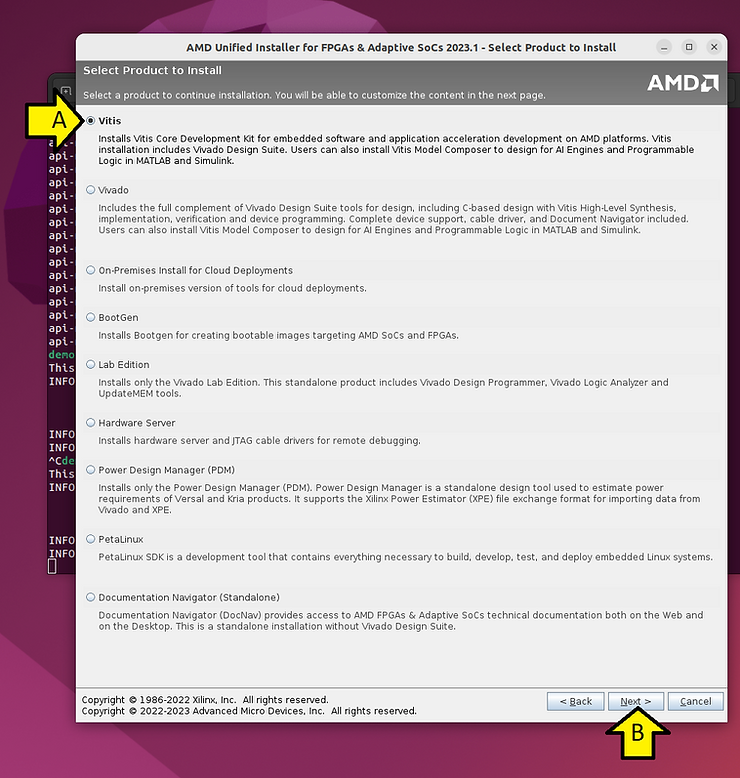
Select Vitis and click Next >.
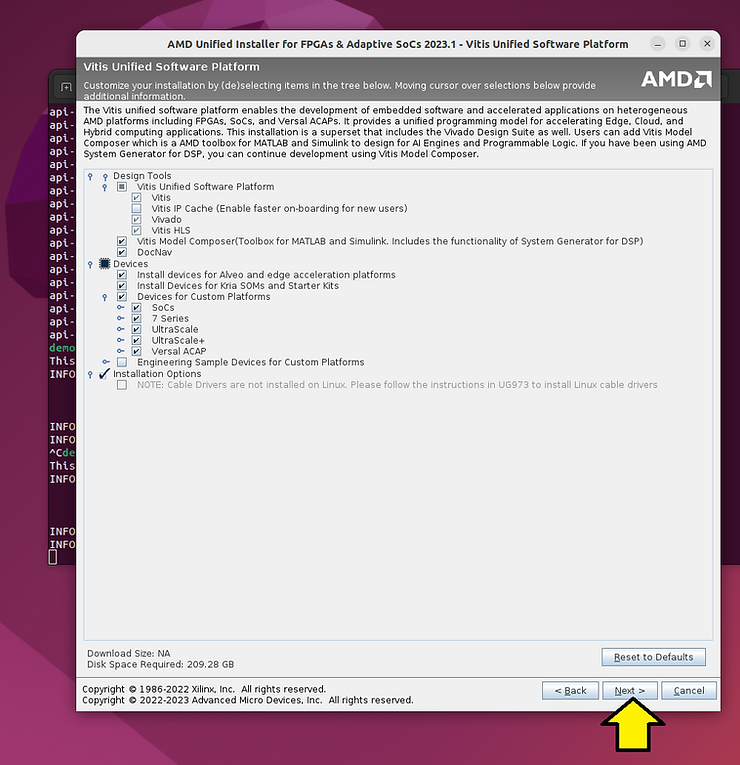
Leave the defaults selected and click Next >:
Agree to all and click Next >
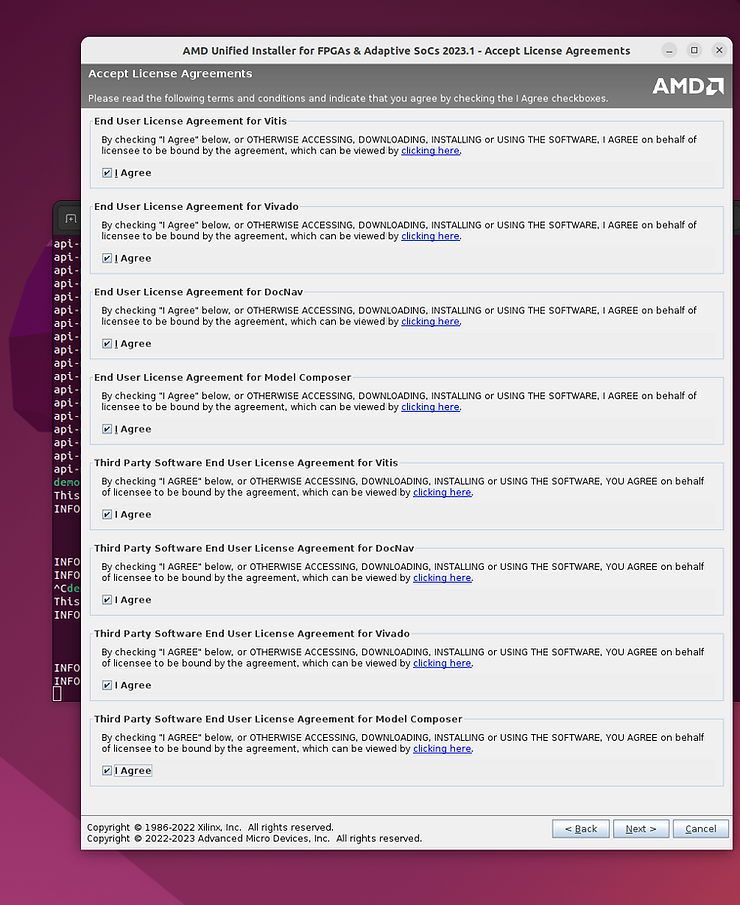
Copies of the agreements
End User License Agreement for Vitis
https://docs.google.com/document/d/17T08wNEfwoogH36Hw1Z5MBJdVBfnqLTud07rKezp–4/edit?usp=drive_link
End User License Agreement for Vivado
https://docs.google.com/document/d/1xGPLXSnHc5D80wxQ0yP-cGj2Tfoqgx-Kcmm-zp4PYRQ/edit?usp=sharing
End User License Agreement for DocNav
https://docs.google.com/document/d/1VRF2rpShNnmFL9OGu-OjPLFfzX91MTtZKZwVcKxZHS8/edit?usp=sharing
End User License Agreement for Model Composer
https://docs.google.com/document/d/11C5P2pTDUT7V4B1hRV8BELkjp7wJ9cnVORsmqUrsP5c/edit?usp=sharing
Third Party Software End User License Agreement for Vitis
https://docs.google.com/document/d/1VMFxLCrALTJ4f7UEkSPEsmDozKVXl6Ew3jBI2KpW9BY/edit?usp=sharing
Third Party Software End User License Agreement for DocNav
https://docs.google.com/document/d/1JgLEJ1u_bJM_6JfMdY-7Yqagbn-gly9ixzn68DvixTM/edit?usp=sharing
Third Party Software End User License Agreement for Vivado
https://drive.google.com/file/d/1N18Gn5n0feV4S0vQtD56H0W5Q1dN0n86/view?usp=sharing
Third Party Software End User License Agreement for Model Composer
https://docs.google.com/document/d/1HeDiG3ArcRLYjK8cCxWNdWOFtBH2zG0w22PdidmVmtA/edit?usp=sharing
Use /home/demouser/tools/amd as the installation directory, deselectoff Create program group entries, click Next >
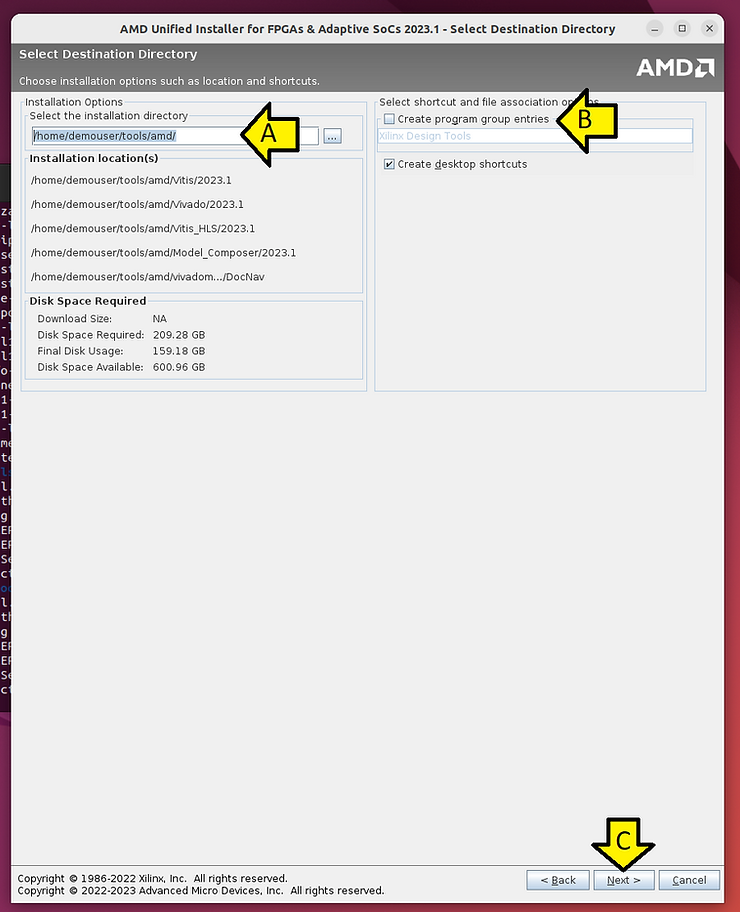
Click Install

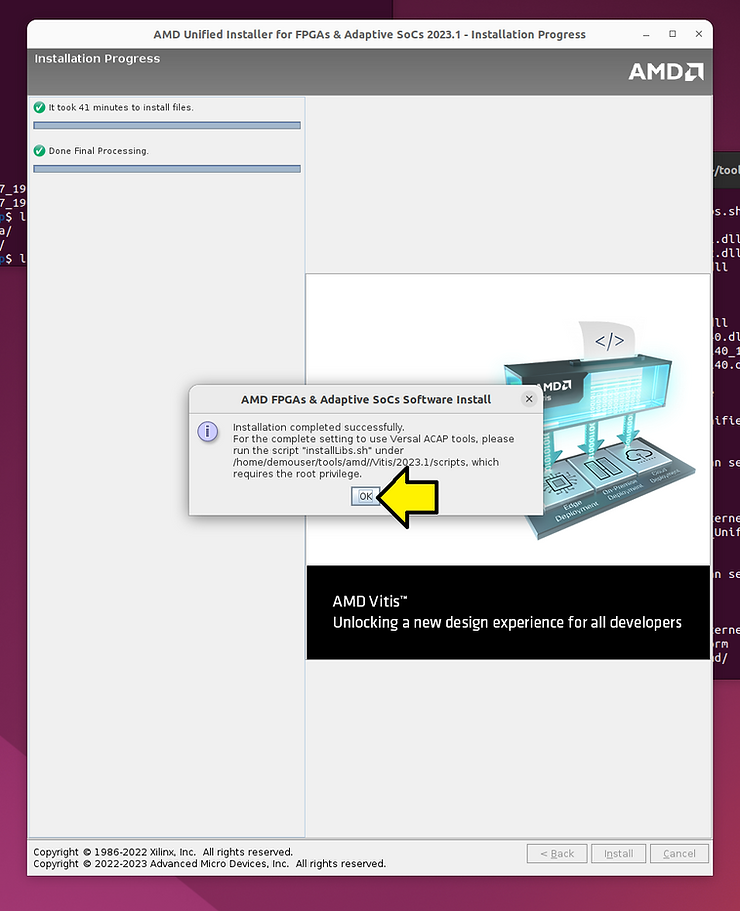
This took 41 minutes on my computer.
Note the additional installation prompt and click OK
Source the environment
source ~/tools/amd/Vitis/2023.1/settings64.sh
Run vitis
vitis
Note: If you see a small clipped window, close Vitis and relaunch it.
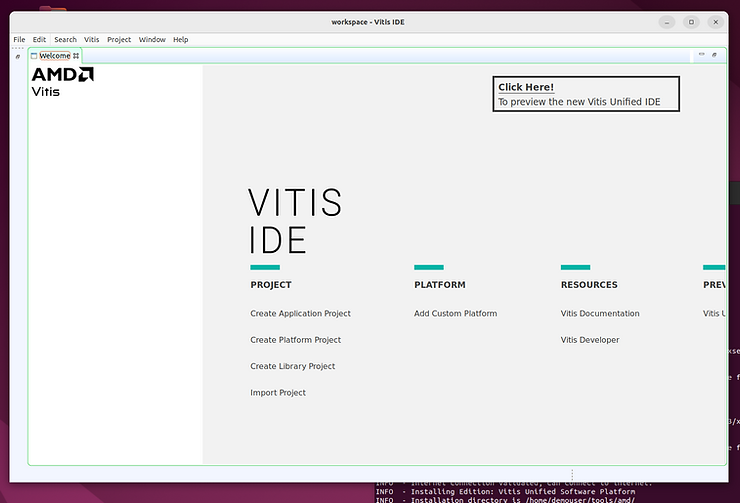
Here’s the IDE
If you want to try and see the new IDE, click Yes
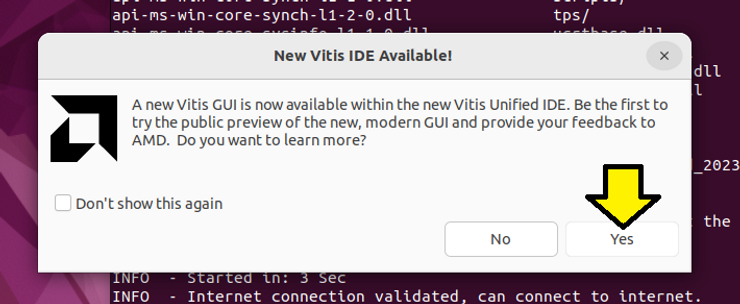
Note: I clicked this and did not see the new IDE.
This post showed how to add Vitis 2023.1 to an existing Vivado install.
References
Logo
https://library.amd.com/media/?mediaId=84C3498C-1B51-4965-93729CC284CD2DC2