

Build and Run Xilinx’s Vector Addition (CL) OpenCL Example

This post shows all the steps to get, build and run the Vector Addition (CL) OpenCL example from Xilinx.
Prerequisites
-
Have a ZCU102 board
-
Install SDSoC 2018.2 on Ubuntu 16.04.3 (see [link] for instructions)
-
Know how to connect an SD card reader/writer (see [link] for instructions)
-
How to configure and run minicom (see step 10. [link] for instructions)
Note
I could not get this to work through the 2018.2 SDx Eclipse GUI. See [underconstruction].
Steps
1. Get source
A. Type cd ~
B. Type git clone https://github.com/Xilinx/SDSoC_Examples.git
2. Build it
A. Type cd ~/SDSoC_Examples/ocl/getting_started/hello_vadd_ocl
B. Type git log
You should see:
commit 368305ee44f0610cf97328f4feadb3750a96ae68
Author: Bhaskar VishnuVardhan Chebrolu <[email protected]>
Date: Thu Jun 28 09:55:14 2018 +0530
Update the readme and json file to remove the naming inconsistency in GUI
C. Type XILINX_SDX=/opt/Xilinx/SDx/2018.2 PATH=/opt/Xilinx/SDK/2018.2/gnu/aarch64/lin/aarch64-linux/bin:$PATH CPPFLAGS=”-I/opt/Xilinx/SDx/2018.2/runtime/include/1_2” make PLATFORM=zcu102
Notes:
-
This took 0h 38m 14s on a virtual machine running Ubuntu 16.04.3 hosted by VirtualBox 5.2.12 r122591 (Qt5.6.2) running on Windows 7 SP1 on [link] machine.
-
The full log is [here]
3. Load it (replace /media/pfefferz/3661-3361 with your directory)
A. Type cd ~/SDSoC_Examples/ocl/getting_started/hello_vadd_ocl
B. Type cp -rf build/zcu102_hw/sd_card/* /media/pfefferz/3661-3361
4. Run it on the target
A. Eject the SD card from the reader
B. Insert in the ZCU102
C. Set SW6 to to boot from the SD card:

5. Connect the USB UART to the computer and start minicom
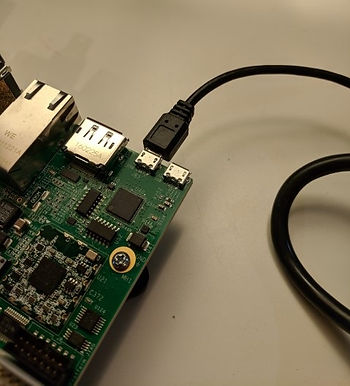
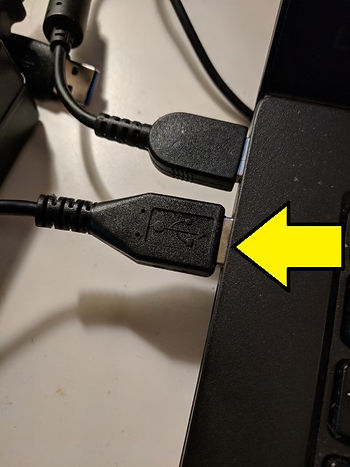
6. Start the ZCU102
In the minicom window you should see output, ending with:
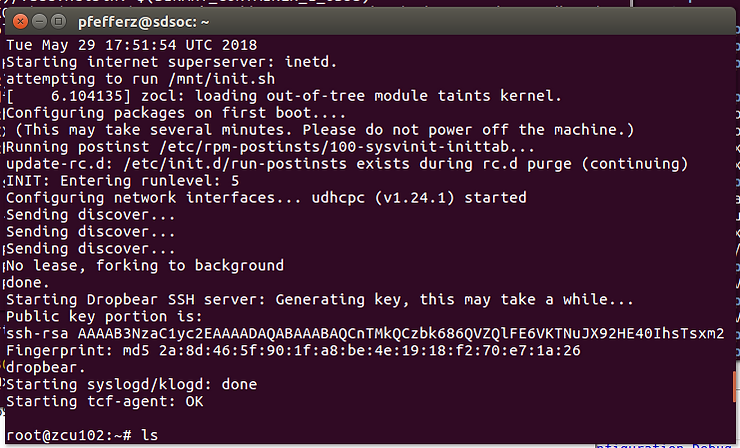
7. Run the example
In the minicom window type XILINX_OPENCL=/mnt/embedded_root /mnt/vadd
You should see:
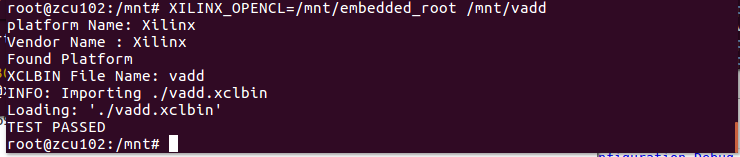
Full minicom output [here]. Source [here] (to check what happens up to TEST PASSED).
Reference
SDSoC logo from [link]
