

Configure minicom for a USB-to-Serial Converter
This post shows you how to configure minicom for a USB-to-Serial Converter, run it, and exit it.
Note
You will need to log out and log back in again.
Do These Steps Once
No sudo
These steps ensure that you don’t have to run minicom with sudo. Do these steps one time.
1. Type sudo usermod -a -G dialout USERNAME (replace USERNAME with your username)
2. Log out and log in
Configure minicom
These steps ensure that minicom is configured
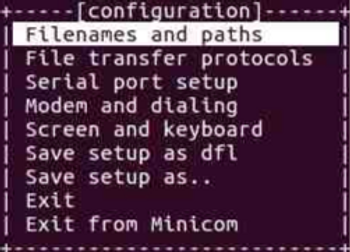
1. Type sudo minicom -s
You should see:
Note
You need to run _this_ step with sudo so that you can Save setup as dfl later
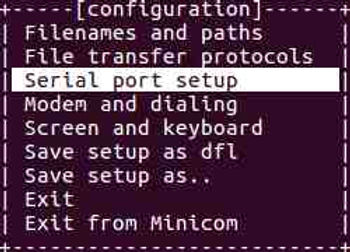
2. Press the down arrow twice
You should see:
3. Press Enter
You should see:
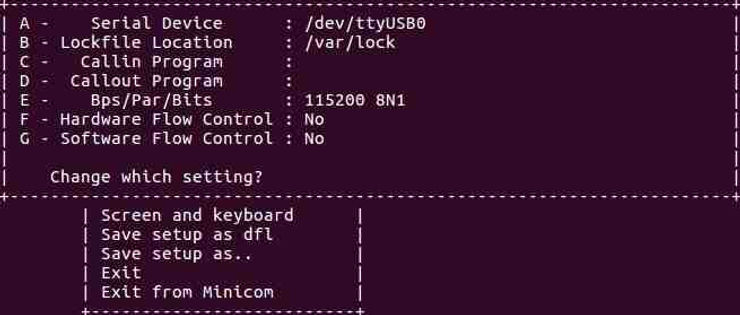
4. Press A, and set the serial device to /dev/ttyUSB0 and press Enter
5. Press E and set the Bps/Par/Bits to 115200 8N1 and press Enter
6. Press F until Hardware Flow Control in No
7. Press G until Software Flow Control is No
8. Press Enter
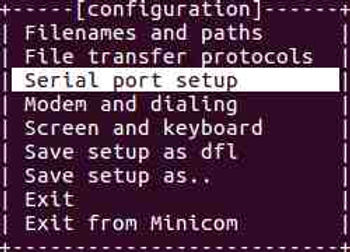
You should see this again:
9. Press the down arrow 3 times
You should see:
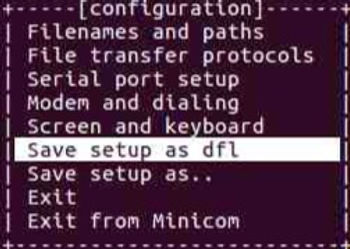
10. Press Enter
You should see:
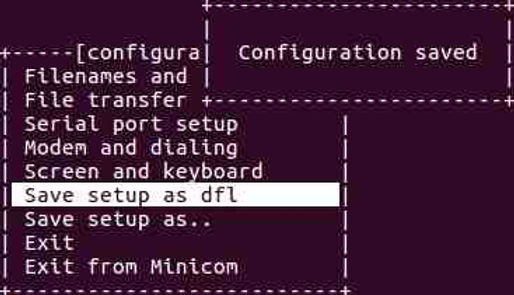
11. Press the down arrow 3 times
You should see:
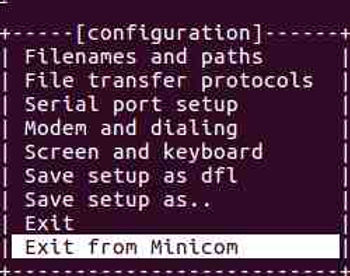
12. Press Enter
Minicom is now configured
Run minicom
1. Plug your USB-to-Serial cable in
2. Type ls -l /dev/ttyUSB0
You should see:
crw-rw—- 1 root dialout 188, 0 Nov 18 21:06 /dev/ttyUSB0
3. Type minicom
You should see:
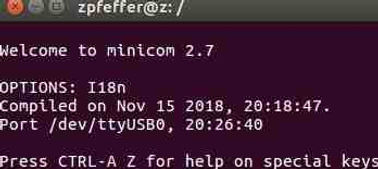
Exit minicom
1. Type Control-a x
You should see:

2. Press Enter
Reference
Install the Arduino Software (IDE) on Linux at [link]