

Create a Folder in C:\ in Windows 7 SP1
This post shows you how to create a folder in C:\ in Windows 7 SP1.
Steps
Note
“Click” refers to clicking the left mouse button.
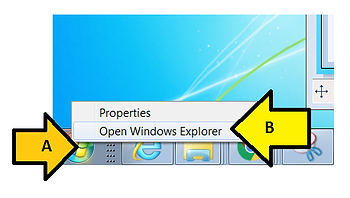
1. Open Windows Explorer
A) Right click on the Window’s icon and
B) Click Open Windows Explorer
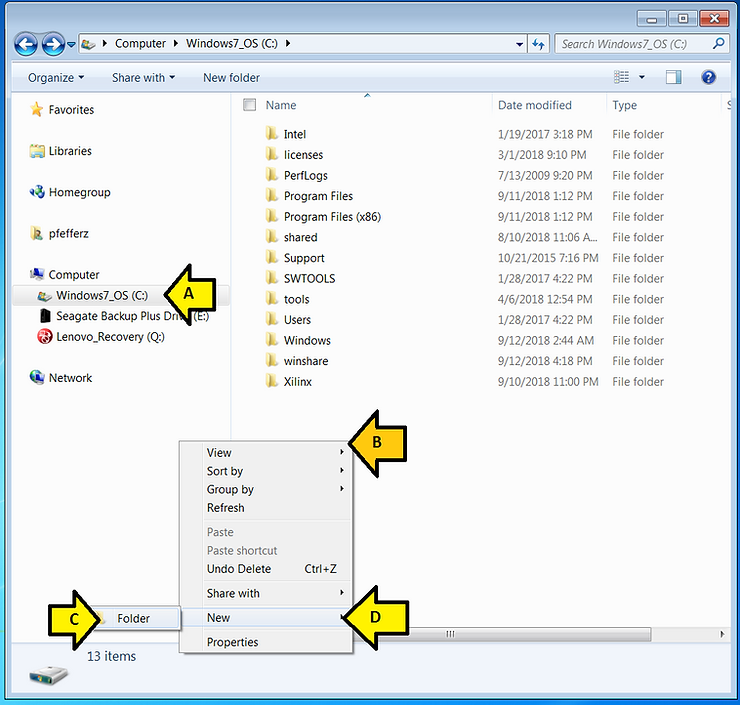
2. Create New folder
A) Select the (C:) drive
B) Right-click below the other folders
C) Click Folder
D) Click New
At this point you’ll see New folder. Notice that New folder is selected. If it doesn’t look like this you may have clicked somewhere else. See step 3-b for for how to handle this.
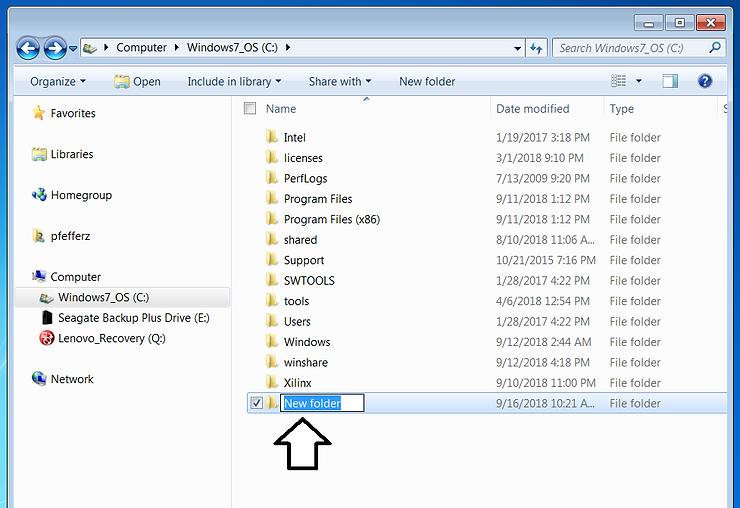
3-a. If New folder is selected, then type in the new folder name: My folder
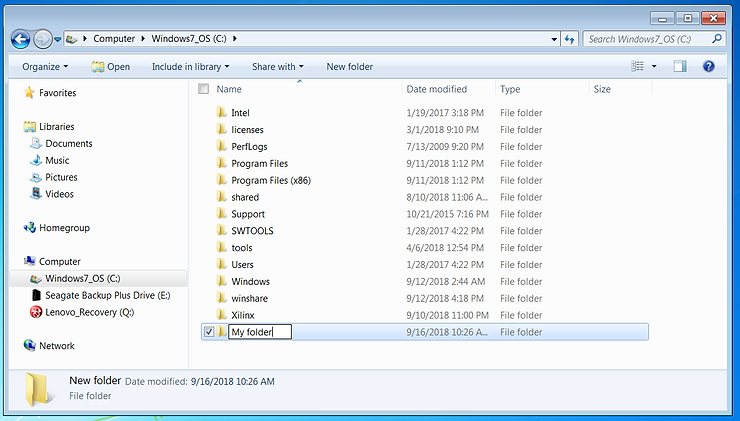
4-a. You’re done
3-b. If New folder is no longer selected…
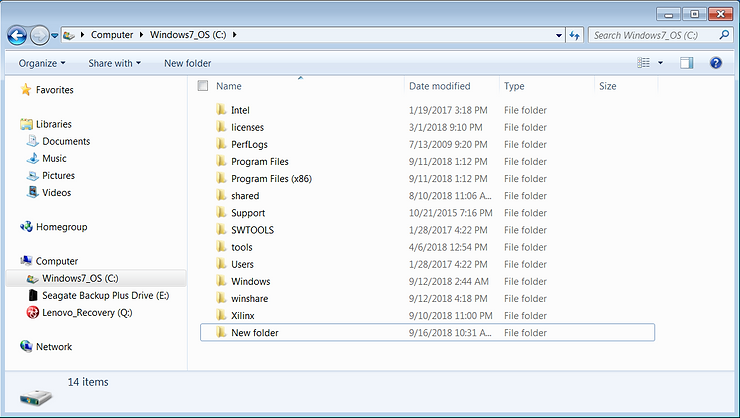
…follow these steps:
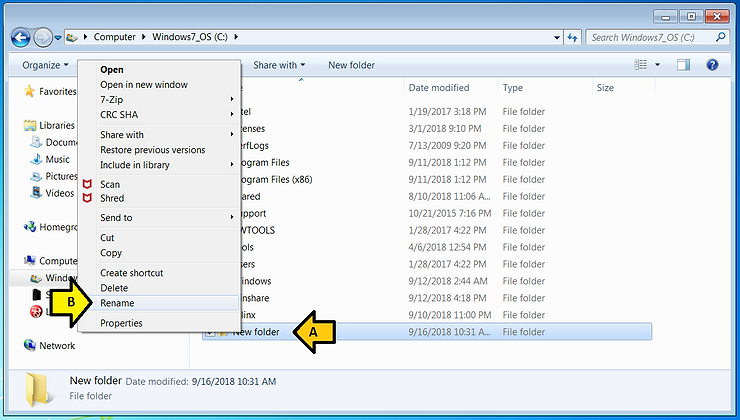
A) Right-click on New folder
B) Click Rename
4-b. Type My folder
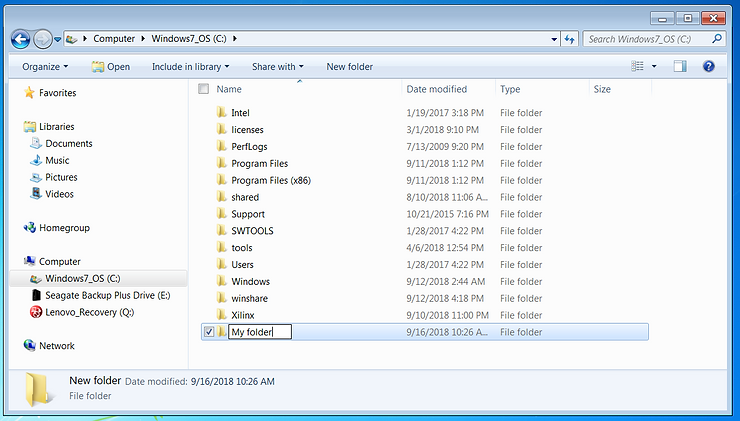
This is the same picture used in 3-b.
5-b. You’re done with the alternative instructions.
Share and Like
Share and like this if you think other people would find it useful!
Reference
Windows 7 logo from [link]
