

Create a ZC706 Vivado Project

This post lists the steps to create a Vivado project for a ZC706 and to check the version of the ZC706 you’re using.
Versions Used
-
Vivado 2018.2
-
ZC706 Rev 2.0 Board
Steps
Step 1: Create a directory called c:\vivprjs
Step 2: Launch Vivado 2018.2
Step 3: Click Create Project
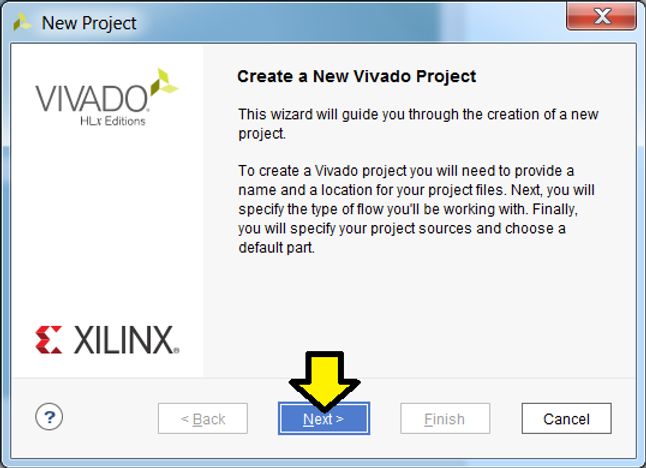
Step 4: At the Create a New Vivado Project click Next >
Step 5:
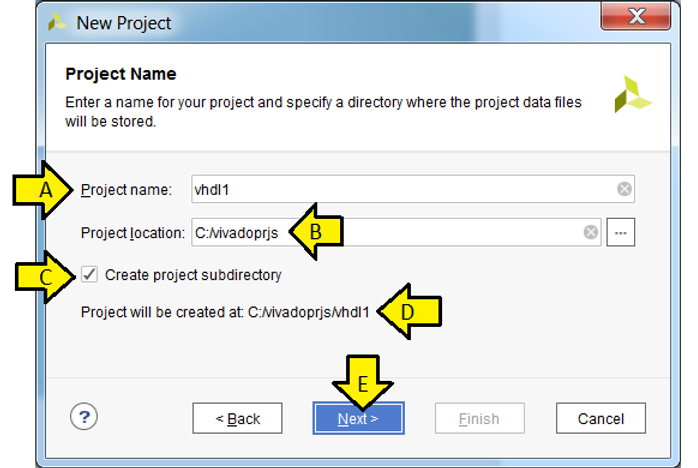
A) Use Project name: vhdl1
B) Use Project location: c:/vivadoprjs.
C) Leave the Create project subdirectory check-box checked.
D) The wizard page should list: Project will be created at: C:/vivadoprjs/vhdl1.
E) Click Next >
Step 6:
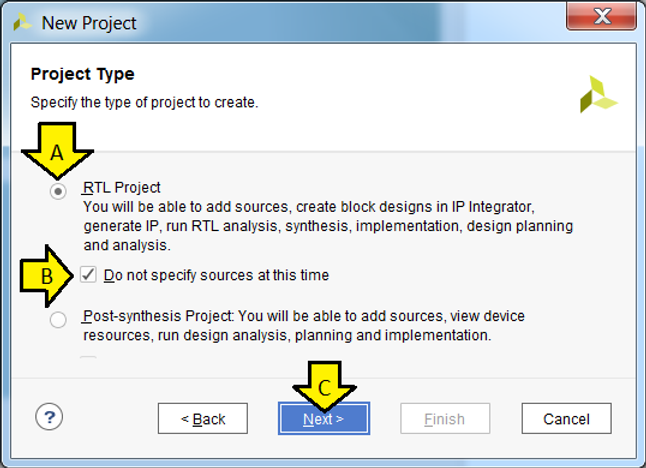
A) Leave RTL Project selected
B) Leave Do not specify sources at this time checked
C) Click Next >
Step 7:
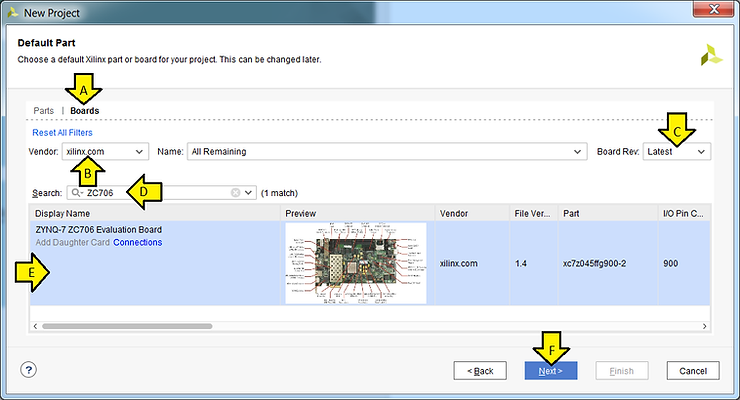
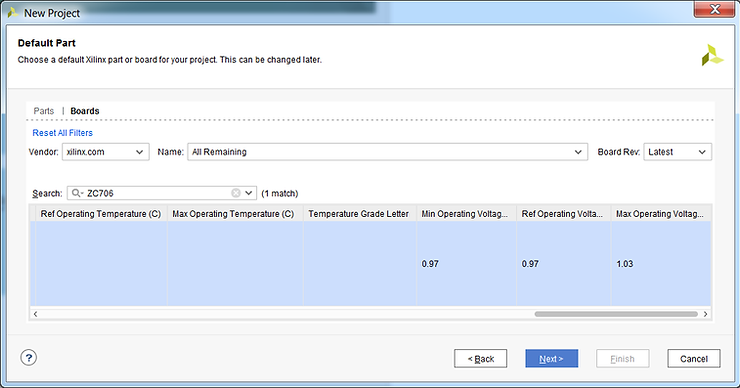
A) Click Boards
B) Select xilinx.com
C) Select Latest
D) Type ZC706
E) Click on the ZYNQ-7 ZC706 Evaluation Board box to select the ZYNQ-7 ZC706
F) Click Next >
Note on Board Rev:
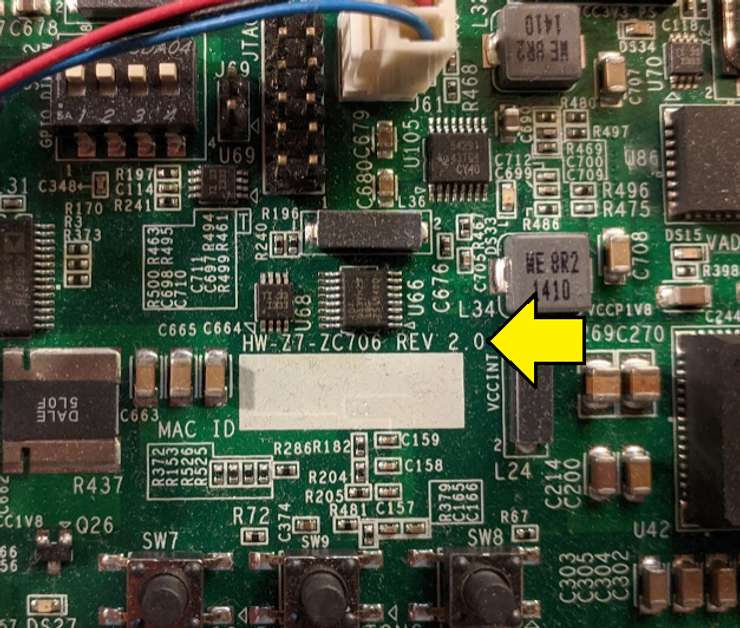
You should ensure that the Board Rev listed on the board (see [link] to answer How can I determine what Board Revision I am using?). On the 2.0 version of the ZC706 board the rev number is here:
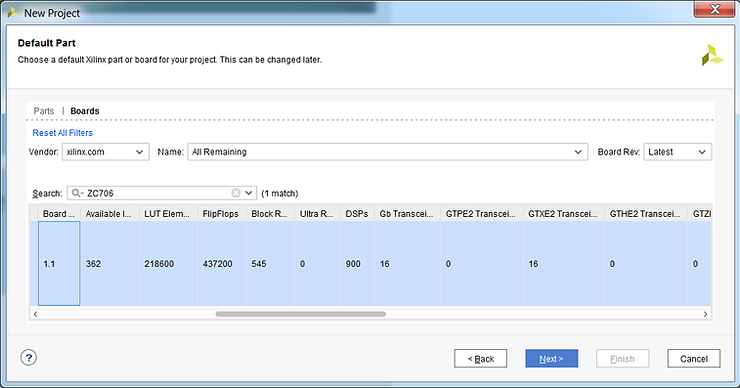
You’ll notice that we only have Version 1.4 available. From [link] you can download the UCF and XDC files:
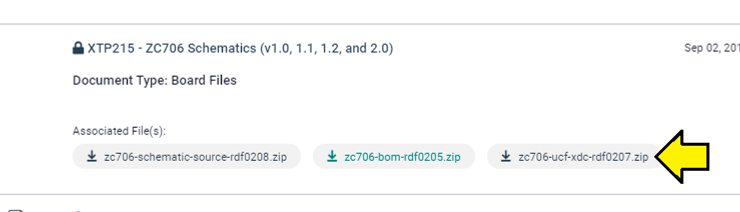
In this archive it says in the readme.txt:
“No XDC or UCF changes from Revision 1.0 through Revision 2.0.“
So the fact that it only lists 1.4 is not a problem since the XDC and UCF files are what change when you update the version.
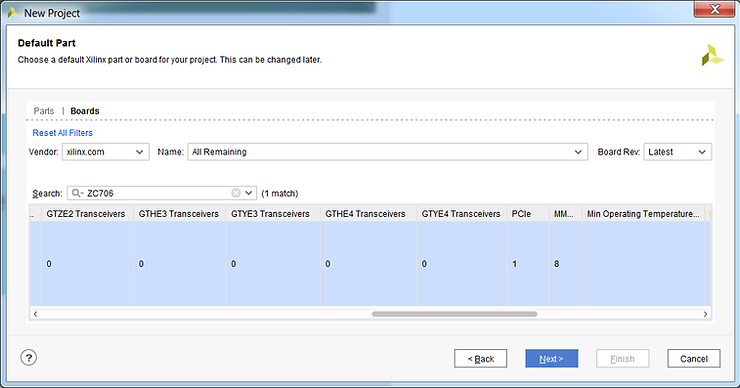
Here are some pictures of the rest of the columns:
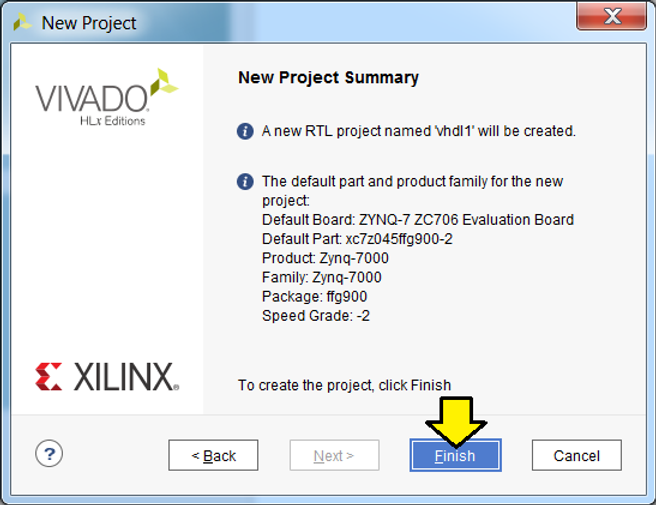
Step 8: Click Finish on the New Project Summary page
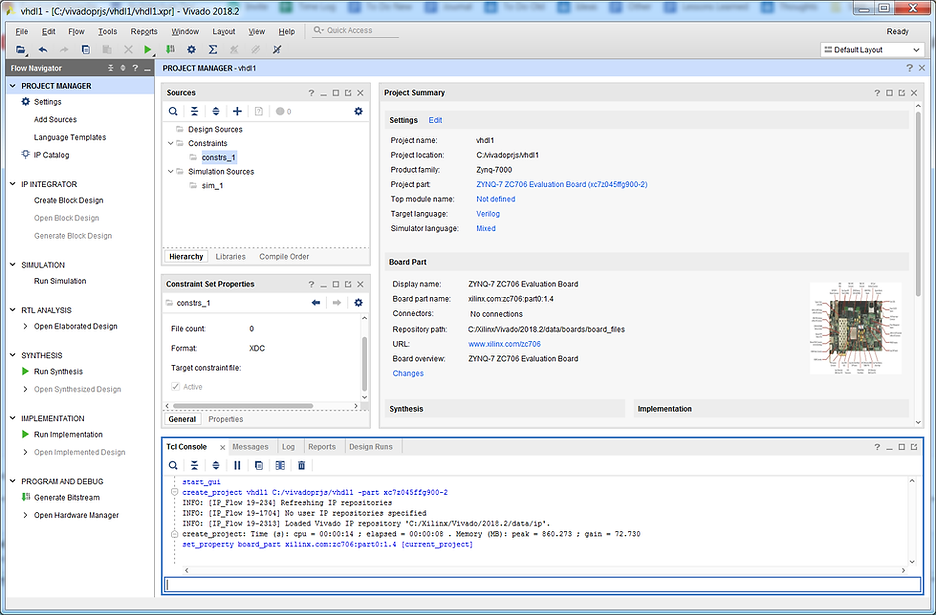
You should see:
Reference
Xilinx logo from https://twitter.com/xilinxinc