

Disable Cursor and Cell Movement Animations in Word and Excel

This post describes a method shared by an intrepid reader who did not want there name listed :) to disable Excel cell movement animations and cursor animations in Word.
It supersedes:
Summary
Add a DWORD called DisableAnimations set to 1 to Computer\HKEY_CURRENT_USER\Software\Microsoft\Office\16.0\Common\Graphics using the Registry Editor
Steps
1. Click Start
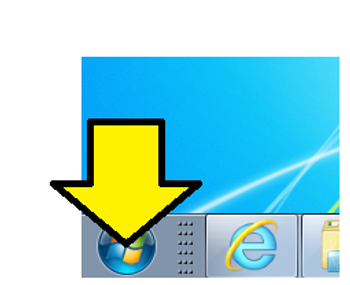
2. (1) Type regedit and (2) click on regedit.exe. Click yes when Windows asks you to authorize running this program.

3. (1) Expand Computer, (2) expand HKEY_CURRENT_USER and (3) expand Software
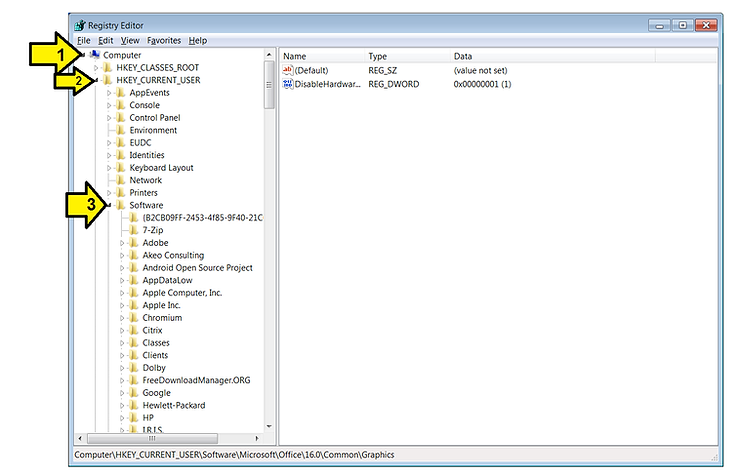
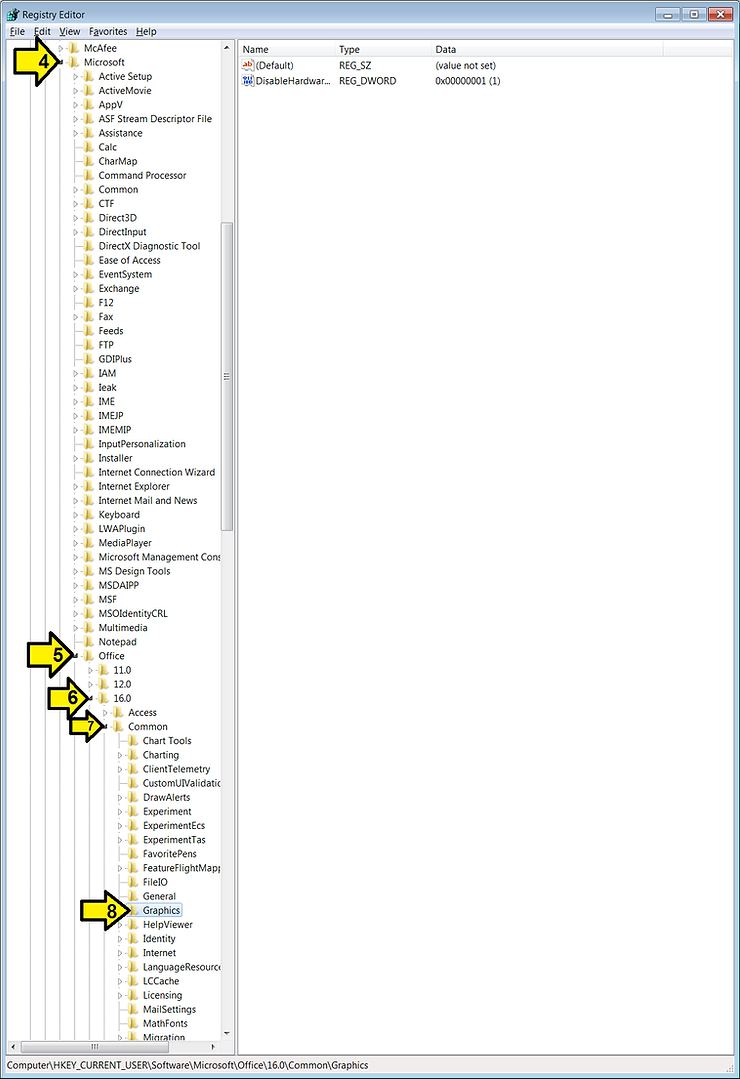
4. Continue expanding: (4) Microsoft, (5) Office, (6) 16.0, (7) Common and click on Graphics
5. (1) click Edit, (2) New then (3) DWORD (32-bit) Value
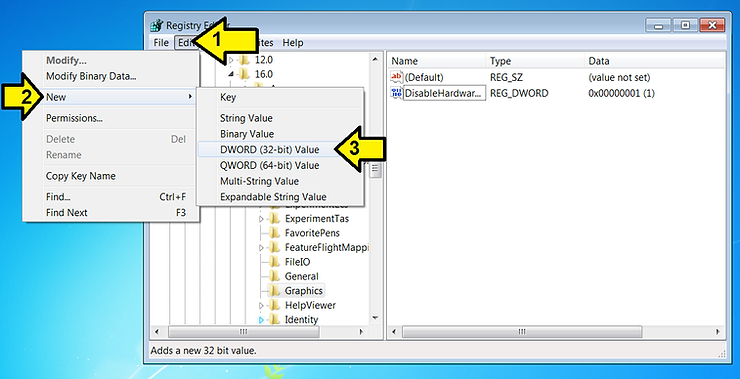
6. Name it DisableAnimations
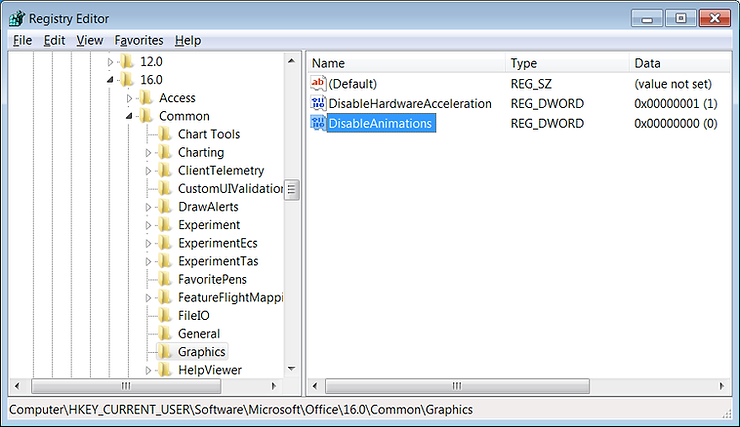
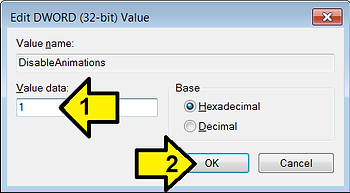
7. Double click on DisableAnimations. You’ll get the window shown here. Enter 1 for Value data: and click OK
8. Close regedit.
Reference
Word and Excel logos from microsoft.com.