

Disable Smart Quotes in Word Online
This post shows how to disable smart quotes in Word Online.
Note: This post has been updated. Please see https://www.zachpfeffer.com/single-post/2020/08/29/Turn-off-Curved-Quotes-in-Word-2016.
Steps
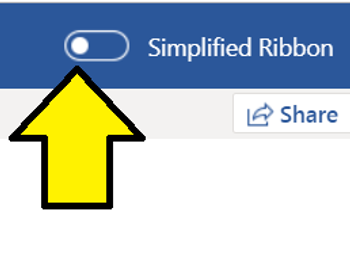
1. Make sure the Simplified Ribbon is off by switching the slider to the left
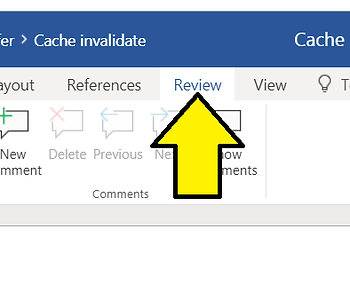
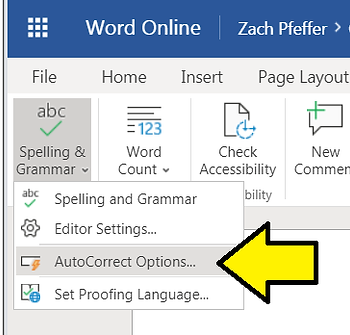
2. Click Review
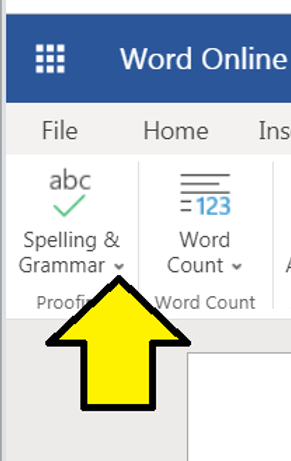
3. Click Spelling & Grammar
4. Click AutoCorrect Options…
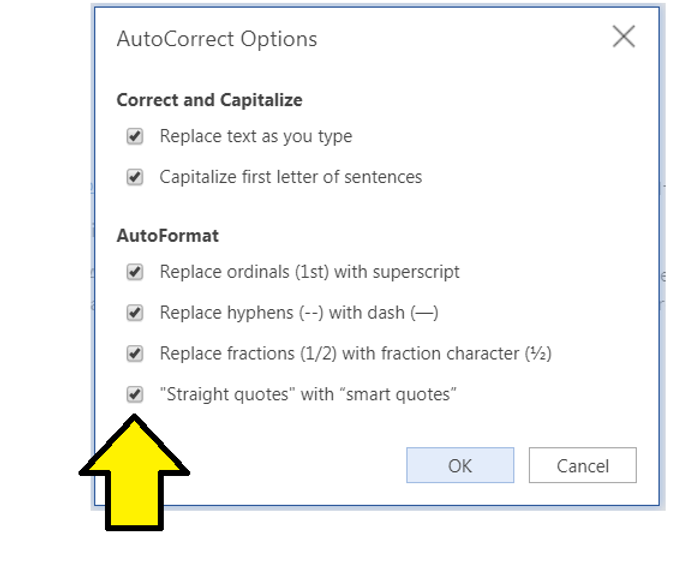
5. Click the “Straight quotes” with “smart quotes” check box to get straight quotes
References
Word icon from [link].