
Enable and Disable the Quick Launch Bar in Windows 7 Service Pack 1 (SP 1, CurrentBuild 7601)
Enable the Quick Launch Bar
1. Right-click an empty area of the taskbar, point to Toolbars, and then right click New toolbar.

Step 1 quoted directly from Step 1 of [1].
2. In the dialog box, copy and then paste the following folder name to the Folder box, and then left-click Select Folder:
%AppData%\Microsoft\Internet Explorer\Quick Launch
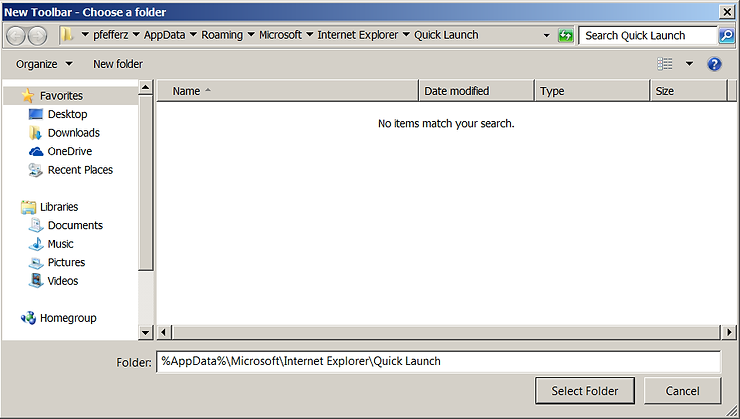
Step 2 quoted directly from Step 2 of [1].
3. Right-click an empty area of the taskbar, point to Lock the taskbar, and then left-click.

4. Now you see the Quick Launch bar with the text on the rightside of the task bar. To hide the Quick Launch text and program titles, right-click Quick Launch, clear Show Text and Show title.

Step 4 quoted directly from Step 3 of [1].
5. Unpin each of the applications by left clicking on each and right clicking on Unpin this application from the taskbar.

6. Drag the Quick Launch bar to the leftside of the task bar. You must drag it all the way to the Start button for this to work.

Step 6 was paraphrased from Step 4 of [1].
7. Now drag the other line over.

8. Done.

Disable the Quick Launch Bar
Right-click an empty area of the taskbar, point to Toolbars, and then left-click Quick Launch.

Paraphrased from Step 7 of [2].
Reference
I used:
-
[1] Guided Help: Enable the Quick Launch bar in Windows 7 from Microsoft
-
[2] How to Enable or Disable Quick Launch Bar Toolbar in Windows 7 from David Amador’s 2009 instructions
-
[3] Add the Quick Launch Bar to the Taskbar in Windows 7 from Lowell Hedding’s (How-To Geek)
-
[4] Google, “how to find which windows 7 build” instant search result at ccm.net
Notes
1. I started with Microsoft’s write up and got stuck. I needed Lowell Hedding’s tip about unlocking the task bar and David Amador’s tip on un-pinning all the applications to move the Quick Launch bar to the left.
In Article ID: 975784 - Last Review: Sep 23, 2011 - Revision: 1
Before you do Step 3:
3. Now you see the Quick Launch bar with the text on the rightside of the task bar. To hide the Quick Launch text and program titles, right-click Quick Launch, clear Show Text and Show title.
…you need to unlock the taskbar. You also need to unpin the apps. The complete steps are detailed above.
Step 4 does note:
4. Drag the Quick Launch bar to the leftside of the task bar. If you cannot move the Quick Launch bar, right-click the taskbar again, and make sure that the Lock the taskbar option is cleared .
…but you need to do this in Step 3 or before.
3. I used Character Map select and copy “arrows” to paste into Microsoft Paint:
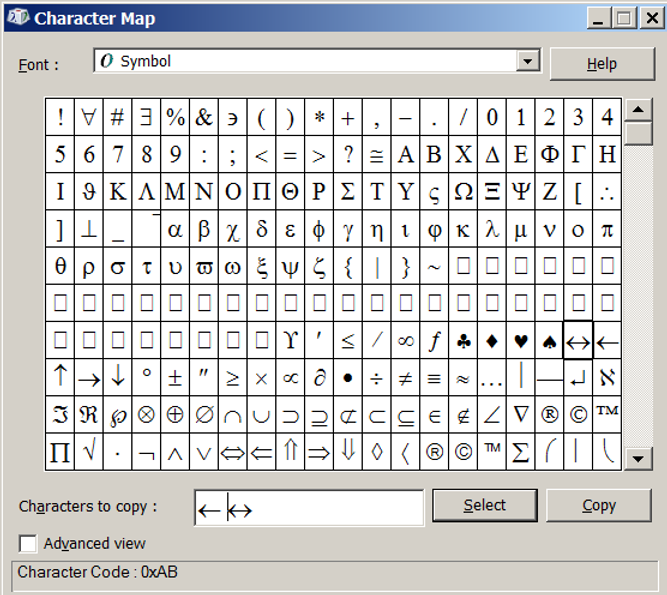
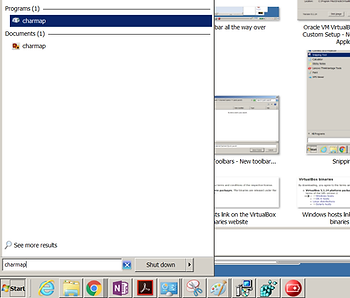
Type charmap into the Run command field to launch Character Map:
4. To find your Windows build number do this:
-
Open the registry editor (Start > Run > regedit)
-
Go to: HKEY_LOCAL_MACHINE>Software>Microsoft>Windows NT>CurrentVersion.
-
Double click on the CurrentBuild key located in the right pane
Copied from [4].