

How do I run Vivado 2019.1 from the command line on Linux?

This post shows how to run Vivado 2019.1 from the command line. It also shows you how to run Vivado in non-GUI mode and in batch mode.
Steps
Step #1: Open a terminal
Step #2: Figure out whether you’re running csh or bash by typing:
ps -p $$
You should see something like:
PID TTY TIME CMD
2729 pts/1 00:00:00 bash
Step #3: Find settings64.sh or settings64.csh
find / -name “settings*sh”
You should see something like:
/tools/Xilinx/Vivado/2019.1/settings64.sh
/tools/Xilinx/Vivado/2019.1/settings64.csh
Step #4: If you’re running bash type:
source /tools/Xilinx/Vivado/2019.1/settings64.sh
vivado
…or csh type:
source /tools/Xilinx/Vivado/2019.1/settings64.csh
vivado
You can also use:
vivado -mode gui
…and to get helpL
vivado -help
You should see something like:
** Vivado v2019.1 (64-bit)
** SW Build 2552052 on Fri May 24 14:47:09 MDT 2019
** IP Build 2548770 on Fri May 24 18:01:18 MDT 2019
** Copyright 1986-2019 Xilinx, Inc. All Rights Reserved.
start_gui
…and then see the GUI pop up.
Stop the GUI from the GUI
If you’d like to stop the GUI from the GUI
Step #1: Click Tcl Console
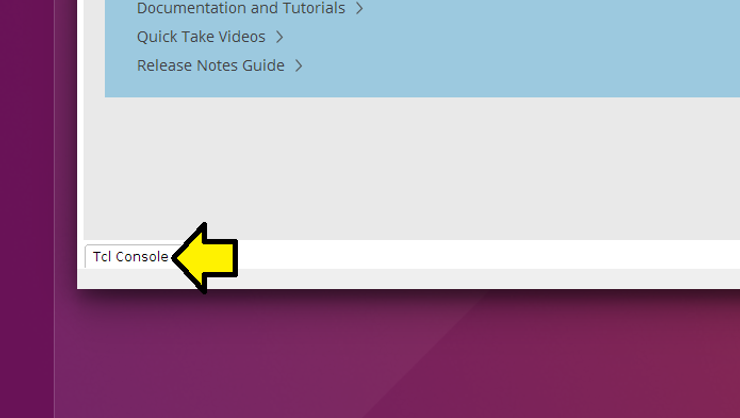
Note: you can minimize the console by clicking:

Step #2: type stop_gui in the console
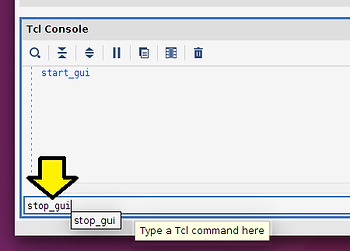
You’ll see a Vivado prompt:
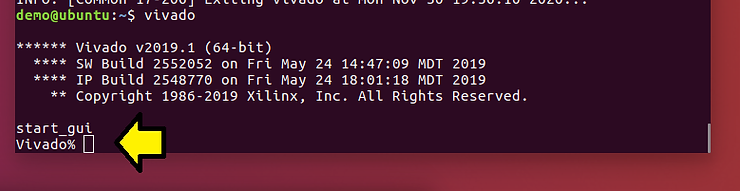
-
Note 2: Type start_gui to restart the GUI.
Run Vivado without a GUI
To run Vivado without the GUI type:
vivado -mode tcl
^^^ from page 4 of [UG835 v2019.1 Tcl Command Reference Guide]
Run Vivado in Batch Mode, i.e. Just Run a TCL Script
**vivado -mode batch -source
** ^^^ also from page 4 of [UG835 v2019.1 Tcl Command Reference Guide]
References
