

How to Disable Animations in Excel 2016

This post describes how to disable animations in Excel 2016 on Windows 7. The instructions will also disable animations in other Office products [3]. It also lists steps to check which version of Excel you’re using and lists the steps that don’t work.
Aug 8th 2018 Update: This post has been superseded by: http://www.zachpfeffer.com/single-post/Disable-Microsoft-Office-Excel-Cell-Movement-Animations-and-Word-Cursor-Animations
How to Disable Animations in Excel 2016 [3]
1. Click Start
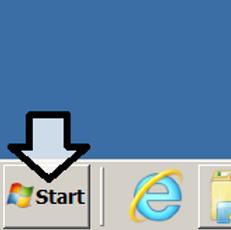
2. Click Control Panel
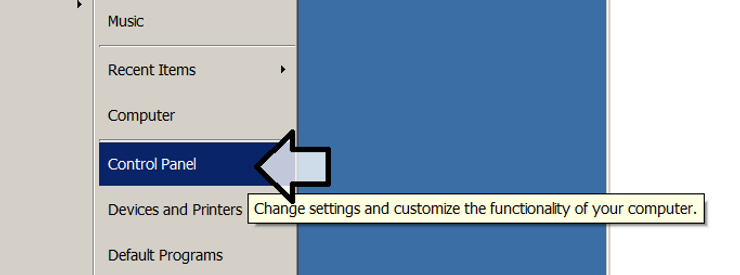
3. Click Ease of Access
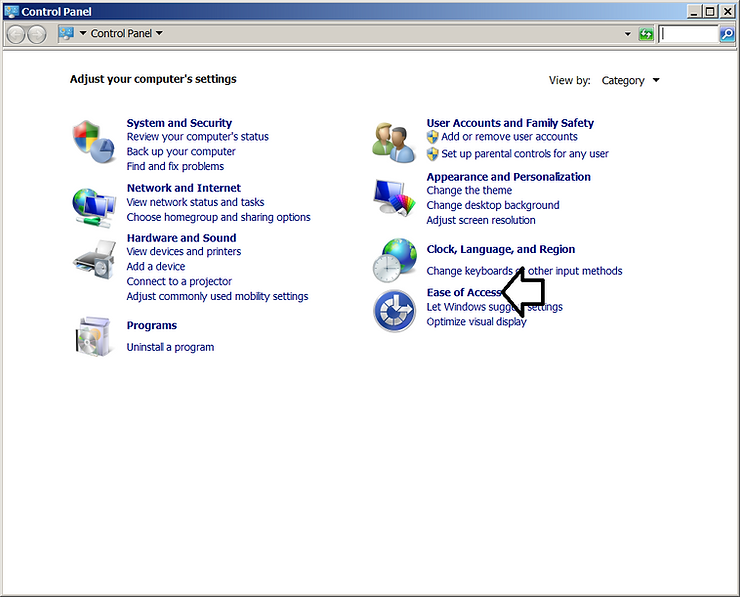
4. Click Ease of Access Center
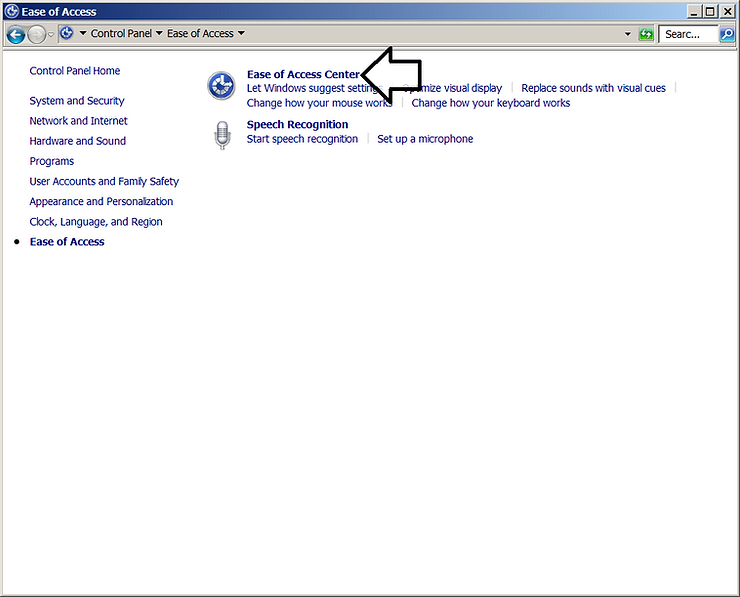
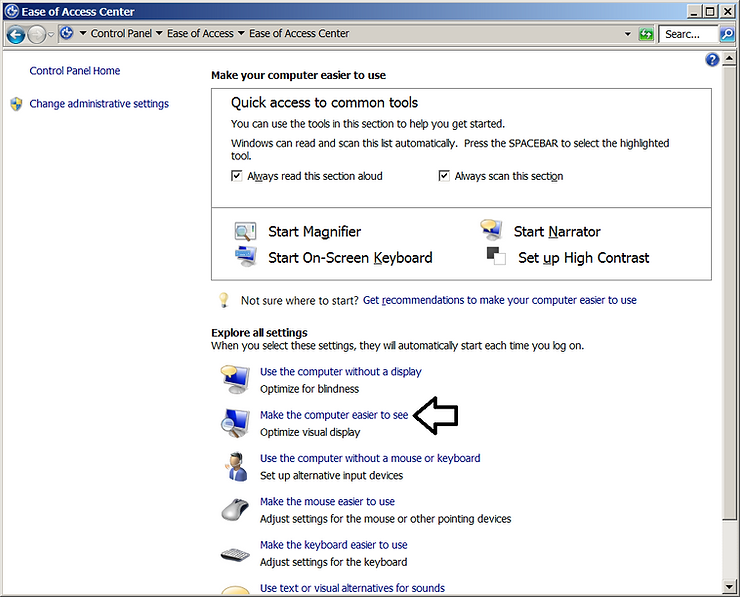
5. Click Make the computer easier to see
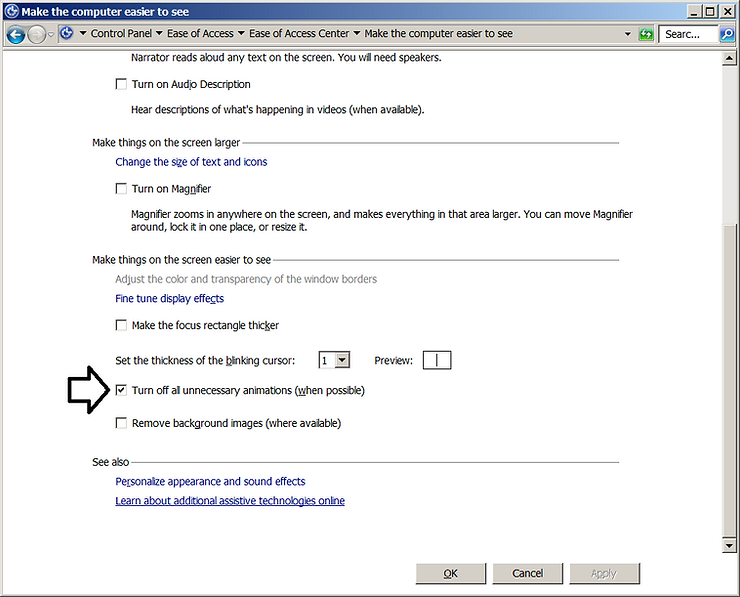
6. Click Turn off all unnecessary animation (when possible) to check the checkbox
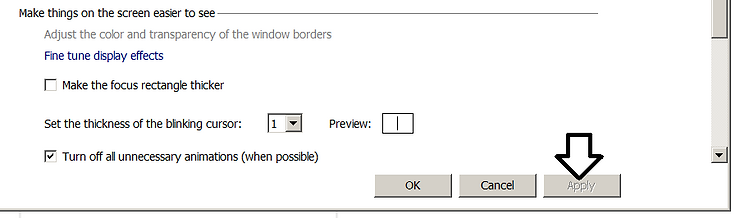
7. Click Apply
How to Check Which Version Excel You Are Using [2]
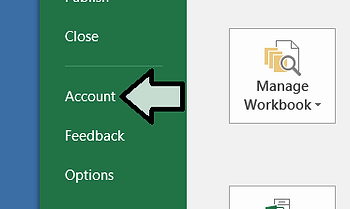
1. Click File on the menu bar
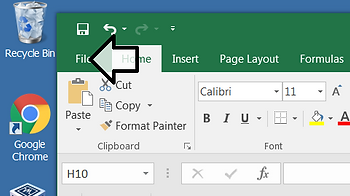
2. Click Account
3. Click About Excel
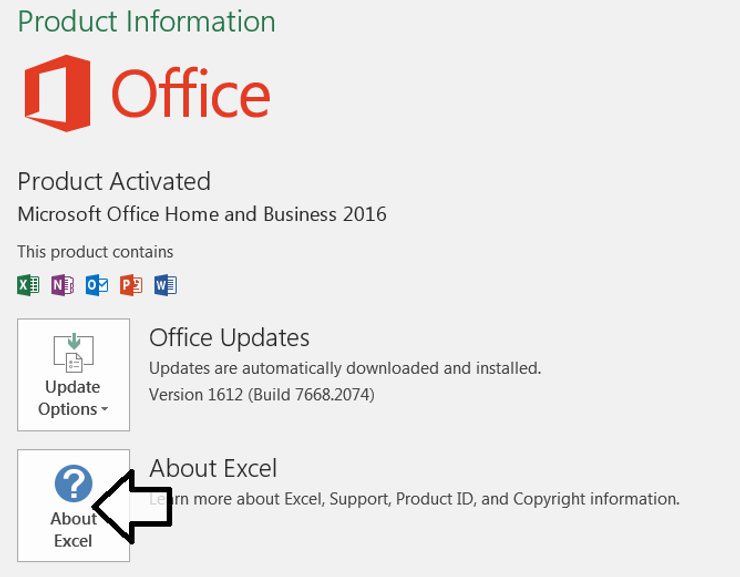
More Info
These steps do not work to disable animations in Excel 2016
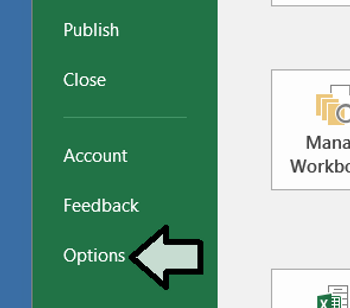
1. Click File on the menu bar
2. Click Options
3. Click Advanced then click the Disable hardware graphics acceleration checkmark checkbox.

Related
-
A Way to Disable Cursor Movement Animation in Word 2016 at link.
-
How to find which version of Word you’re using at link.
Reference
1. How to disable Animation in Excel 2013
2. 32-bit vs. 64-bit Office – Which do I have? What’s the Difference?
3. Turn off Office animations
4. Excel icon downloaded from [linklink] as SVG and saved as a PNG using Microsoft Explorer