

How to Permanently Mount an External Drive as a Folder on Windows 10
This post shows screenshots corresponding to the steps to permanently mount an external drive as a folder on Windows 10.
Steps
# “Create an empty folder. You need to create a new empty folder and store it on an NTFS or ReFS drive.”

# “In the search box on the taskbar, enter Computer Management…”

# “…and select Disk Management.”
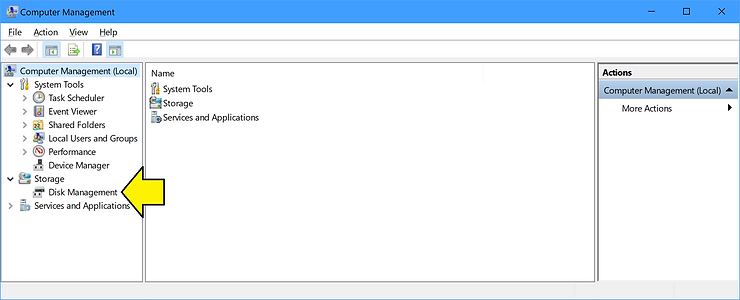
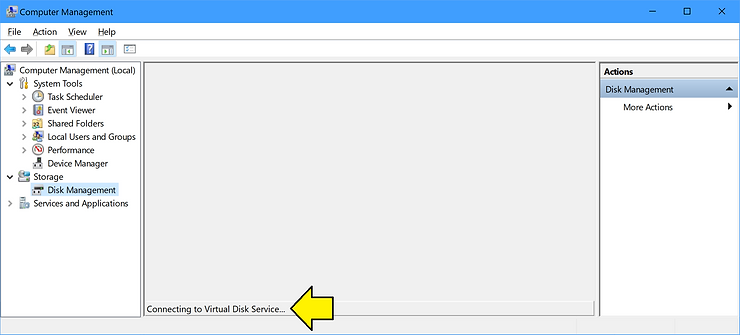
On my system I see Connecting to Virtual Disk Service… for 10’s of seconds:
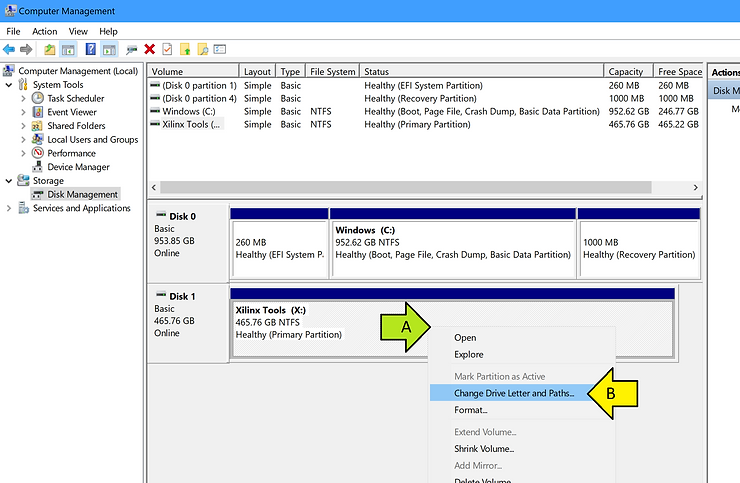
# Plug in the external drive
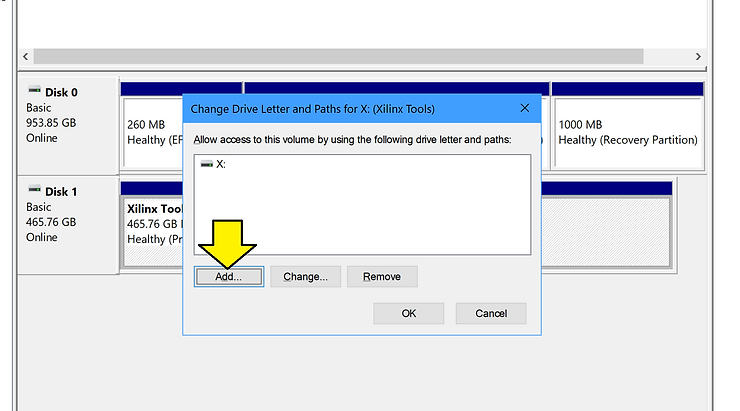
# Right-click on the drive and select Change Drive Letter and Paths…
# Click Add
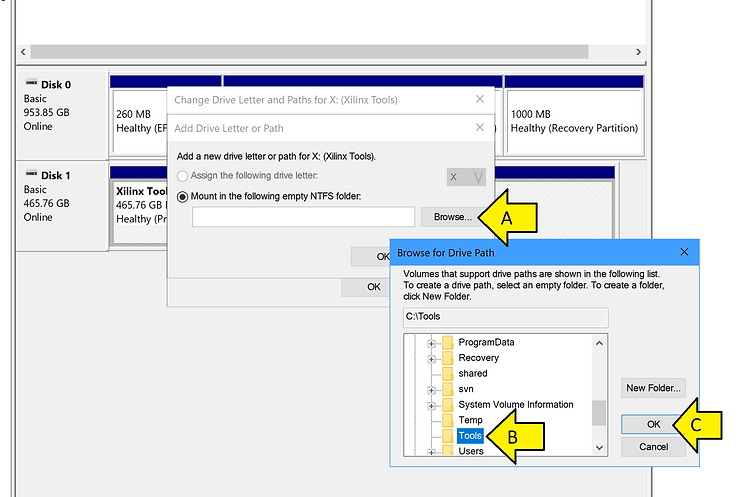
# Click Browse…, click the empty folder (Tools), and click OK
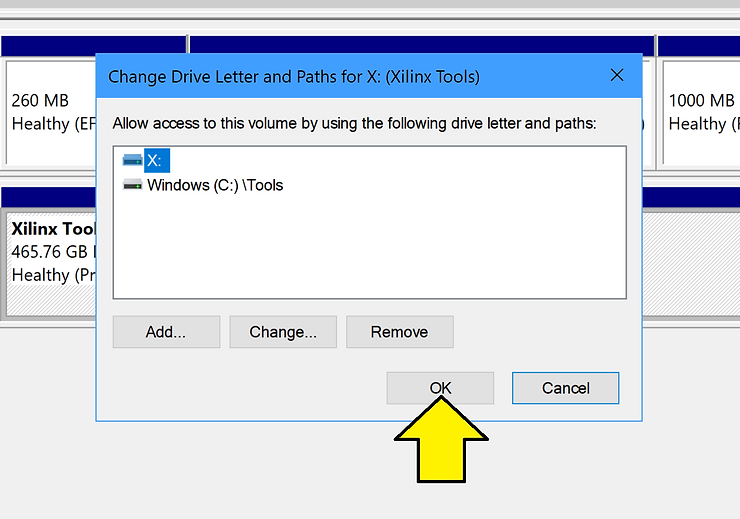
…click OK again.
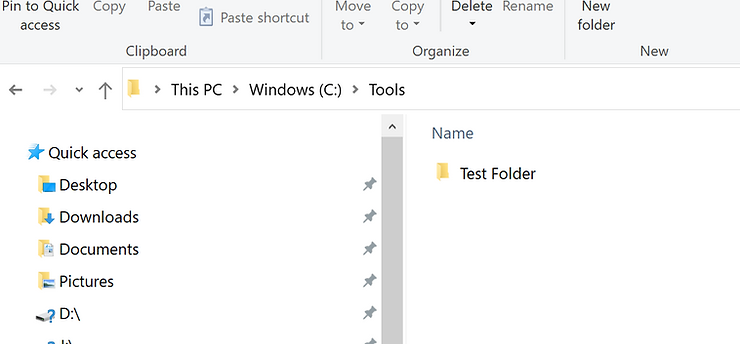
# Browse to the directory and create Test Folder
Testing Samsung Portable SSD T5 Eject and Reinsert
# Close the explorer window to the folder, right-click on the Eject icon, and click on Eject Portable SSD T5 (the name of your drive may be different).
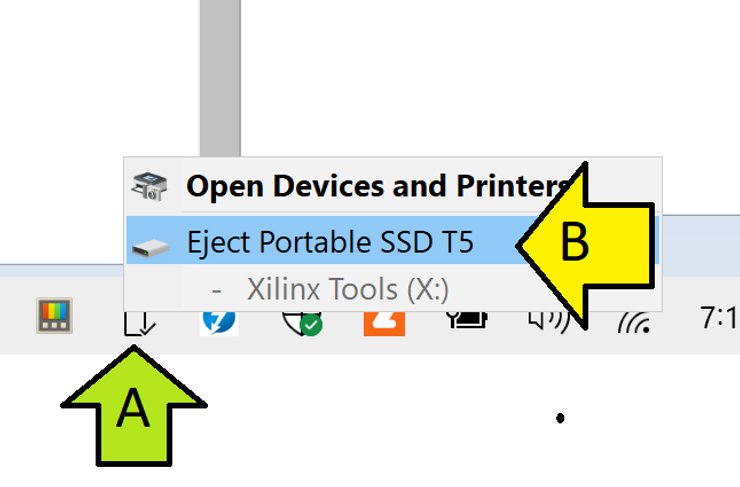
I saw:
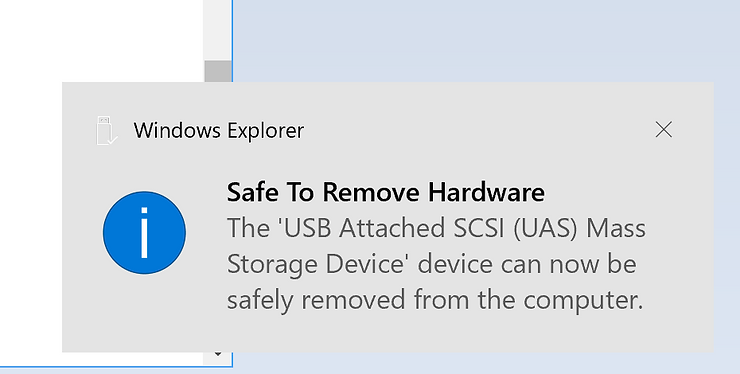
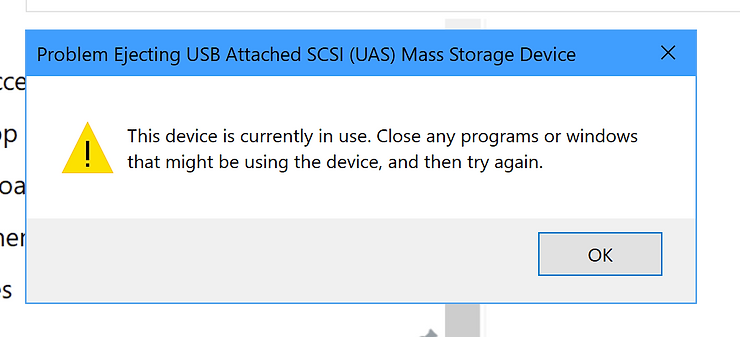
If I was browsing the drive I saw the following:
When I tried to click on the folder where the disk was mounted, I saw:
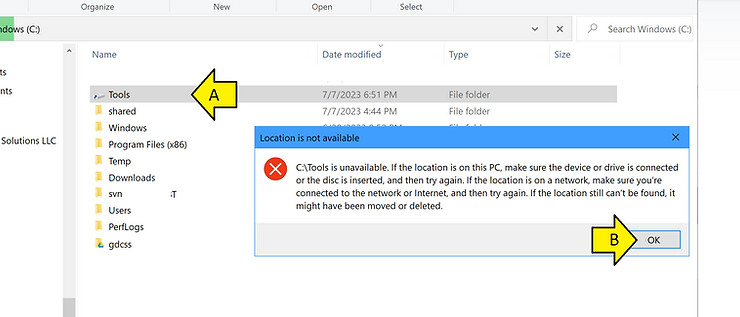
…plugging the external drive back in made it available.
If the drive was plugged in and I slept the computer, then I unplugged the drive, I caused the same “unavailable error.”
If I was exploring the drive and then disconnected it, I saw the “unavailable error.”
If the drive was disconnected, I slept the computer, reconnected it while the computer was asleep, and then woke the computer up, the drive was available.
References
Mount a drive as a folder with Disk Management
https://learn.microsoft.com/en-us/windows-server/storage/disk-management/assign-a-mount-point-folder-path-to-a-drive
Windows 10 Logo
https://commons.wikimedia.org/wiki/File:Windows_logo_-2012%28dark_blue%29.svg
.svg)