

How to Remove Sharing from all Google Drive Files
This post shows how to remove sharing from all your Google Drive files. Its a bit of a workaround, but its better than doing it manually.
Step 1:
In the search-bar type: owner:me before:2019-12-31 after:2019-01-01
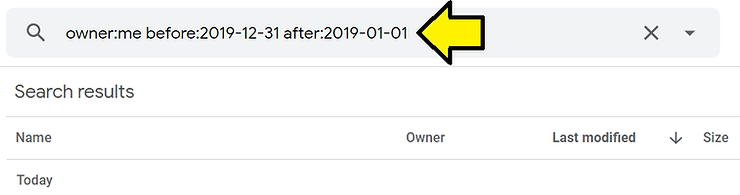
Note: the dates allow only a subset of files to be displayed at a time.
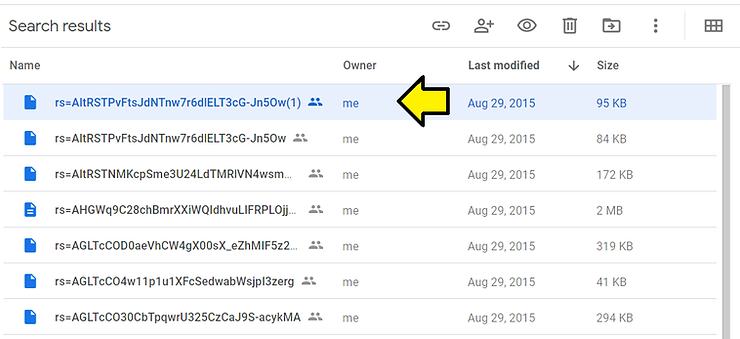
Step 2: Click the first result
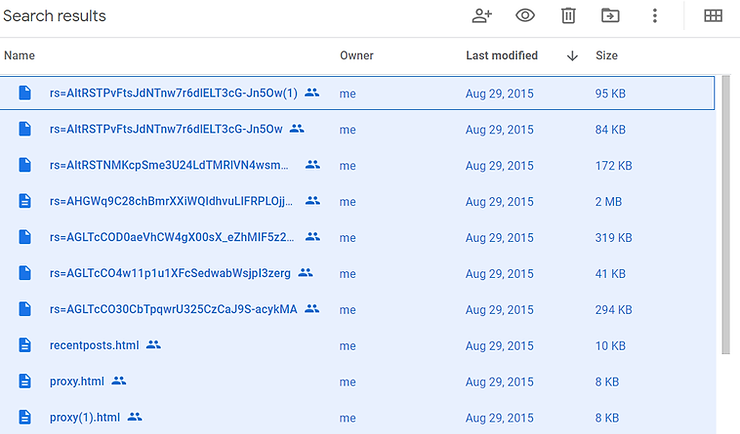
Step 3: Type Ctrl-a
Important Note 1: you may need to scroll down to see all the files
Important Note 2: it may take a log time or hang Google Drive to select them like this
Important Note 3: you can also hold down Ctrl and click each file with the shared icon; the files do not need to be listed contiguously
You should see all the results selected:
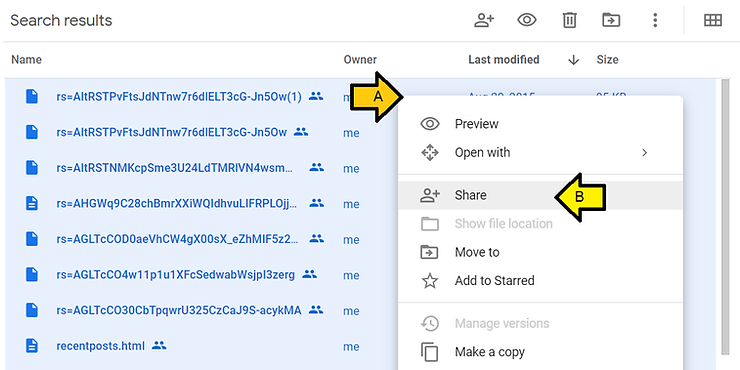
Step 4: Right-click on the first entry and select Share
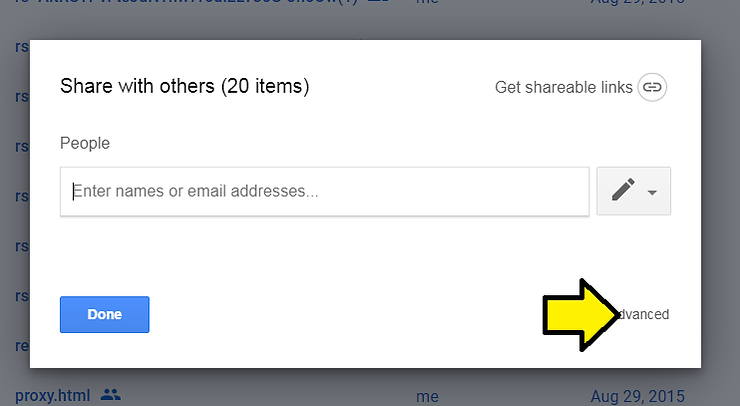
Step 5: Click Advanced
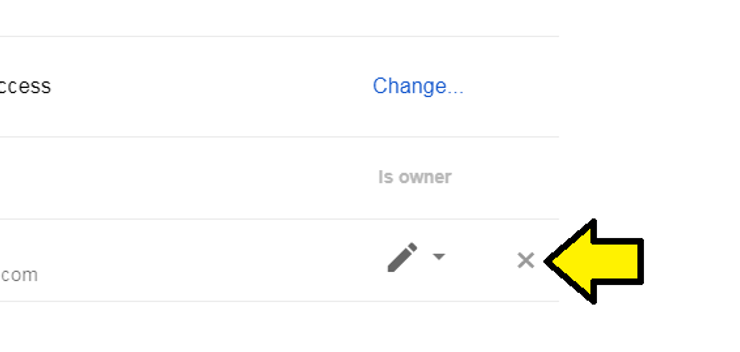
Step 6: Click the x on everyone listed
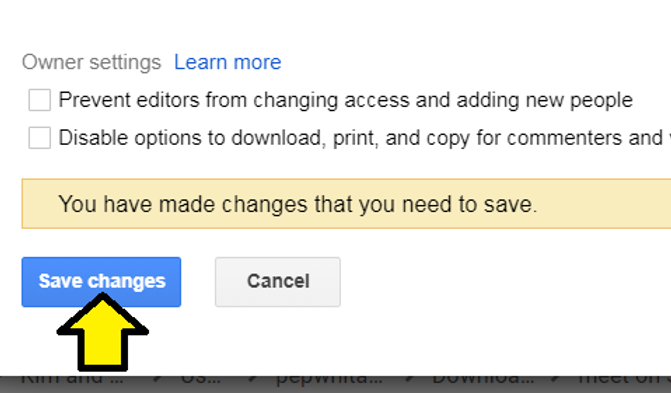
Step 7: Click Save changes
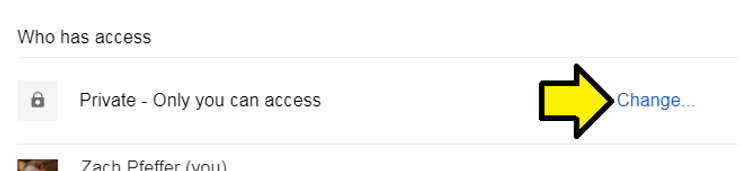
Step 8: Click Change…
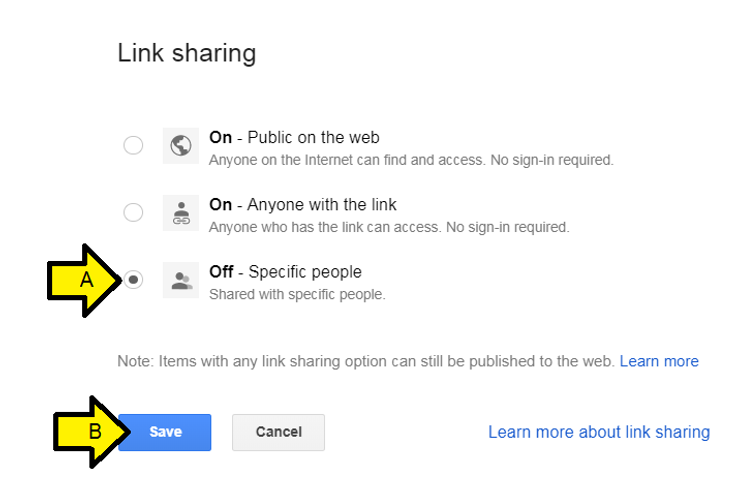
Step 9: (A) Click Off - Specific people and (B) click Save
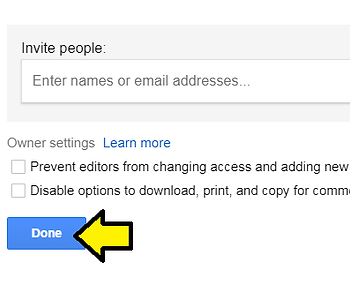
Step 10: Click Done
Step 11: Repeat for each year.
Note: I tried to just use owner:me and press Ctrl-a but my browser hung.
References
- Drive logo from link