

Install 2023.1 Vivado ML Enterprise On Ubuntu 22.04.1

This post shows how to install 2023.1 Vivado ML Enterprise On Ubuntu 22.04.1. It also demonstrates how to recover from a failed installation.
Before you Start
This installation may take a full workday to complete. You will need between 400 and 500 GB of free space. You will also need a network connection of at least 8 MB/sec download to complete this install in about a day.
Create a Directory for the Install
mkdir -p ~/tools/amd/vivadoml/2023.1
Option 1: Run the Installer That Downloads Components
Warning: Don’t use this option because when it fails you’ll need to re-download everything (probably)
chmod +x /mnt/hgfs/Installers/Xilinx/2023.1/Xilinx_Unified_2023.1_0507_1903_Lin64.bin
/mnt/hgfs/Installers/Xilinx/2023.1/Xilinx_Unified_2023.1_0507_1903_Lin64.bin
Note: record where the installer is located, how you launched it, and where you installed it. You’ll run this installer multiple times to install different tools.
Option 2: Extract The Single File Download and Run the Installer
rsync -ah --progress /mnt/hgfs/Installers/Xilinx/2023.1/Xilinx_Unified_2023.1_0507_1903.tar.gz ~/
cd ~/
tar -xvf Xilinx_Unified_2023.1_0507_1903.tar.gz
./Xilinx_Unified_2023.1_0507_1903/xsetup
Note: again, I recommend downloading the SFD and using it. If the “downloading installer” fails, you may need to redownload everything again.
Install Additional Packages to Ensure “Vivado ML 2021.2 is stuck on Generating installed device list” Doesn’t Happen
# Run:
sudo apt-get install libtinfo5
Install
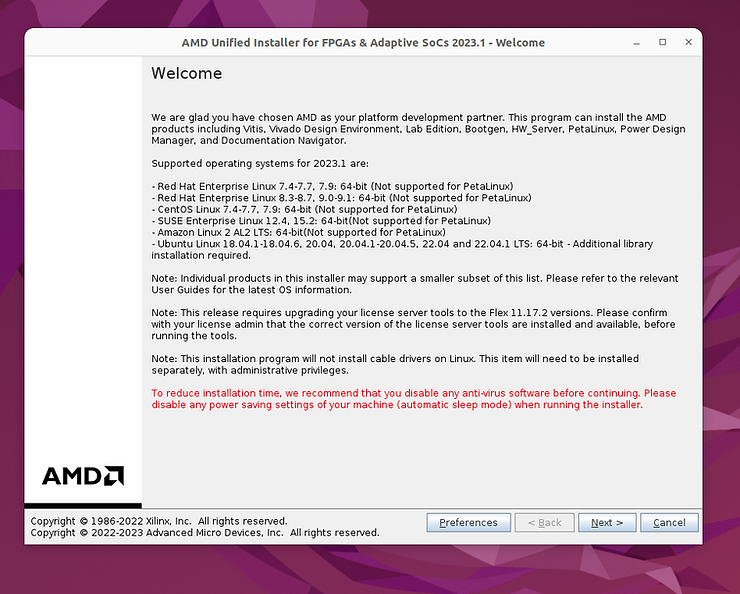
Preferences
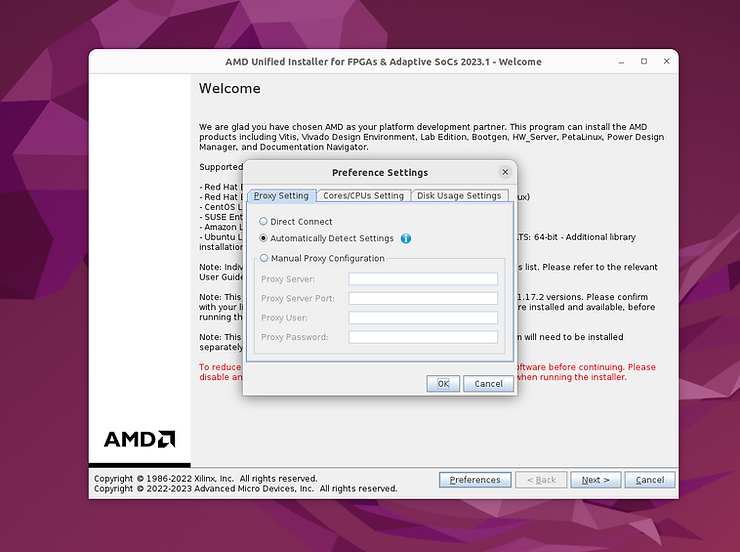
Proxy setting preferences
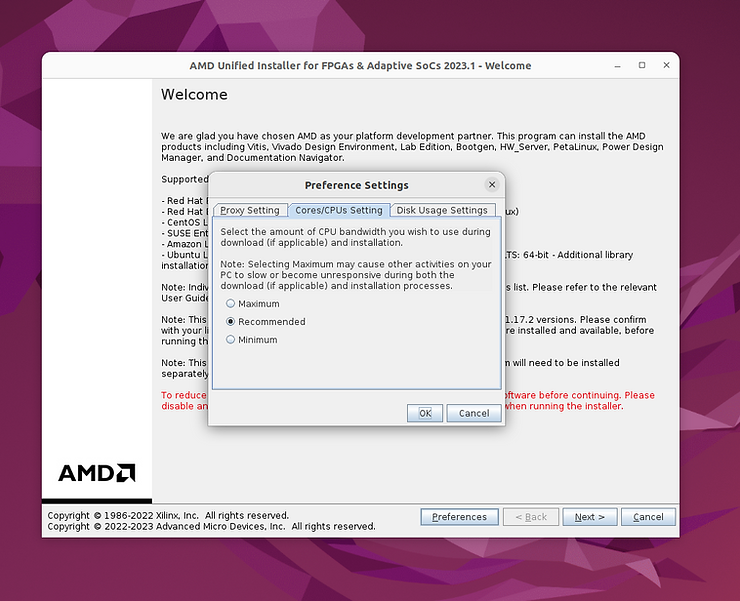
Cores/CPUs settings preferences
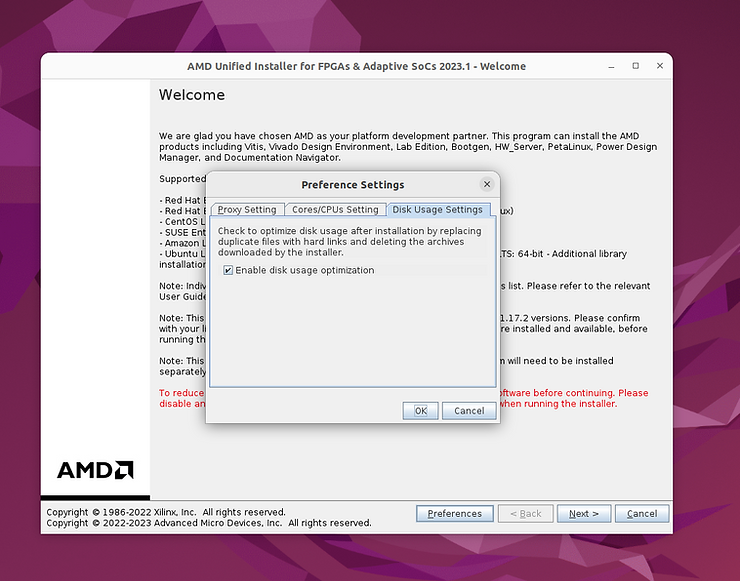
Disk usage settings preferences
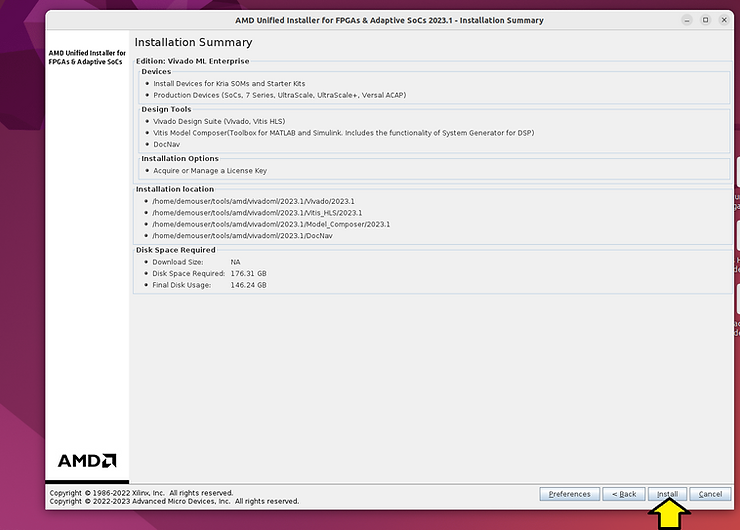
Installation
This vvv window is not present on the SFD.
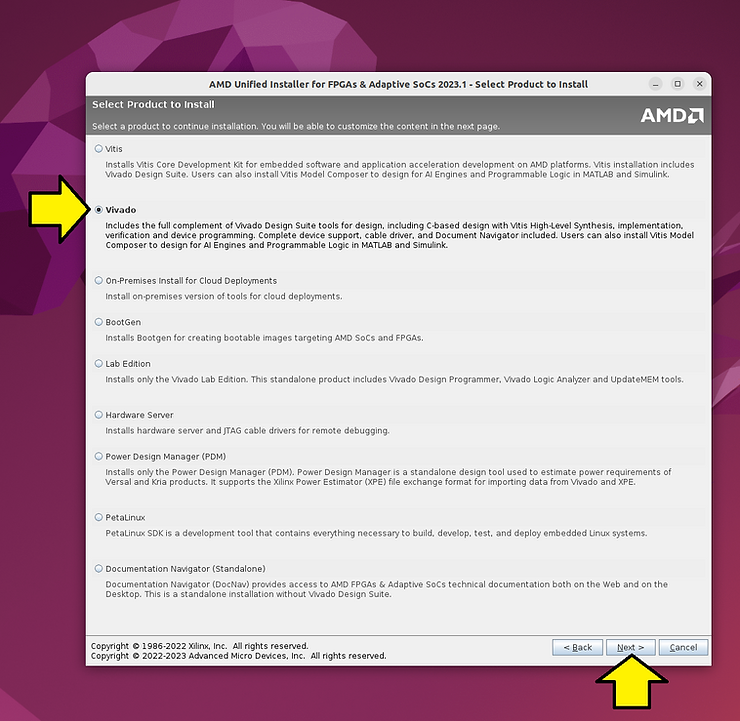
# Select Vivado
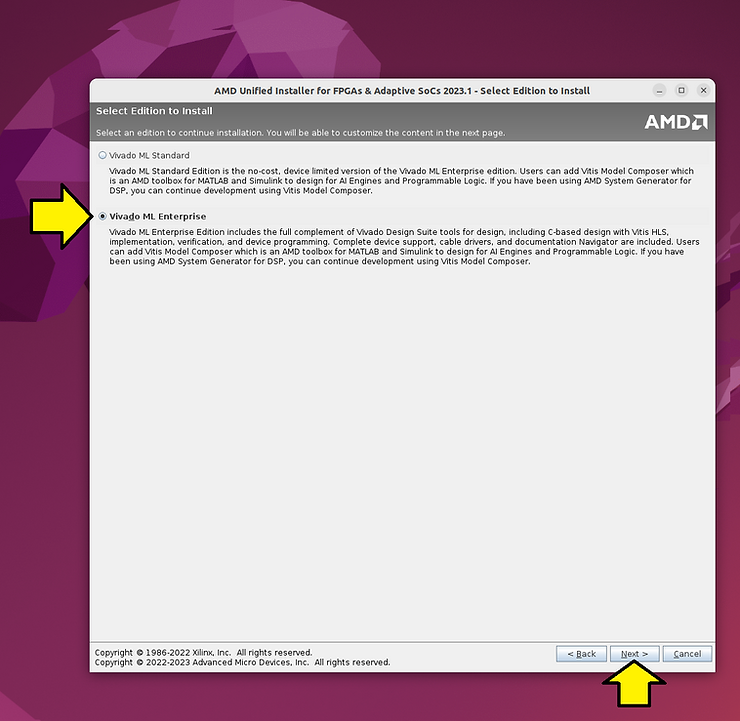
# Select Vivado ML Enterprise
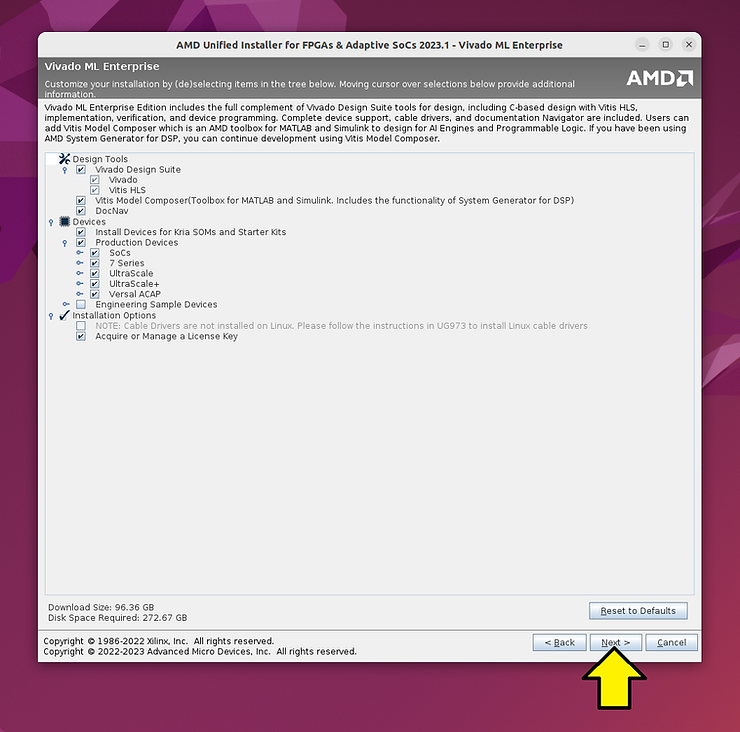
# The default installation options
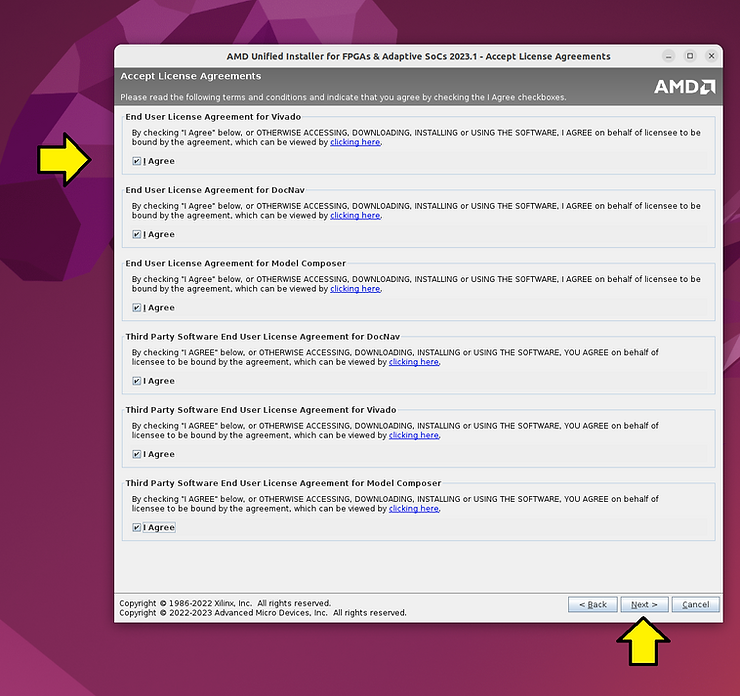
# Accept all license agreements
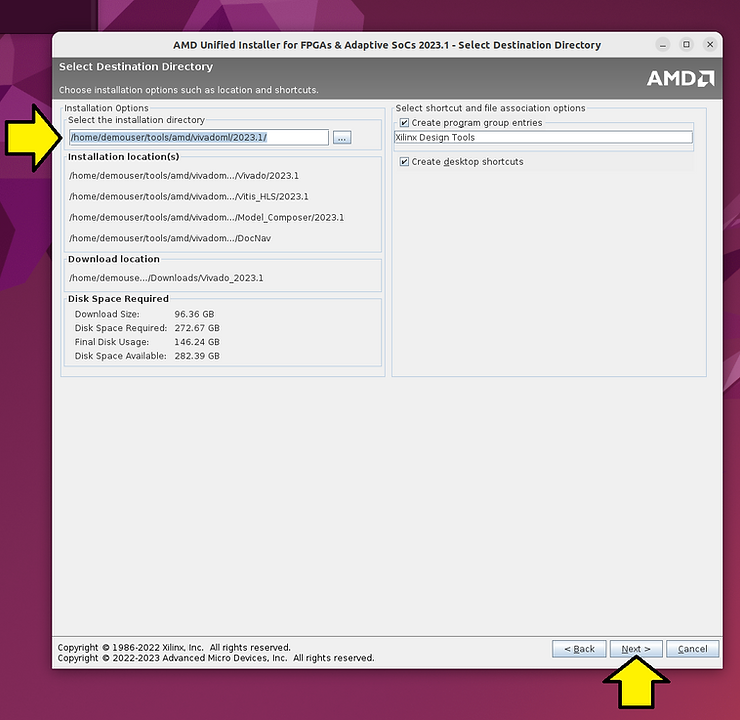
Use /home/demouser/tools/amd/vivadoml/2023.1 as the installation directory.
SFD Installer:
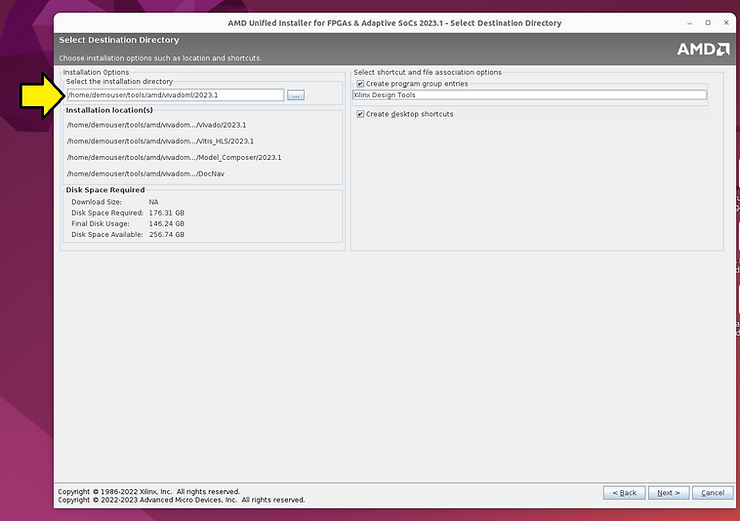
Downloading installer version:
SFD installer version:
Downloading installer version:
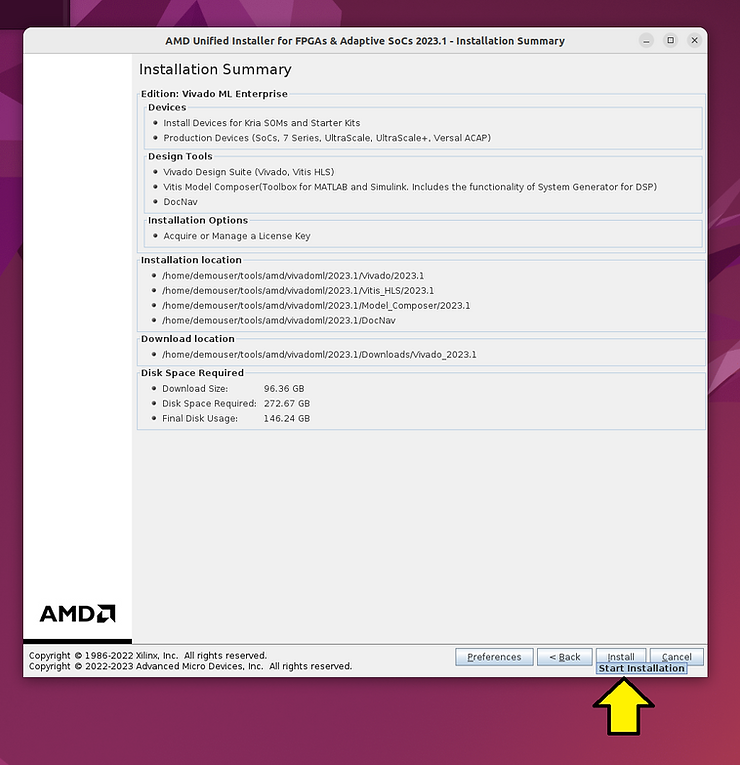
Installer Progress
SFD Installer:
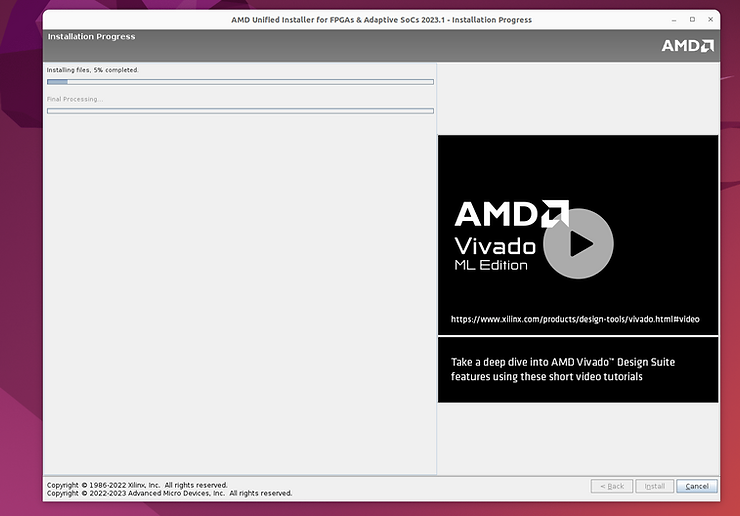
Downloading installer version:
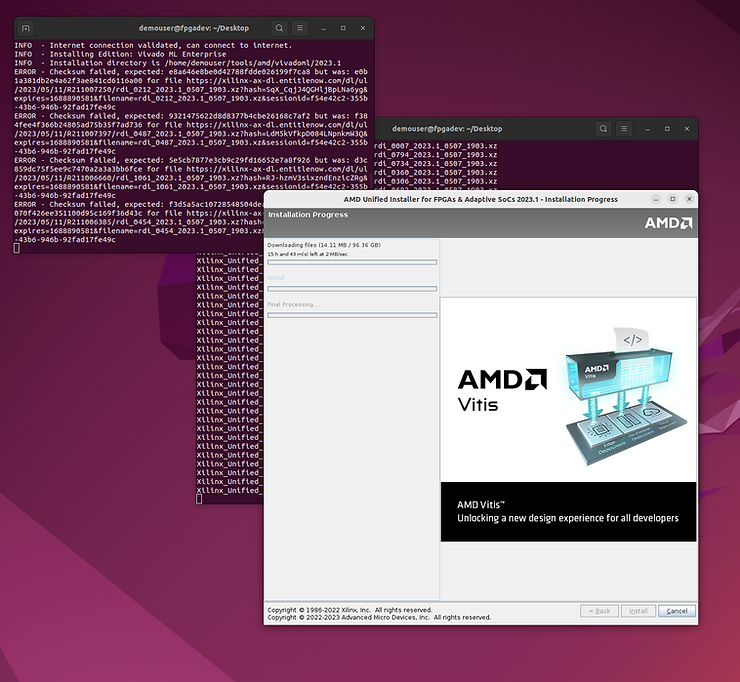
Downloading installer after 3h and 17 min and 82% installation
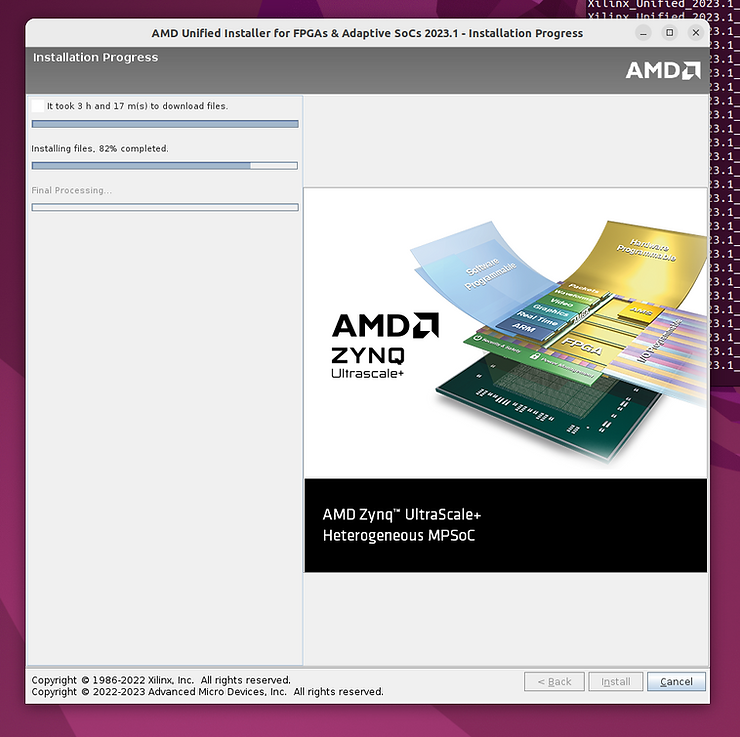
In the installation hangs here see the fix above (you will need to cancel the install and redo the entire thing):
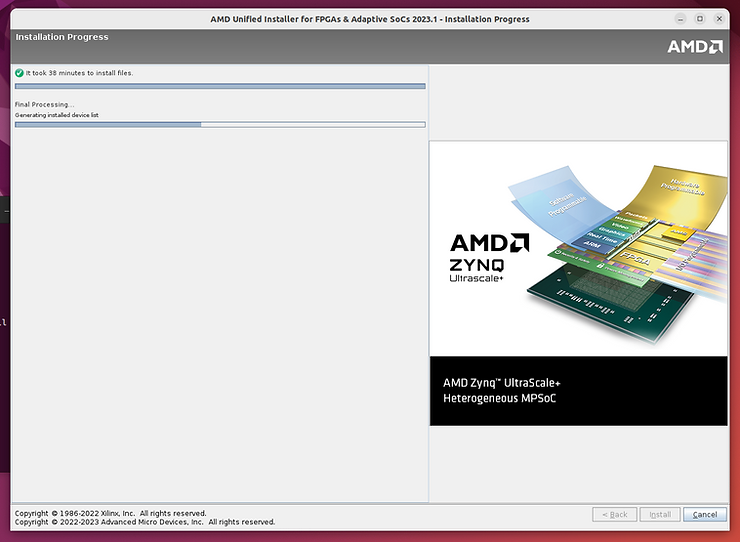
The completed install screen is not shown.
Generate a License and Save It
# Got to https://xilinx.entitlenow.com/AcrossUser/main.gsp?product=&tab=&req_hash=&
# Click the “Create New Licenses” tab
# Select the Vivado ML Enterprise Edition, Node-Locked License
# Click the “Generate Node-Locked License” button
# Under 2 SYSTEM INFORMATION, select the pull down next to the Select a host… button and click “Add a host…”
# Host Name: fpgadev (type: “hostname” on Linux)
Operating System: Linux 64-bit
Host ID Type: Ethernet MAC
| Host ID Value: (type: “sudo apt-get install net-tools” then “ifconfig | grep ether”) |
# Add a comment:
For Zach Pfeffer’s vmwaredisk-20230708-vivado_22.04.1-on-ubuntu_22.04.01
# Click Next
# On the REVIEW LICENSE REQUEST window, click Next
# Save the emailed license (Xilinx.lic) to ~/
cp /mnt/hgfs/Installers/Xilinx/Xilinx.lic ~/
# Click Load License
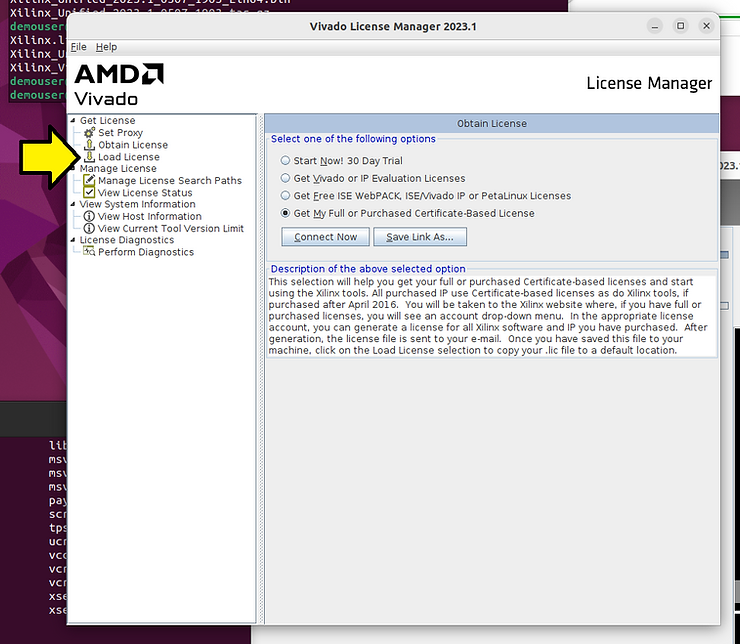
# Click Copy License
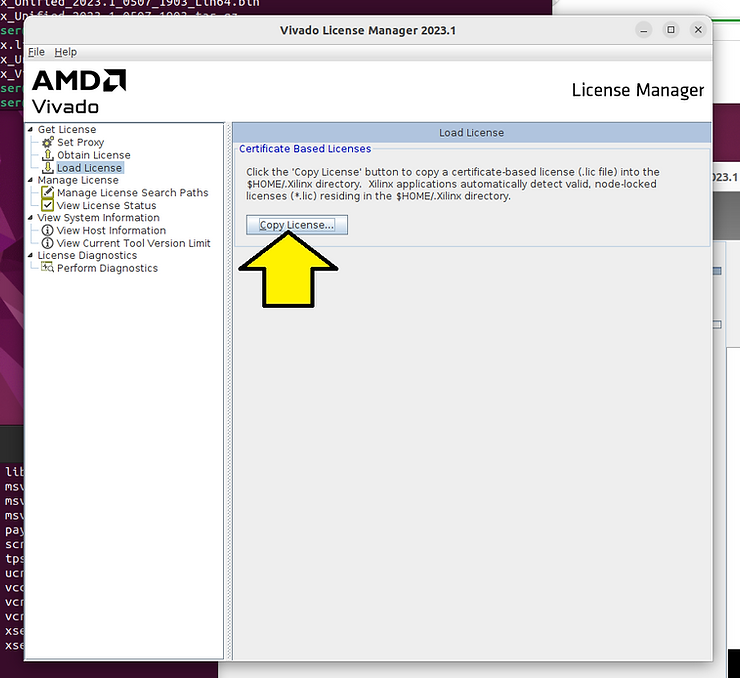
# Find the Xilinx.lic
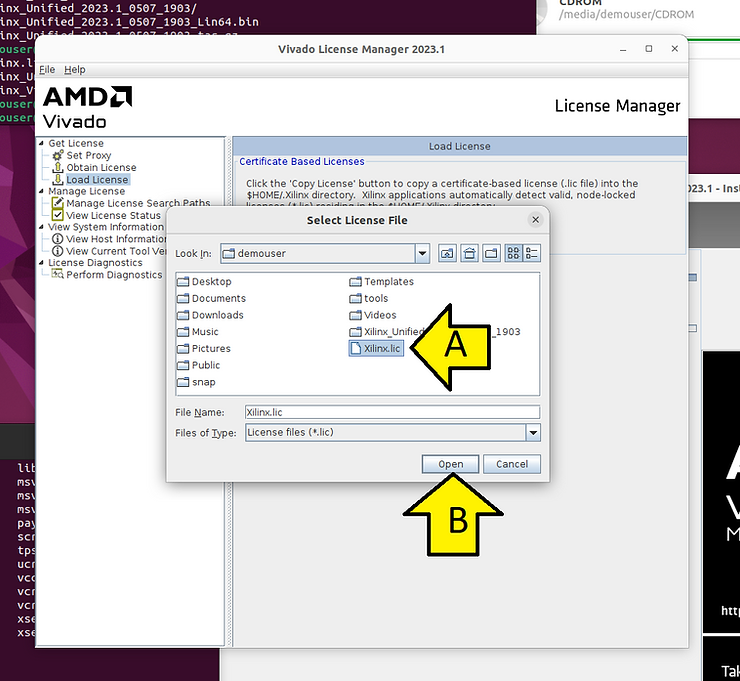
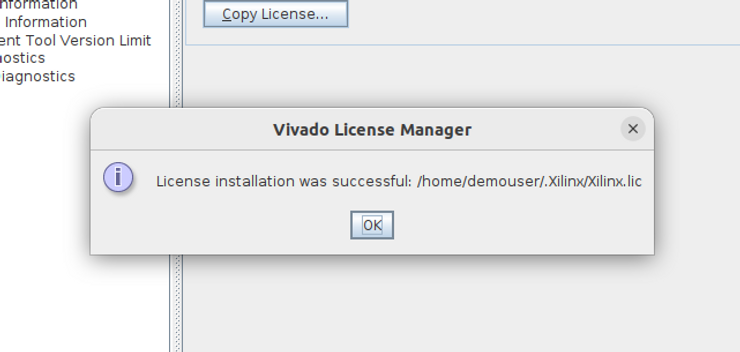
You should see:
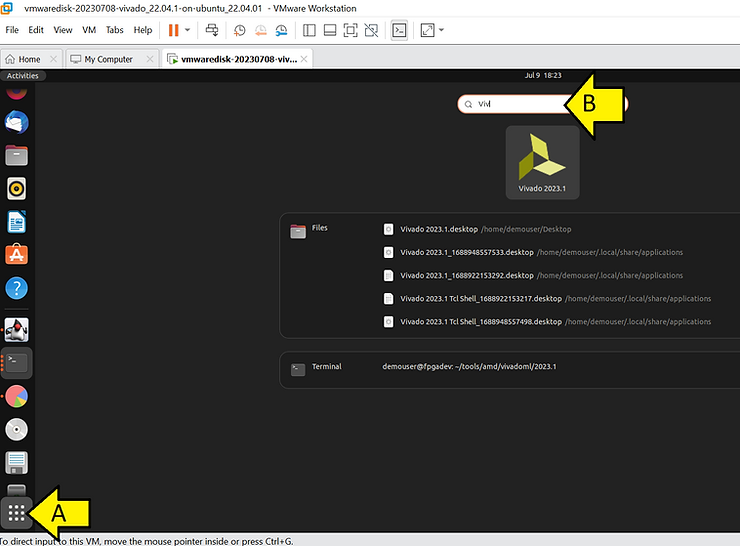
Run Vivado
Install Cable Drivers on Linux
Adapted from https://docs.xilinx.com/r/en-US/ug973-vivado-release-notes-install-license/Installing-Cable-Drivers
cd ~/tools/amd/vivadoml/2023.1/Vivado/2023.1/data/xicom/cable_drivers/lin64/install_script/install_drivers/
sudo ./install_drivers
You should see output similar to:
[sudo] password for demouser:
INFO: Installing cable drivers.
INFO: Script name = ./install_drivers
INFO: HostName = fpgadev
INFO: RDI_BINROOT= .
INFO: Current working dir = /home/demouser/tools/amd/vivadoml/2023.1/Vivado/2023.1/data/xicom/cable_drivers/lin64/install_script/install_drivers
INFO: Kernel version = 5.19.0-46-generic.
INFO: Arch = x86_64.
Successfully installed Digilent Cable Drivers
--File /etc/udev/rules.d/52-xilinx-ftdi-usb.rules does not exist.
--File version of /etc/udev/rules.d/52-xilinx-ftdi-usb.rules = 0000.
--Updating rules file.
--File /etc/udev/rules.d/52-xilinx-pcusb.rules does not exist.
--File version of /etc/udev/rules.d/52-xilinx-pcusb.rules = 0000.
--Updating rules file.

INFO: Digilent Return code = 0
INFO: Xilinx Return code = 0
INFO: Xilinx FTDI Return code = 0
INFO: Return code = 0
INFO: Driver installation successful.
CRITICAL WARNING: Cable(s) on the system must be unplugged then plugged back in order for the driver scripts to update the cables.
Recover from a Crashed Install
Note: depending on when the installation crashes, the installer may redownload all components.
To recover from a crashed install:

Run:
rm -rf "/home/demouser/.config/menus/applications-merged/Xilinx Design Tools.menu"
cd ~/tools/amd/vivadoml/2023.1
rm -rf Vivado/
rm -rf Vitis_HLS/
rm -rf Model_Composer/
This post has shown how to install 2023.1 Vivado ML Enterprise on Ubuntu 22.04.1.
References
Logo
https://library.amd.com/media/?mediaId=84C3498C-1B51-4965-93729CC284CD2DC2
Vivado 2020.2 Installation stuck at “Generating installed device list” on UBUNTU 20.04LTS
https://support.xilinx.com/s/question/0D52E00006hpRxQSAU/vivado-20202-installation-stuck-at-generating-installed-device-list-on-ubuntu-2004lts?language=en_US
76616 - Vitis 2021.1 - Install - Install hangs on Ubuntu 20.04
63794 - Install - What Ubuntu files are required for Vivado to run successfully?
https://support.xilinx.com/s/article/63794?language=en_US