Install 64bit Ubuntu 16.04.3 on a VirtualBox 5.2.12 Managed Virtual Machine Running on Windows 7 SP1

This post shows you how to install 64-bit Ubuntu 16.04.3 on a VirtualBox 5.2.12 managed virtual machine running on Windows 7 SP1.
Click [here] if you need to know how to download VirtualBox 5.2.12 and install it on Windows 7 SP1.
Create the Virtual Machine
1. Create a folder called isos in C:\
If you need help creating a folder on Windows 7 SP1 click [link] for instructions.
2. Download Ubuntu 16.04.3 (filename: ubuntu-16.04.3-desktop-amd64.iso, size 1.47 GB) at [link] to C:\isos
3. Run VirtualBox
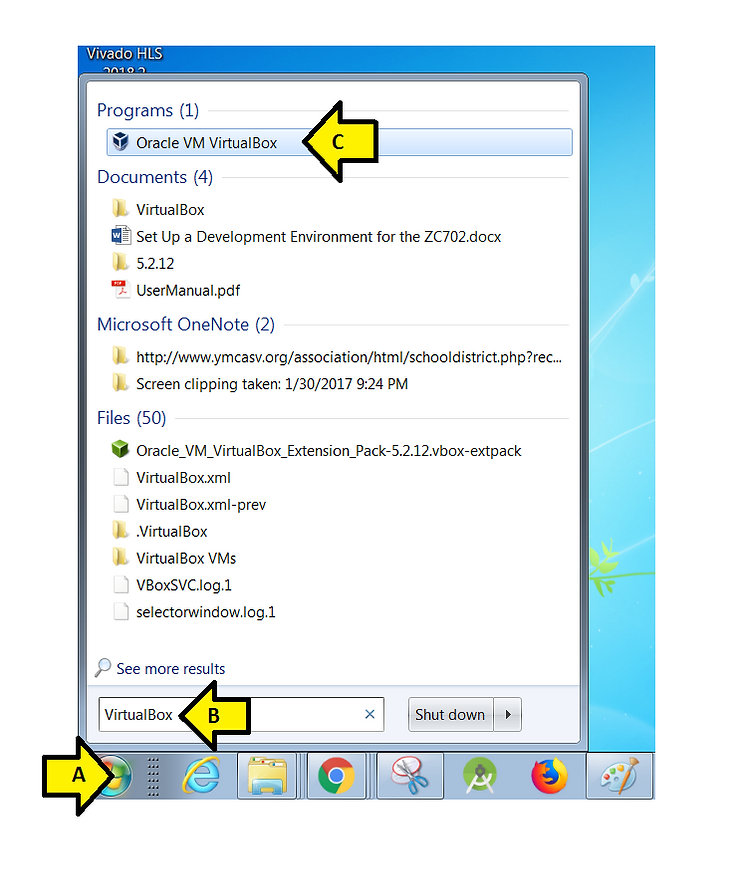
A) Click the Windows icon
B) Type VirtualBox
C) Click Oracle VM VirtualBox
4. Click New
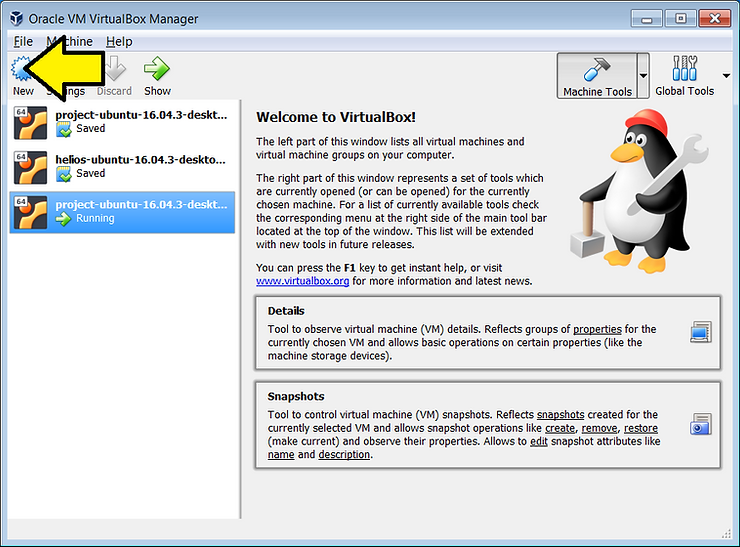
5. Set Name and operating system
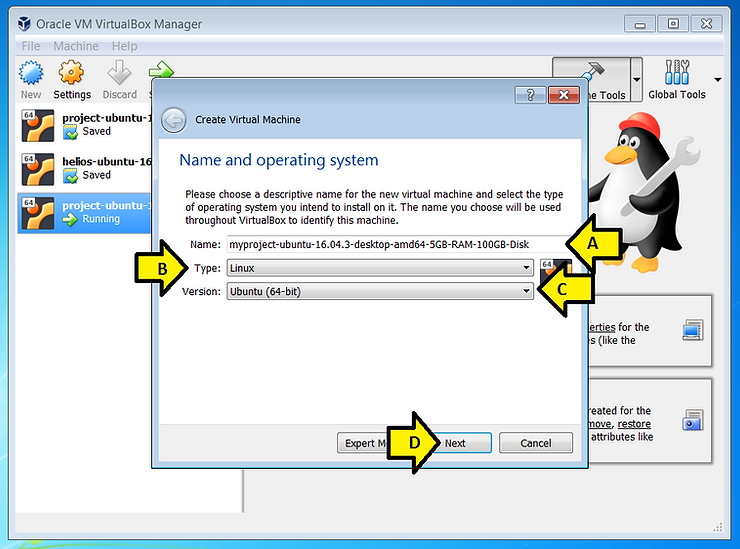
A) Set Name: to myproject-ubuntu-16.04.3-desktop-amd64-5GB-RAM-100GB-Disk
B) Set Type: to Linux
C) Set Version: to Ubuntu (64-bit)
Note: if you don’t see Ubuntu (64-bit) you may need to enable virtualization technology in your BIOS, click [here] for instructions on a T460 that may help you enable this in the BIOS of your computer.
D) Click Next
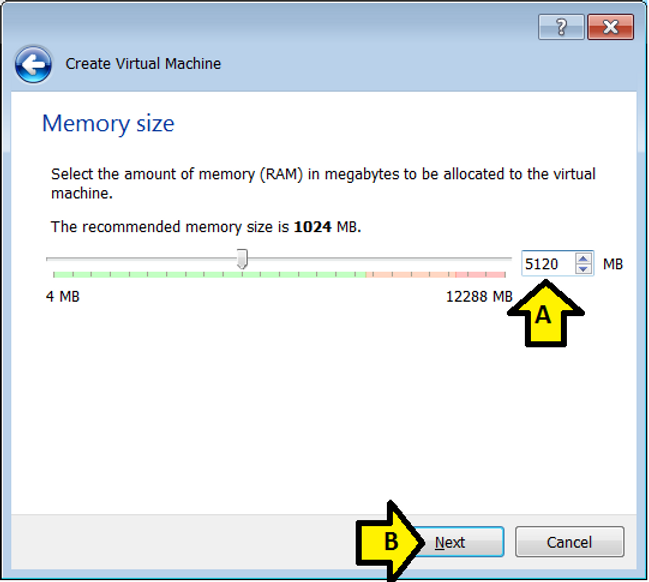
6. Set Memory size to 5120 MB by (A) typing 5120 into the MB field and (B) clicking Next
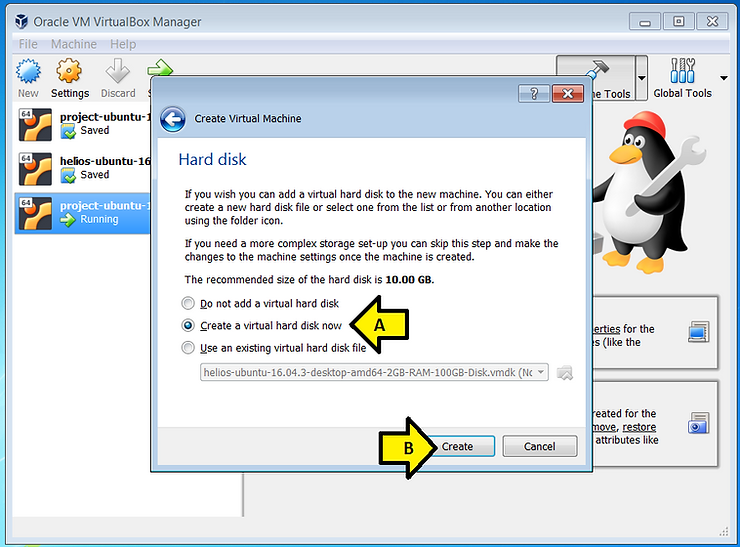
7. (A) Leave Create a virtual hard disk now selected and (B) click Create
8. (A) Select VMDK (Virtual Machine Disk) and (B) click Next
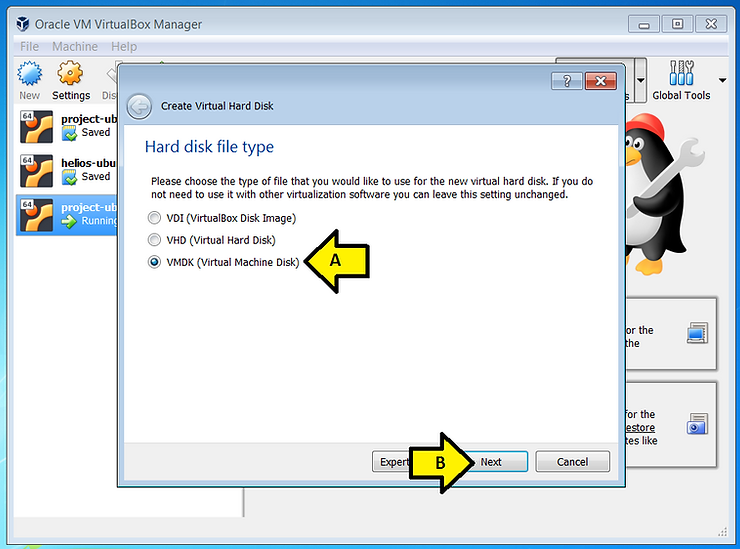
Note: VMDK files can be used on other virtual machines and products: VMware, Parallels Desktop, Sun xVM, QEMU, SUSE Studio, Norton GHOST and ILookIX and the .NET DiscUtils Open Source C# library.
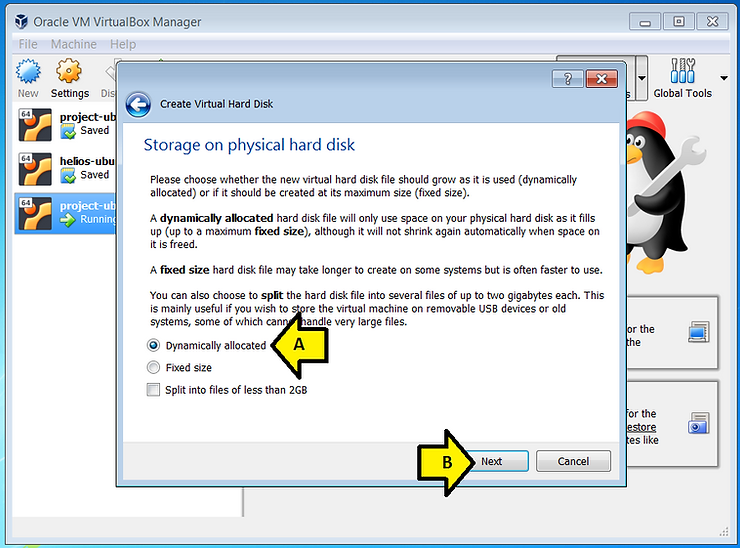
9. (A) Leave Dynamically allocated selected and (B) click Next
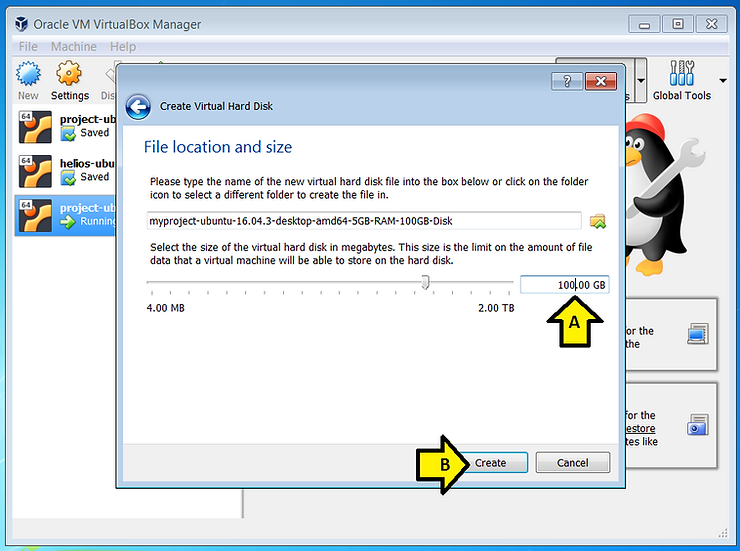
10. (A) Set the size of the disk to 100 GB (it won’t use 100 GB right away because the disk grows dynamically) and (B) click Create
Install Ubuntu on the Virtual Machine
1. Open the virtual machine’s settings window
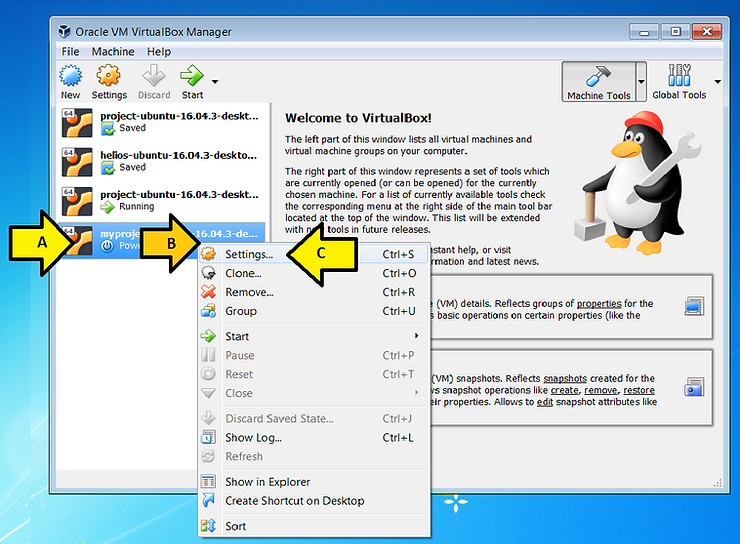
A) Select myproject-ubuntu-16.04.3-desktop-amd64-5GB-RAM-100GB-Disk
B) Right-click on myproject-ubuntu-16.04.3-desktop-amd64-5GB-RAM-100GB-Disk
C) Select Settings…
2. Tell the virtual machine where the Ubuntu ISO is
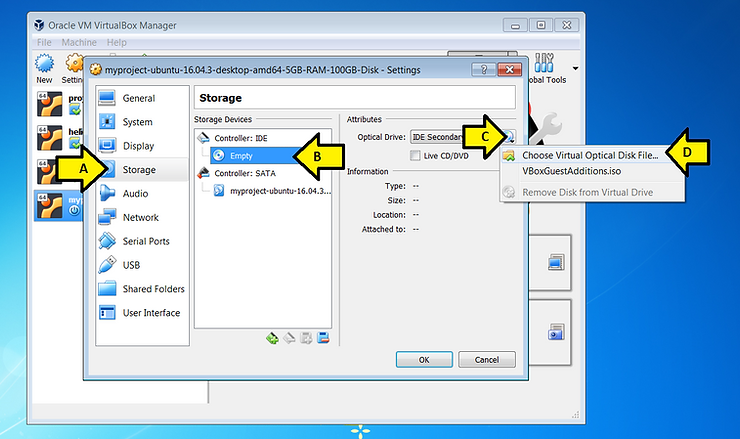
A) Select Storage
B) Click Empty
C) Click on the disc drop down
D) Select Choose Virtual Optical Disk File…
3. Find the Ubuntu ISO
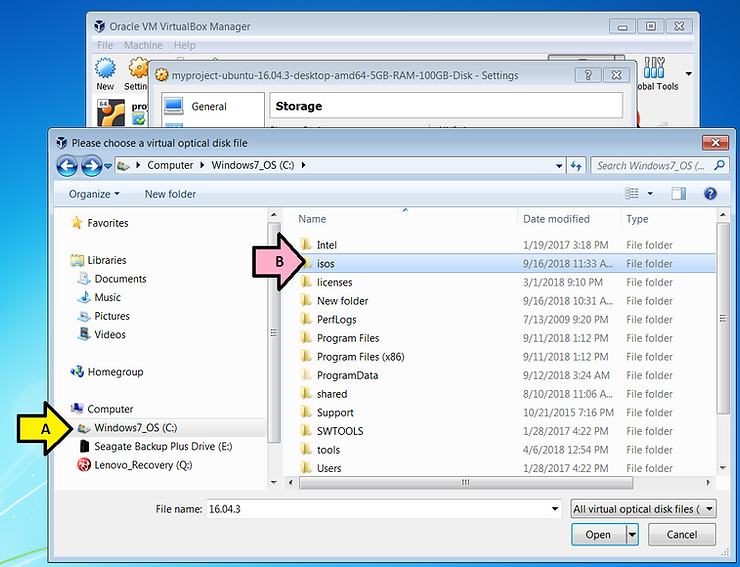
A) Select C:\
B) Double-click isos
4. Select the ISO
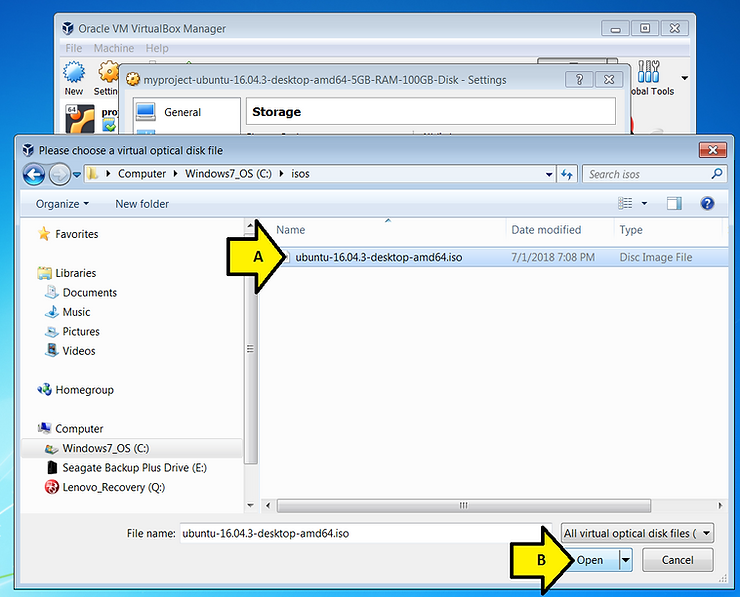
A) Select the ubuntu-16.04.3-desktop-amd64.iso file
B) Click Open
5. Check the settings and click OK
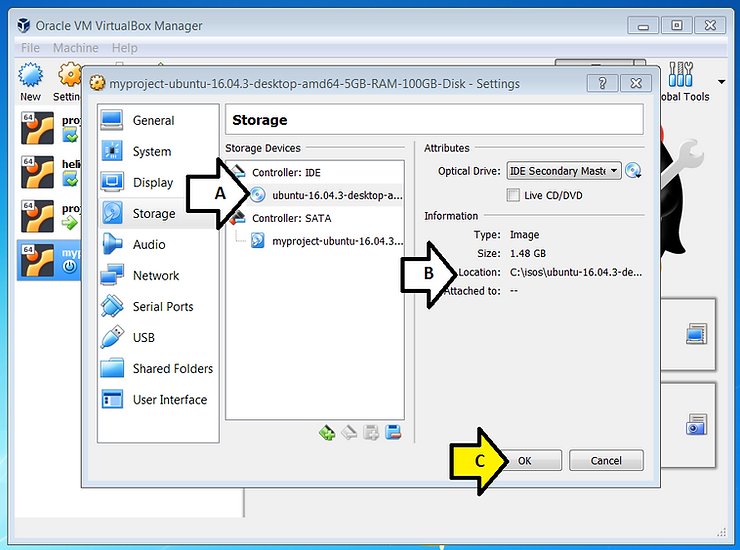
A) Check under Controller: IDE
B) Check the Location
C) Click OK
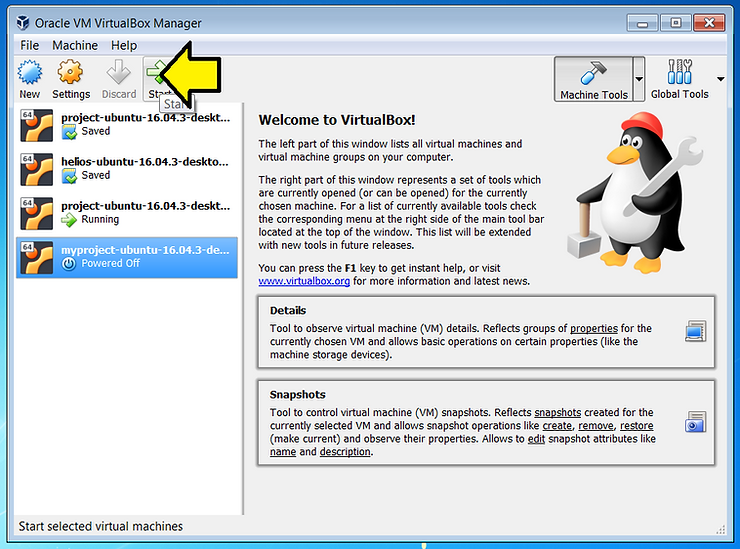
6. With myproject-ubuntu-16.04.3-desktop-amd64-5GB-RAM-100GB-Disk Click Start
Possible Error
If you see this error (click the triangle to expand the error message):
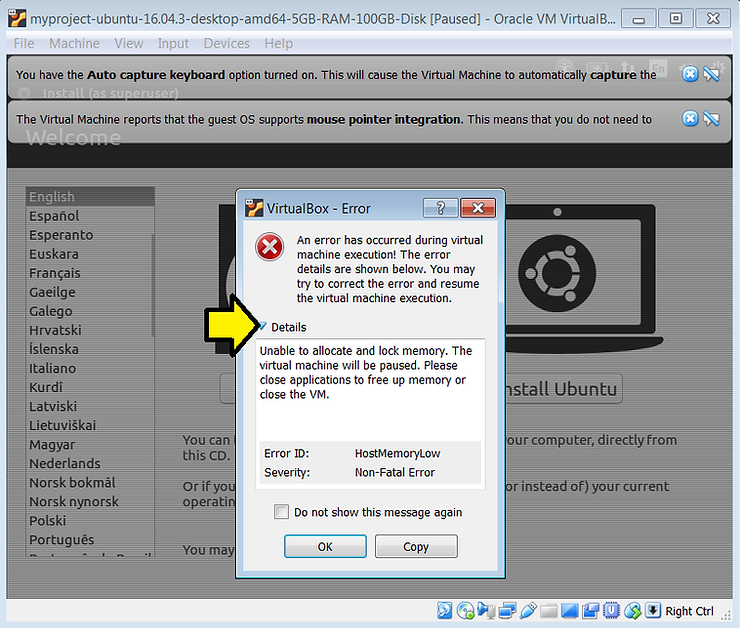
Close some other programs to free up at least 5 GB of memory.
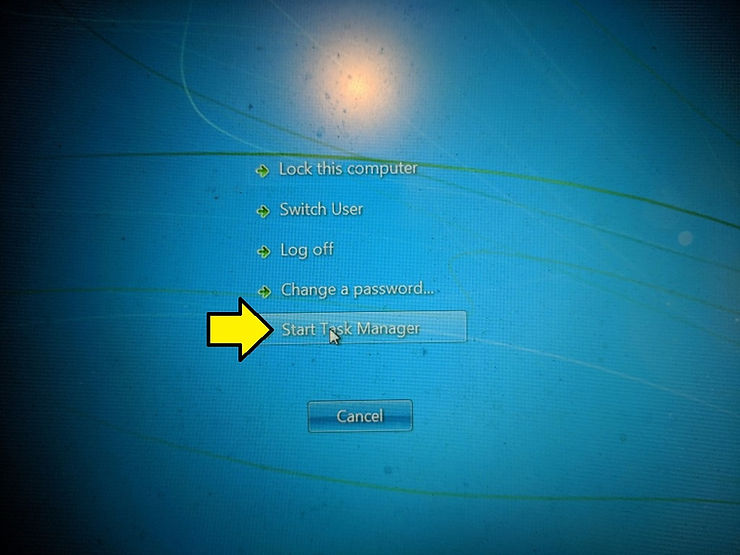
To check how much memory you have free
A) Press Control-Alt-Delete
B) Click Start Task Manager
Check available memory by (A) making sure Available memory is over 5 GB
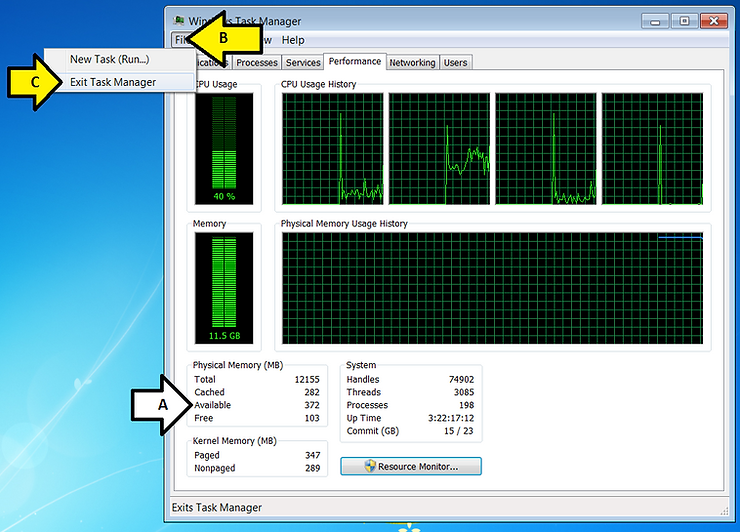
Close the Task Manage by (B) selecting File and clicking Exit Task Manager
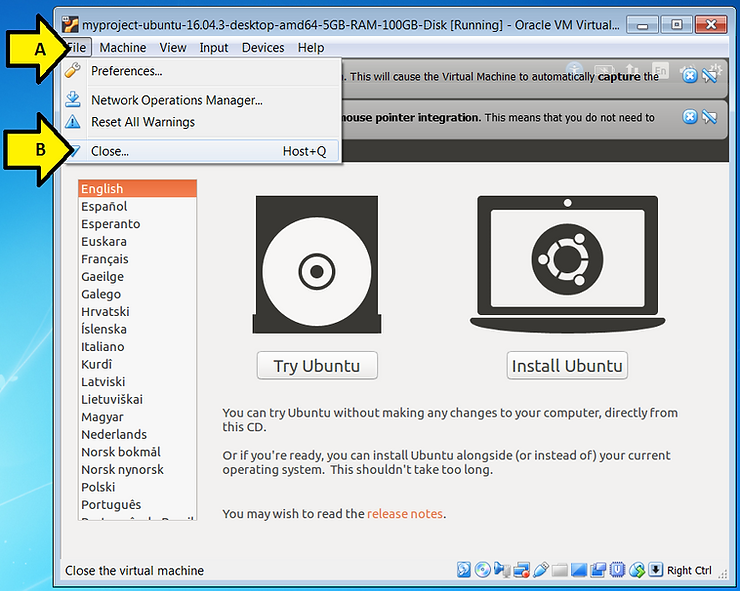
To “clear” the error and try again (A) click File then (B) click Close… then
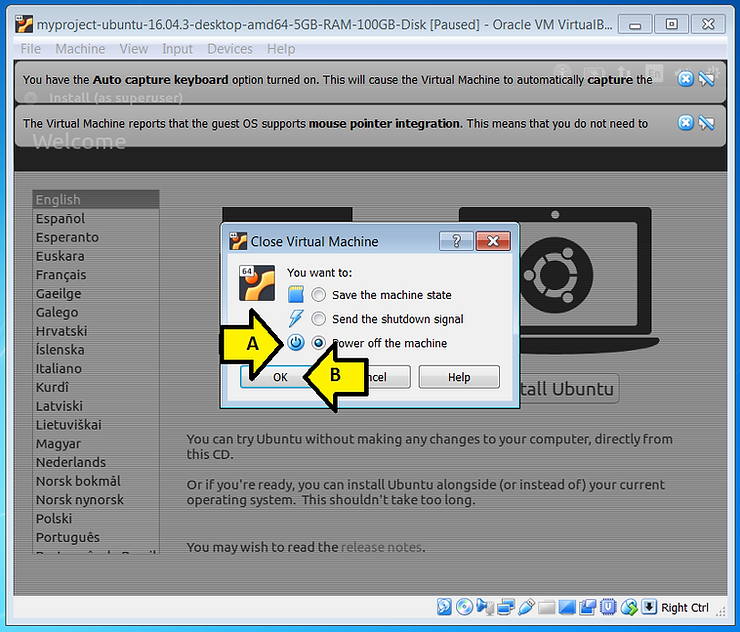
(A) select Power off the machine and (B) click OK
7. Start the install
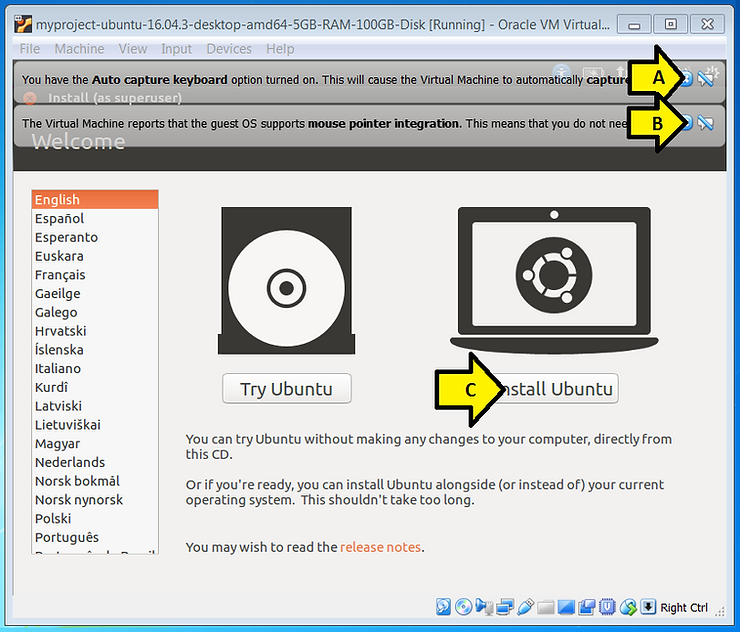
A) Close the Auto capture keyboard notification
B) Close the mouse pointer integration
C) Click Install Ubuntu
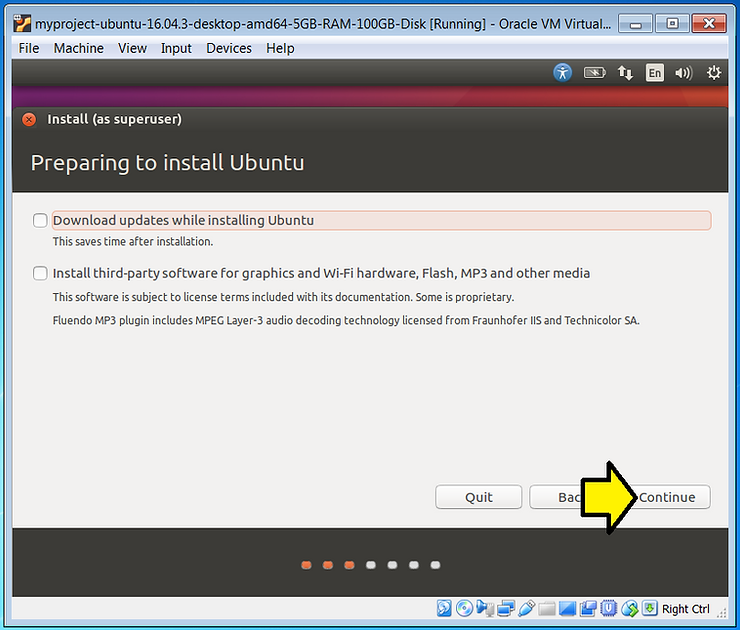
8. Click Continue on the Preparing to install Ubuntu screen
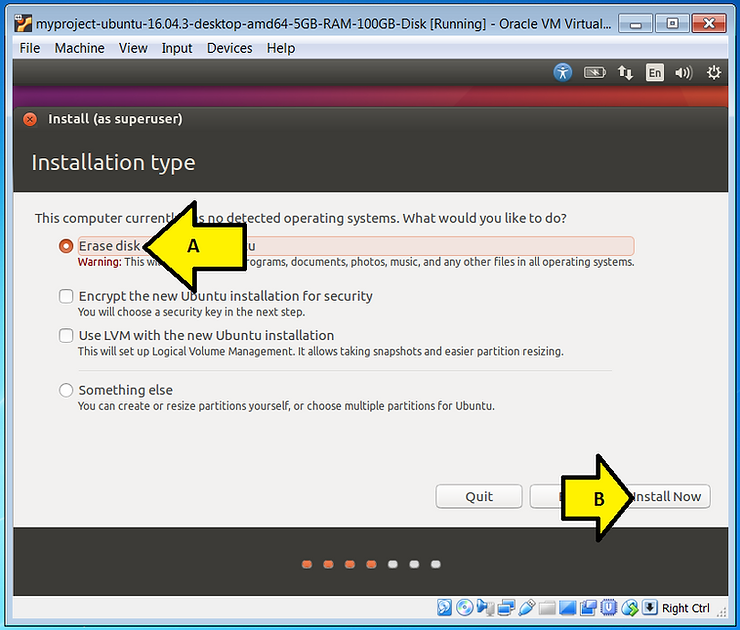
9. (A) Leave Erase disk and install Ubuntu selected and (B) click Install Now
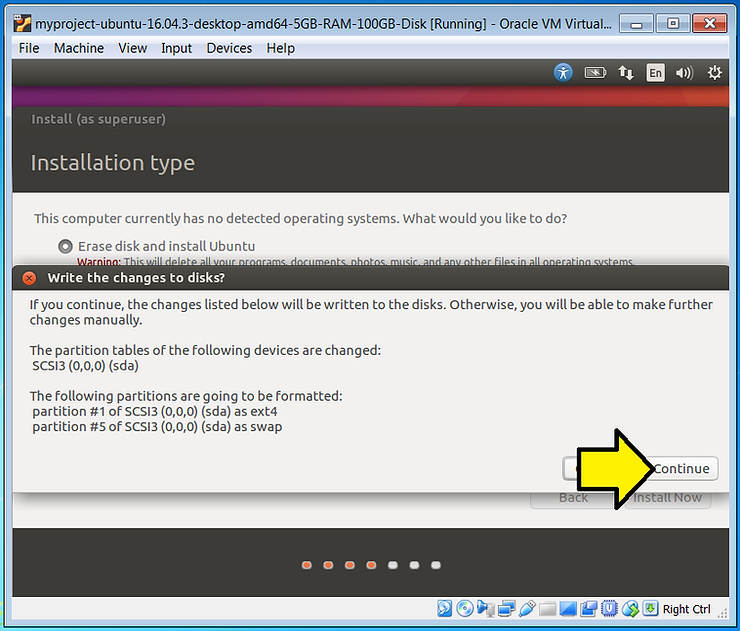
10. Click Continue on the Write the changes to disks? prompt
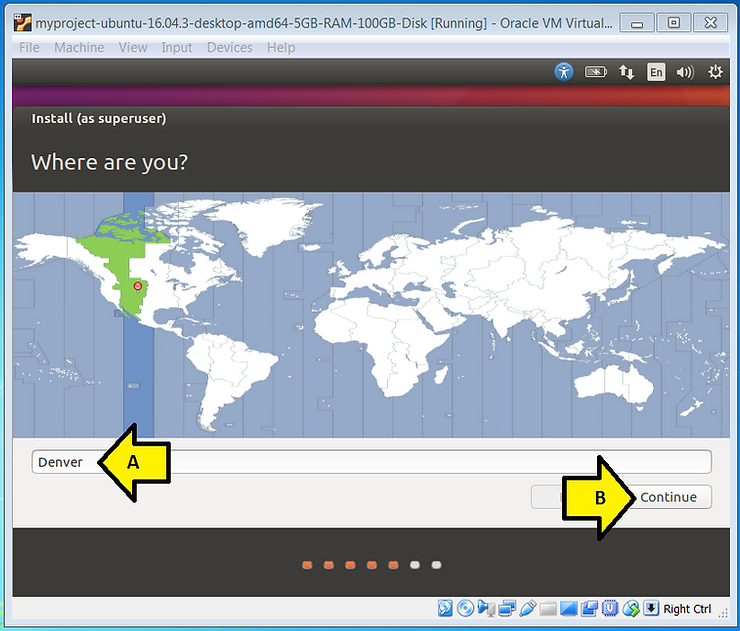
11. (A) Type where you’re from and (B) click Continue
12. Specify the Keyboard layout
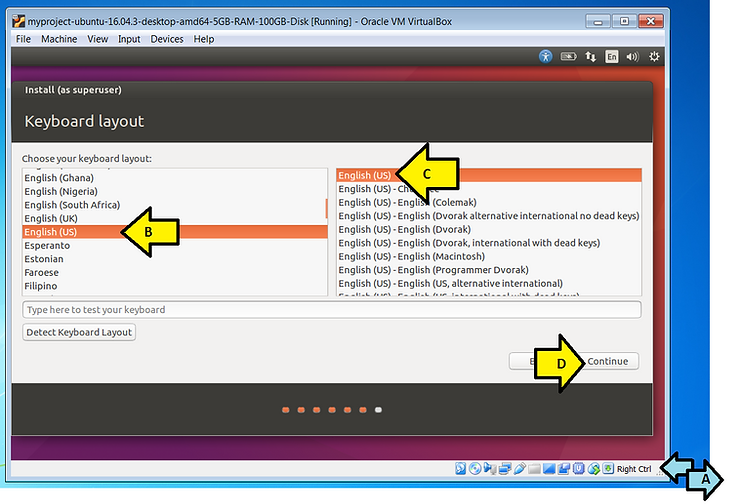
A) Click, hold and grab the window to increase the size
B) Select your keyboard layout
C) Select your language
D) Click Continue
13. Fill in the Who are you? screen
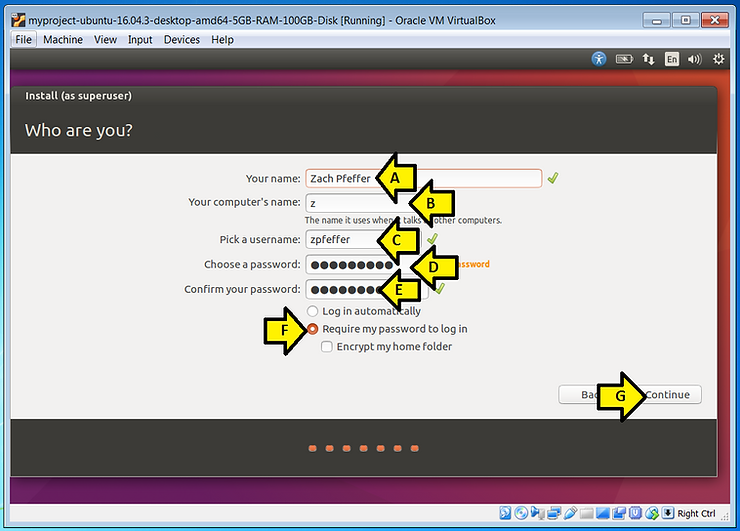
A) Fill in You name with your name
B) Fill in Your computer’s name with the name of the computer
C) Fill in Pick a username with a username you’d like to use
D) Enter a password in the Choose a password field
E) Enter the same password in the Confirm your password field
F) Ensure Require my password to log in is selected
G) Click Continue
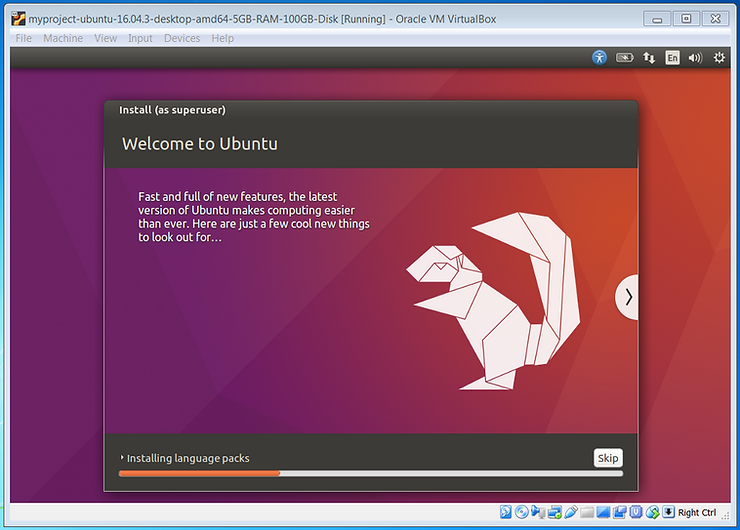
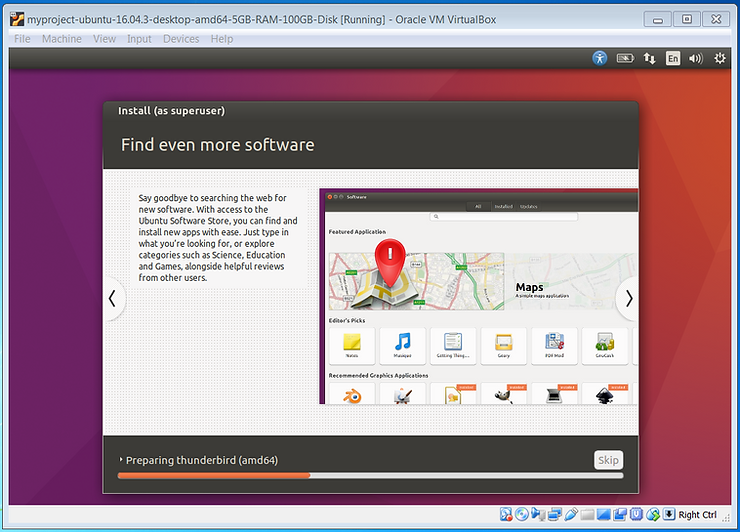
14. Wait and monitor the install screens
A screen:
Another screen:
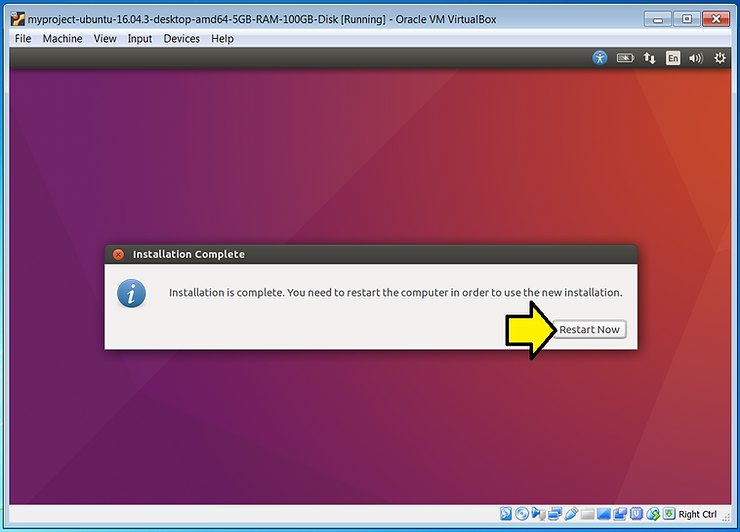
15. Click Restart Now
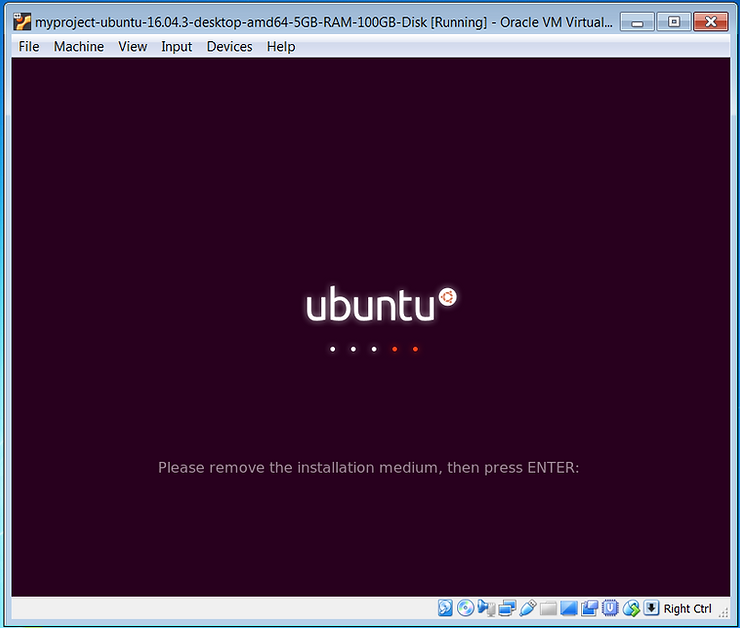
16. Press ENTER
17. Let the machine boot reboot to the first screen and select power off
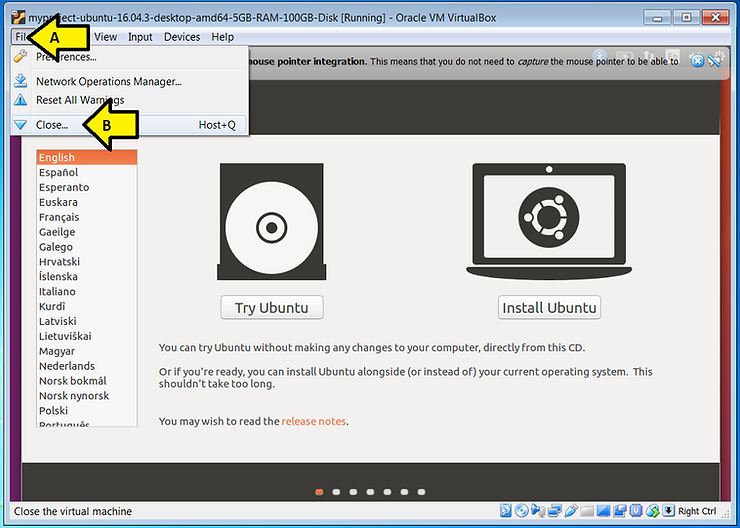
A) Click File
B) Click Close…
18. Power off
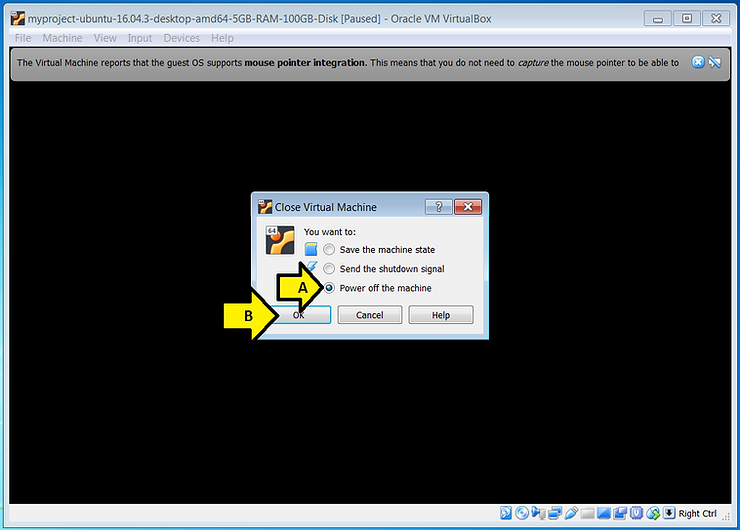
A) Select Power off the machine
B) Select OK
Remove the ISO and Start the Virtual Machine
1. Open the virtual machine’s settings window
A) Select myproject-ubuntu-16.04.3-desktop-amd64-5GB-RAM-100GB-Disk
B) Right-click on myproject-ubuntu-16.04.3-desktop-amd64-5GB-RAM-100GB-Disk
C) Select Settings…
2. Remove the disk
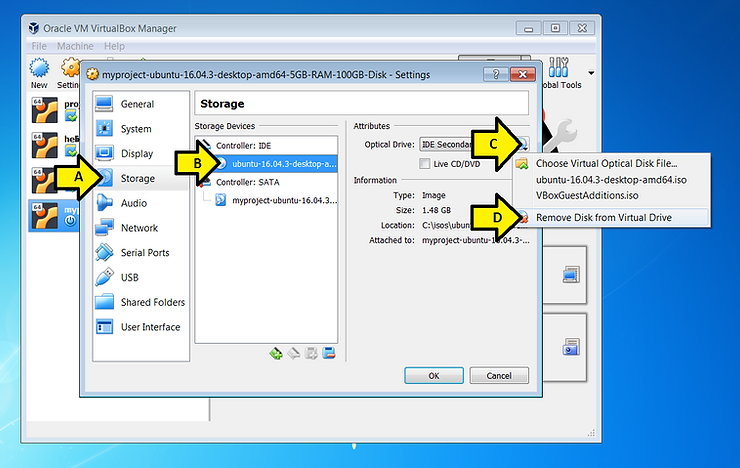
A) Select Storage
B) Select ubuntu-16.04.3-desktop-amd64
C) Click the CD icon drop down
D) Click Remove Disk from Virtual Drive
3. Click OK
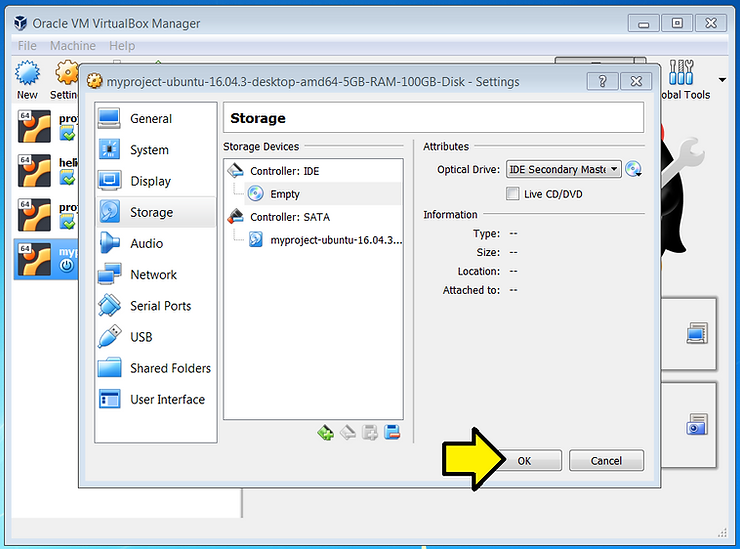
4. With myproject-ubuntu-16.04.3-desktop-amd64-5GB-RAM-100GB-Disk Click Start
You should see:
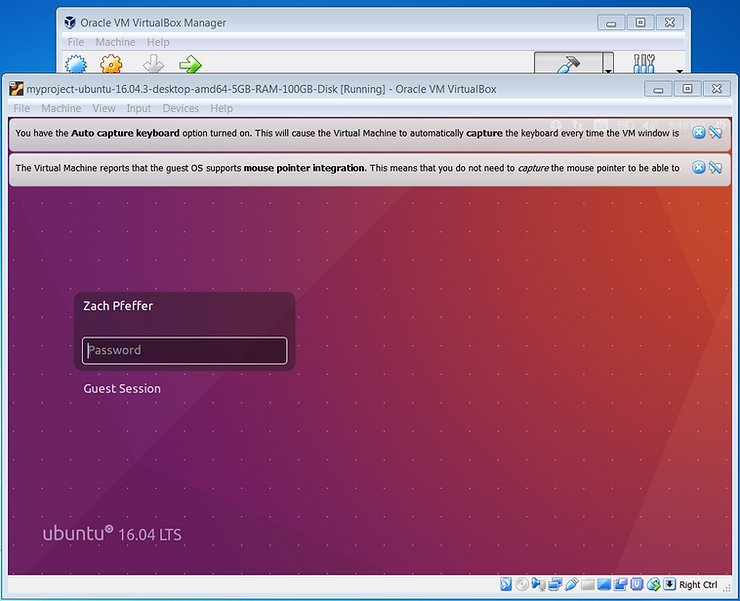
5. Enter your password and press ENTER
After about 30 sec’s you should see:
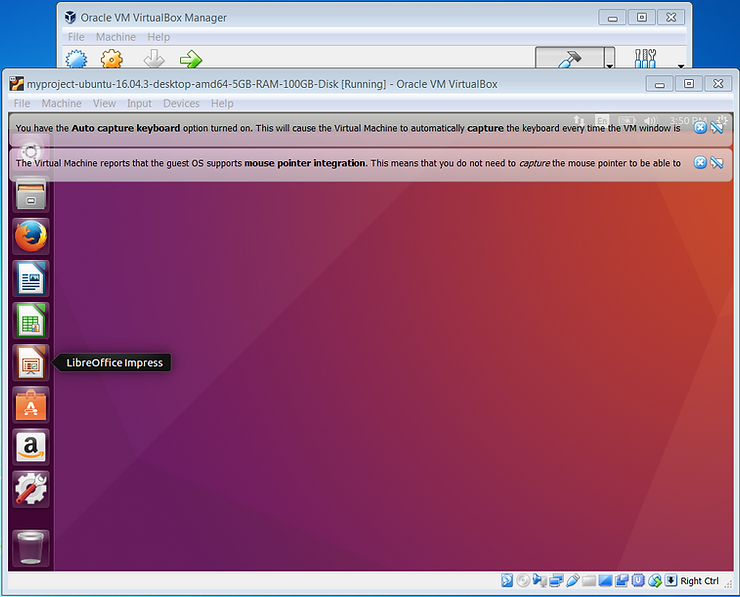
Congratulations! You’ve installed 64-bit Ubuntu 16.04.3 on a VirtualBox 5.2.12 managed virtual machine running on Windows 7 SP1.
Share and Like
Share and like this if you think other people would find it useful!
References