

Install a Vim Package on Vim 8 Running on Windows 7
This post gives step-by-step instructions for installing a Vim package on Vim 8 (specifically 8.1.606) running on Windows 7 (SP1).
Info
This post uses the vim-airline plugin available at [link] to demonstrate how to install a plugin. It uses vim-airline because its very obvious if it works and its a useful plugin.
Steps
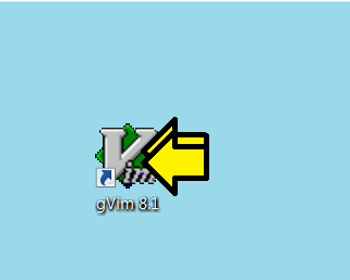
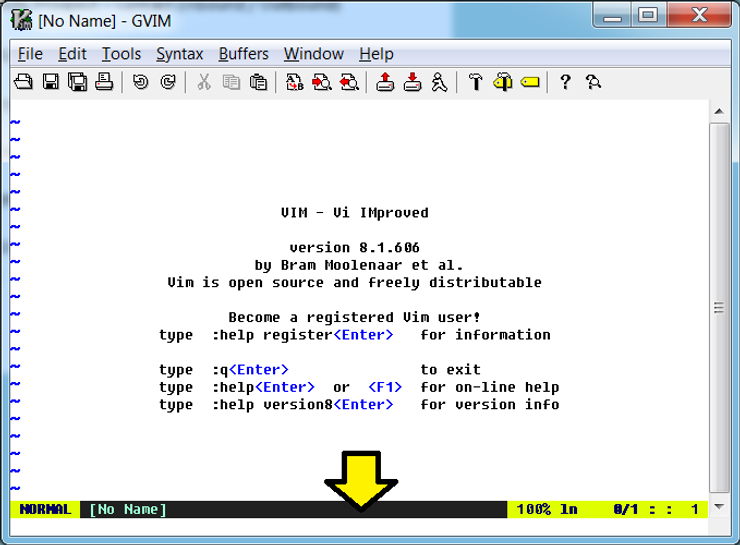
Step 1: Open gVim 8.1 by double clicking the gVim 8.1 icon:
You should see:
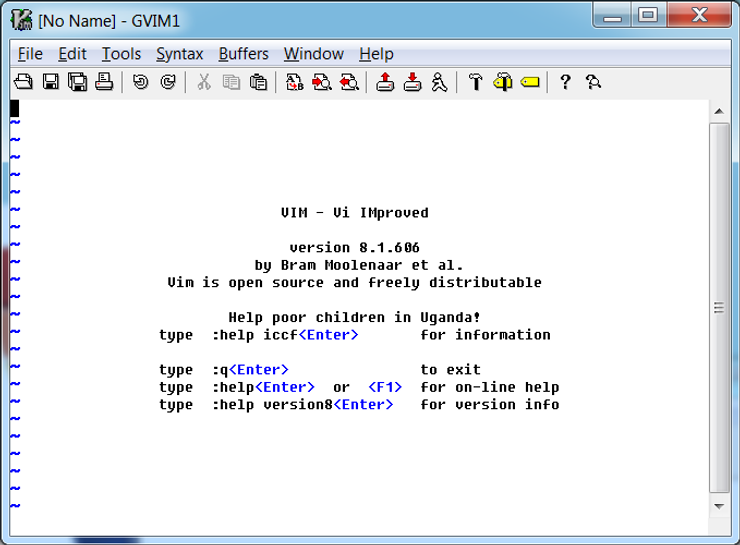
Note: your specific version may be different. It should at least be version 8 something for these steps to work.
Step 2:
A) Run :set packpath
You should see:
packpath=~/vimfiles,C:\Program Files\Vim/vimfiles,C:\Program Files\Vim\vim81,C:\Program Files\Vim/vimfiles/after,~/vimfiles/after
B) Make sure the you see ~/vimfiles
| Note: to “copy” this, i.e. copy the ex command output in Vim parlance, so that you can paste it into another document (like a Word document) [-romainl-] from Reddit (thanks -romainl-) shared at [link] that you can type :let @*=&packpath and then Paste into an external document. This may be better than another method you can use **:enew | pu=execute(‘set packpath’)** which sends the output to a buffer, then you can copy from the buffer. Type :q! to close the buffer that pops up. The second method may be useful if you don’t want all the output. |
Step 3: Find ~/vimfiles which should be C:\Users\username\vimfiles and open an Explorer window
Step 4: Create a directory named pack
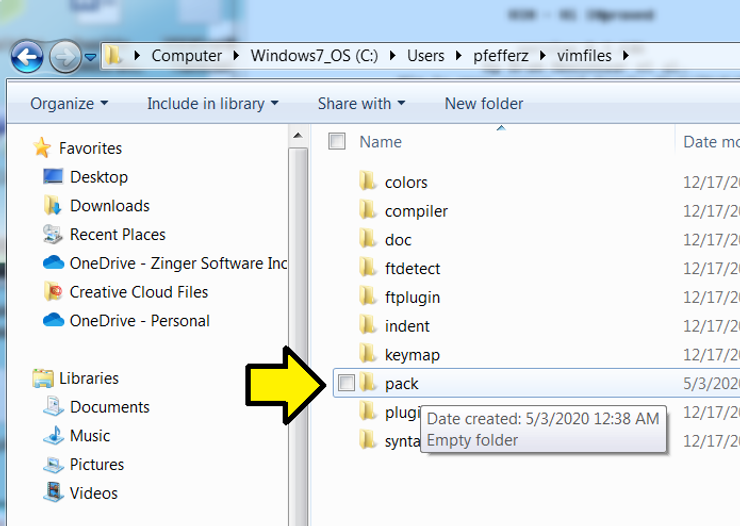
Step 5: Enter the pack directory and create a directory named anyname (you can name this something else)
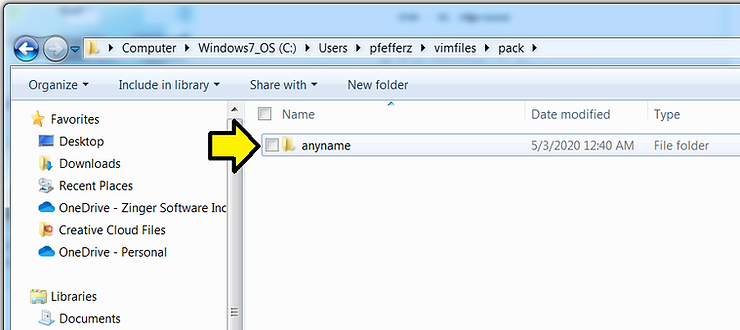
Step 6: Click inside anyname and create a directory called start
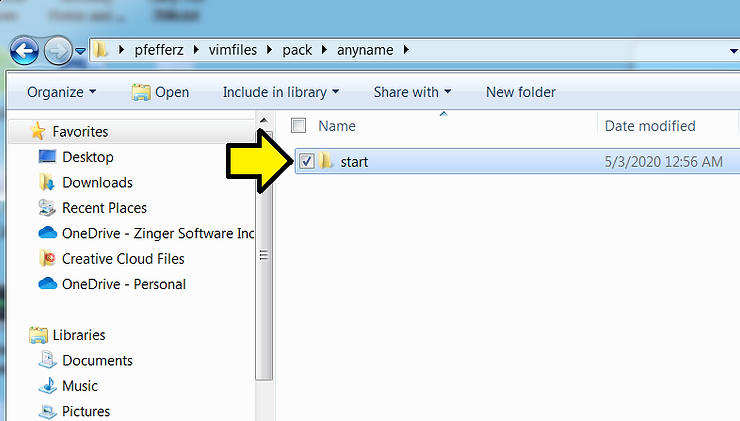
Step 6: Download a Zip file from https://github.com/vim-airline/vim-airline to
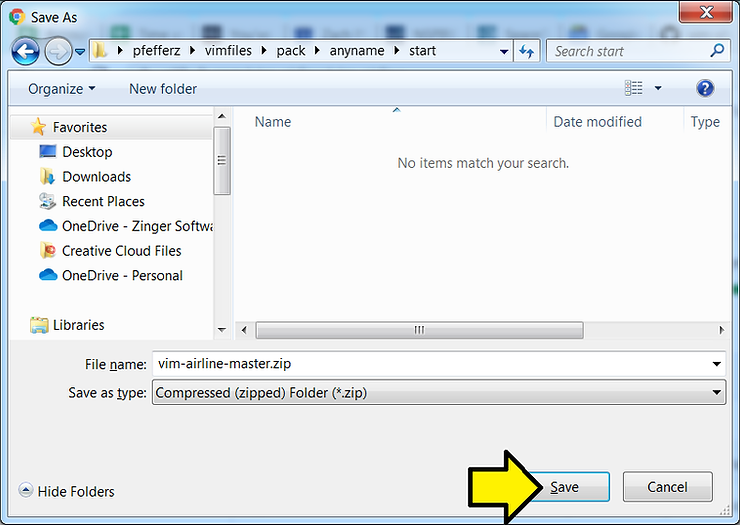
C:\Users\username\vimfiles\pack\anyname\start\
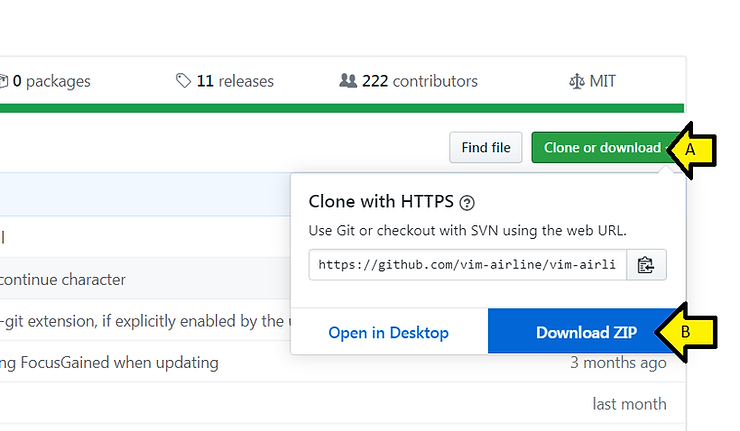
A) On https://github.com/vim-airline/vim-airline click Clone of download
B) Click Download ZIP
C) Click Save
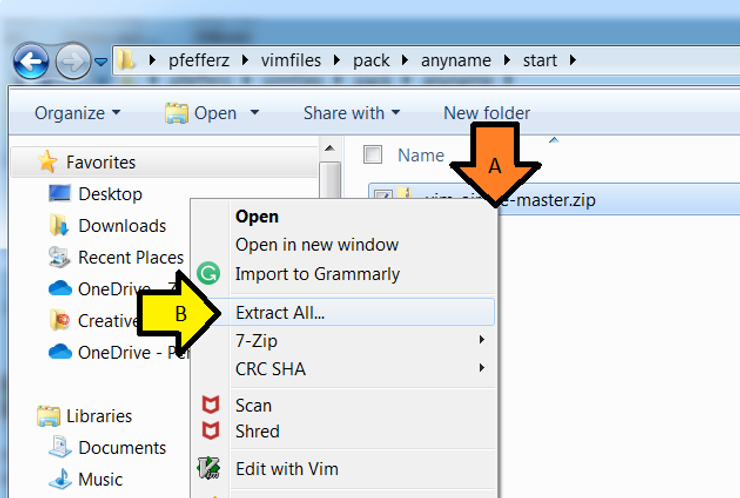
Step 7: A) Right-click on vim-airline-master.zip and B) click Extract All…
You’ll see:
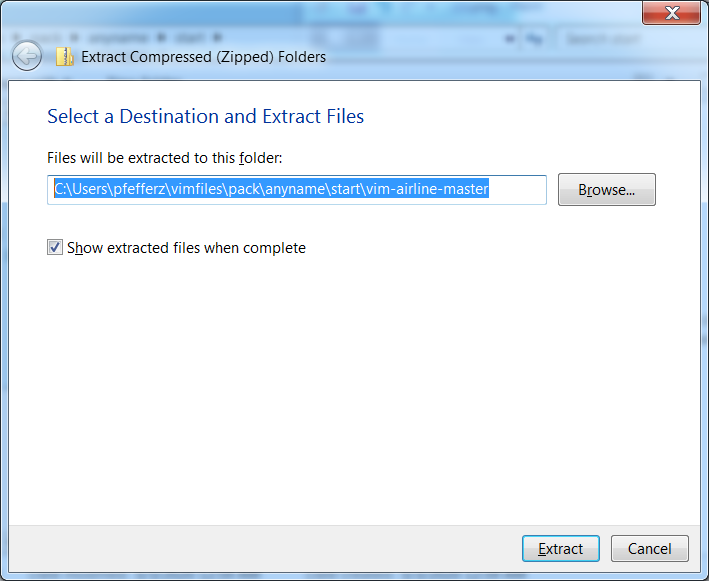
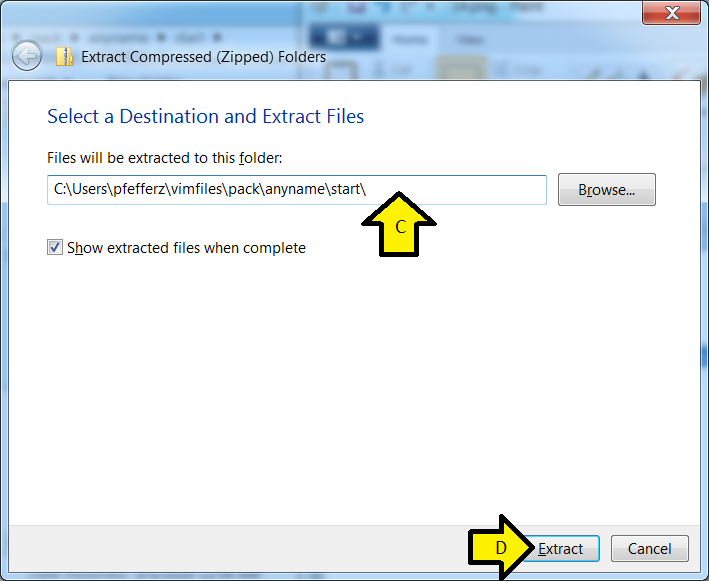
C) Remove vim-airline-master and D) click Extract
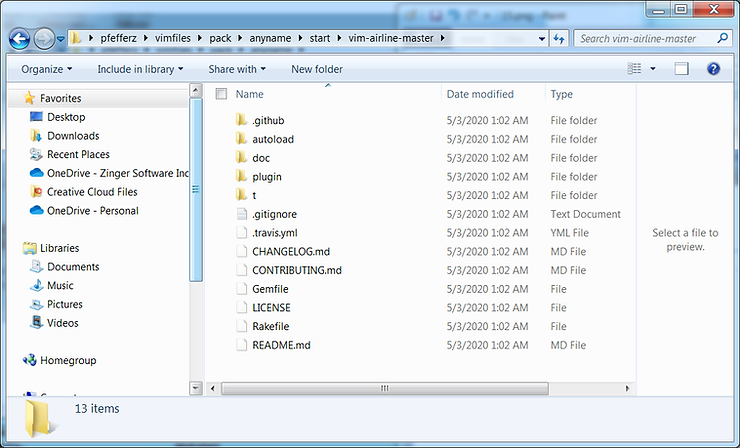
E) Click on vim-airline-master and you should see:
Step 8: Restart gVim 8.1. You should see a new bar:
References
