

Install and Configure the AWS Amplify CLI on Windows 7

This post shows a walk-through of the Install and configure the Amplify CLI instructions posted at [link]:
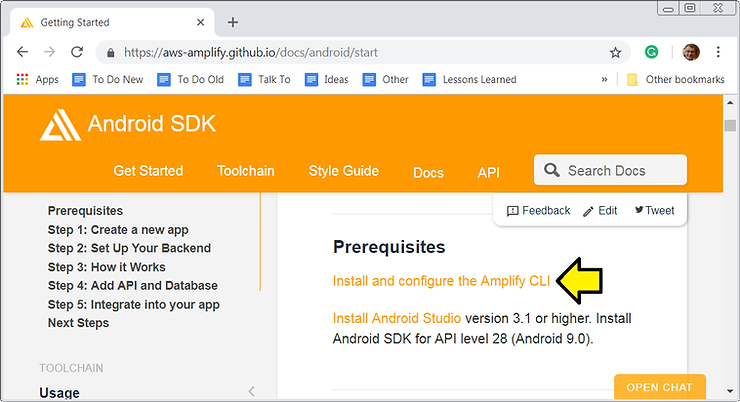
Actual instructions at [link]:
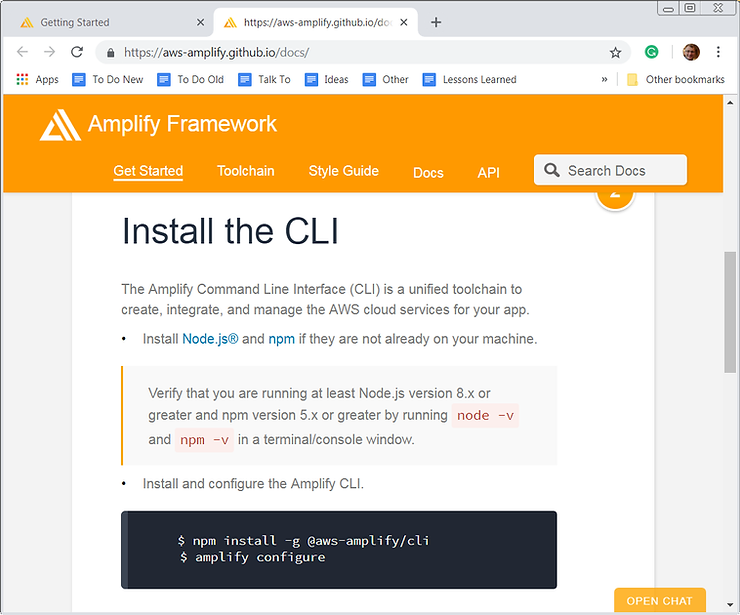
Versions
Node.js version 8.x or higher
npm version 5.x or higher
Install Node.js and npm on Windows
Follow the instructions at [link]
Test Node.js on Windows
1. Open a CMD.exe window
2. Type node -v
You should see v10.14.2 or higher.
3. Type npm -v
You should see 6.4.1 or higher.
Install and Configure the Amplify CLI
1. Open a CMD.exe window
2. Type npm install -g @aws-amplify/cli
You should see something like:
C:\Users\pfefferz>npm install -g @aws-amplify/cli
npm WARN deprecated [email protected]: CircularJSON is in maintenance only, flatted is its successor.
npm WARN deprecated [email protected]: Please upgrade to kleur@3 or migrate to 'ansi-colors' if you prefer the old syntax. Visit  for migration path(s).
npm WARN deprecated [email protected]: Please update to minimatch 3.0.2 or higher to avoid a RegExp DoS issue
C:\Users\pfefferz\AppData\Roaming\npm\amplify -> C:\Users\pfefferz\AppData\Roaming\npm\node_modules\@aws-amplify\cli\bin\amplify
npm WARN [email protected] requires a peer of graphql@^0.11.0 || ^0.12.0 || ^0.13.0 but none is installed. You must install peer dependencies yourself.
npm WARN optional SKIPPING OPTIONAL DEPENDENCY: [email protected] (node_modules\@aws-amplify\cli\node_modules\fsevents):
npm WARN notsup SKIPPING OPTIONAL DEPENDENCY: Unsupported platform for [email protected]: wanted {"os":"darwin","arch":"any"} (current: {"os":"win32","arch":"x64"}
)

+ @aws-amplify/[email protected]
added 1842 packages from 1303 contributors in 84.986s
Note: on my machine this installs amplify and amplify.cmd and node_modules\@aws-amplify\cli in C:\Users\pfefferz\AppData\Roaming\npm\
Note 2: you can look at the Windows’ PATH variable by typing echo %path:;=&echo.%
you’ll see that C:\Users\pfefferz\AppData\Roaming\npm (or something like it) is listed in your path.
3. Type amplify configure
You should see something like:
C:\Users\pfefferz>amplify configure
Follow these steps to set up access to your AWS account:

Sign in to your AWS administrator account:
https://console.aws.amazon.com/
Press Enter to continue
[email protected]
Specify the AWS Region
? region:  us-east-2
Specify the username of the new IAM user:
? user name:  amplify-UzTvf
Complete the user creation using the AWS console
https://console.aws.amazon.com/iam/home?region=us-east-2#/users$new?step=final&accessKey&userNames=amplify-UzTvf&permissionType=policies&policies=arn:aws:iam::a
ws:policy%2FAdministratorAccess
Press Enter to continue
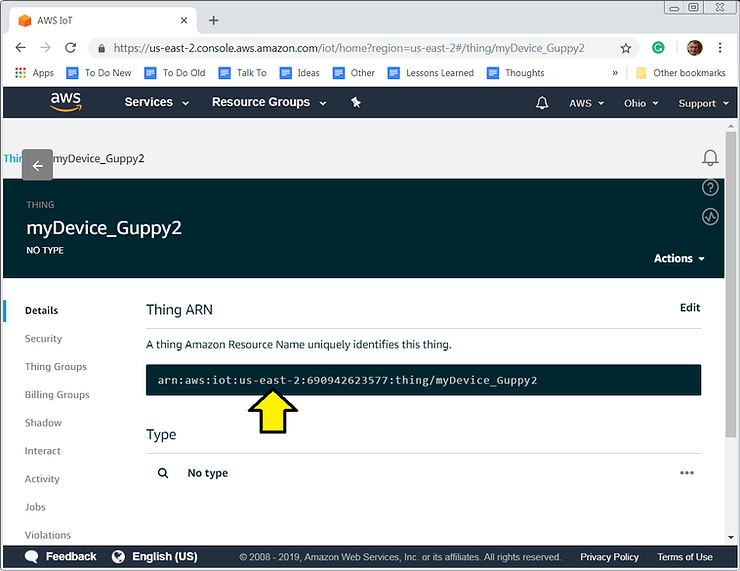
Note: I picked us-east-2 because my device shadows are in us-east-2
See [link] for setting up the node and the us-east-2 reference:
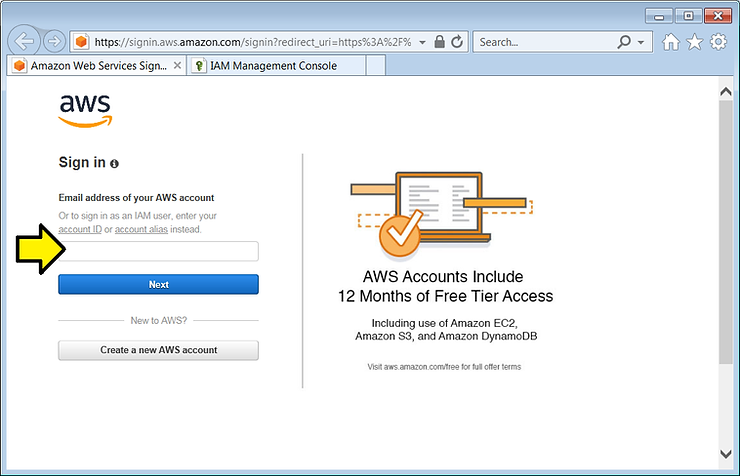
4. A browser will pop up. Log in.
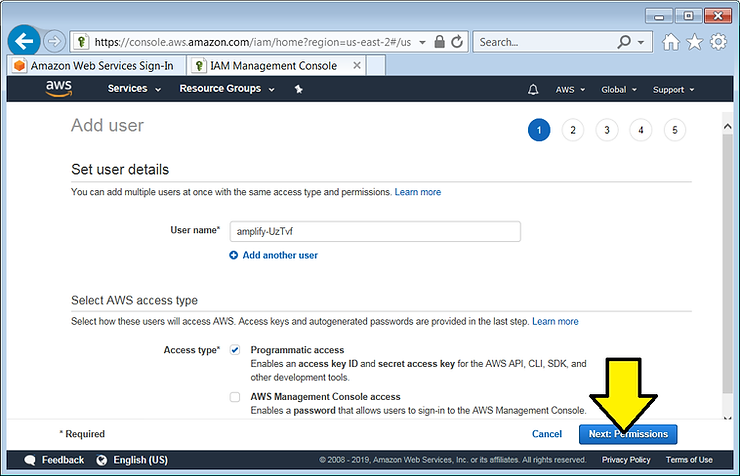
5. Accept defaults and click Next: Permissions
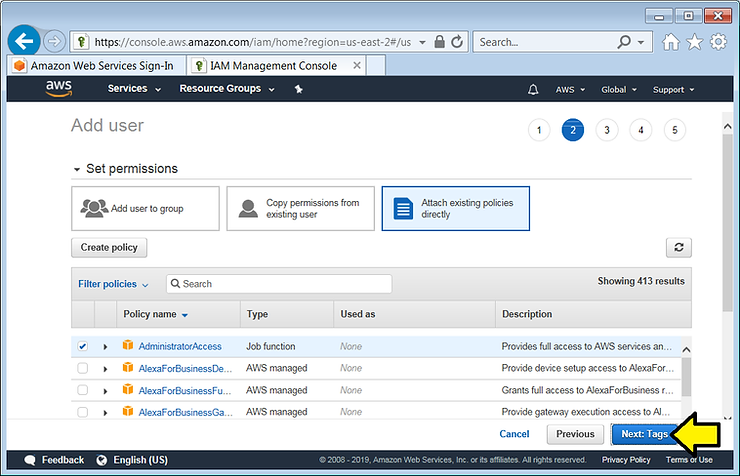
6. Accept defaults and click Next: Tags
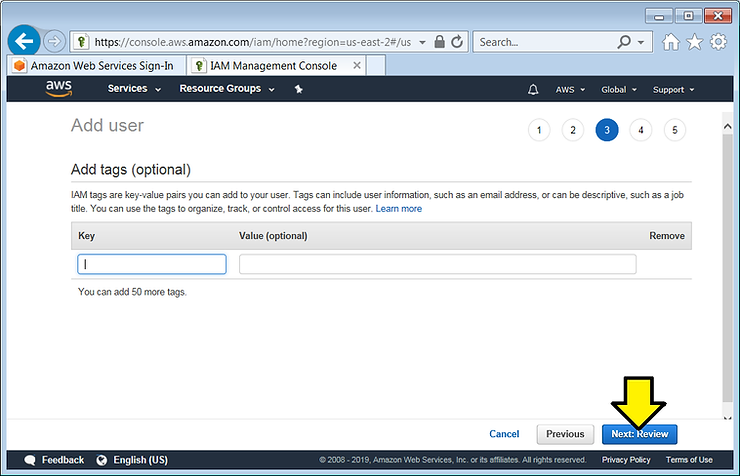
7. Accept defaults and click Next: Review
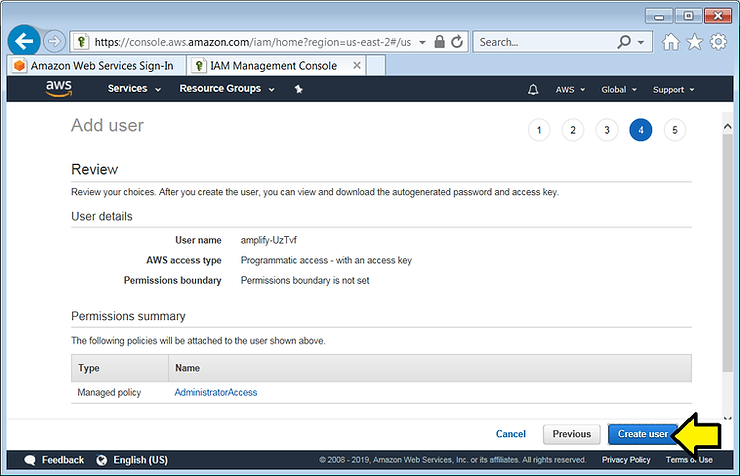
8. Accept defaults and click Create user
9. (A) Download the csv, (B) save the sign-in link, (C) save the User name and (D) click Close
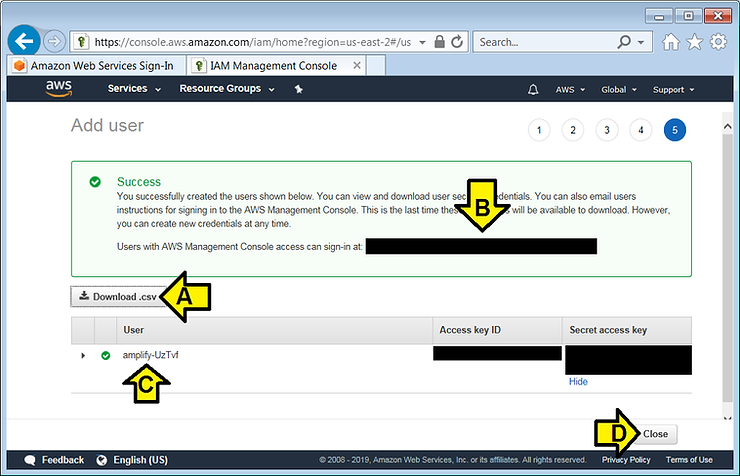
You should see:
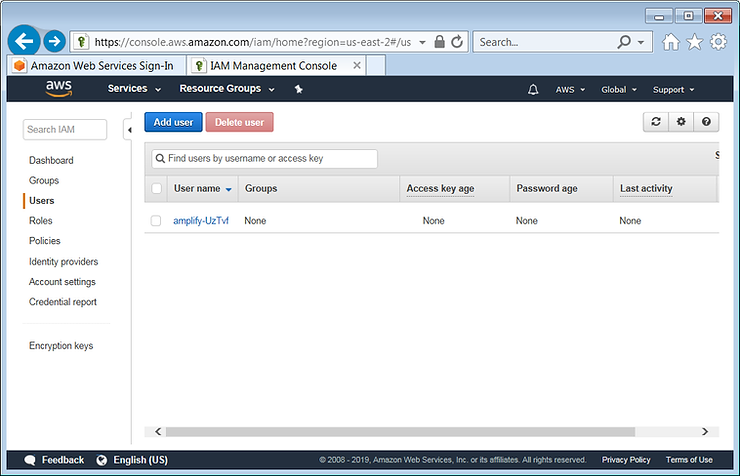
10. Back in CMD.exe, press Enter
You should see:
Enter the access key of the newly created user:
? accessKeyId:  ()
11. Open the csv file, find the Access key ID column, find the value and paste it in.
12. Find the Secret access key column, find the value and paste it in.
13. Accept default as the Profile Name
You should see:
Successfully set up the new user.
The full log:
C:\Users\pfefferz>amplify configure
Follow these steps to set up access to your AWS account:

Sign in to your AWS administrator account:
https://console.aws.amazon.com/
Press Enter to continue
[email protected]
Specify the AWS Region
? region:  us-east-2
Specify the username of the new IAM user:
? user name:  amplify-UzTvf
Complete the user creation using the AWS console
https://console.aws.amazon.com/iam/home?region=us-east-2#/users$new?step=final&accessKey&userNames=amplify-UzTvf&permissionType=policies&policies=arn:aws:iam::a
ws:policy%2FAdministratorAccess
Press Enter to continue

Enter the access key of the newly created user:
? accessKeyId:  XXXXXXXXXX**********
? secretAccessKey:  XxXxXxXxXxXxXxXxXxXx********************
This would update/create the AWS Profile in your local machine
? Profile Name:  default

Successfully set up the new user.
References