
Install and Test Node.js on Windows 10

Install and Test Node.js on Windows 10
Quickly install and Test Node.js on Windows 10 using this post. Node.js v20.11.1 (LTS) Windows, x86 is used.
Download & Install
1. Open https://nodejs.org/en/download
2. Select v20.11.1 (LTS), Windows, x86:

3. Download node-v20.11.1-x64.msi (Windows Installer Package) to the Downloads folder
4. Open Downloads

5. Right-click and select Install
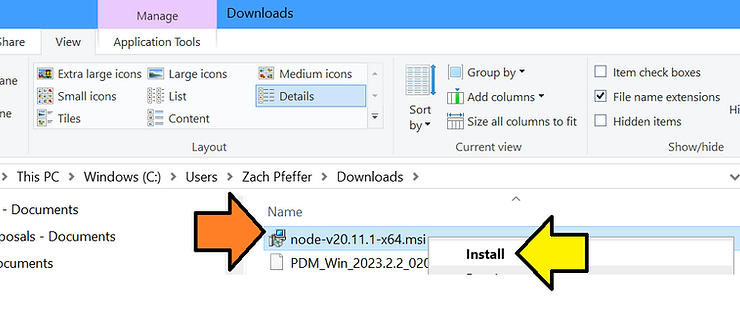
6. On the Node.js Setup screen, click Next

7. Accept the License Agreement and click Next

8. Click Next to install Node.js in the default directory C:\Program Files\nodejs\

9. Click Next to install everything:
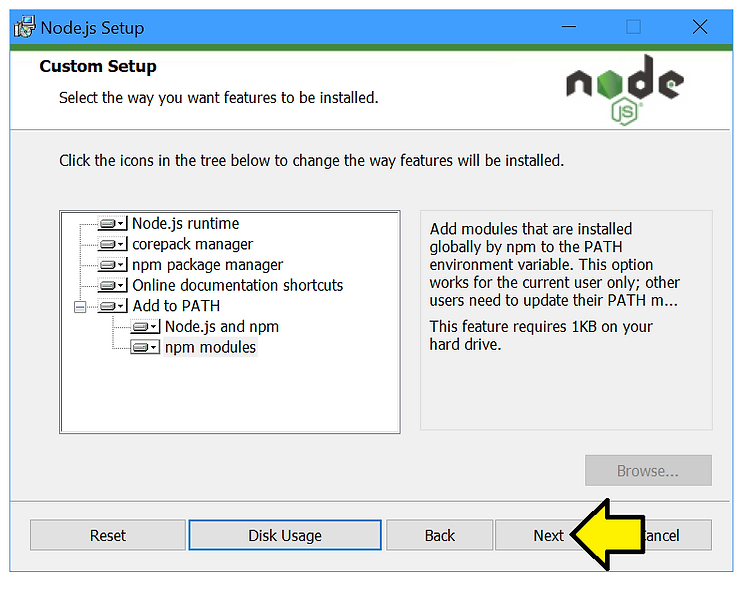
Disk Usage:

Everything:
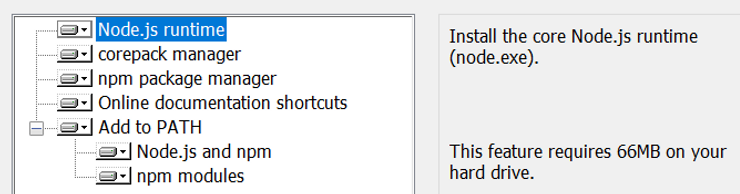
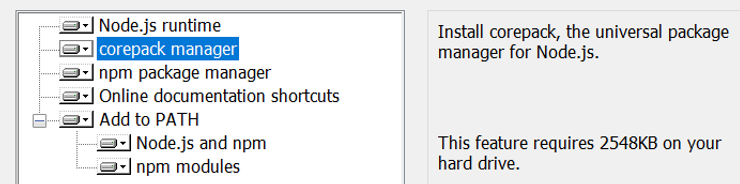

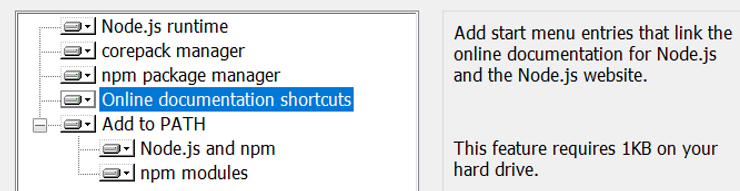
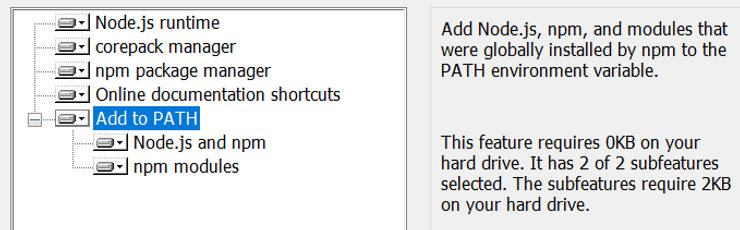
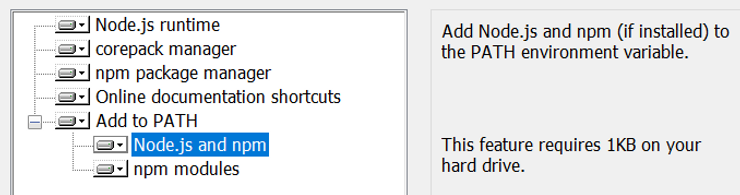
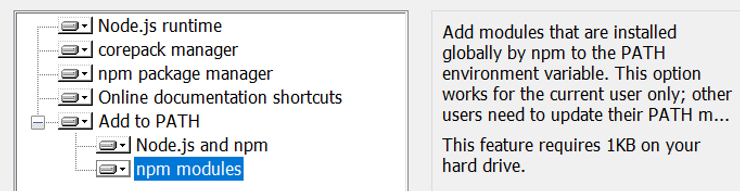
10. Check the Automatically install tools… box and click Next
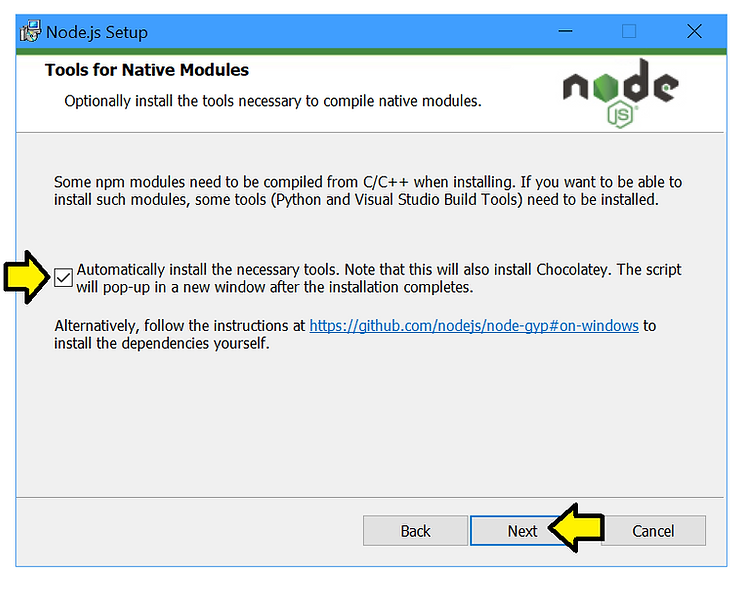
11. Click Install

12. After a time, click Finish

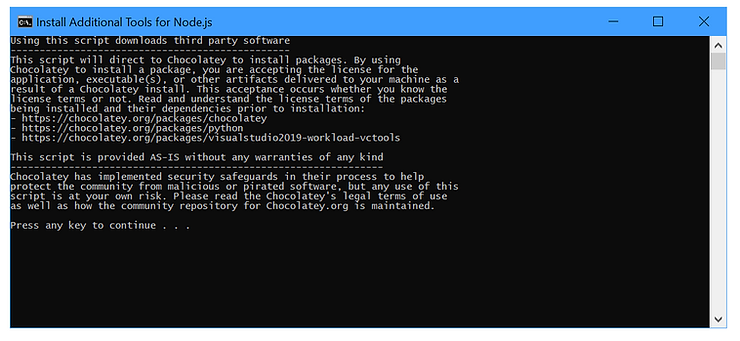
13. To skip this, close the pop-up. To proceed, close other programs, and hit any key

14. You may see this Chocolatey notification, if so press any key to start the installation
The end of the install log
Chocolatey upgraded 19/19 packages.
 See the log for details (C:\ProgramData\chocolatey\logs\chocolatey.log).

Upgraded:
 - chocolatey-compatibility.extension v1.0.0
 - chocolatey-core.extension v1.4.0
 - chocolatey-dotnetfx.extension v1.0.1
 - chocolatey-visualstudio.extension v1.11.1
 - chocolatey-windowsupdate.extension v1.0.5
 - dotnetfx v4.8.0.20220524
 - KB2919355 v1.0.20160915
 - KB2919442 v1.0.20160915
 - KB2999226 v1.0.20181019
 - KB3033929 v1.0.5
 - KB3035131 v1.0.3
 - python v3.12.2
 - python3 v3.12.2
 - python312 v3.12.2
 - vcredist140 v14.38.33135
 - vcredist2015 v14.0.24215.20170201
 - visualstudio2019buildtools v16.11.34
 - visualstudio2019-workload-vctools v1.0.1
 - visualstudio-installer v2.0.3

Packages requiring reboot:
 - vcredist140 (exit code 3010)

The recent package changes indicate a reboot is necessary.
 Please reboot at your earliest convenience.
Type ENTER to exit
The referenced C:\ProgramData\chocolatey\logs\chocolatey.log
Test
1. Right-click the Windows Icon and select run
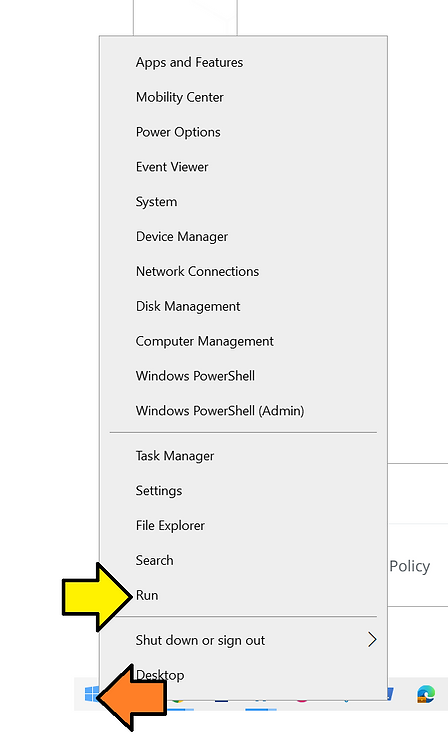
2. Type cmd.exe
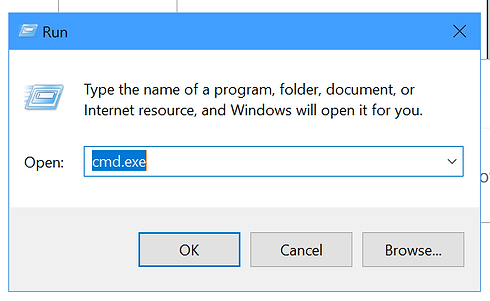
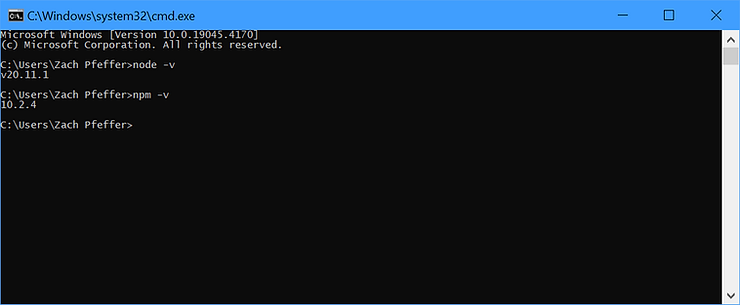
3. Type node -v. I see v20.11.1.

4. Type npm -v. I see 10.2.4
This post showed how to install and test Node.js on Windows 10 using this post.