

Install Ubuntu 22.04.1 in VMware and Launch the Vivado 2023.1 Installer

This post shows you how to install Ubuntu 22.04.1 in VMware and launch the Vivado 2023.1 installer inside it.
Check which OS Vivado Supports
# Find Vivado ML Edition 2023.1 (aka Vivado) @
amd.com > Downloads & Support > Vivado ML Developer Tools
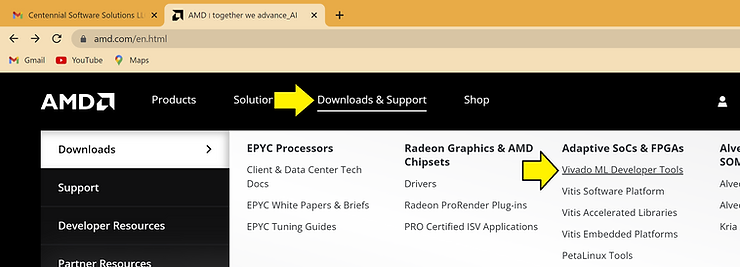
# Click Release Notes (https://docs.xilinx.com/r/en-US/ug973-vivado-release-notes-install-license/Supported-Operating-Systems ) to check supported operating systems:
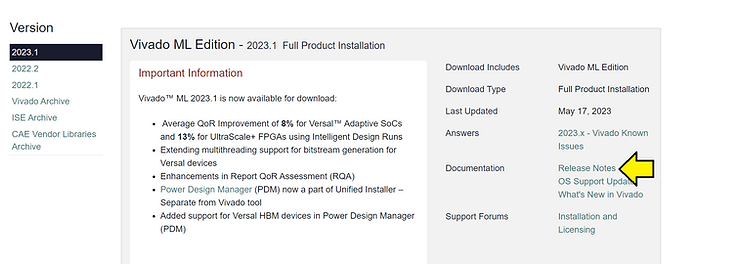
Here’s a copy of the operating systems supported for Vivado 2023.1 (Vivado ML Edition 2023.1):
-
Microsoft Windows Professional/Enterprise 10.0 20H2 Update; 10.0 21H1 Update; 10.0 21H2 Update; 10.0 22H2 Update
-
Microsoft Windows 11.0 21H2 Update; 11.0 22H2 Update
-
Red Hat Enterprise Workstation/Server 7.4, 7.5, 7.6, 7.7, 7.9, 8.3, 8.4, 8.5, 8.6, 8.7, 9.0 and 9.1 (64-bit), English/Japanese
-
CentOS 7.4, 7.5, 7.6, 7.7, and 7.9 (64-bit), English/Japanese
-
SUSE Linux Enterprise 12 SP4 and 15 SP2 (64-bit), English/Japanese
-
Amazon Linux 2 AL2 LTS (64-bit)
-
Ubuntu Linux 18.04.1 LTS; 18.04.2 LTS, 18.04.3 LTS; 18.04.4 LTS; 18.04.5 LTS; 18.04.6 LTS; and 20.04 LTS, 20.04.1 LTS, 20.04.2 LTS, 20.04.3 LTS, 20.04.4 LTS; 20.04.5 LTS; 22.04 LTS and 22.04.1 LTS (64-bit), English/Japanese
Get the Installer
# Click on the following: (you can create an account from the link if you don’t have one):
AMD Unified Installer for FPGAs & Adaptive SoCs 2023.1: Linux Self Extracting Web Installer (BIN - 265.94 MB)
MD5 SUM Value : e47ad71388b27a6e2339ee82c3c8765f
Download to “D:\Installers\Xilinx\2023.1\Xilinx_Unified_2023.1_0507_1903_Lin64.bin”
# Check the MD5SUM in PowerShell using Get-FileHash
Get-FileHash "D:\Installers\Xilinx\2023.1\Xilinx_Unified_2023.1_0507_1903_Lin64.bin" -Algorithm MD5
Result (matches):
Algorithm       Hash                                                                   Path
---------       ----                                                                   ----
MD5             E47AD71388B27A6E2339EE82C3C8765F                                       D:\Installers\Xilinx\2023.1\Xilinx_Unified_2023.1_0507_1903_Lin64.bin
Get the Ubuntu ISO
# Download the 3.6G Ubuntu 22.04.1 LTS ISO @ https://old-releases.ubuntu.com/releases/22.04.1/ubuntu-22.04.1-desktop-amd64.iso ( from https://old-releases.ubuntu.com/releases/22.04.1/ ) to “D:\isos\Ubuntu\22.04.01\ubuntu-22.04.1-desktop-amd64.iso”
Note:
Here are what the other files are:
.iso - this file
.iso.torrent - for BitTorrents ( https://ubuntu.com/download/alternative-downloads )
.iso.zsync - save bandwidth and time downloading ( https://help.ubuntu.com/community/ZsyncCdImage )
.list - a listing of the files in the iso
.manifest - a list of the packages and package versions included in the .iso
# Check the SHA256SUM in PowerShell using Get-FileHash
https://old-releases.ubuntu.com/releases/22.04.1/SHA256SUMS
c396e956a9f52c418397867d1ea5c0cf1a99a49dcf648b086d2fb762330cc88d *ubuntu-22.04.1-desktop-amd64.iso
Get-FileHash "D:\isos\Ubuntu\22.04.01\ubuntu-22.04.1-desktop-amd64.iso" -Algorithm SHA256
Result (matches):
Algorithm       Hash                                                                   Path
---------       ----                                                                   ----
SHA256          C396E956A9F52C418397867D1EA5C0CF1A99A49DCF648B086D2FB762330CC88D       D:\isos\Ubuntu\22.04.01\ubuntu-22.04.1-desktop-amd64.iso
Check Computer Configuration
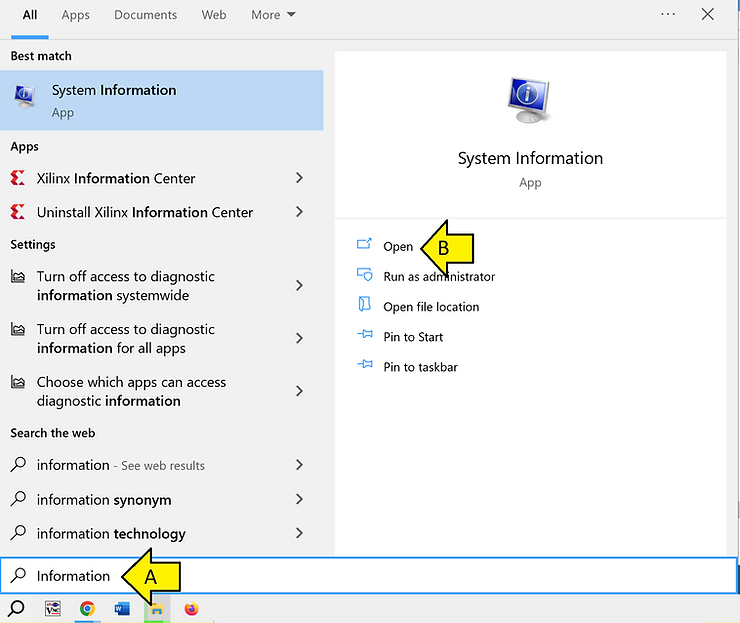
# Search Information and Open System Information
# Check processors:
Processor Intel(R) Core(TM) i9-8950HK CPU @ 2.90GHz, 2904 Mhz, 6 Core(s), 12 Logical Processor(s)
# Check memory:
Installed Physical Memory (RAM) 96.0 GB
Total Physical Memory 95.7 GB
Available Physical Memory 80.8 GB
# Launch VMware Workstation 16 Pro (Help > About VMware Workstation: 16.2.4 build-20089737)
# Click Home > Create a New Virtual Machine
# Select Typical, click Next >
# Select Installer disc image (iso), use D:\isos\Ubuntu\22.04.01\ubuntu-22.04.1-desktop-amd64.iso (will use Easy Install - just need a Full name, username, password); click Next >
# Set Full name, User name, Password
# Set the Virtual machine name:
vmwaredisk-20230708-vivado_22.04.1-on-ubuntu_22.04.01
# Set the Location:
C:\Users\Zach Pfeffer\Documents\Virtual Machines\vmwaredisk-20230708-vivado_22.04.1-on-ubuntu_22.04.01
# Set Maximum disk size (GB): 400 (300 is not big enough); select Store virtual disk as a single file; click Next >
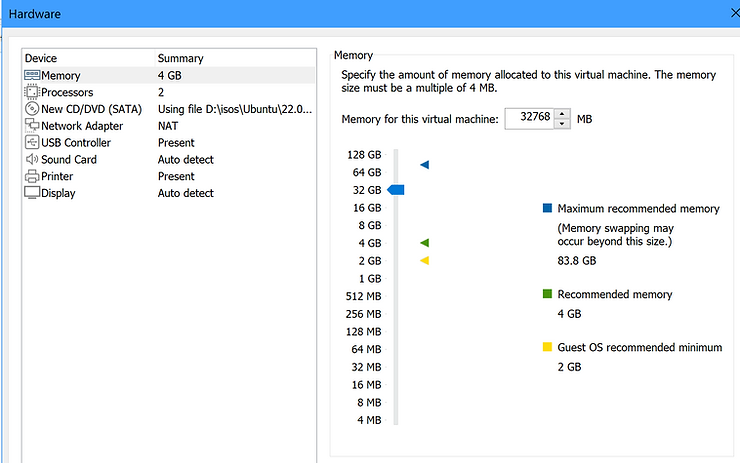
# Click Customize Hardware
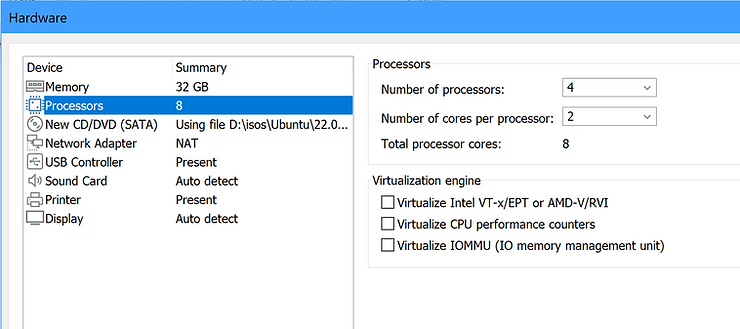
# Set memory to 32 GB
# Set the Number of processors to 4
# Set the Number of cores per processor to 2
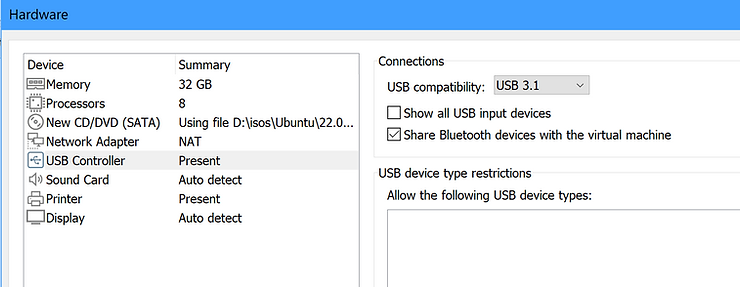
# Set USB compatibility to USB 3.1
# Click Close
# Click Finish
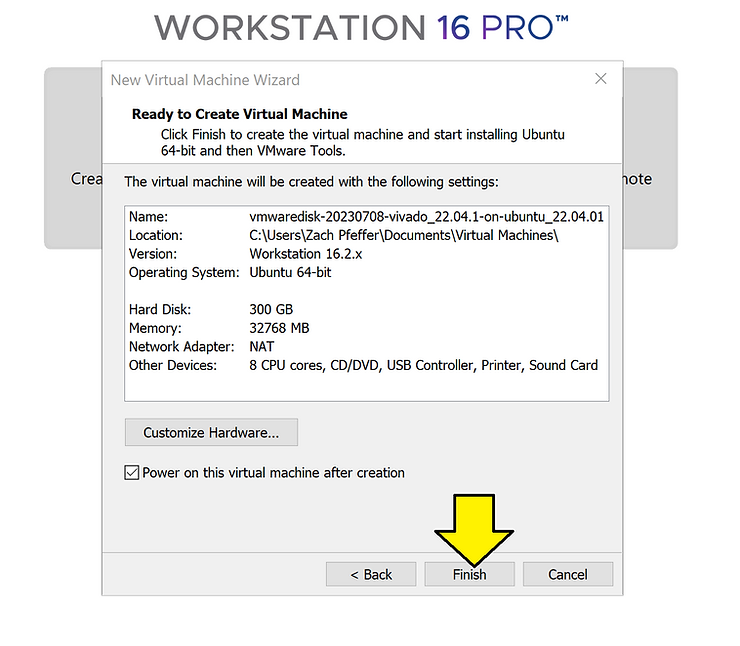
The virtual machine will launch
Configure Ubuntu
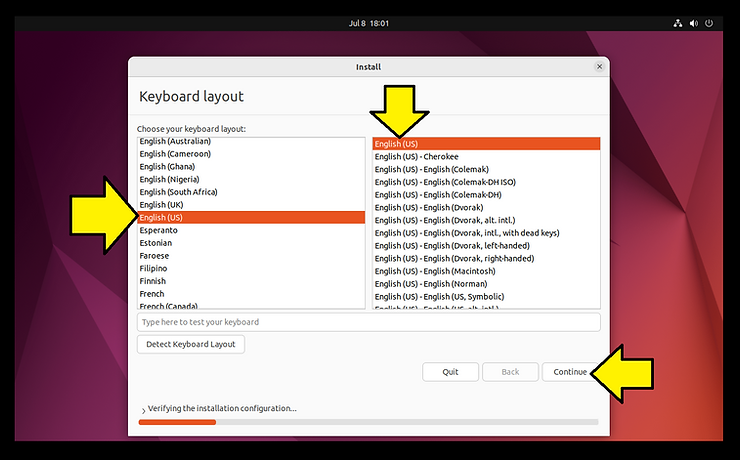
# Select Keyboard layout and click Continue
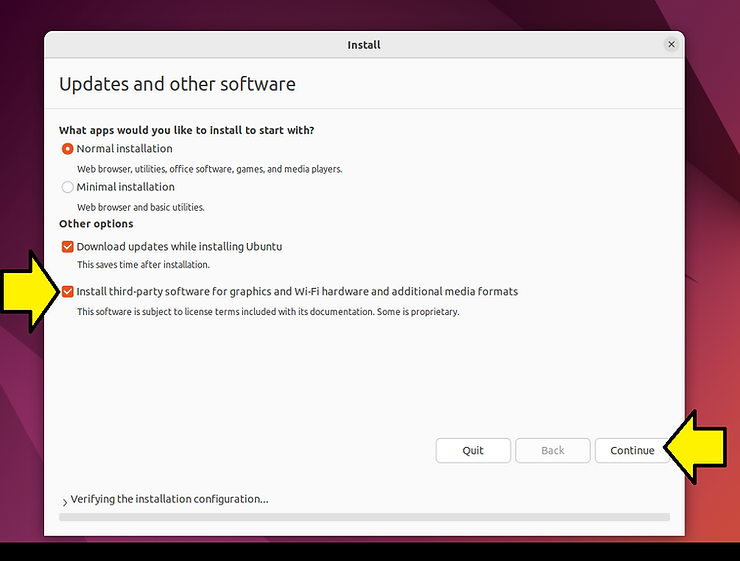
# Leave Normal installation and Download updates while installing Ubuntu selected; select Install third-party software for graphics and Wi-Fi hardware and additional media formats; click Continue
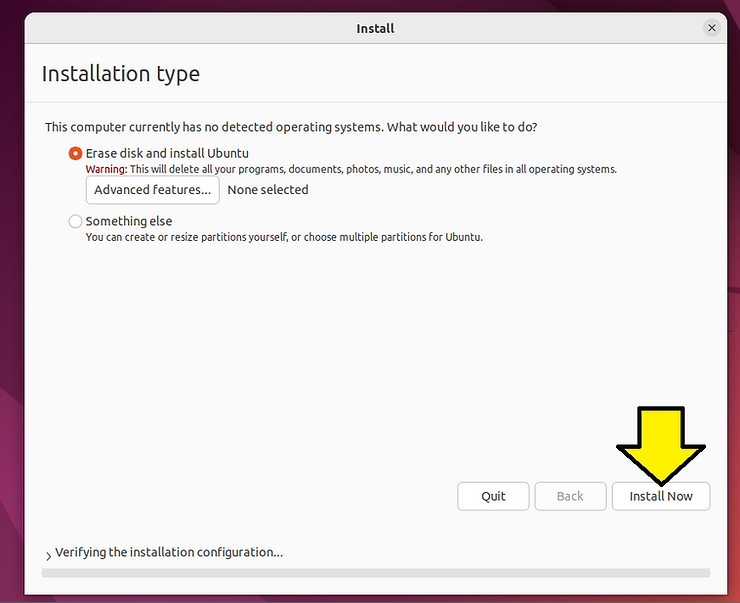
# Leave Erase disk and install Ubuntu selected and click Install Now
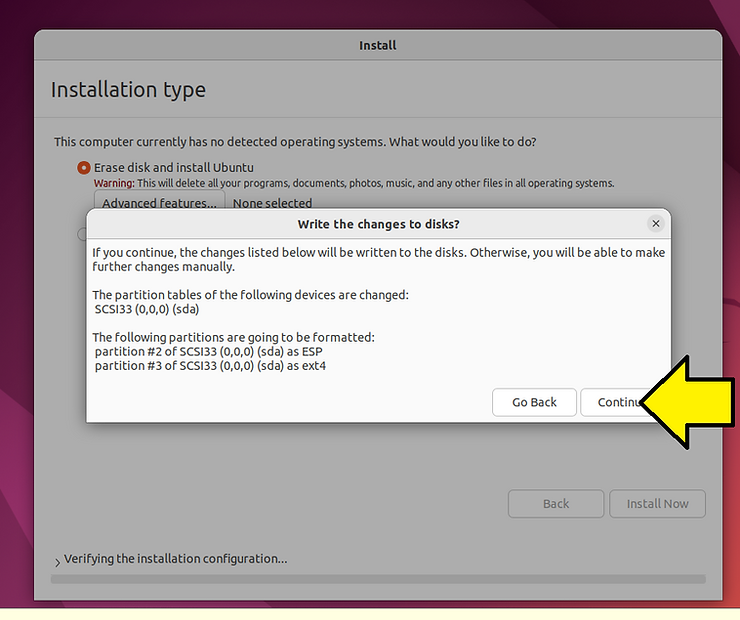
# Click Continue on the Write the changes to disks? pop-up
# List location (Denver)
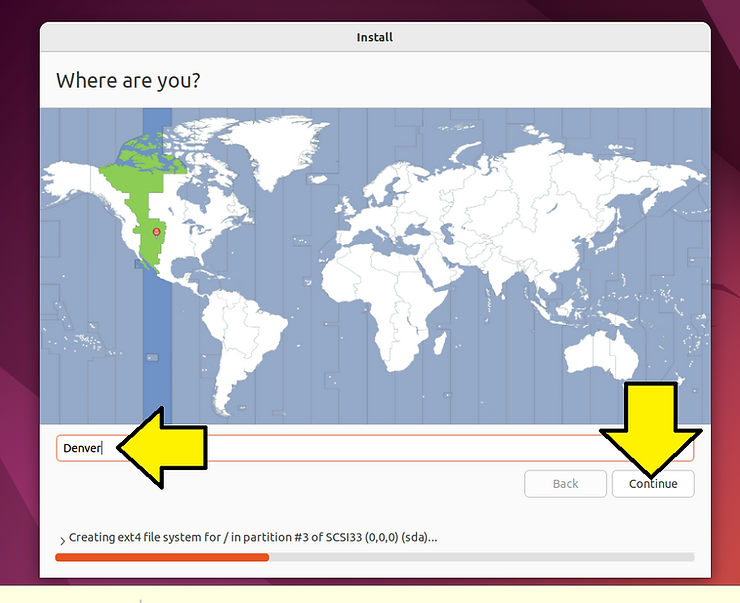
# Enter
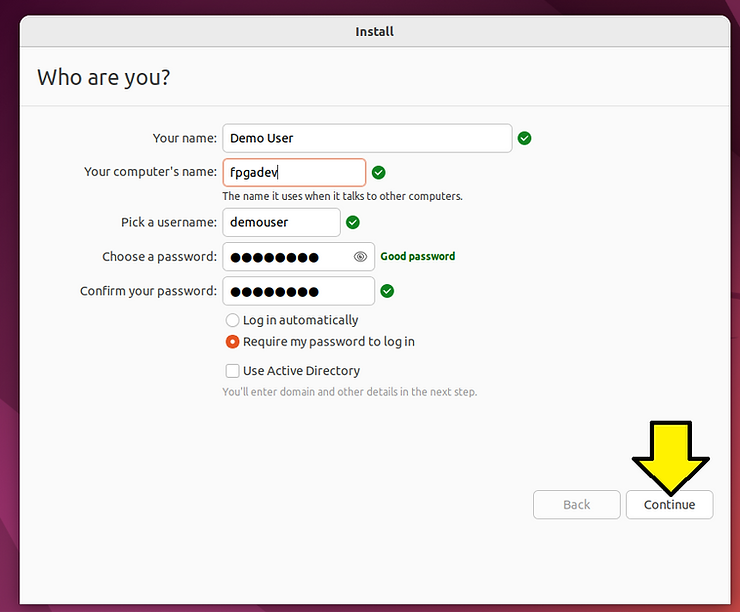
Your name: Demo User
Your computer’s name: fpgadev
Pick a username: demouser
Password
You’ll see:
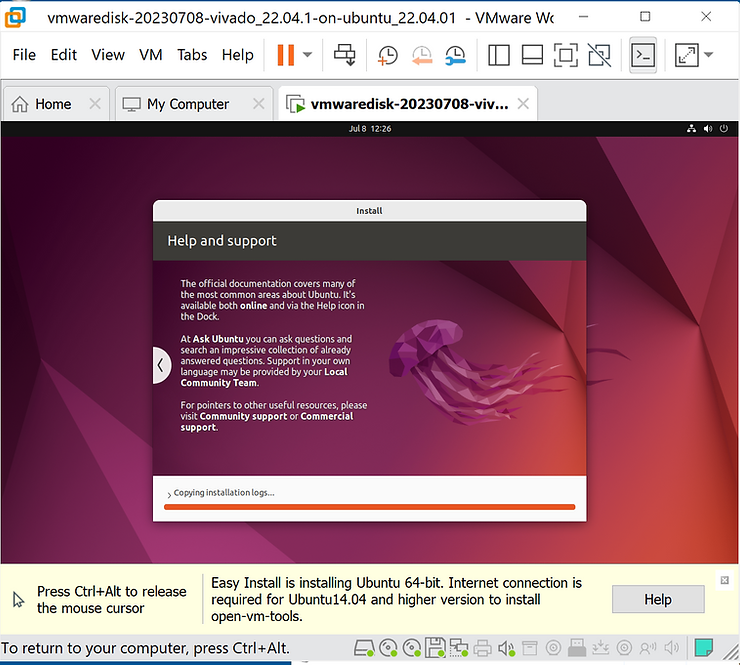
# Click Restart Now
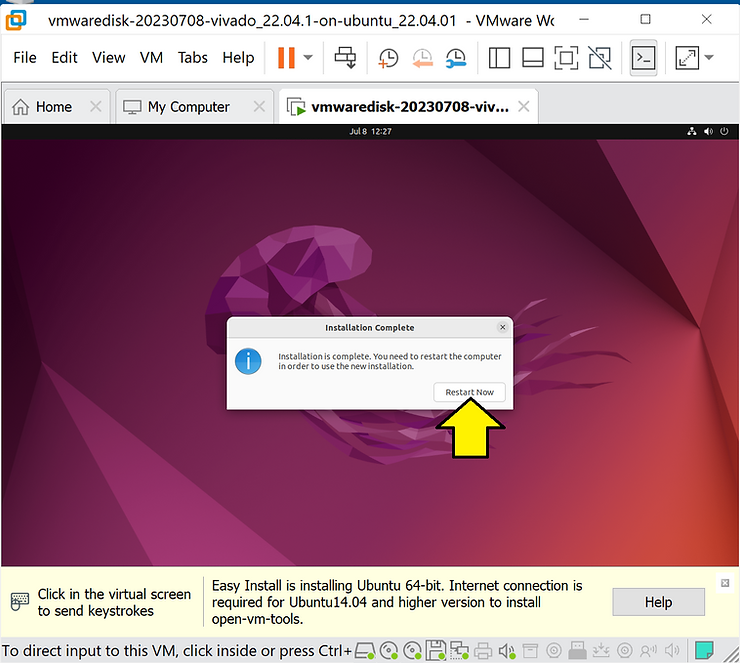
Note: open-vm-tools will have been installed
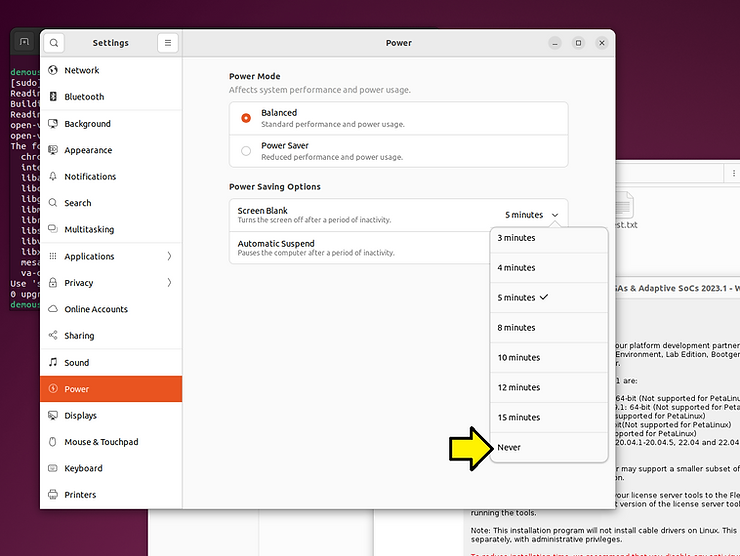
Optional: Run Settings and Disable Automatic Suspend
# Click Power > Automatic Suspend > Never
Share the Folder You Downloaded the Installer To
These instructions will allow you to access Installers at /mnt/hgfs/Installers
# Click VM > Settings…
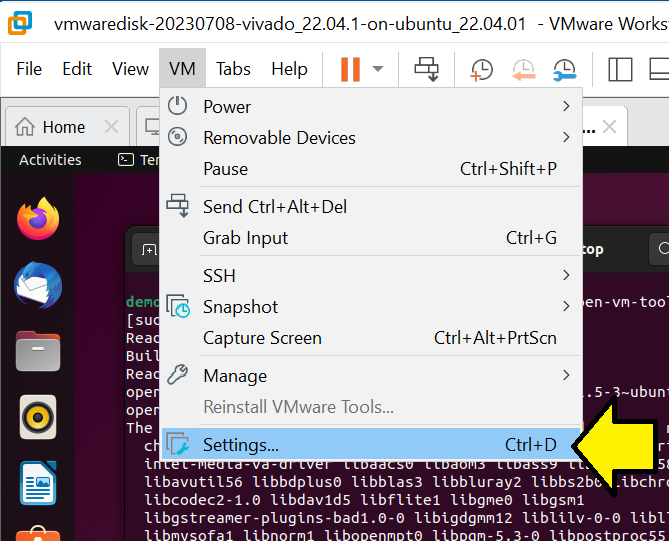
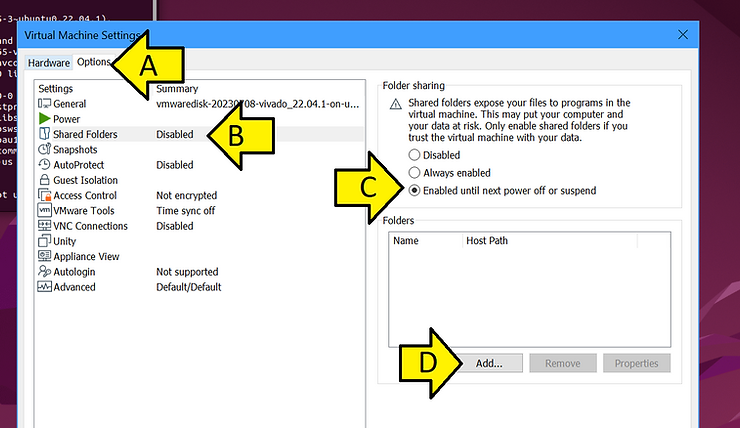
Click Options, Shared Folders, Enabled until next power off or suspend, Add…
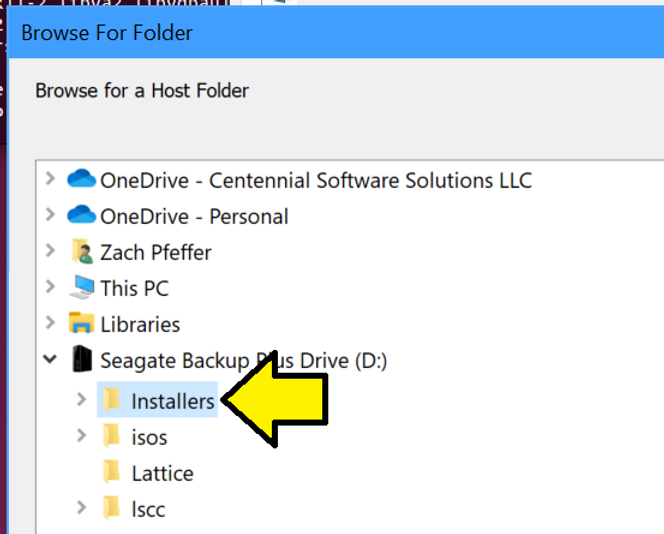
# Click Browse and find the Installers path
# Click Next
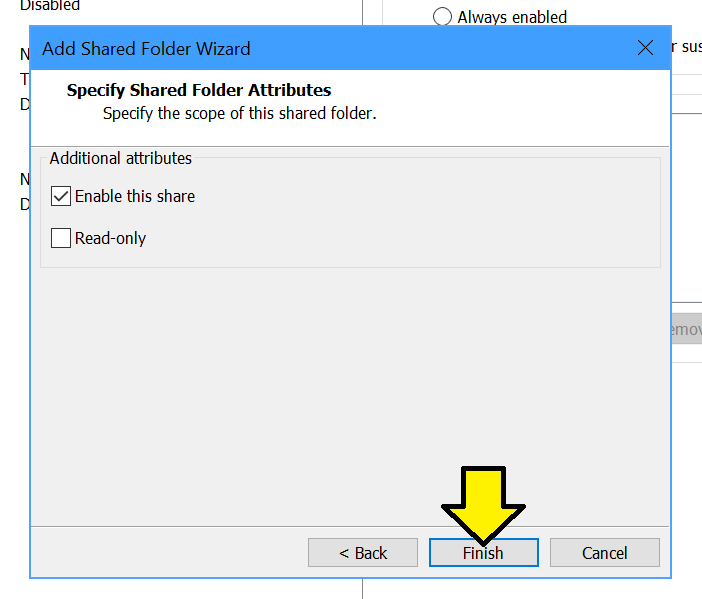
# Click Finish
# Click OK
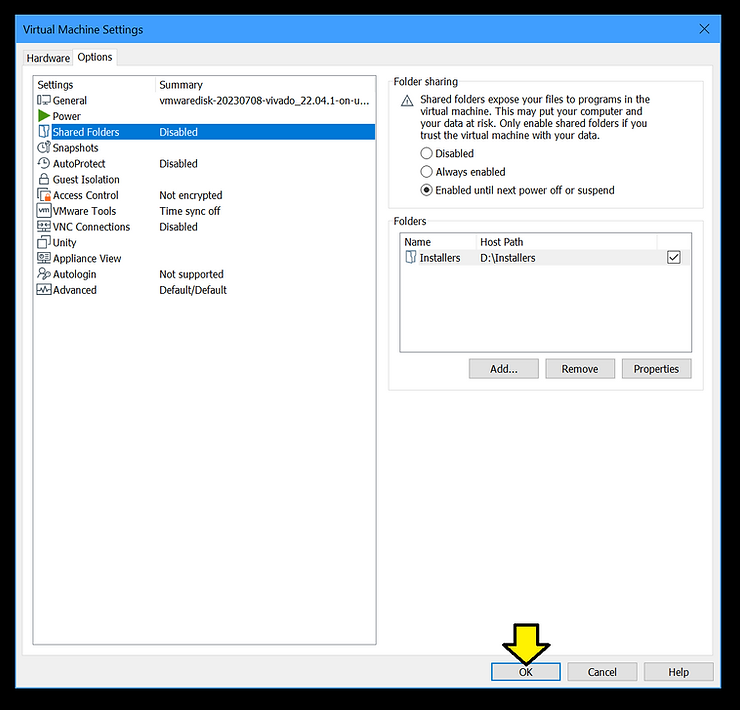
# Test: open a terminal in Ubuntu and run:
ls /mnt/hgfs/Installers
…and
cd /mnt/hgfs/Installers
touch test.txt
# Check test.txt exists
Launch the Installer
# Open a terminal and run
cd /mnt/hgfs/Installers
chmod +x Xilinx/2023.1/Xilinx_Unified_2023.1_0507_1903_Lin64.bin
./Xilinx/2023.1/Xilinx_Unified_2023.1_0507_1903_Lin64.bin
You should see:
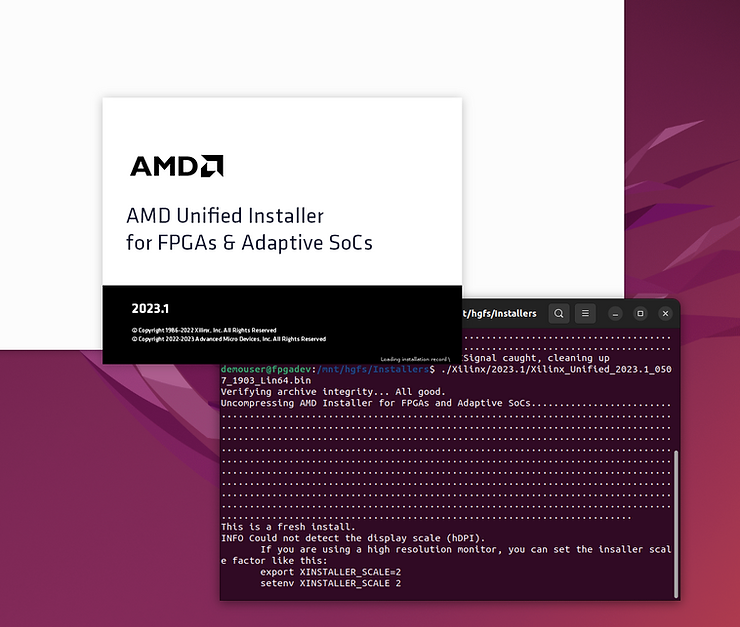
This post described how to Install Ubuntu 22.04.1 in VMware and launch the Vivado Installer
Recover From An Out of Space Error
You’ll need the sudo password for this.
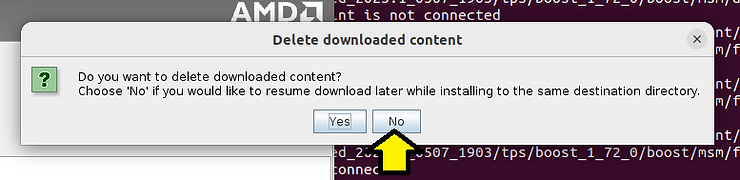
# If you run out of space during the subsequent install, click Cancel

# Click No
#Power off the VM
# Double-click the Hard Disk (SCSI)
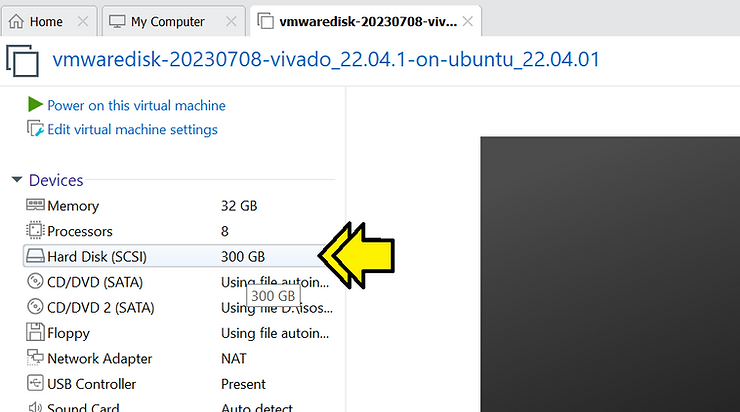
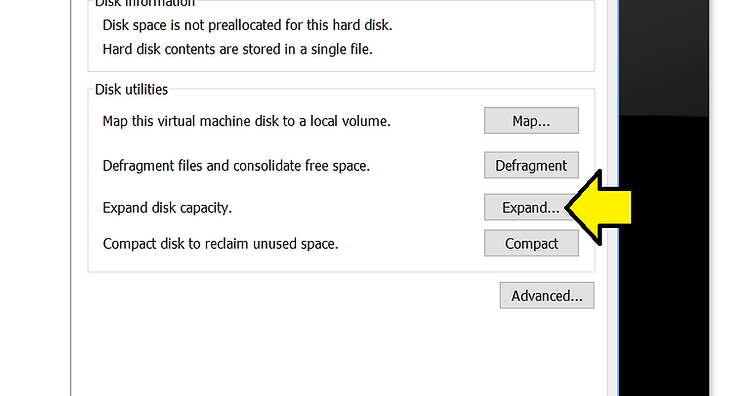
# Click Expand
# Set the Maximum disk size (GB) to 400 and click Expand
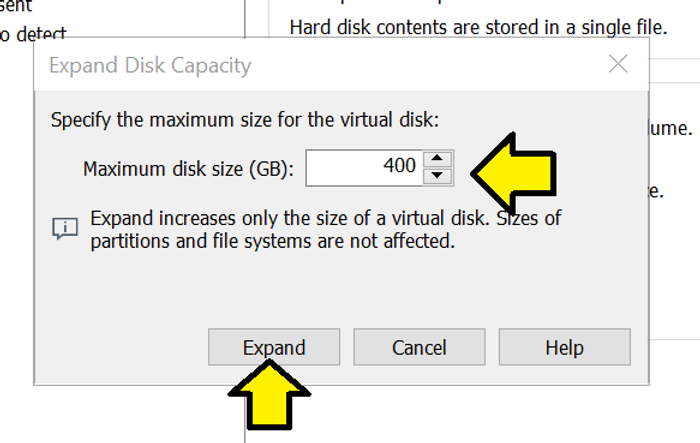
You’ll see:
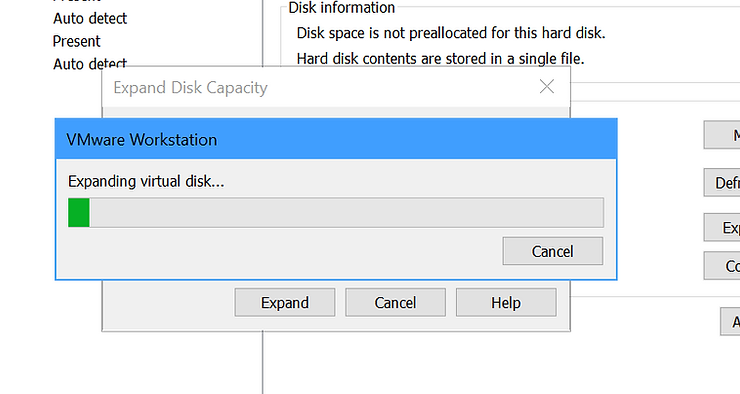
It will take some time to complete the expansion.
# Once it completes, click OK:
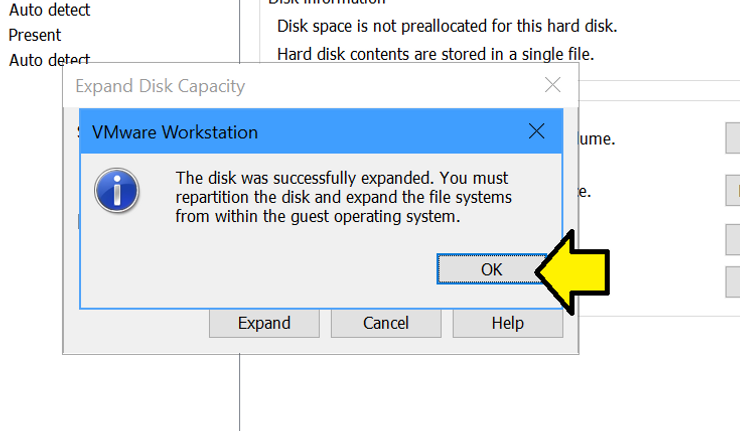
# Close the hardware configuration and power on the VM
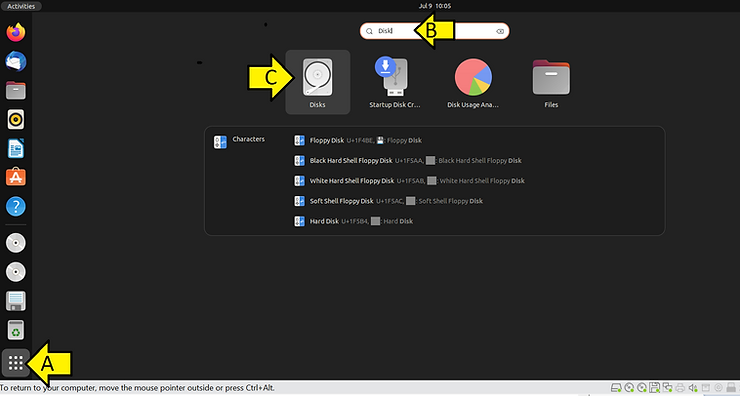
# In Ubuntu, click Show Applications, search Disk, click on Disks
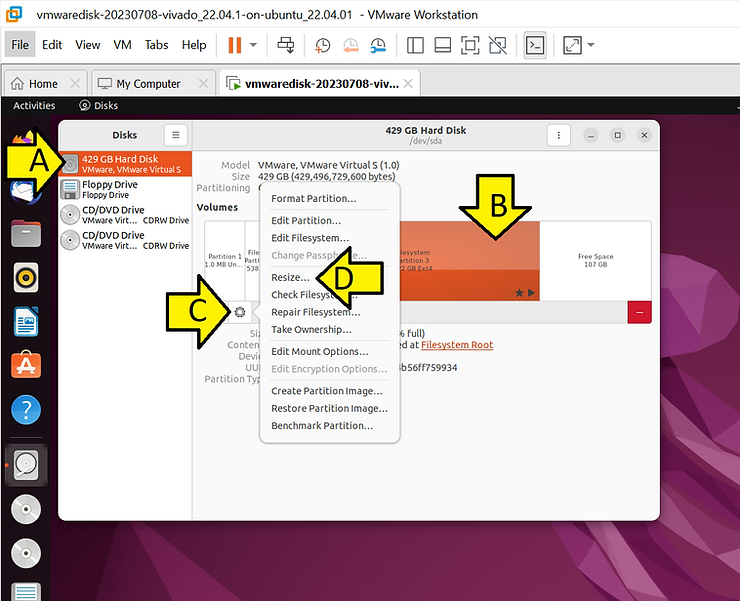
# Click on the disk, click the partition, click the gear and click Resize
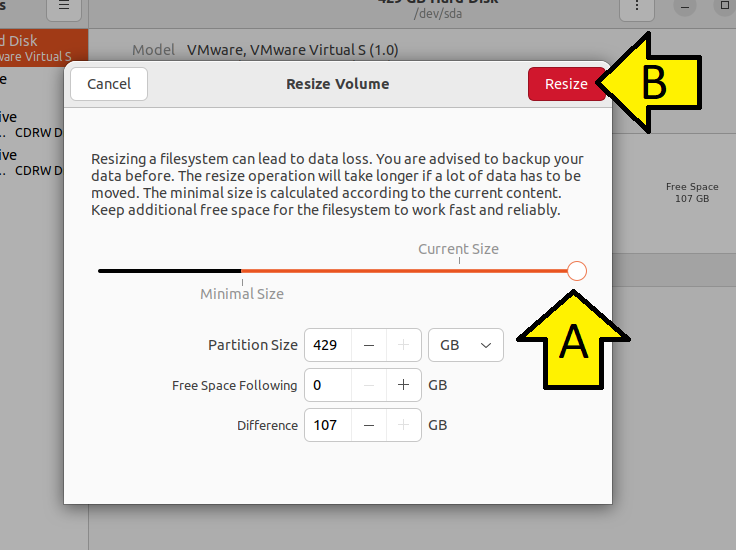
# Drag the cursor to increase the size and click Resize
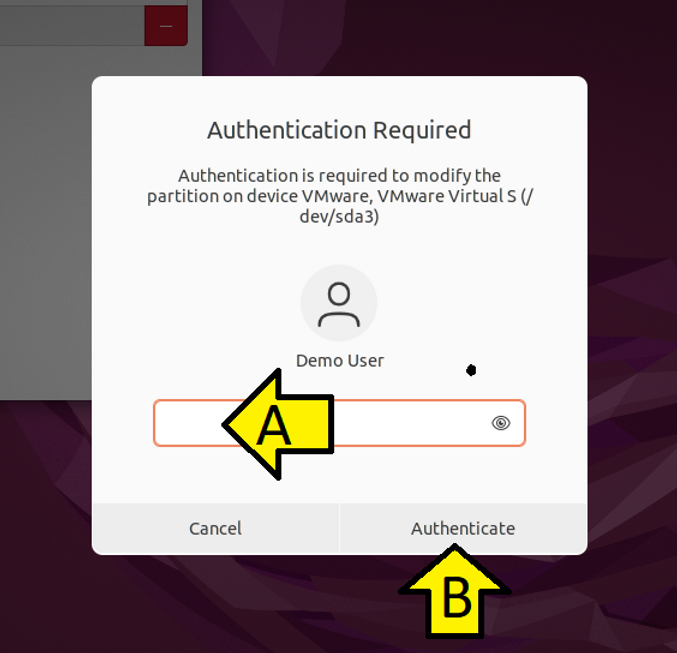
# Enter the sudo password and click Authenticate
# Launch the installer again
cd /mnt/hgfs/Installers
chmod +x Xilinx/2023.1/Xilinx_Unified_2023.1_0507_1903_Lin64.bin
./Xilinx/2023.1/Xilinx_Unified_2023.1_0507_1903_Lin64.bin
References
Enable a Shared Folder for a Virtual Machine
https://docs.vmware.com/en/VMware-Workstation-Pro/16.0/com.vmware.ws.using.doc/GUID-D6D9A5FD-7F5F-4C95-AFAB-EDE9335F5562.html
Disk Resize on Ubuntu
https://help.ubuntu.com/stable/ubuntu-help/disk-resize.html.en
Logo
https://library.amd.com/media/?mediaId=84C3498C-1B51-4965-93729CC284CD2DC2