

Lab 1 SDSoC Build and Load

This post is my run through of SDSoC Lab 1 Tutorial at [link].
Prerequisites
-
Install SDSoC on Linux using a free 60-day trial and launch it [instructions]
-
Have a ZC702 (I used a ZC702 Rev 1.1)
Notes
Use the Zynq-7000 on the ZC702 or the ZedBoard available at [link] and [link] to play around with SDSoC.
The ZC702 is $895.00 and the ZedBoard is $449.00.
The key benefit is that you’ll only need 2 GB of host memory to build images for the board.
If you use a Zynq UltraScale+ MPSoC on a ZCU102 (available at [link]), you’ll need 14 GB of host memory and $2495.00 for the board.
This advice applies to other situations where you’d like to use a Arm + FPGA fabric. Also long as you don’t need a hypervisor or the performance, the Zynq-7000 is a good, economical and fast platform for development (Zynq-7000 projects build in much less time).
Steps
1. Click Create SDx project
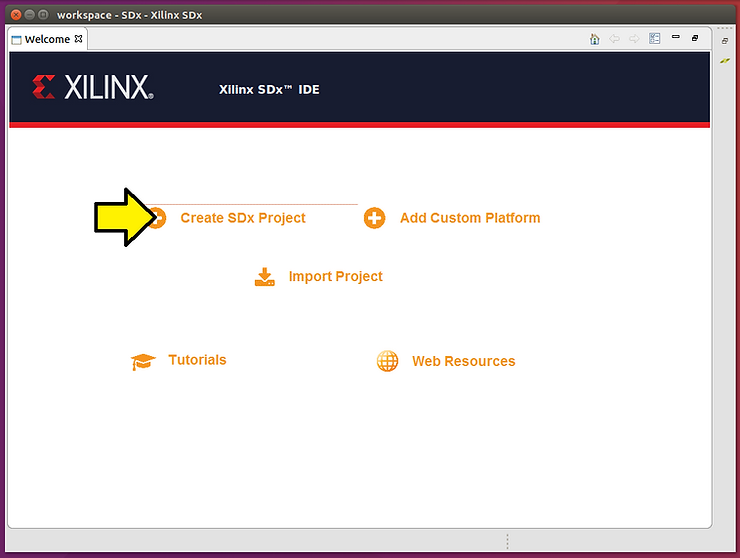
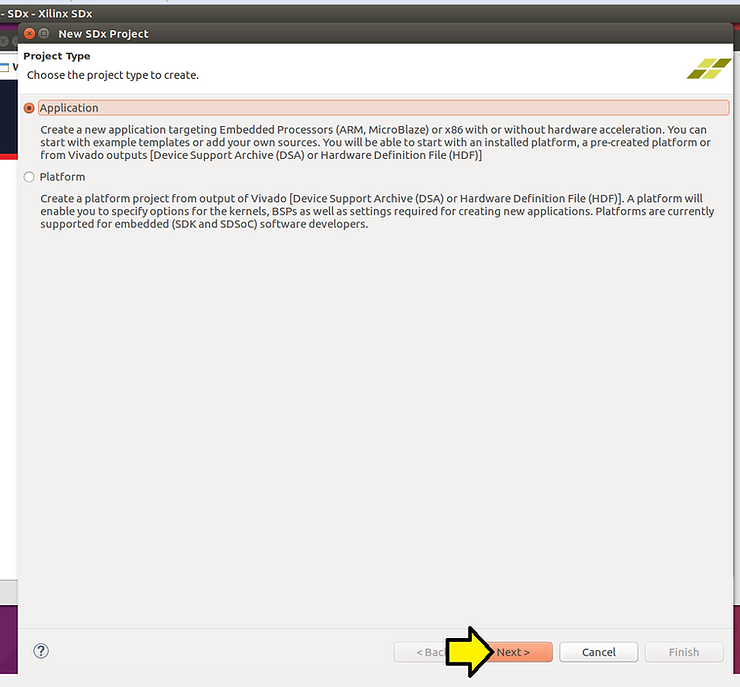
2. Keep Application selected and click Next >
3. Name your project lab1, keep Use default location clicked and click Next >
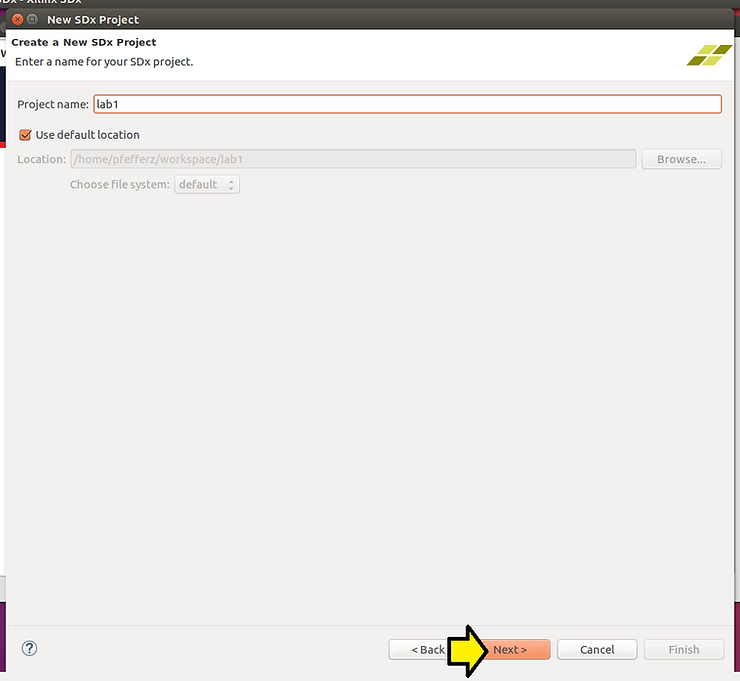
Note: You can use any 3 to 40 character sequence of a-z, A-Z, 0-9, _ and -
Note2: In a regex: [a-zA-Z0-9_ -]{3,40}
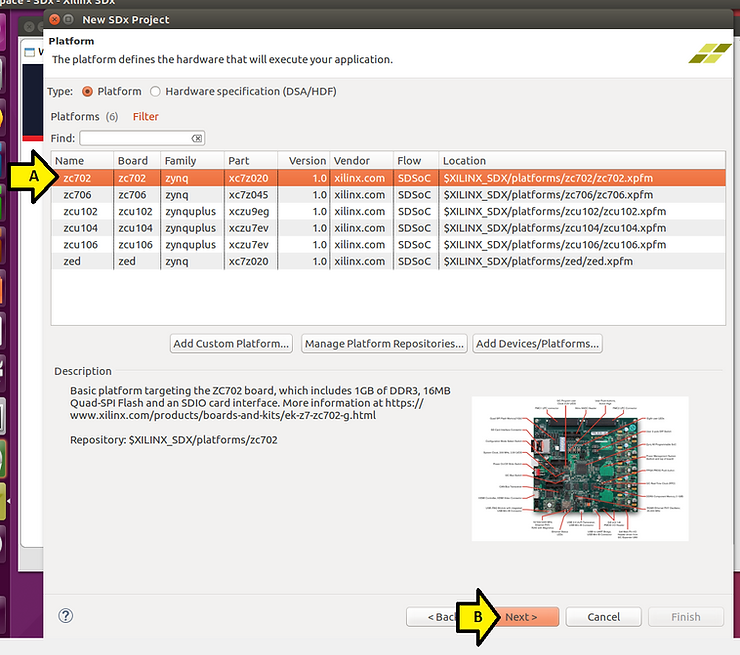
4. (A) Select the zc702 and (B) click Next
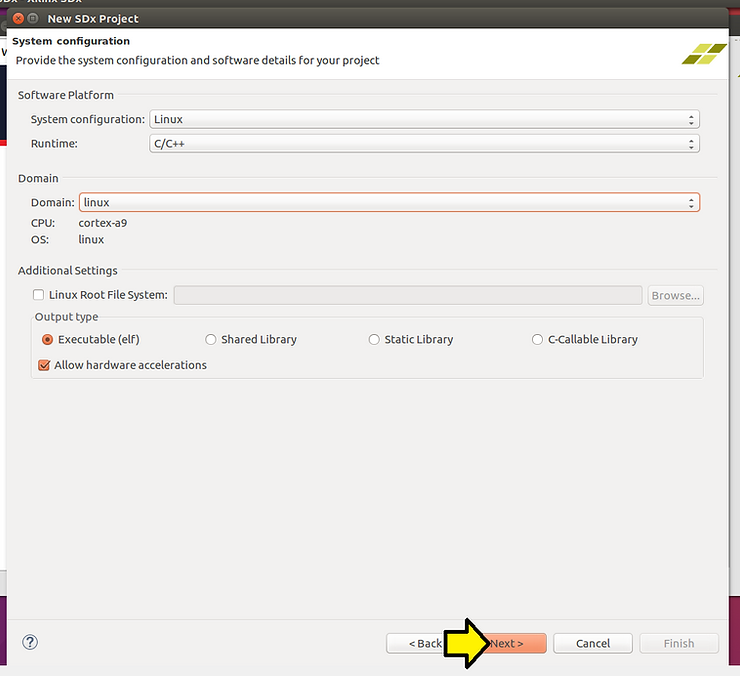
5. Accept defaults and click Next on the System configuration window
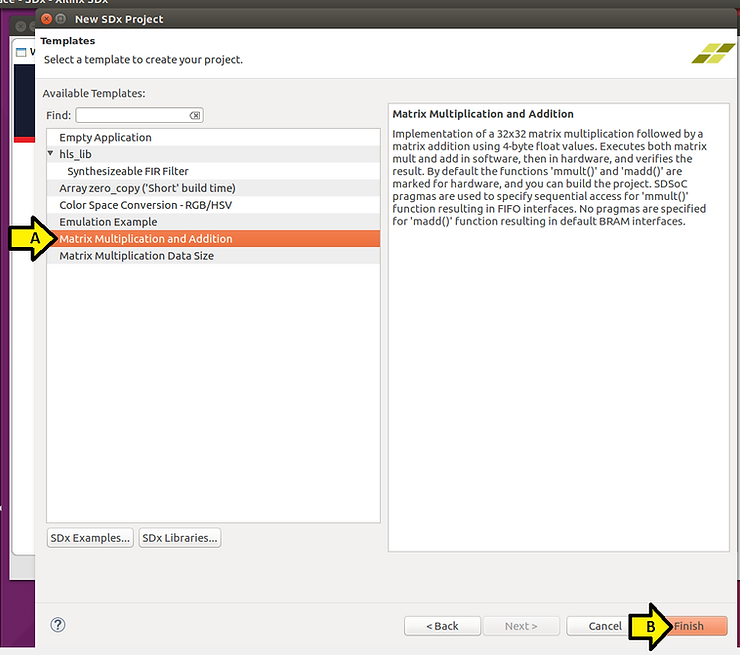
6. (A) Select Matrix Multiplication and Addition and (B) click Finish
You should see:
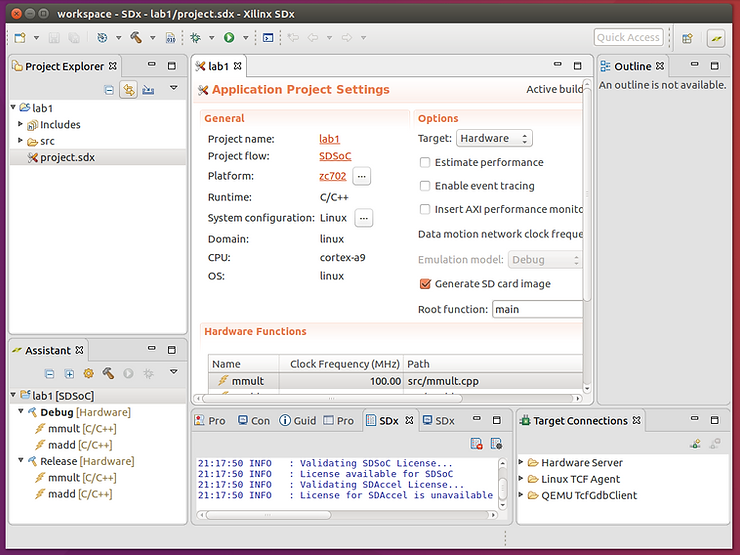
At this point I diverge from the tutorial a little.
7. Click build (this step will take a significant amount of time).
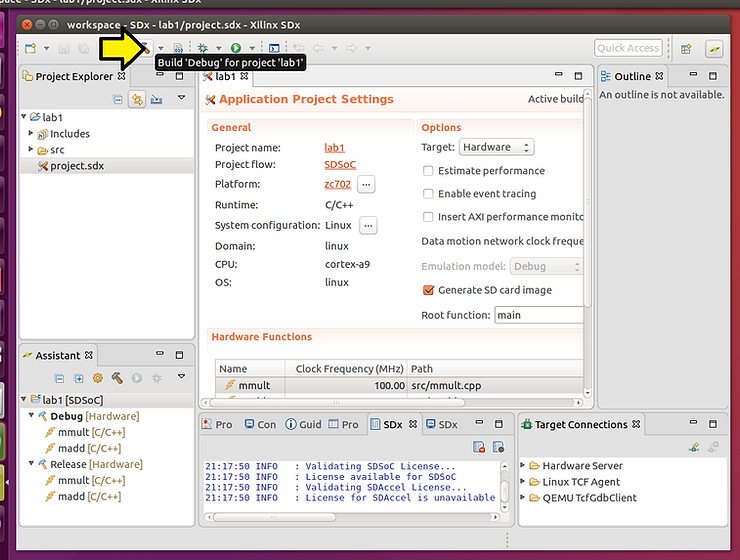
Note: this step took 1h:24m:29s.132ms, the entire output is [here].
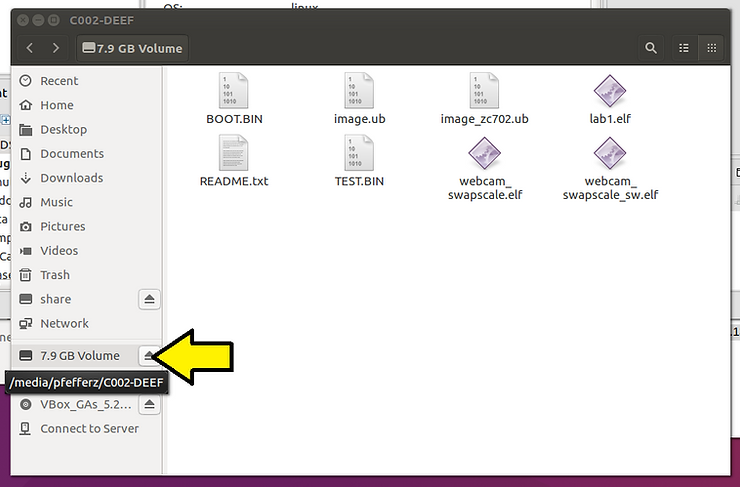
If you need help accessing an SD card from in Ubuntu running on VirtualBox, running on Windows 7 click [here].
8. To copy the files to the SD card…
Type cd ~
Type cd workspace/lab1/Debug/sd_card
Type ls
You should see:

ls
BOOT.BIN
image.ub
lab1.elf
README.txt
After replacing pfefferz with your path, type cp -f * /media/pfefferz/C002-DEEF/
Type ls -l /media/pfefferz/C002-DEEF/ to check that the files were copied
9. Eject the SD card
10. Set up minicom
Close SDx and everything else (you’ll need to log out and back in)
Type sudo apt-get install minicom
Type sudo adduser $USER dialout
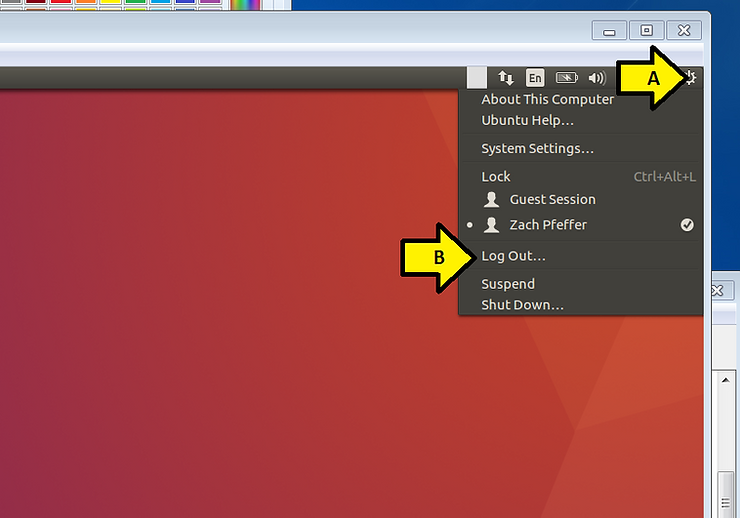
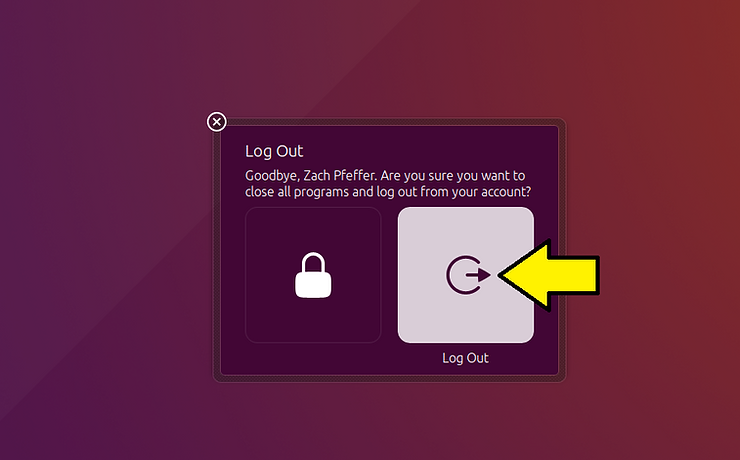
Log out, (A) click the gear icon, (B) click Log Out…
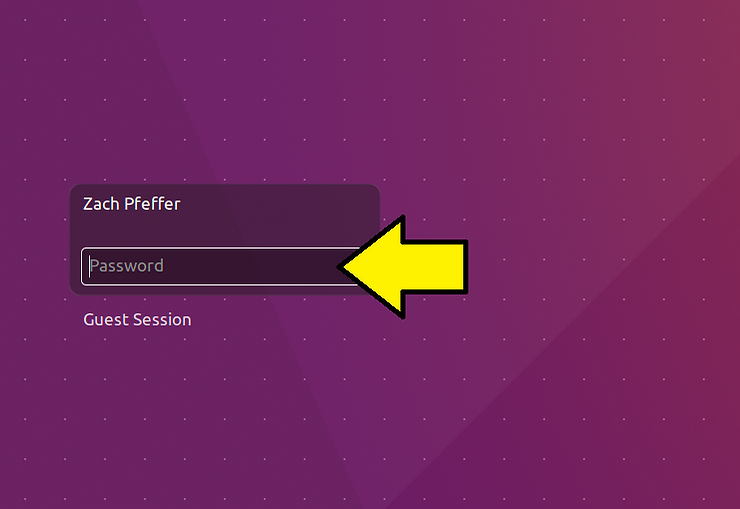
Log in, type your password and hit enter
Open a terminal and type sudo minicom -s
At this screen:
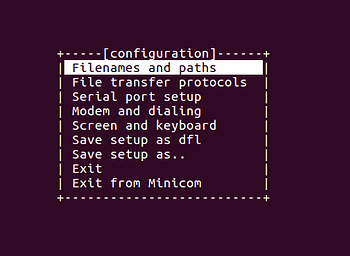
Hit the down arrow until you hit Serial port setup
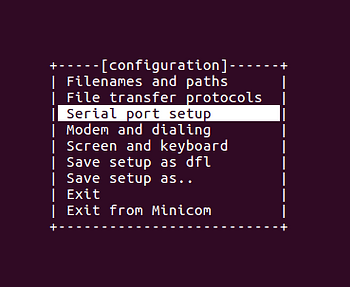
Press Enter
At this screen type F to turn off Hardware Flow Control and type A, changing the serial device to /dev/ttyUSB0
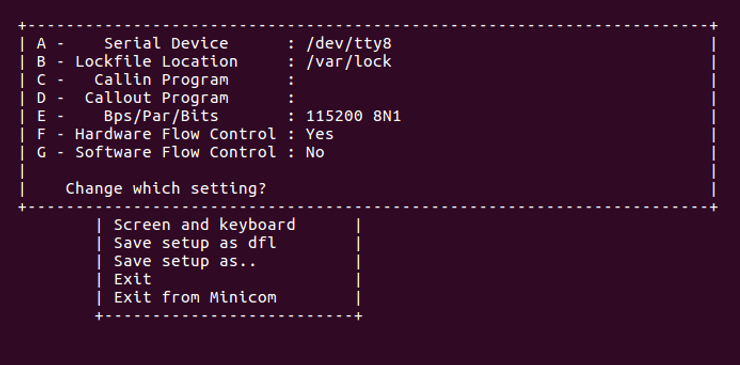
Things should look like:
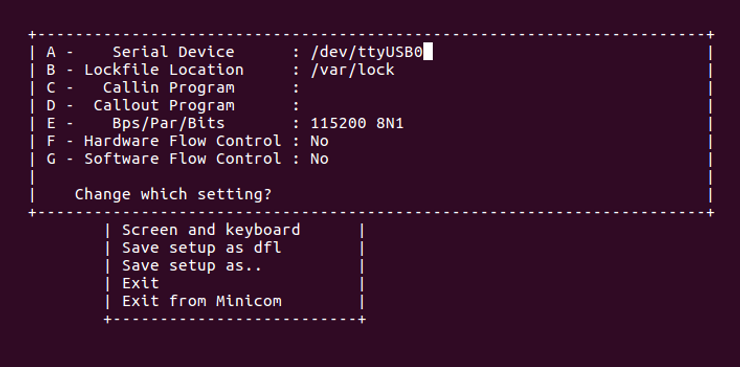
Press Enter to return to the previous menu
Press down until you get to Save setup as dfl
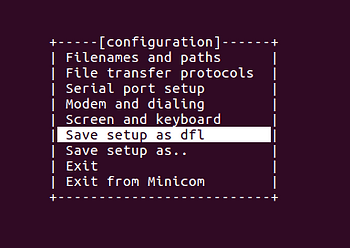
Press Enter
You should see:
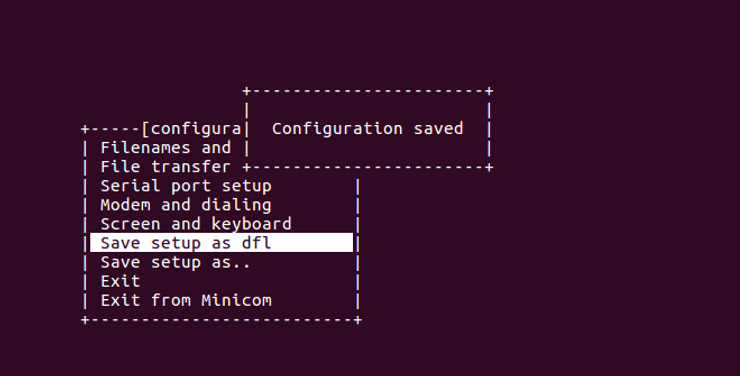
Press down until you get to Exit from Minicom
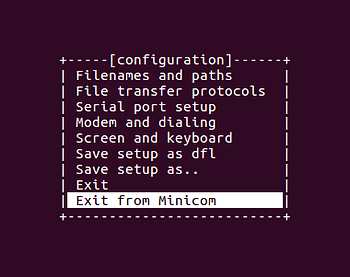
Press Enter
11. Set up the board
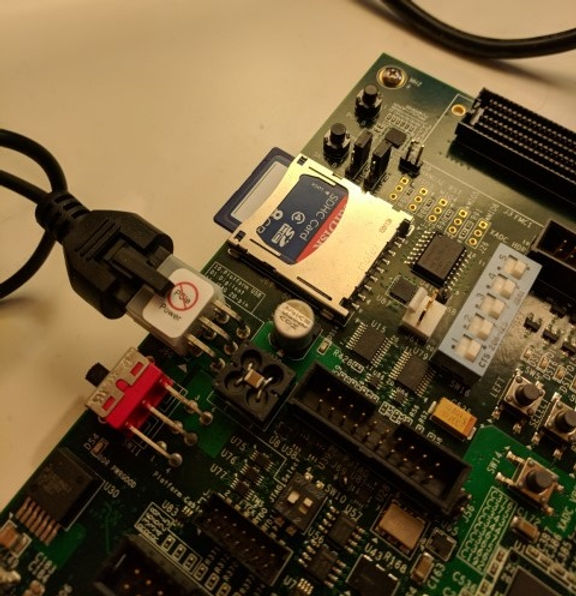
Plug the SD card in
Push it in:
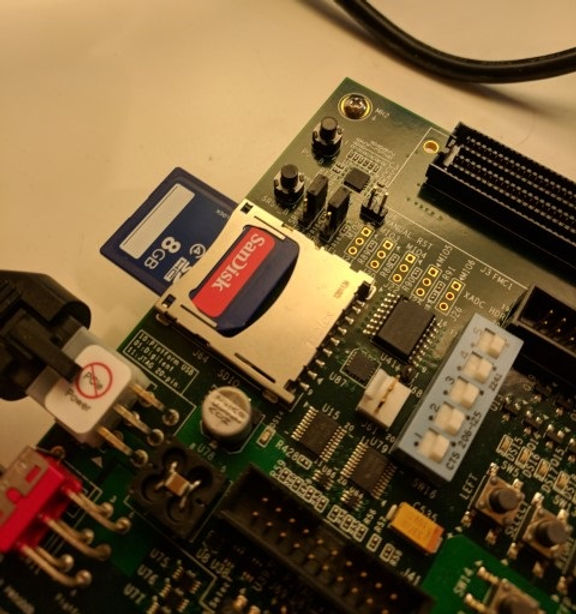
…till it clicks
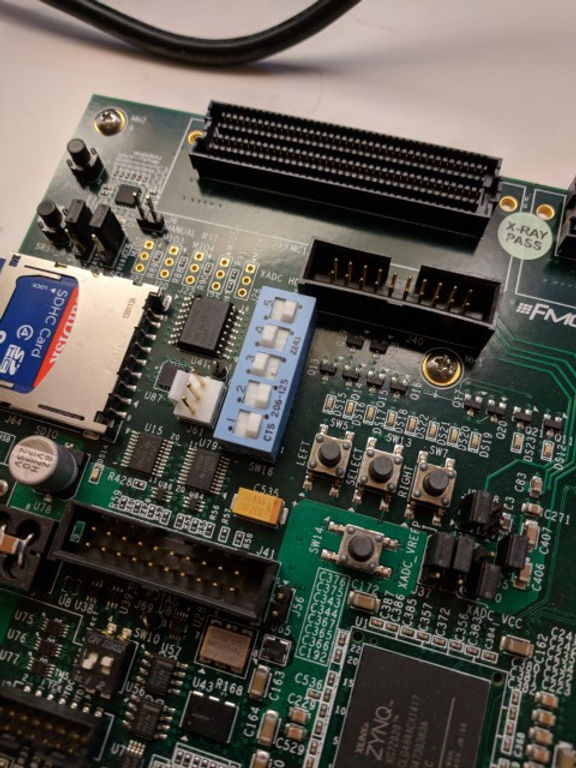
Set SW16 to boot from the SD card:
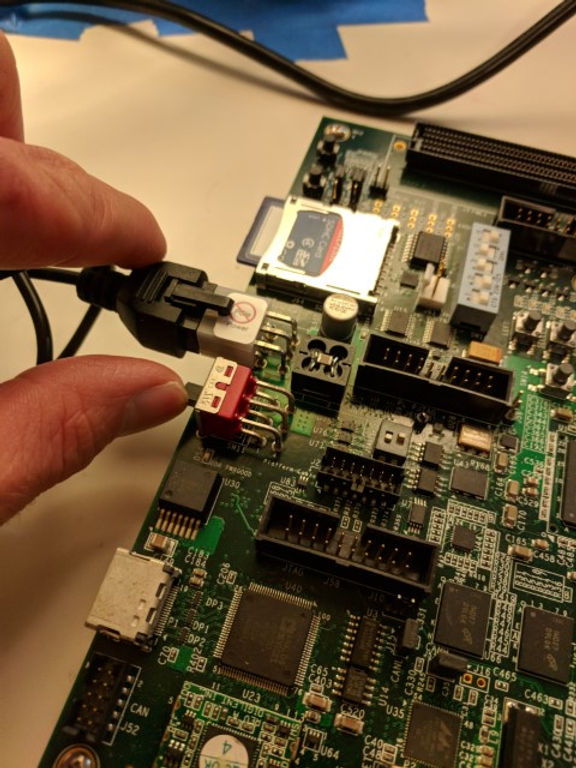
Plug in the USB UART:
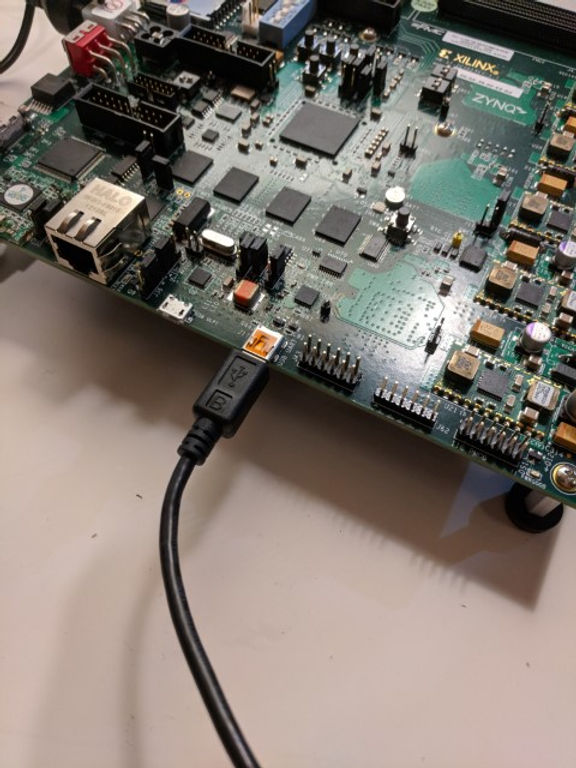
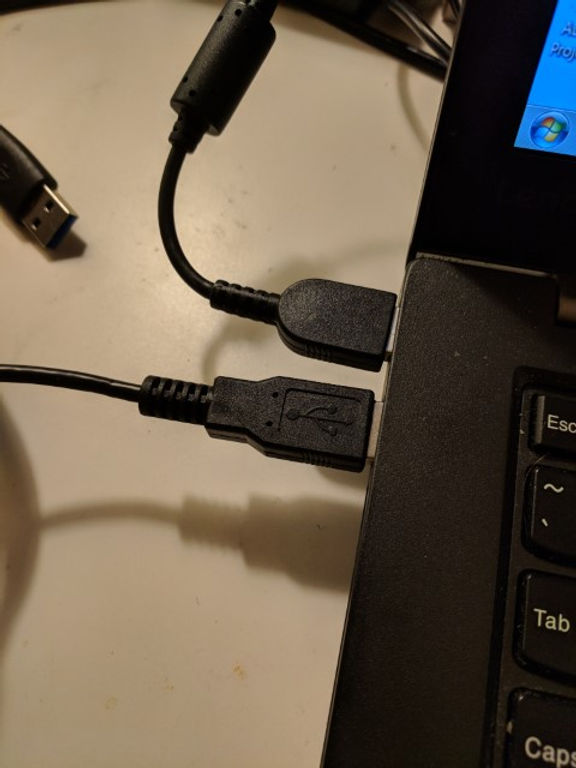
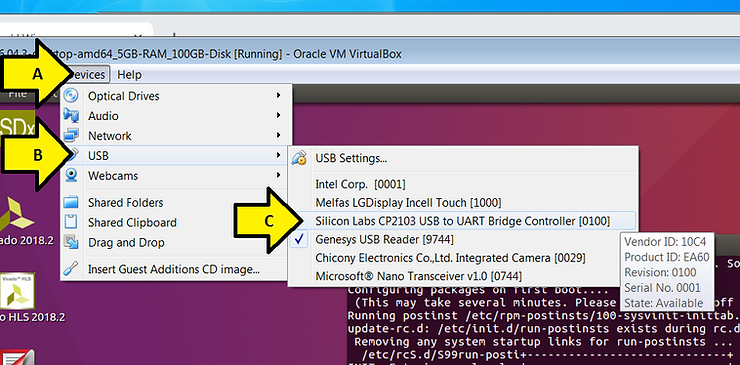
12. If you’re running this in a virtual machine, managed by VirtualBox, then capture the USB UART in VirtualBox by (A) clicking Devices, (B) clicking USB and (C) clicking Silicon Labs CP2103 USB to UART Bridge Controller [0100]
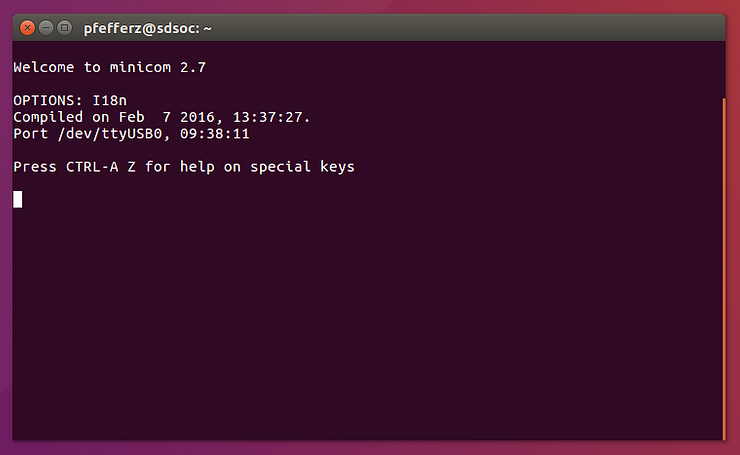
13. Run minicom by typing minicom in a terminal
Note: exit minicom by typing Control-a x
You should see
14. Power on the ZC702
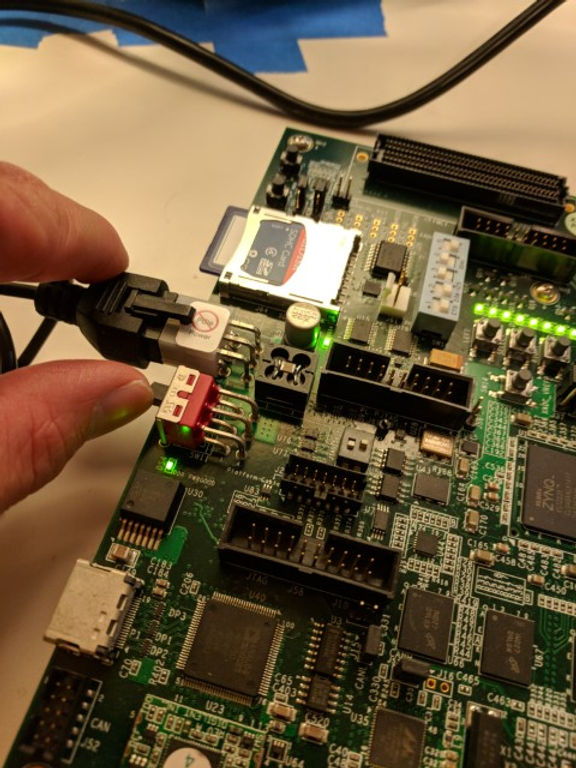
You should see output in the minicom terminal end with:
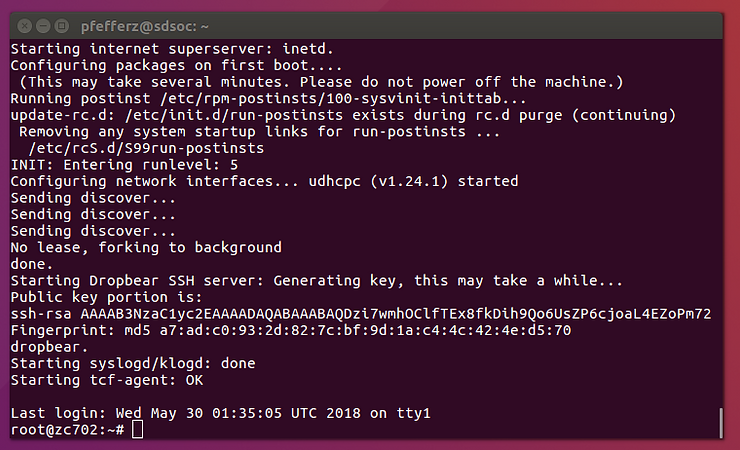
Full output is [here].
15. Type /mnt/lab1.elf
You should see the :

Congratulations! You completed Lab 1 of the SDSoC tutorial on the ZC702.
Share this post if you feel like it would benefit others!
Reference
SDSoC Environment Tutorial: Introduction - Lab 1: Introduction to the SDSoC Development Environment at [link]