

SD Card Access from Ubuntu 16.04.3 on VirtualBox on Windows 7
This post shows how to access an SD card via a USB reader from Ubuntu 16.04.3 running in a virtual machine hosted by VirtualBox version 5.2.12 r122591 (Qt5.6.2) running on Windows 7 SP1. It also covers accessing the SD card from a terminal, ejecting the card and unmounting the SD card reader.
Prerequisites
-
Install VirtualBox on Windows [instructions] (closely matches versions)
-
A USB SD card reader, like an IOGEAR GUH287 at [link]
-
Ubuntu is running in the virtual machine
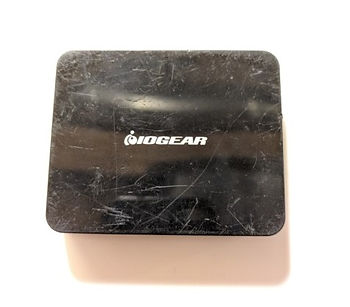
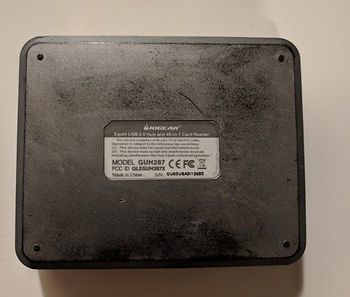
Install the SD Card Reader and the SD Card
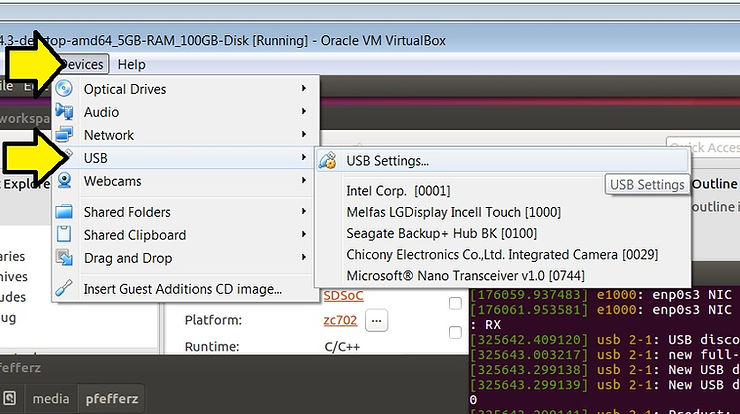
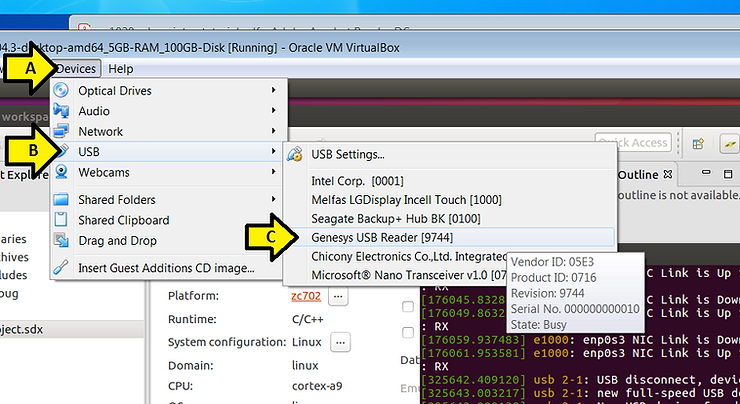
1. In the VirtualBox window running Ubuntu (A) click Devices, (B) click USB and note the devices.
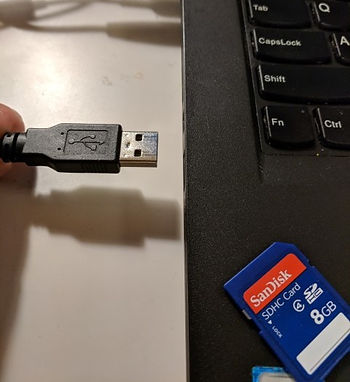
2. Plug the SD card reader into the computer
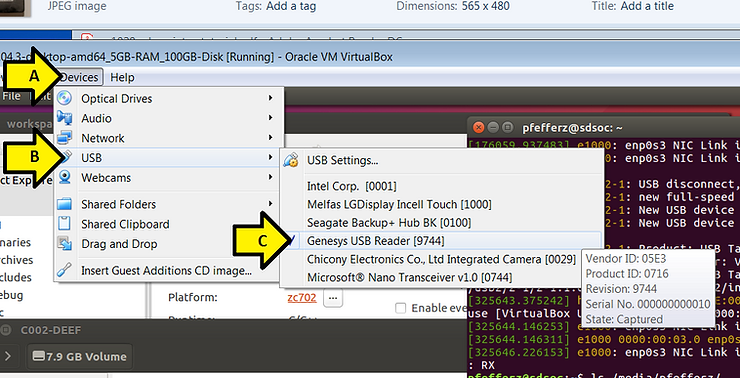
3. In the VirtualBox window running Ubuntu (A) click Devices, (B) click USB and (C) click Genesys USB Reader or whatever new device came up. This captures the USB card reader. You’ll hear Windows eject the device (with a da dum) and then hear Windows enumerate the VirtualBox driver (da da!) if this is the first time you’ve plugged this device in.
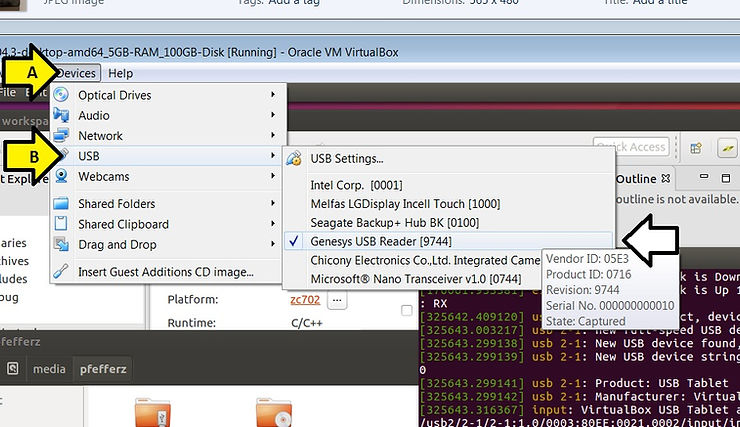
You should see a checkmark next to the reader after (A) clicking Devices and (B) clicking USB:
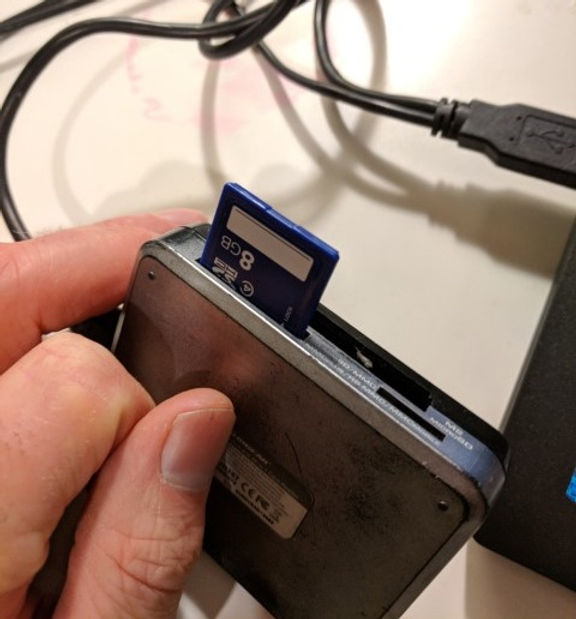
4. Insert an SD card into the reader.
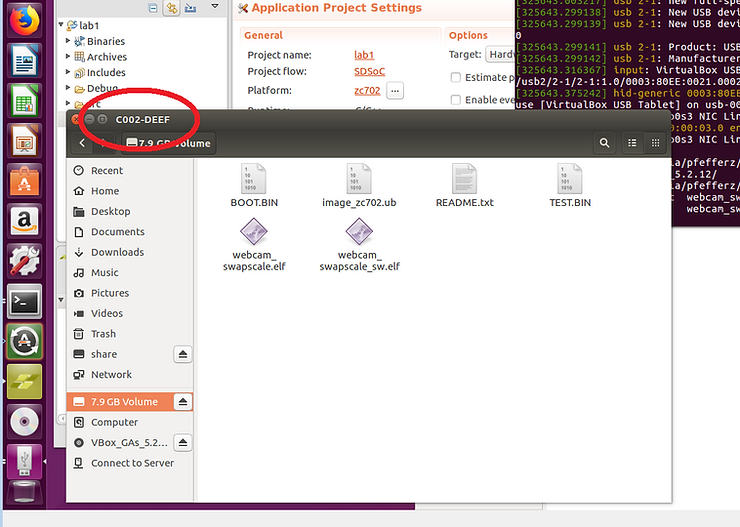
5. A window will pop up if the SD card has been formatted so that Ubuntu can read it. Note the name of the window.
Access the SD Card from a Terminal
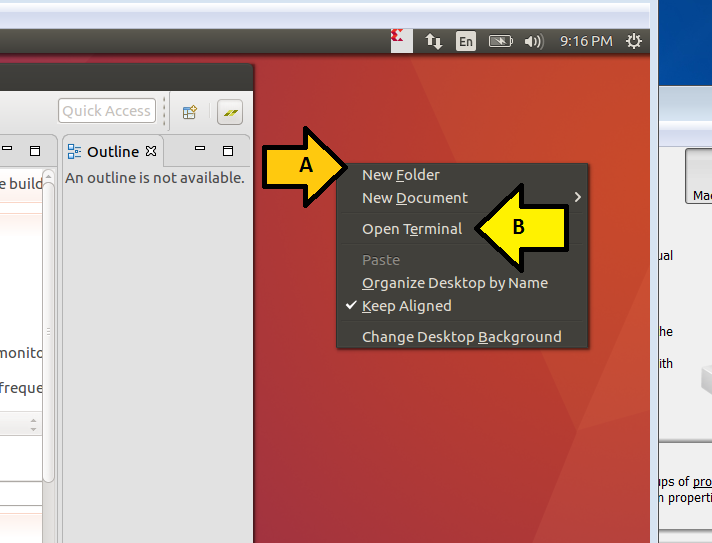
1. (A) Right-click on the Ubuntu desktop and (B) click Open Terminal
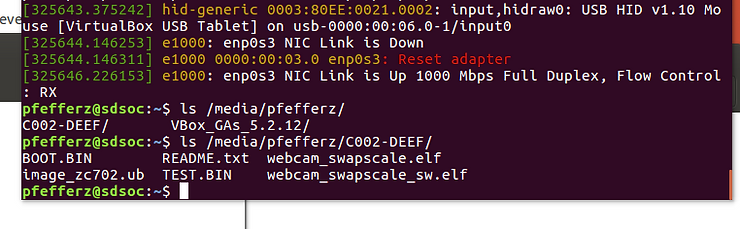
2. In the terminal type ls /media/pfefferz/C002-DEEF/
Now you can dd, cp, etc…
Eject the SD Card
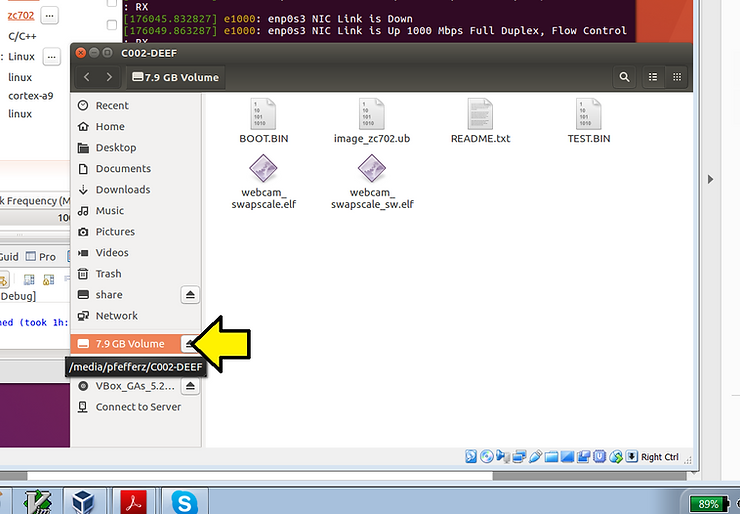
Click here to eject the SD card:
Unmount the SD Card Reader
To unmount the SD card reader (A) click Devices, (B) USB and (C) Genesys USB Reader [9744].
Reference
VirtualBox logo from [link]