

Set Up and Test VirtualBox NAT Port Forwarding
This post shows how to set up NAT port forwarding between a Window’s host and an Ubuntu guest running on VirtualBox and test it with netcat.
Prerequisites
You’ve installed VirtualBox. Click here for instructions.
You’ve installed Ubuntu on VirtualBox . Click here for instructions.
You’ve installed netcat on Windows. Click here for instructions.
Set Up
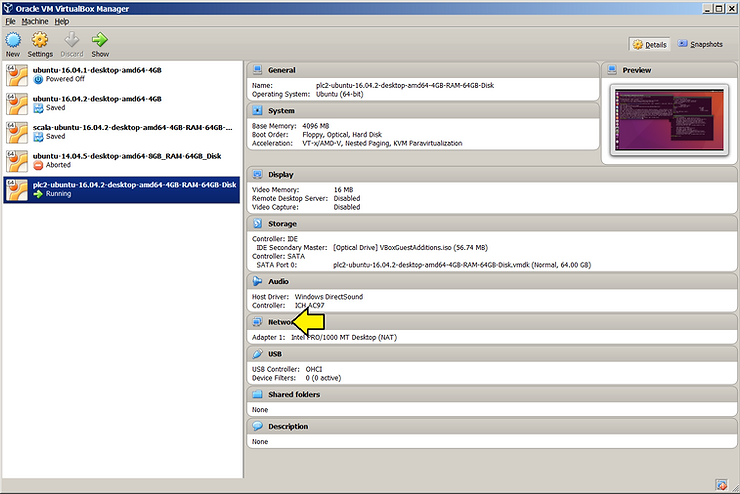
1. Click Network
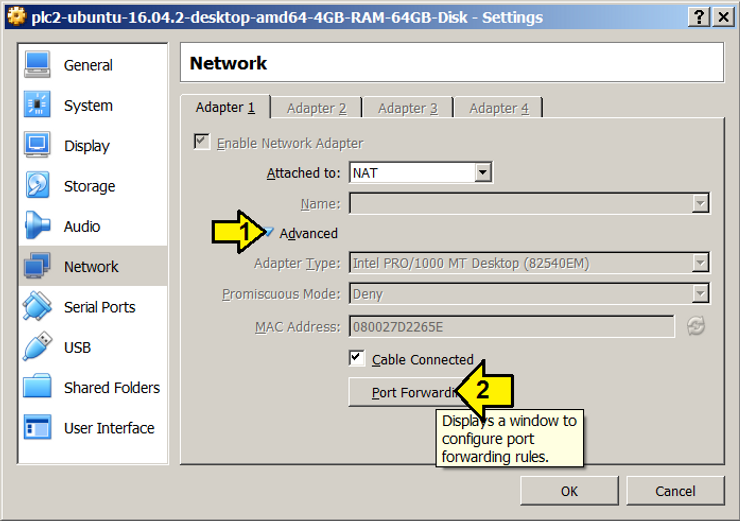
2. (1) Expand Advanced and (2) click Port Forwarding
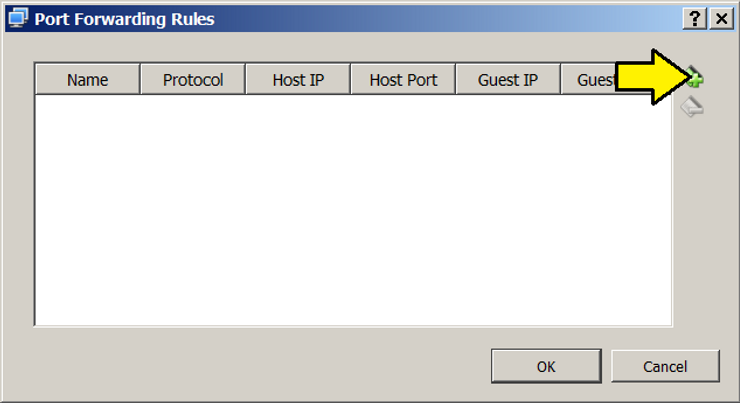
3. Click on the Adds new port forwarding rule. button.
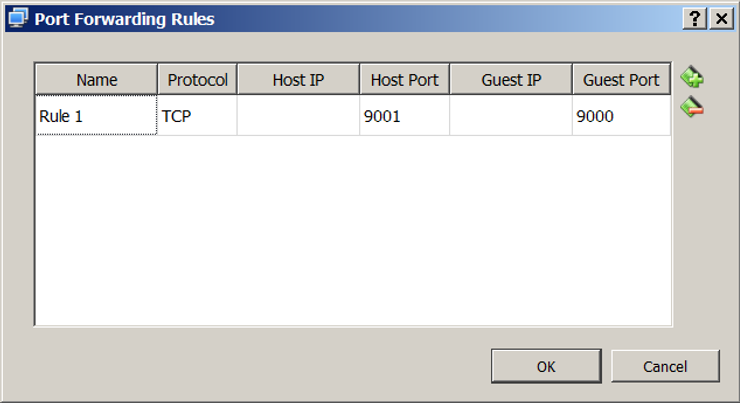
4. Enter 9000 for the Guest port, 9001 for the Host Port, leave TCP as the Protocol and Leave the Name as-is. Click OK. You don’t need to restart the VM.
Test
1. Open a terminal in Ubuntu and type:
nc -l -p 9000
2. Open a CMD window in Windows and type:
nc localhost 9001
3. In the CMD window type Hello, World. You should see Hello, World in Ubuntu.