

Share a directory between Ubuntu on VirtualBox and Windows
Verified step-by-step instructions for sharing a directory between Ubuntu running on VirtualBox and Windows.
Prerequisites
-
If you haven’t installed VirtualBox and/or Ubuntu 16.04 on VirtualBox, click here.
-
If you haven’t installed VirtualBox guest additions, click here.
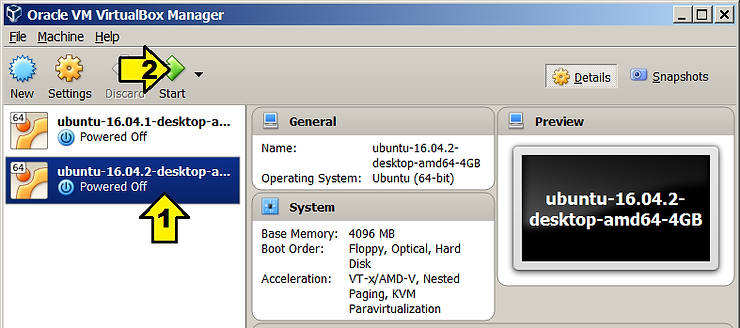
Step 1 - Start VM after launching VirtualBox if its not running: click 1, click 2
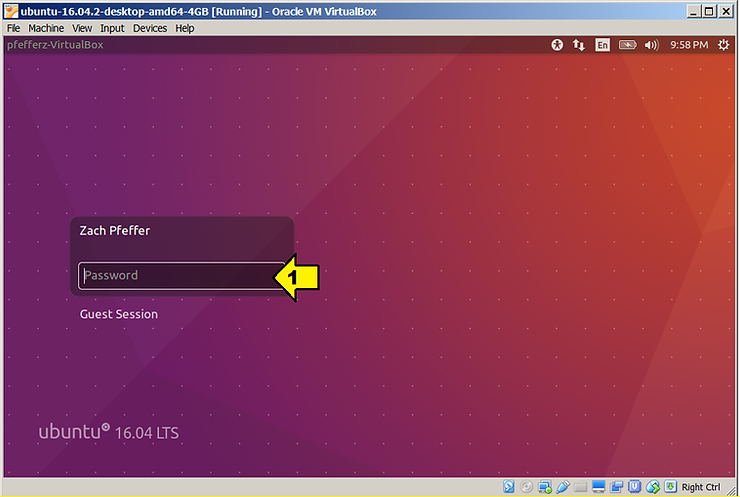
Step 2 - Login: click 1, enter password, hit Enter
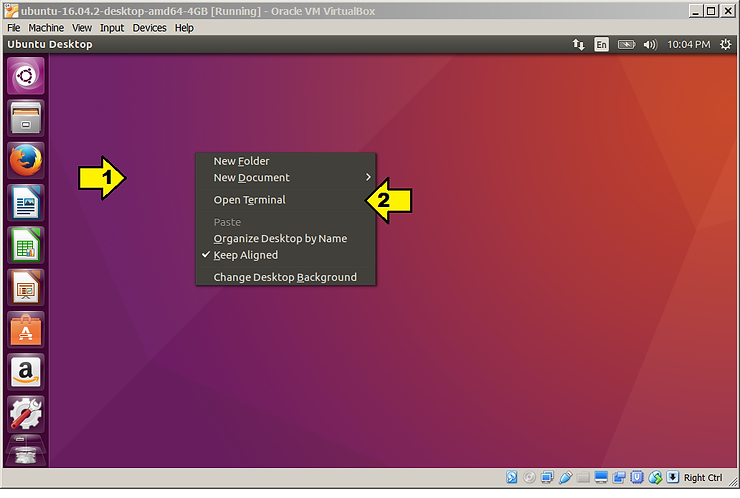
Step 3 - Open a terminal: right click 1, click 2
Step 4 - Create c:\shared in Windows: right click Start (1), click 2

…click C: (3), right click 4, hover 5, click 6
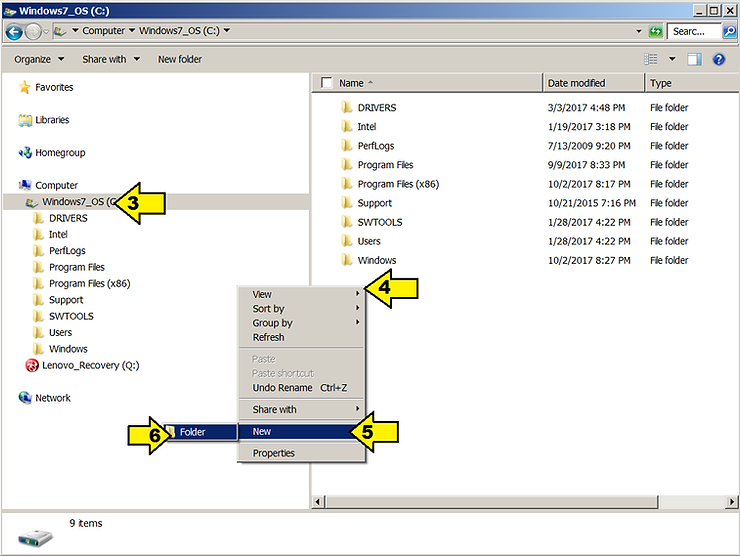
…name the folder shared. Result:

Step 5 - Open the Shared Folders Settings: click 1, hover 2, click 3

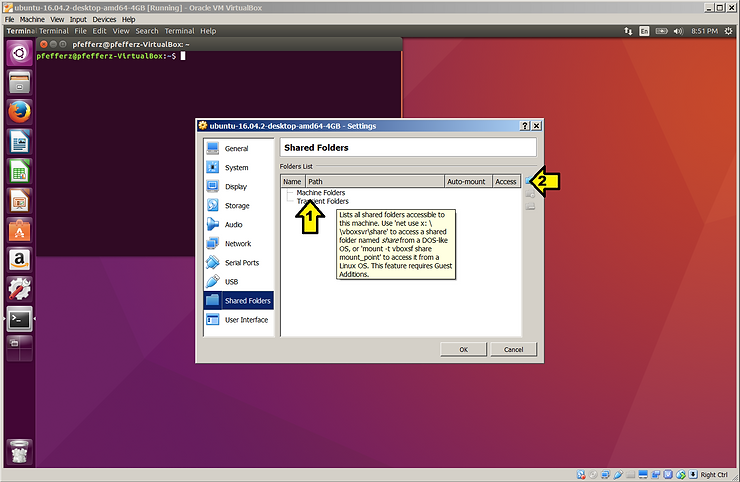
… click Transient Folders (1)and the Add Folder icon (2).
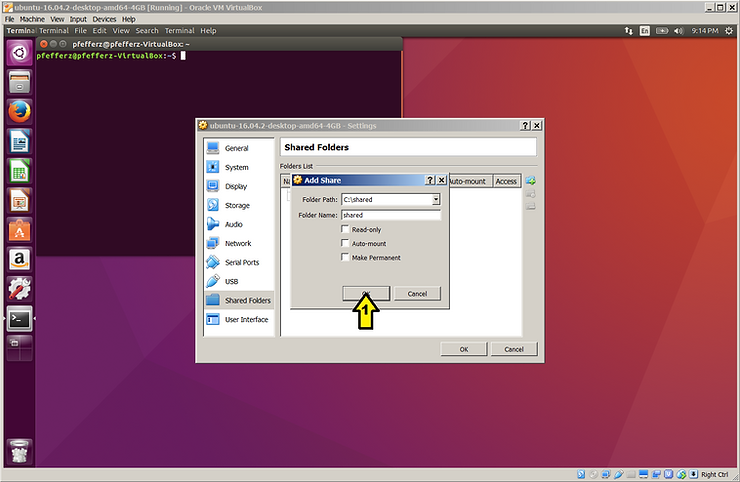
… browse to c:\shared and click the Ok button (1). Leave the radio buttons unchecked.
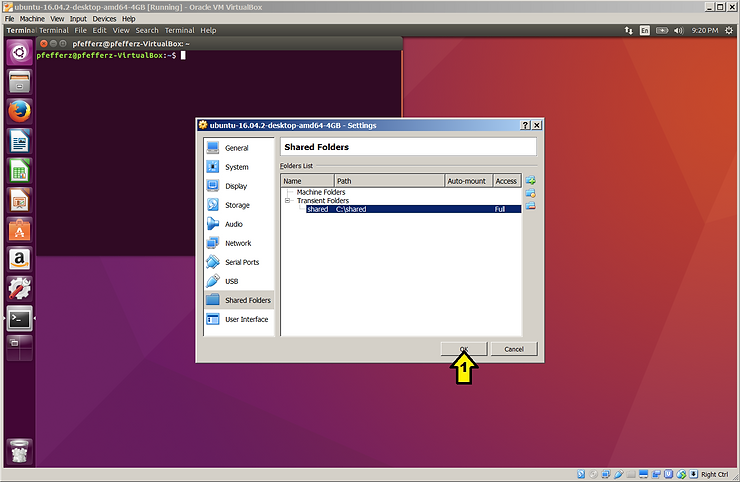
…click OK (1).
Step 6 - Back in the VM, create a directory and mount the shared directory.
On the guest, in the terminal type:
$ mkdir ~/guest_shared
$ sudo mount -t vboxsf shared ~/guest_shared
$ echo “Hello, World!” > ~/guest_shared/hello.txt
Back on the Windows host:
Look in c:\shared. You should see hello.txt. Open it up. You should see: Hello, World!
If you saw: Hello, World!, congratulations!
Other Info
Specific configuration
-
VirtualBox Version 5.1.14 r112924 (Qt5.6.2)
-
In VirtualBox Manager: Help > About VirtualBox…
-
Ubuntu 16.04.2 Guest in VirtualBox
-
From: http://old-releases.ubuntu.com/releases/16.04.2/ubuntu-16.04.2-desktop-amd64.iso
-
4 GB Memory
-
32 GB VMDK
-
Windows Host (what VirtualBox is running on)
-
Windows 7 Professional Service Pack 1
-
System
-
Component Details (Subscore) (Base score)
-
Processor Intel(R) Core(TM) i7-6600U CPU @ 2.60GHz (7.3) (5.1) Determined by lowest subscore
-
Memory (RAM) 12.0 GB (7.6)
-
Graphics Intel(R) HD Graphics 520 (5.1)
-
Gaming graphics 1888 MB Total available graphics memory (6.9)
-
Primary hard disk 366GB Free (462GB Total) (7.9)
Windows 7 Professional
-
System
-
Manufacturer LENOVO
-
Model 20FNCTO1WW
-
Total amount of system memory 12.0 GB RAM
-
System type 64-bit operating system
-
Number of processor cores 2
-
Storage
-
Total size of hard disk(s) 477 GB
-
Disk partition (C:) 366 GB Free (462 GB Total)
-
Disk partition (Q:) 4 GB Free (14 GB Total)
-
Graphics
-
Display adapter type Intel(R) HD Graphics 520 (gfxbench)
-
Total available graphics memory 1824 MB
-
Dedicated graphics memory 192 MB
-
Dedicated system memory 0 MB
-
Shared system memory 1632 MB
-
Display adapter driver version 20.19.15.4454
-
Primary monitor resolution 1920x1080
-
Secondary monitor resolution 1920x1200
-
DirectX version DirectX 10
-
Network
-
Network Adapter Intel(R) Ethernet Connection I219-LM
-
Network Adapter Intel(R) Dual Band Wireless-AC 8260
-
Network Adapter Microsoft Virtual WiFi Miniport Adapter
-
Network Adapter Microsoft Virtual WiFi Miniport Adapter
-
Network Adapter Bluetooth Device (Personal Area Network)
-
Network Adapter VirtualBox Host-Only Ethernet Adapter
-
System Info from
-
Right click Start > Click Open Windows Explorer
-
Right click Computer > Click Properties
-
Click Windows Experience Index
-
Click View and print detailed performance and system information