Show Missing GUI Elements in Vivado

This post presents a way to show missing GUI elements in Vivado.
Show Missing GUI Elements in Vivado
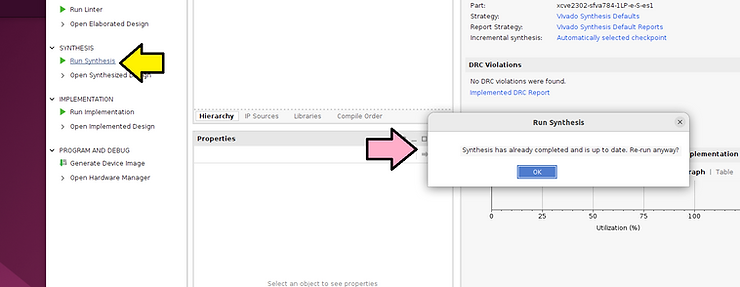
When I run Vivado v2023.1 in Ubuntu 22.04.01 running on VMWare Workstation VMware® Workstation 17 Pro 17.5.0 build-22583795 with the Virtual Machine Setting Accelerate 3D graphics turned on, some GUI elements are missing in Vivado. Turning off the Accelerate 3D graphics option works around the problem.

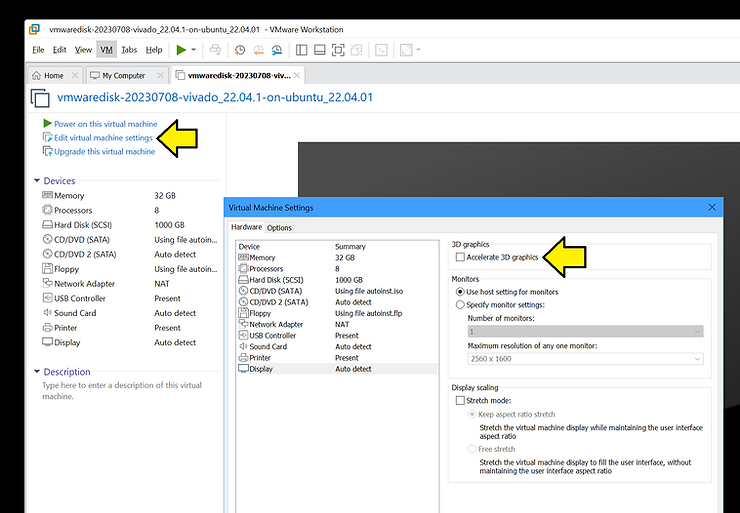
Reproduce the Bug
1. Start with a powered-off VM
2. Enable Accelerate 3D graphics
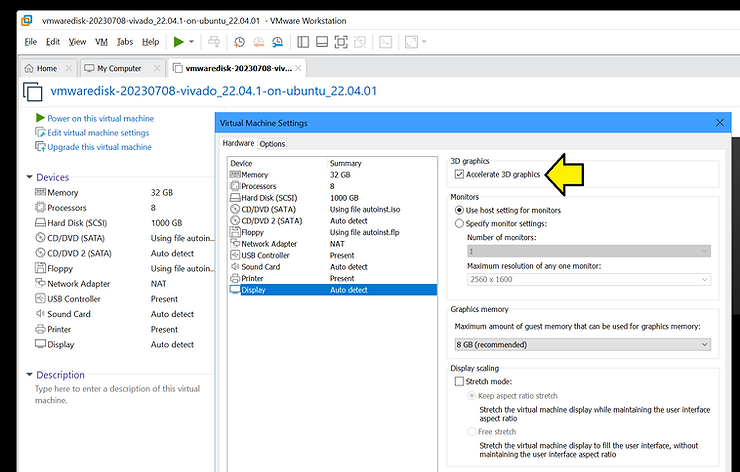
3. Power On the VM
4. Start the license server:
~/tools/lin_flm_v11.17.2.0/lnx64.o/lmgrd -z -c- ~/licenses/ -l ~/license_log/license.log &
5. Start Vivado :
source ~/tools/amd/Vivado/2023.1/settings64.sh
export XILINXD_LICENSE_FILE=2100@fpgadev
vivado
6. Click Run Synthesis and see the pop-up with the missing elements:
7. Turn off the VM
Reproduce the Bug
1. Disable 3D graphics
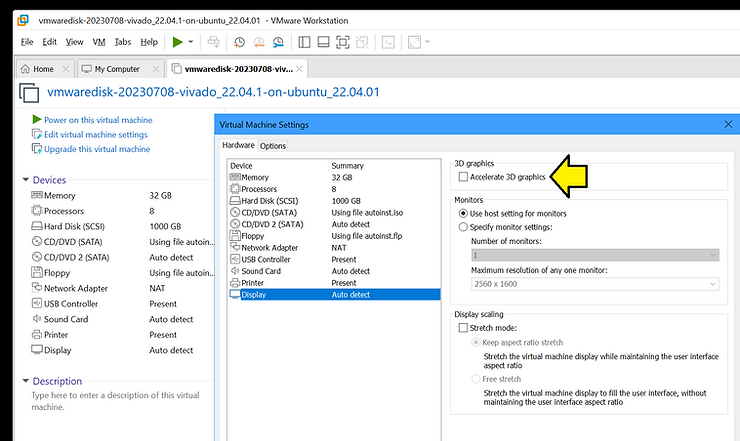
2. Power On the VM
3. Start the license server:
~/tools/lin_flm_v11.17.2.0/lnx64.o/lmgrd -z -c- ~/licenses/ -l ~/license_log/license.log &
4. Start Vivado :
source ~/tools/amd/Vivado/2023.1/settings64.sh
export XILINXD_LICENSE_FILE=2100@fpgadev
vivado
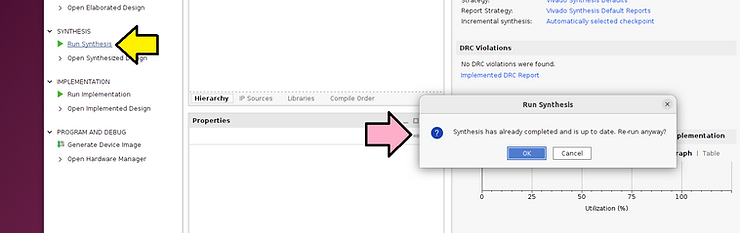
5. Click Run Synthesis and see the pop-up with all the elements: