

Turn off Curved Quotes in Word 2016
This post shows how to turn off curved quotes in Word 2016. It also shows you how to check the version of Word you’re using.
Check Word Version
Step #1: Click File
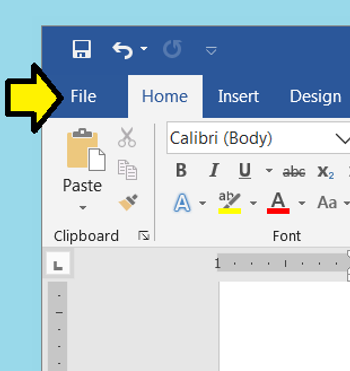
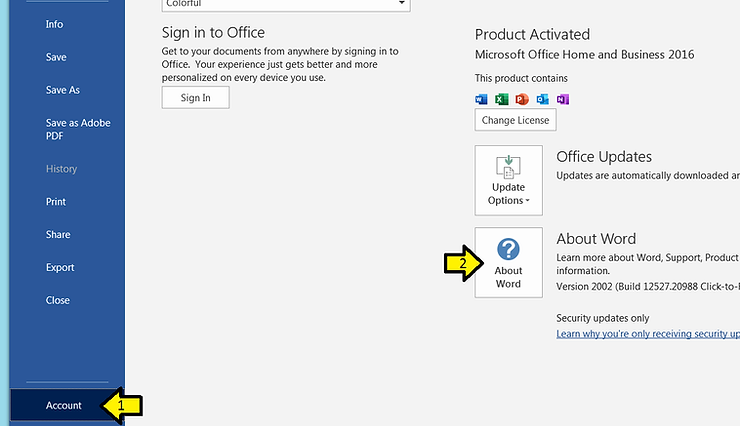
Step #2:
1) Click Account
2) Click About Word
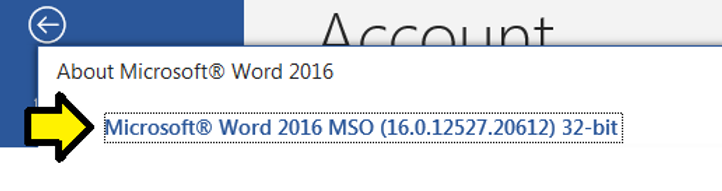
The version:
Turn off Curly Quotes
Step #1: Click File
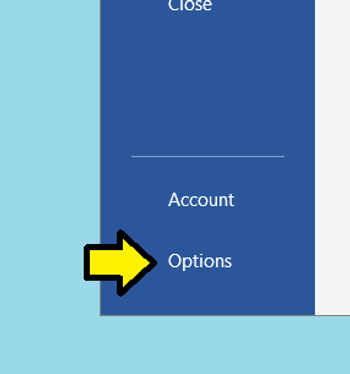
Step #2: Click Options
Step #3:
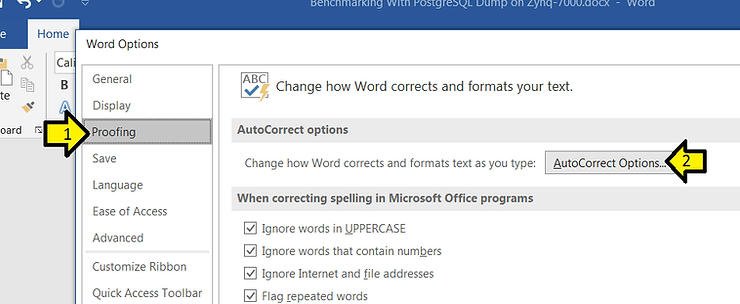
1) Click Proofing
2) Click AutoCorrect Options…
Step #4:
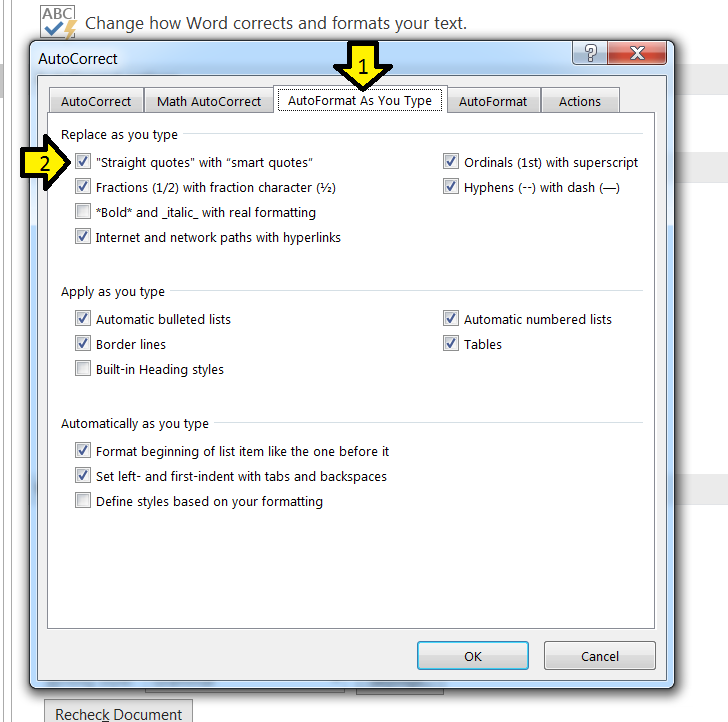
1) Click AutoFormat As You Type
2) Click the “Straight quotes” with “smart quotes” check box off
Step #5:
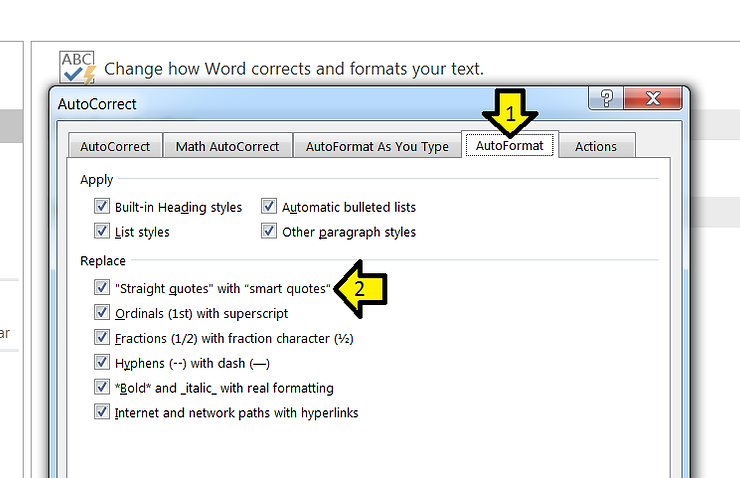
1) Click AutoFormat
2) Click the “Straight quotes” with “smart quotes” check box off
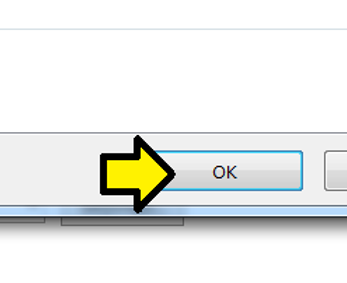
Step #6: Click OK
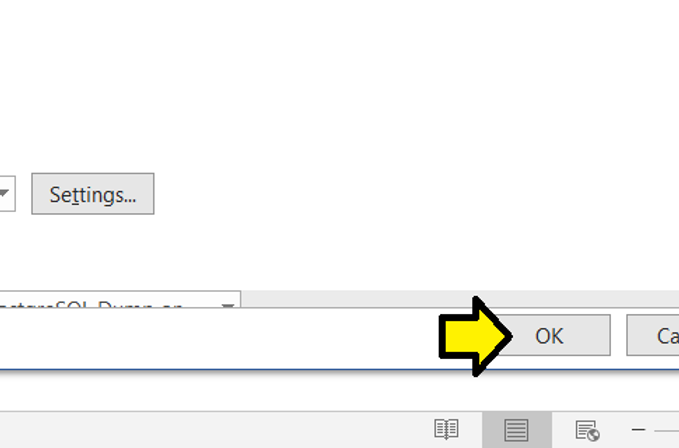
Step #7: Click OK again
Reference
Word icon from [link].