

Turn On the Developer Tab in Excel 2016 on Windows 7

This post shows how to check the version of Excel you’re using and turn on the Developer Tab in Excel 2016. You may need this if you want to record a macro.
Find Excel Version
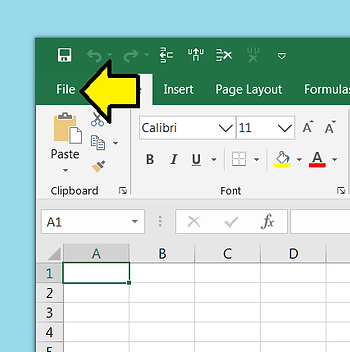
Step 1: Click File
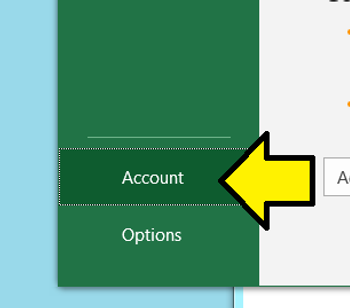
Step 2: Click Account
Step 3: Click About Excel
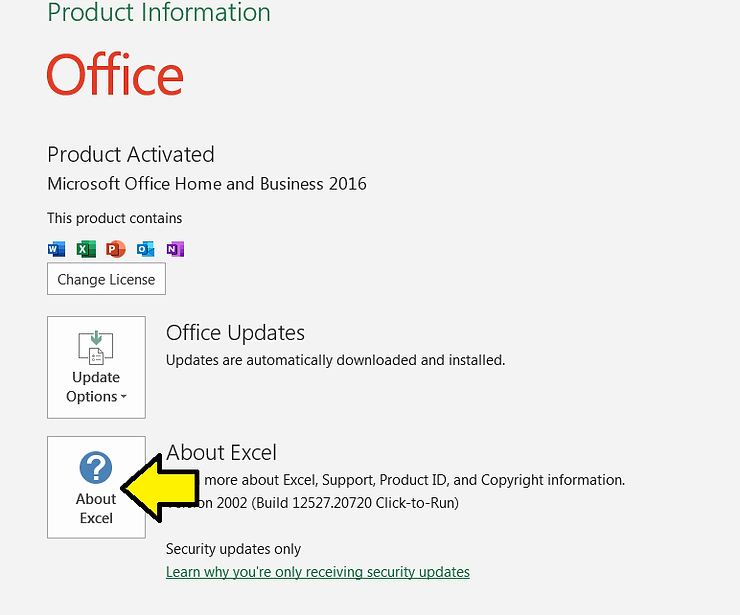
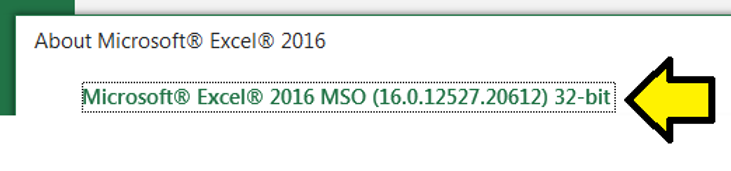
Step 4: Check the version
Turn on Developer Mode
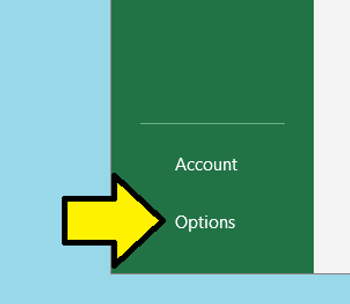
Step 1: Click File
Step 2: Click Options
Step 3:
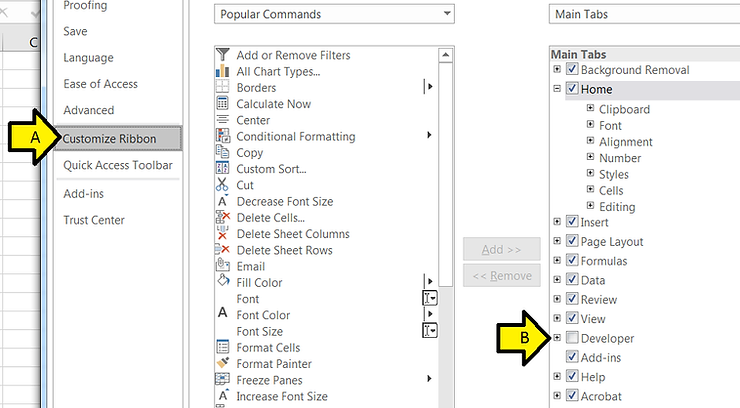
A. Click Customize Ribbon
B. Click the Developer checkbox
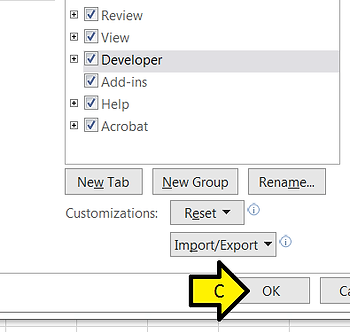
C. Click OK
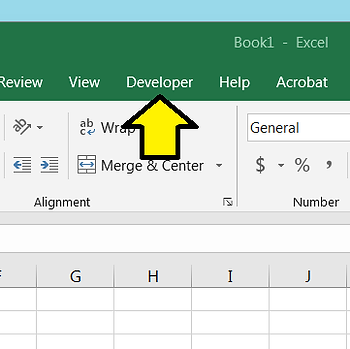
Step 4: Check
References
Excel icon downloaded from [link] as SVG and saved as a PNG using Microsoft Explorer
