

Upgrading a Lenovo P52 M.2 MZ-VLB1T0B 1TB SSD to a 2TB Samsung 970 EVO Plus MZ-V782T0
This post covers upgrading a Lenovo P52 M.2 MZ-VLB1T0B 1TB SSD to a 2TB Samsung 970 EVO Plus MZ-V782T0, cloning the old disk to the new one, booting off the new one, and installing a second drive. It also lists links to Lenovo hardware maintenance documentation and links to a detailed listing of the P52.
System Details
https://www.zachpfeffer.com/single-post/2020/08/24/new-lenovo-p52-thinkpad-system-information
Instructions for Hardware Drive Replacement
Follow the instructions to replace “M.2 solid-state drive” FRU @ “1030 Storage drive” in ThinkPad P52 Hardware Maintenance Manual [link]
FRU stands for “Field Replacement Unit,” see https://support.lenovo.com/us/en/solutions/ht118572-what-is-a-field-replacement-unit-fru-service-part .
The Drive Being Replaced
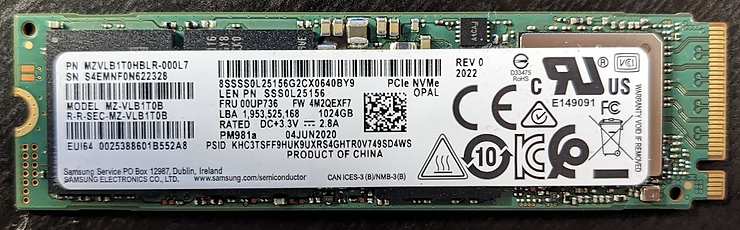
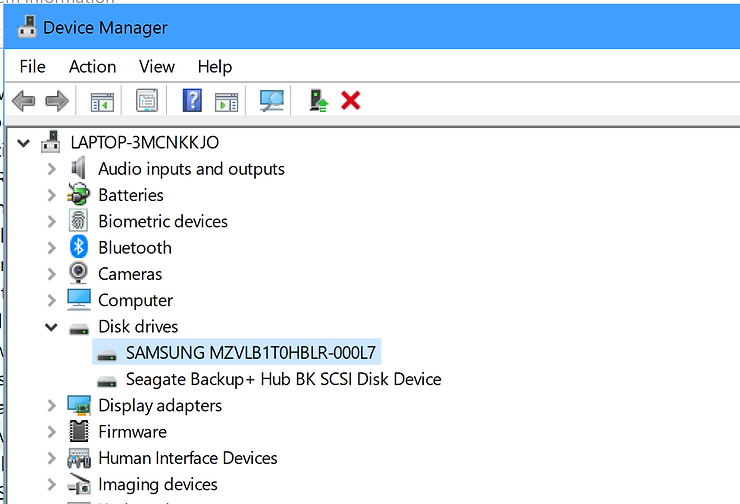
We’re replacing a Samsung MZVLB1T0HBLR-000L7 (MZ-VLB1T0B) https://semiconductor.samsung.com/us/ssd/pc-ssd/pm981a/mzvlb1t0hblr-00-00-07/
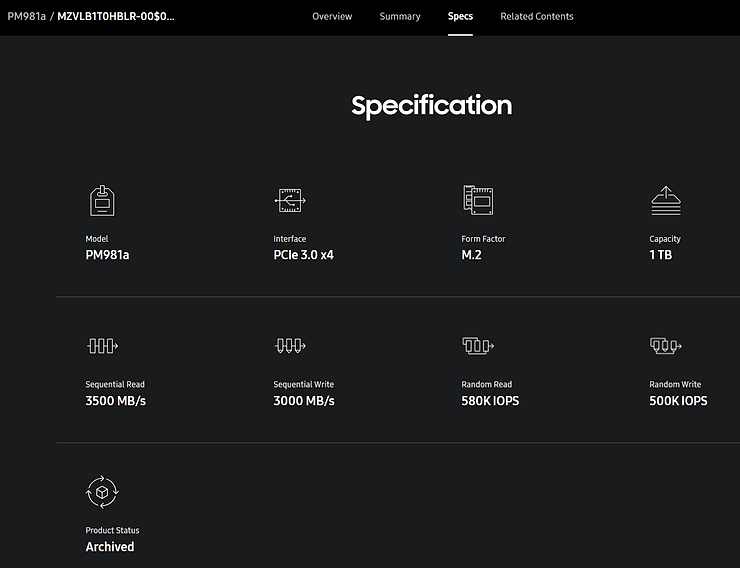
Specification
Model: PM981a
Interface: PCIe 3.0 x4
Form Factor: M.2
Capacity: 1 TB
Sequential Read (128 KB): 3500 MB/s
Sequential Write (128 KB): 3000 MB/s
Random Read (4 KB): 580K IOPS
Random Write (4 KB): 500K IOPS
Product Status: Archived
The Drive We’re Installing
…with a Samsung SSD 970 EVO Plus
Specs
https://www.samsung.com/us/computing/memory-storage/solid-state-drives/ssd-970-evo-plus-nvme-m-2-2-tb-mz-v7s2t0b-am/#specs
Model: MZ-V782T0
Type
Product Type
NVMe SSD
Storage Type
Internal
Interface
PCIe Gen 3.0 x4, NVMe 1.3
Read/Write Speeds
3,500/3,300 MB/s
Usage Application
Client PCs
Series
970 EVO Plus
Application
Consumer
Yes
Storage
Capacity
2,000GB (1GB=1 Billion byte by IDEMA) * Actual usable capacity may be less (due to formatting, partitioning, operating system, applications or otherwise)
Key Features
Sequential Read Speed (Same)
Up to 3,500 MB/s * Performance may vary based on system hardware & configuration
Sequential Write Speed (300 MB/s faster)
Up to 3,300 MB/s * Performance may vary based on system hardware & configuration
Random Read Speed
Random Read (4KB, QD32): Up to 620,000 IOPS; Random Read (4KB, QD1): Up to 19,000 IOPS * Performance may vary based on system hardware & configuration
Random Write Speed
Random Write (4KB, QD32): Up to 560,000 IOPS; Random Write (4KB, QD1): Up to 62,000 IOPS * Performance may vary based on system hardware & configuration
Controller
In-house
NAND Flash
Samsung V-NAND 3-bit MLC
Cache Memory
Samsung 2GB Low Power DDR4 SDRAM
Trim Support (TRIM support helps the operating system organize data efficiently)
Supported
AES Encryption (Types of software and hardware encryption that is supported)
AES 256-bit Encryption (Class 0)TCG/Opal IEEE1667 (Encrypted drive)
Security
AES 256-bit Full Disk Encryption, TCG/Opal V2.0, Encrypted Drive (IEEE1667)
S.M.A.R.T. Support (Self-Monitoring, Analysis and Reporting Technology is a monitoring system that help the drive detect errors and reports reliability issues)
Supported
GC (Garbage Collection) (GC is similar to TRIM support which helps the drive organize data)
Auto Garbage Collection Algorithm
WWN Support
Not supported
Device Sleep Mode Support
Yes
Internal Storage (Drive is situated inside the device)
Samsung V-NAND 3-bit MLC
Temperature proof
Yes
NVMe (NVMe (Non-Volatile Memory Express) is an open logical-device interface specification for accessing non-volatile storage media attached via PCI Express bus.)
Yes
Gaming SSDs
Yes
M.2 2280
Yes
General
Average Power Consumption (system level) (Average during normal operations of the device, Actual power consumption may vary depending on system hardware & configuration)
*Average: 6 W*Maximum: 9 W (Burst mode)* Actual power consumption may vary depending on system hardware & configuration
Power consumption (Idle) (Power consumption at an idle state)
Max. 30 mW * Actual power consumption may vary depending on system hardware & configuration
Voltage (Amount of power require to operate the device)
3.3 V ± 5 % Allowable voltage
Reliability (MTBF) (Life span of the device measured in MTBF)
1.5 Million Hours Reliability (MTBF)
Environmental Specs
Operating Temperature
0 - 70 ℃ Operating Temperature
Shock (The amount of force the device can sustain before serious damage is caused)
1,500 G & 0.5 ms (Half sine)
Form Factor (The size, configuration or physical arrangement of drive)
Product
M.2 (2280)
Dimensions (W x H x D) (The size, configuration or physical arrangement of drive)
Product
3.16” x 0.87” x 0.09”
Weight (The size, configuration or physical arrangement of drive)
Product
0.3 oz.
Software
Management SW
Magician Software for SSD management
Warranty (The size, configuration or physical arrangement of drive)
Product
5-Year Limited Warranty or: 1200 TBW Limited Warranty
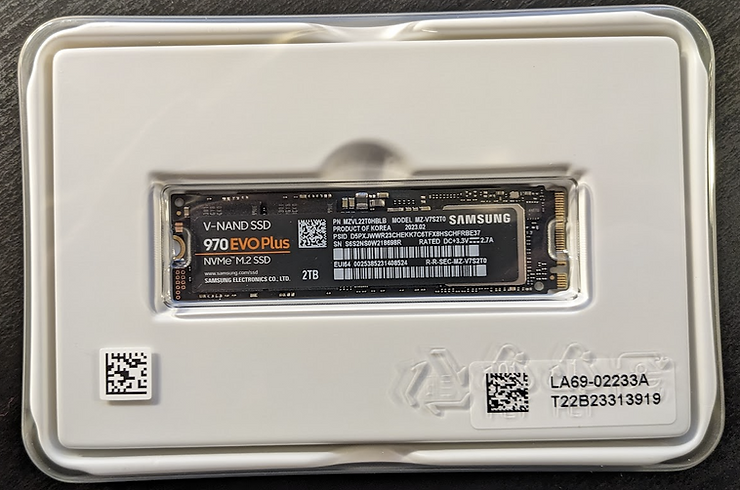
Unboxing
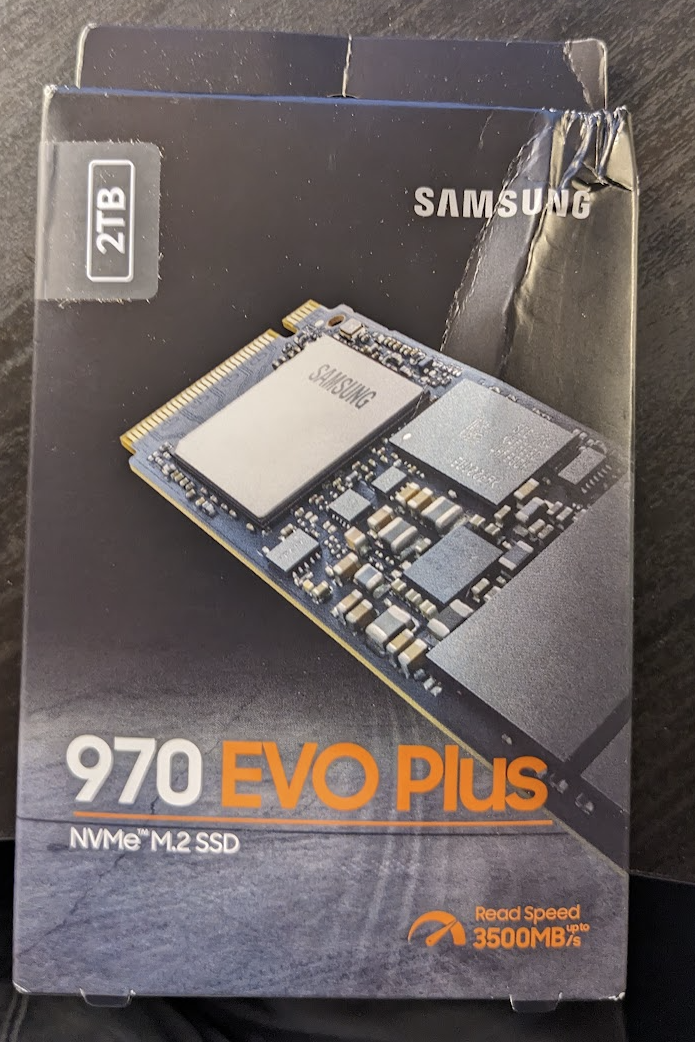
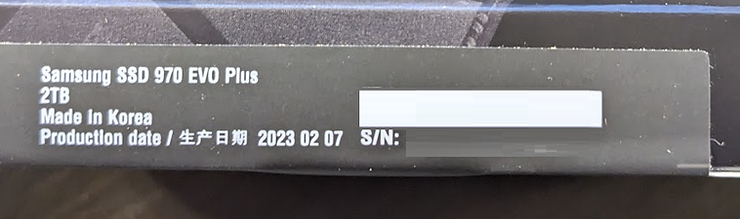
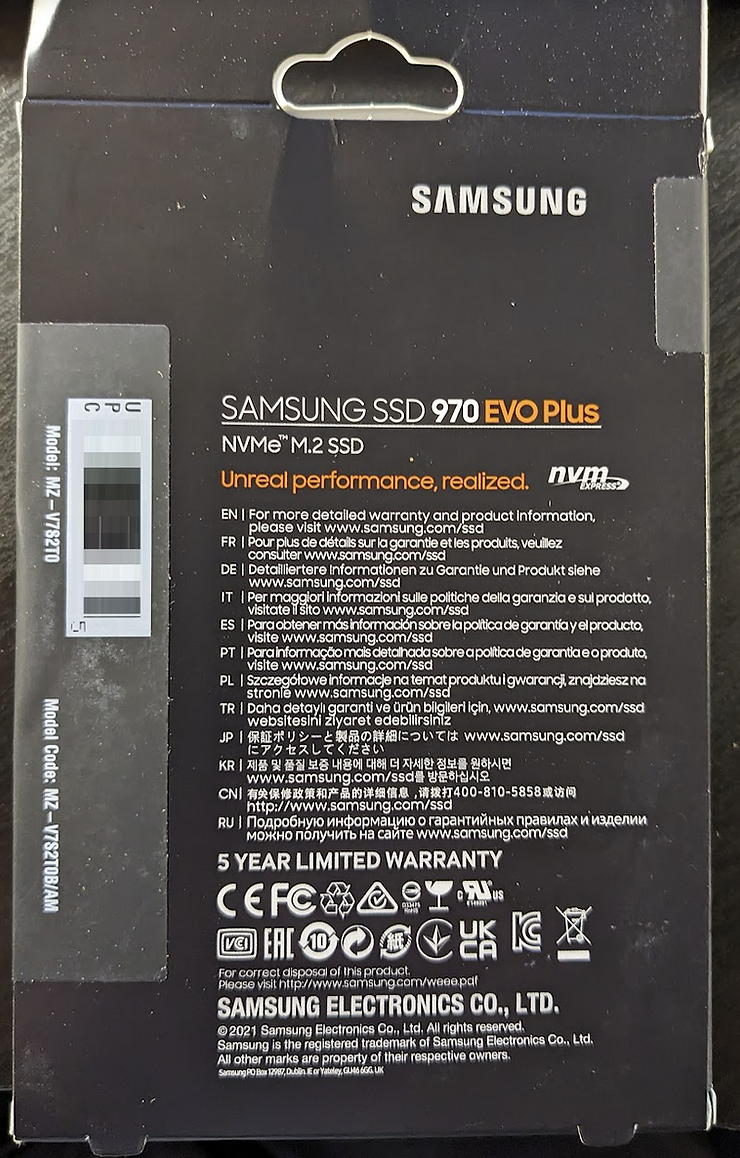
Model: MZ-V782T0
Model Code: MZ-V7S2T0B/AM
Installing
# Remove the battery
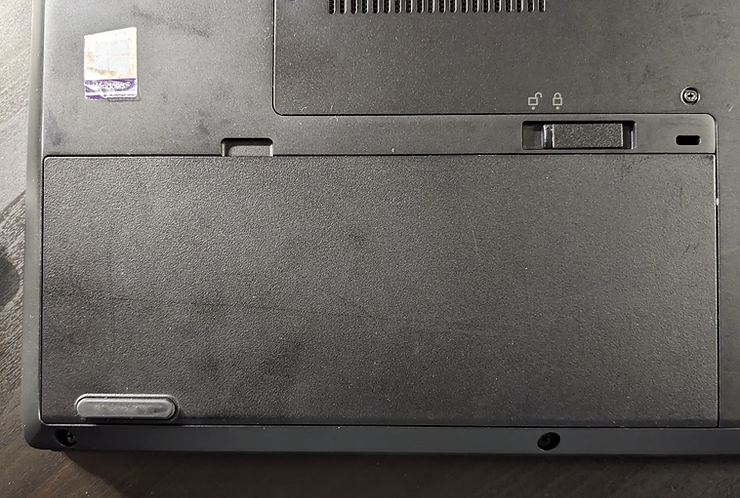
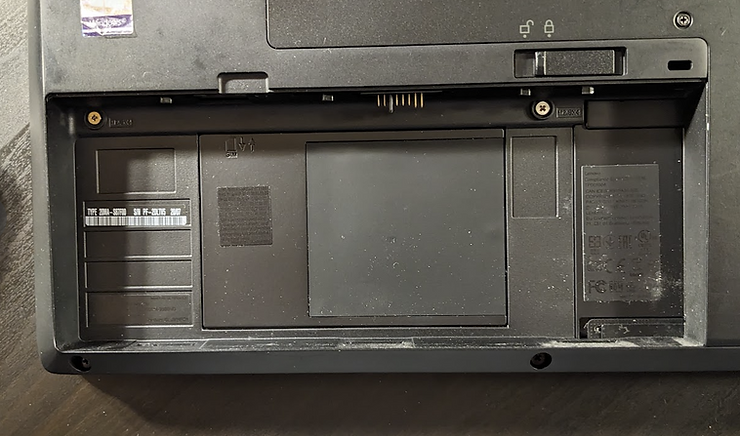
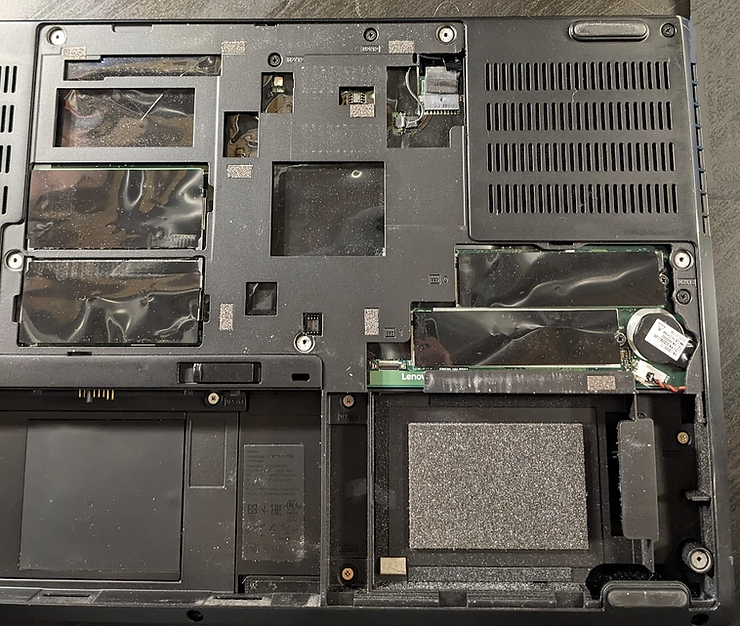
# Remove the cover
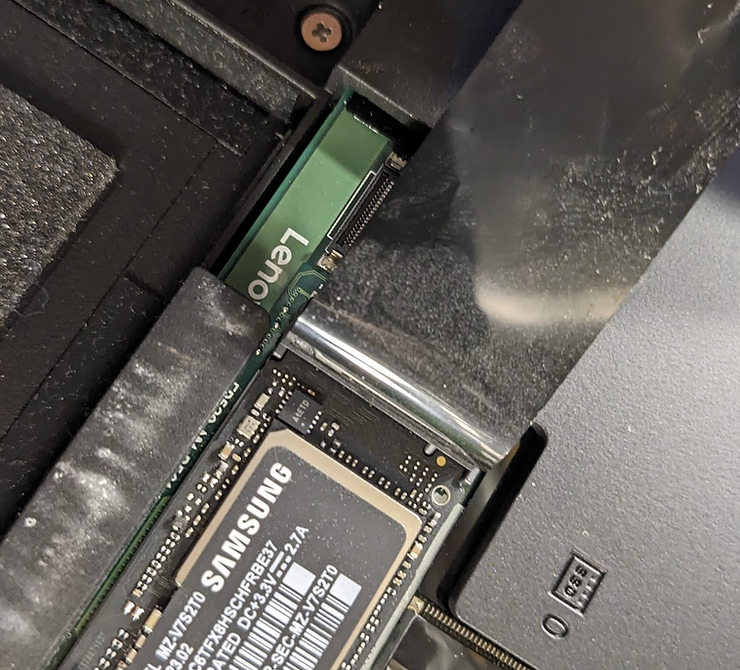
# Make sure the drive is fully seated:
# Reinstall the back cover and battery
# Boot the computer
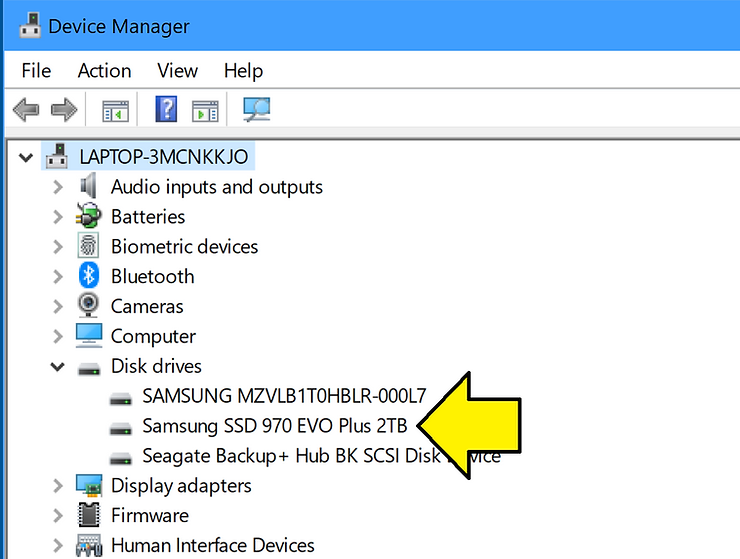
# Make sure the drive shows up in the Device Manager (if you failed to seat it completly, it won’t show up).
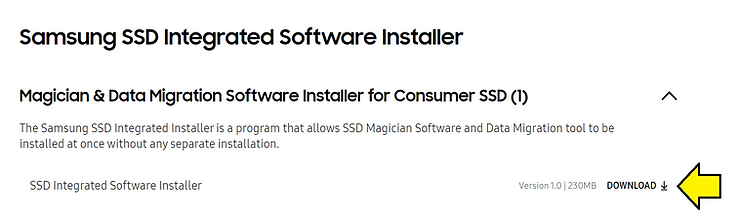
Install the Support Tools
https://semiconductor.samsung.com/consumer-storage/support/tools/
# Run the Samsung Migration tool
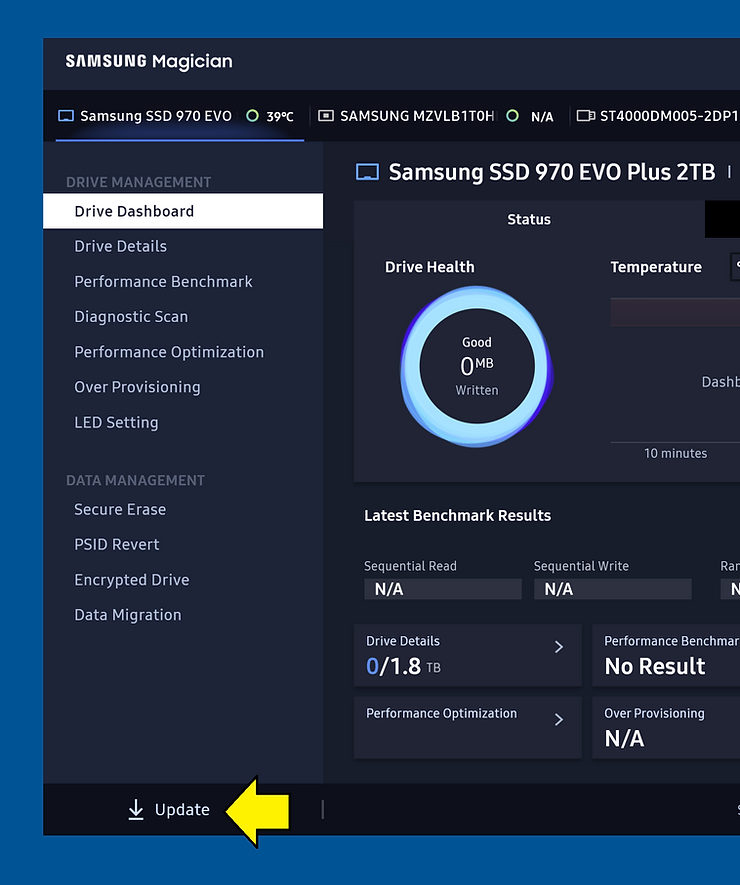
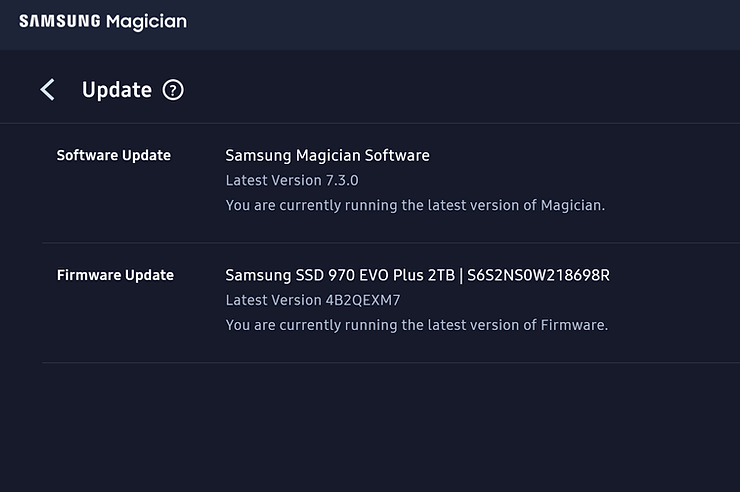
# Update the Samsung tool to the latest version
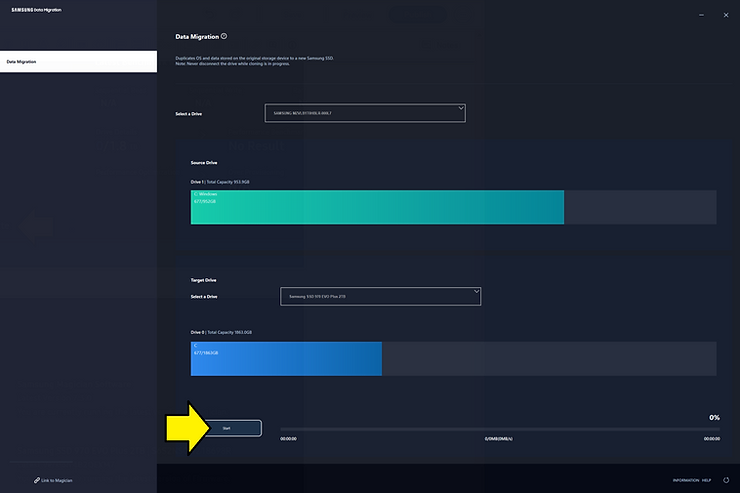
Do Data Migration From the Old Drive to the New
# Close all applications
# Clone
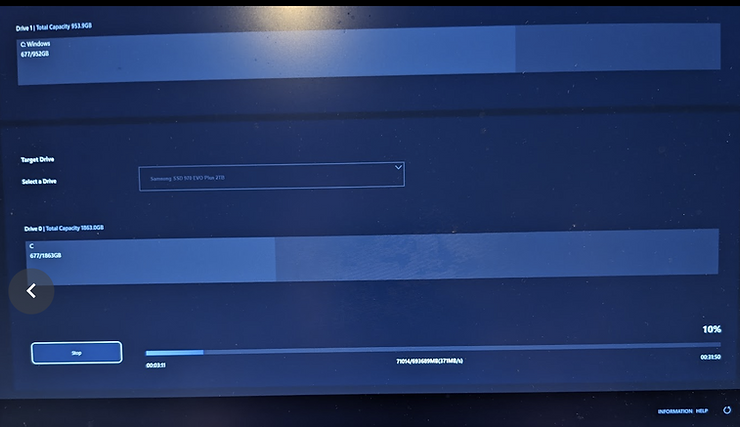
# Clone progress
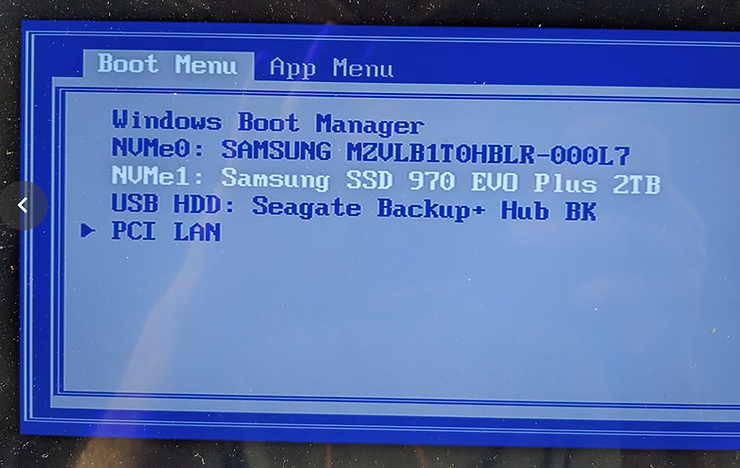
# Boot from the new drive: Reboot, and press F12 during boot to enter the Windows Boot Manager:
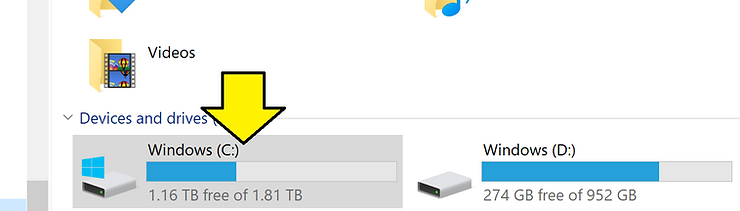
# Check the new drive in Windows Explorer
# Check the drive in Samsung’s tool:
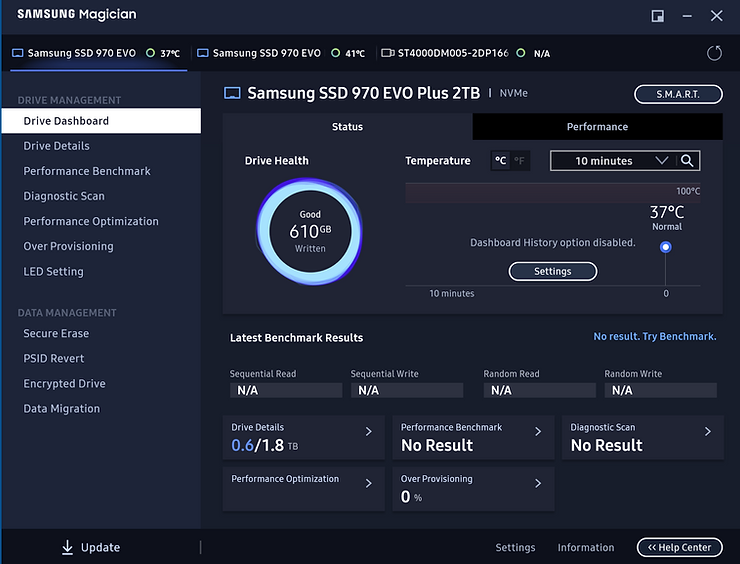
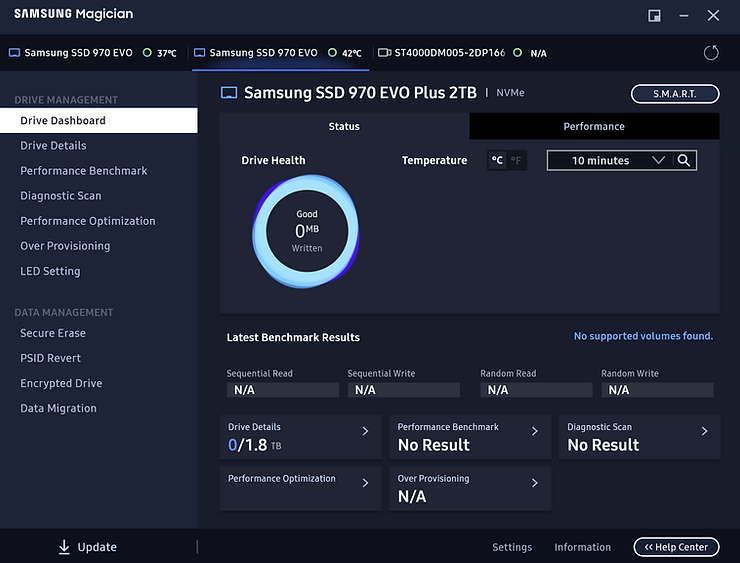
# Install the Second Drive
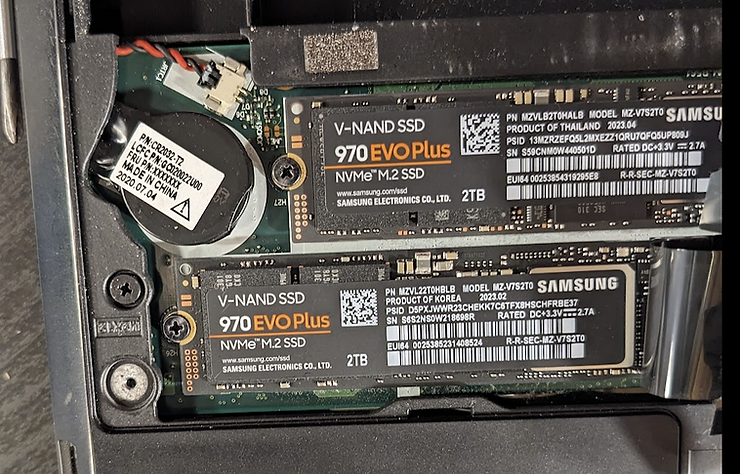
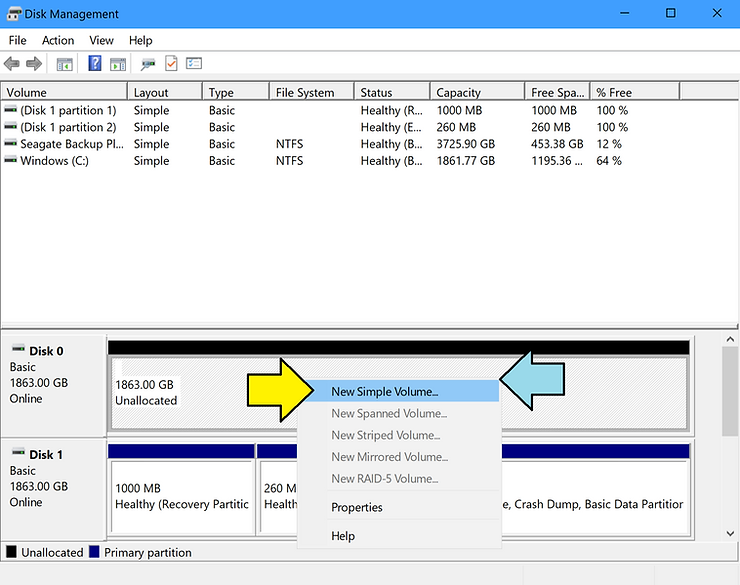
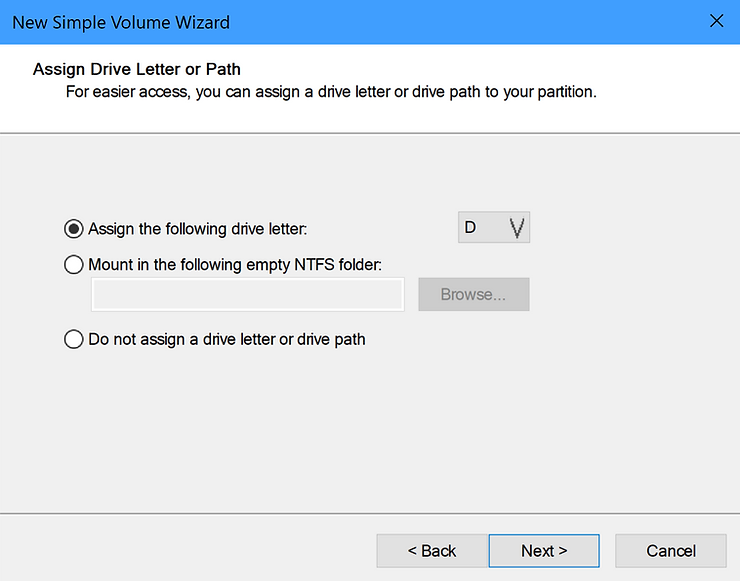
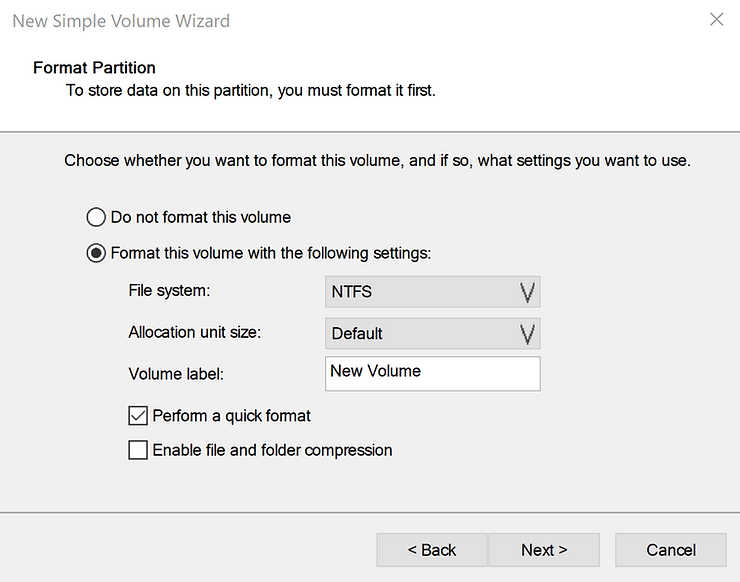
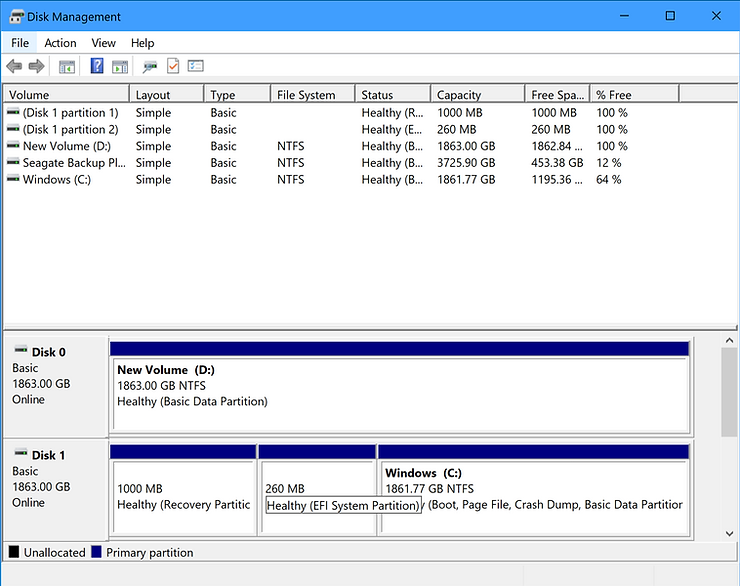
Format The Second Drive
# Open: Disk Management
# Choose GPT
MBR vs. GPT: Which Should You Use for Your SSD?
Should I use MBR or GPT when I intend to use both Ubuntu and Windows?
Windows and GPT FAQ
https://learn.microsoft.com/en-us/windows-hardware/manufacture/desktop/windows-and-gpt-faq?view=windows-11
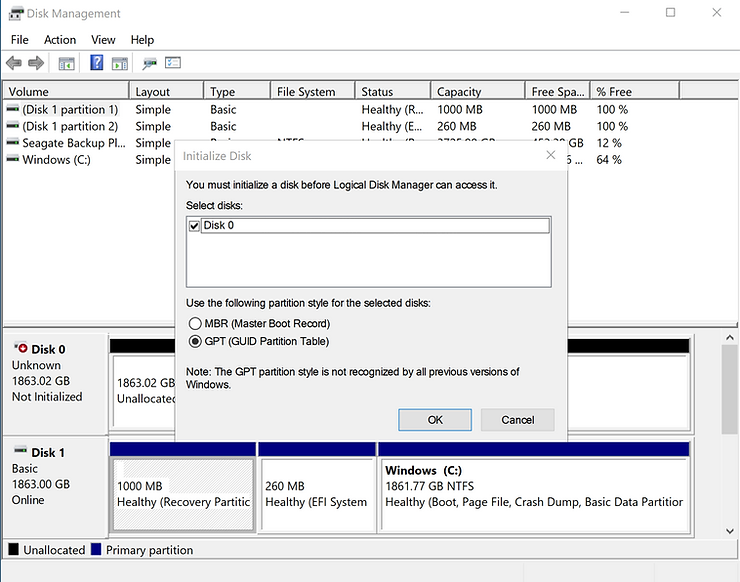
# Right-click. select
Done!
This post covered upgrading a Lenovo P52 M.2 MZ-VLB1T0B 1TB SSD to a 2TB Samsung 970 EVO Plus MZ-V782T0.
Issues that Popped Up
Adobe Acrobat failed to start. After logging into Adobe’s account manager via Adobe Acrobat, I had to “log off” my machine and log back on. I found this issue when I tried to create a PDF from Chrome, and I got an error message. I had to close and relaunch Chrome to fix it.
References
Lenovo icon clipped from
https://www.lenovo.com/us/en/?orgRef=https%253A%252F%252Fwww.google.com%252F