

Use draw.io in Google Drive (and Get Rid of draw.io )
This post lists step by step instructions for using draw,io in Google Drive. It also list how to get rid of it.
Nomenclature
Google Drive has you CONNECT to an app you want to use (install the app) and DISCONNECT from an app you don’t want to use (uninstall).
Steps
Connect draw.io (or any app)
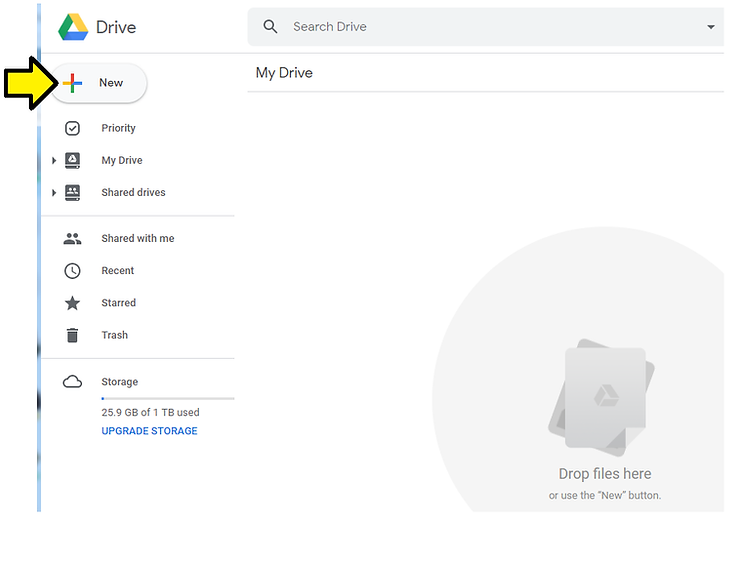
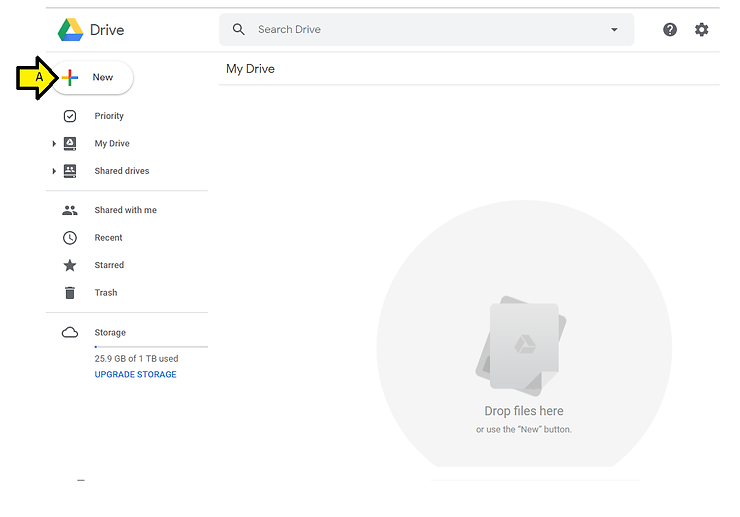
Step 1: Click New
Step 2:
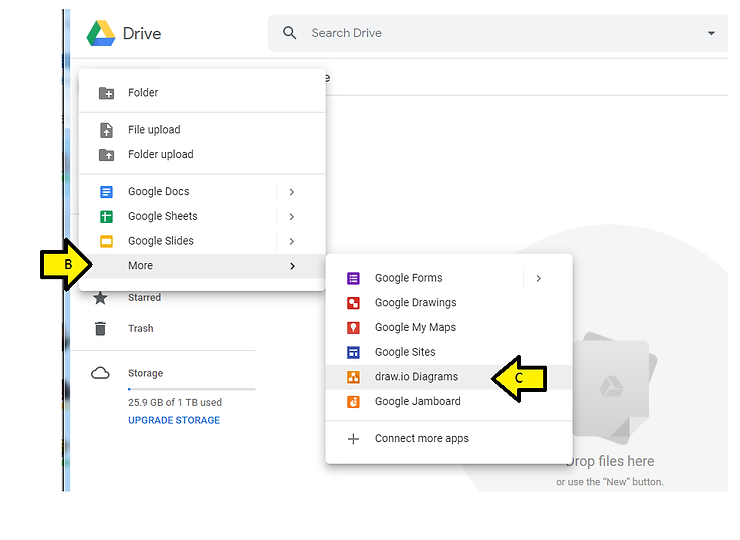
A. Click More
B. Click Connect more apps

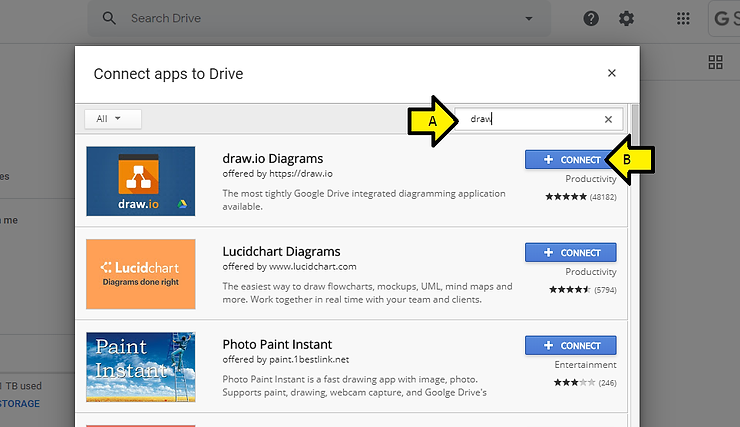
Step 3:
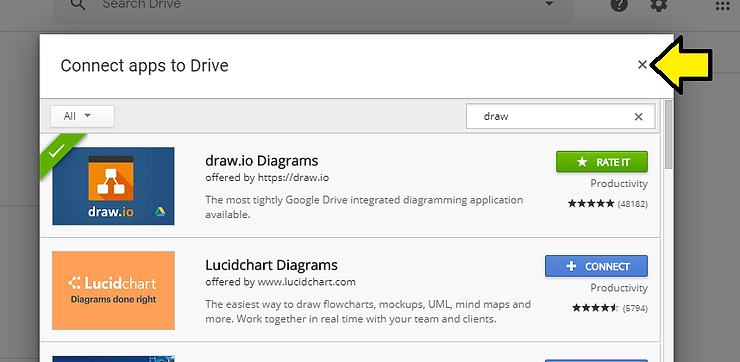
A. Type draw and hit ENTER on your keyboard
B. Click the CONNECT button next to draw.io Diagrams
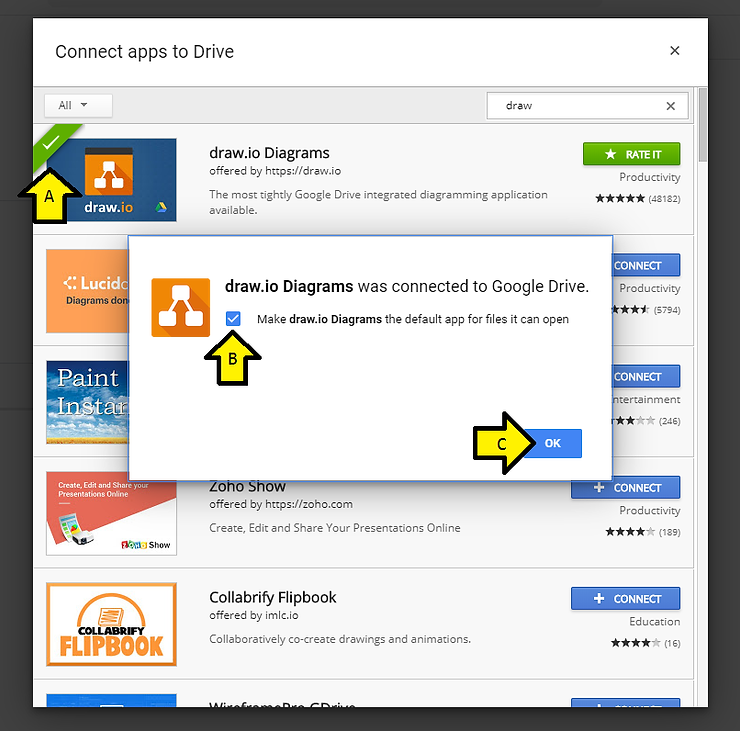
Step 4:
A. Look for the green checkmark in the corner of the draw.io entry
B. Ensure the checkbox is checked to use draw.io Diagrams as the default app to open files in can open
C. Click OK
Step 5: Click the x
Step 6: Check that you can access draw.io
A. Click New
B. Click More
C. Click draw.io Diagrams
Disconnect draw.io (or any app)
Step 1:
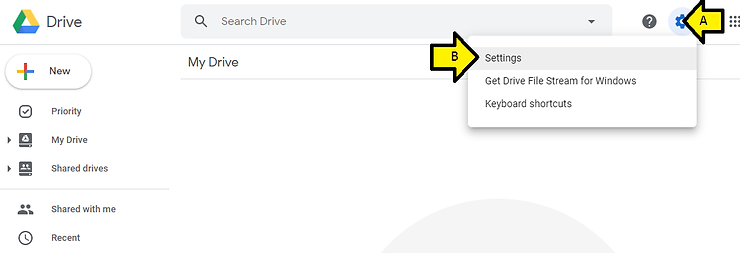
A. Click the gear icon
B. Click Settings
Step 2:
A. Click Manage Apps
B. Click the OPTIONS drop down
B. Click Disconnect from Drive
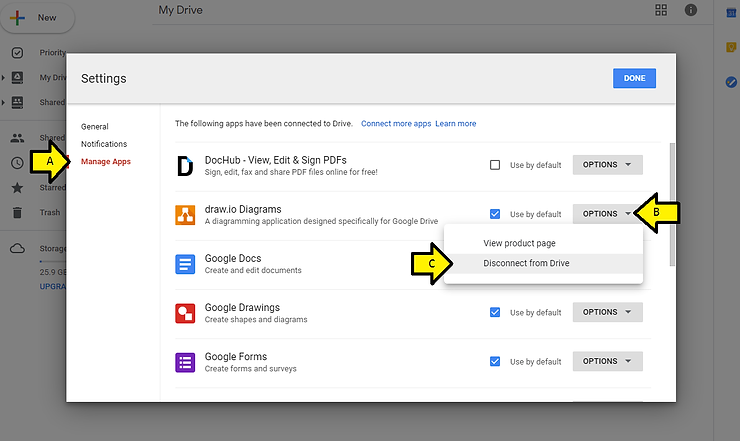
Step 3: Click DISCONNECT

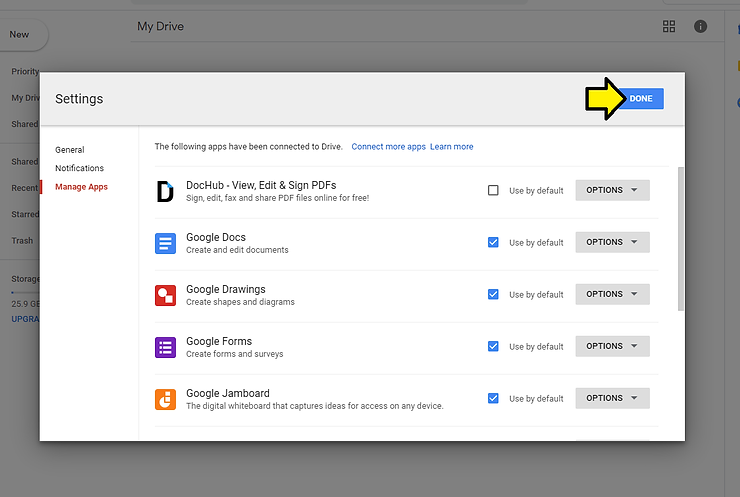
Step 4: Click DONE
References