

Light Up ZC706 LEDs Using Push Buttons with VHDL

This post shows how to use VHDL to connect SW7, SW9 and SW8 to LCR PL GPIO LEDS using VHDL.
This post picks up right after [link].
Prerequisites
This post assumes Vivado 2018.2 and the Digilent cable drivers have been installed.
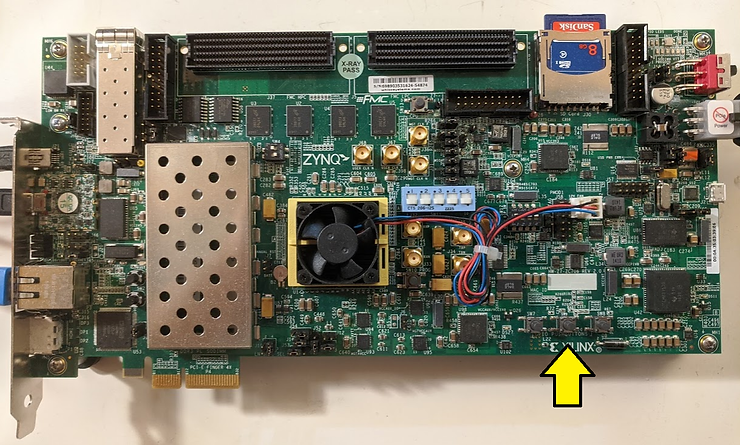
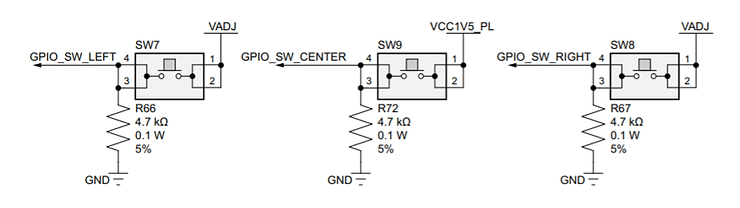
Push Buttons

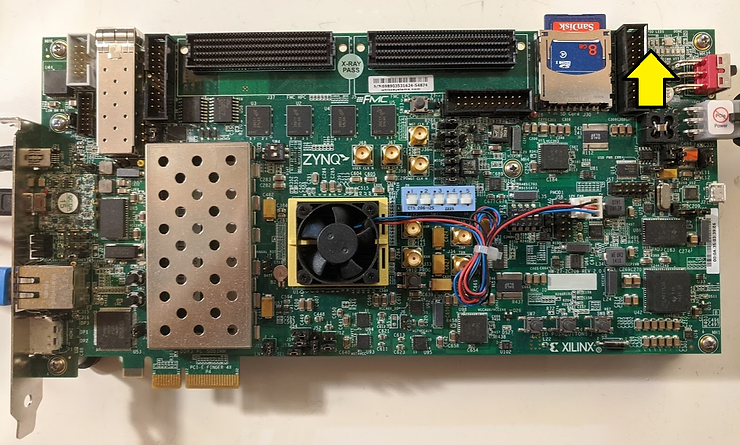
LEDs
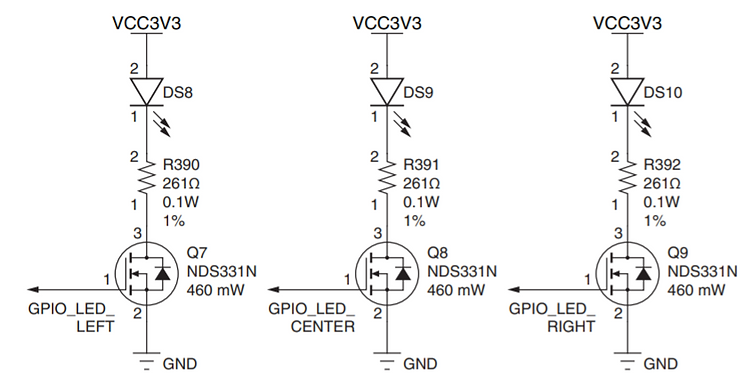

Note: This table is correct. Table 1-28 on page 60 of the ZC706 Evaluation Board User Guide UG954 (v1.8) August 6, 2019 is not correct (GPIO_LED_CENTER’s I/O Standard is not right)
Steps
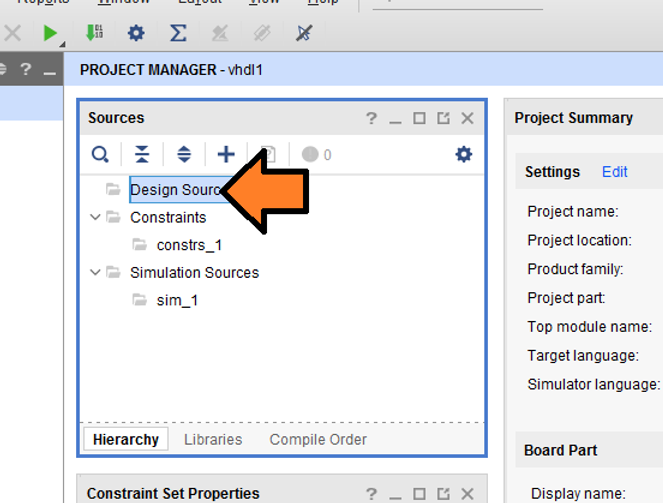
Step 1: Right-click Design Sources
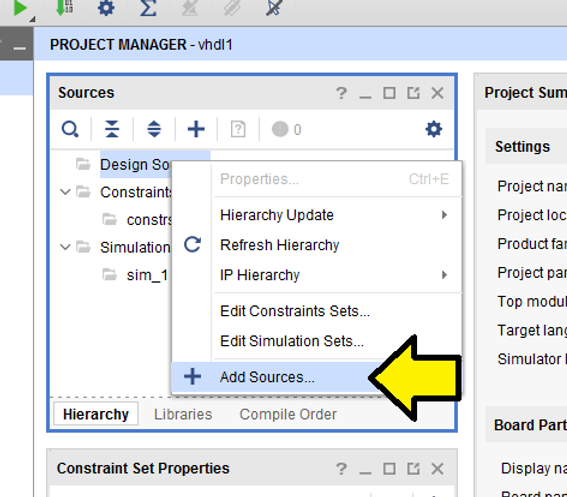
Step 2: Click Add Sources…
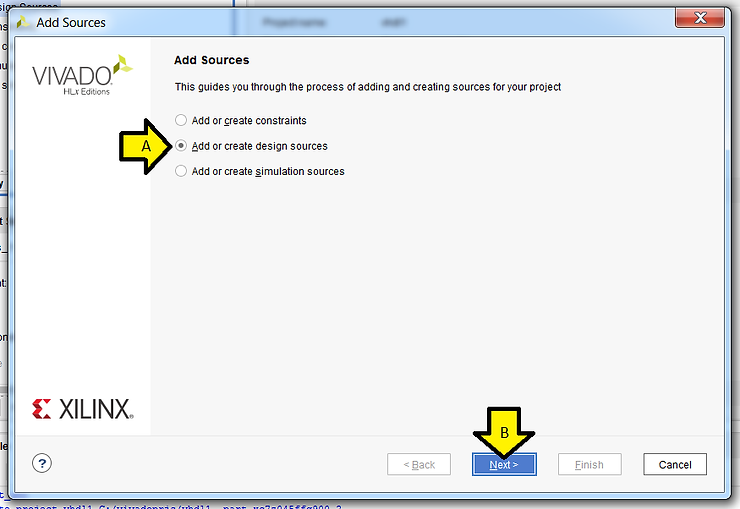
Step 3: (A) Click Add or create design sources and (B) click Next >
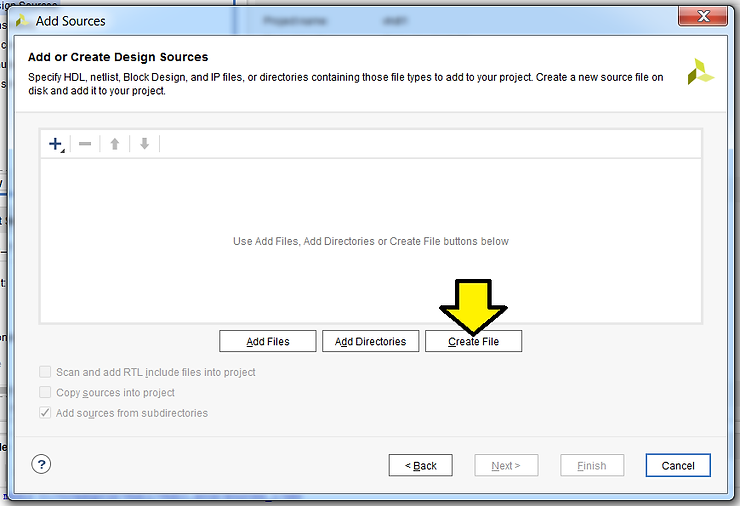
Step 4: Click Create File
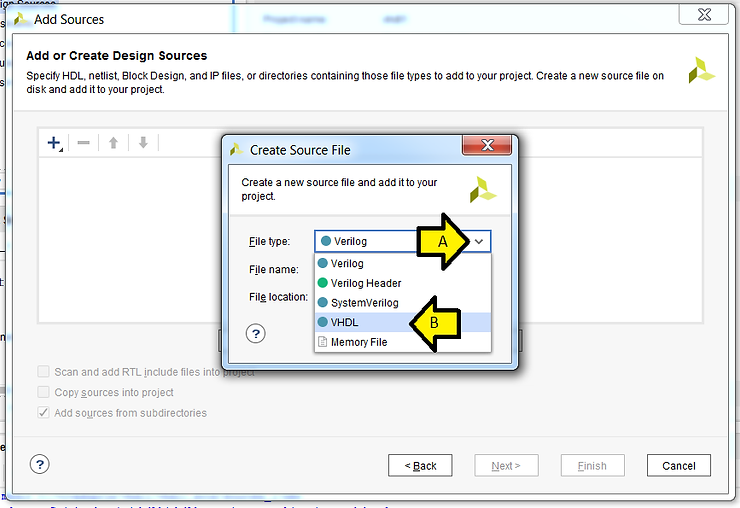
Step 5: (A) Click the down arrow and click (B) VHDL
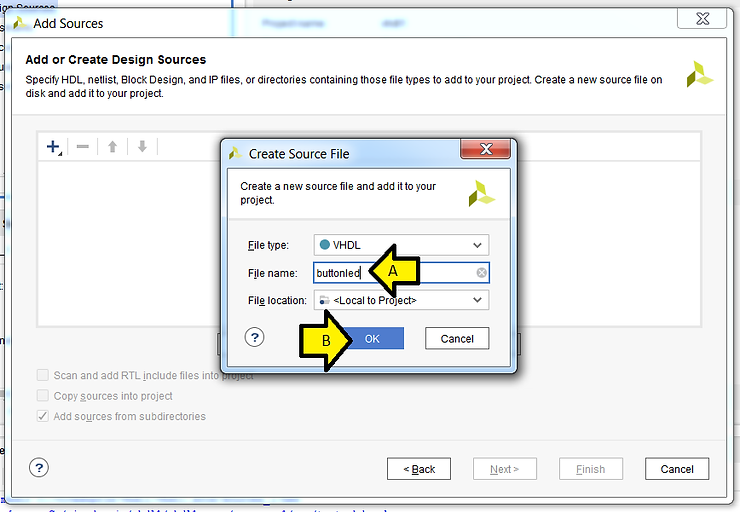
Step 6: (A) Enter buttoned as the File name: and (B) click OK
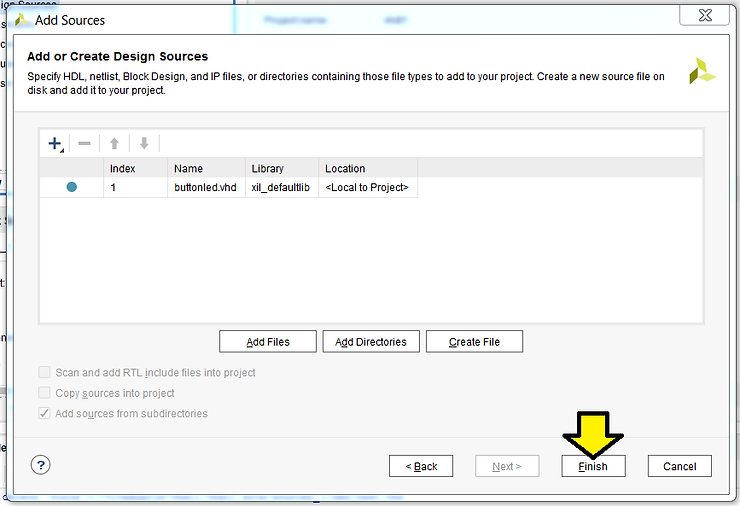
Step 7: Click Finish
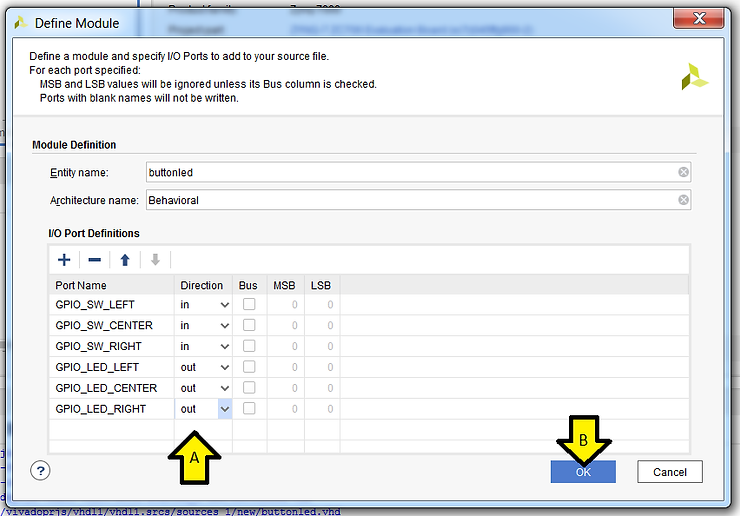
Step 8: Define the module
A)
Enter in:
GPIO_SW_LEFT
GPIO_SW_CENTER
GPIO_SW_RIGHT
…and
GPIO_LED_LEFT
GPIO_LED_CENTER
GPIO_LED_RIGHT
…and mark the Direction of the 3 GPIO_LED Port Names: out
B) Click OK
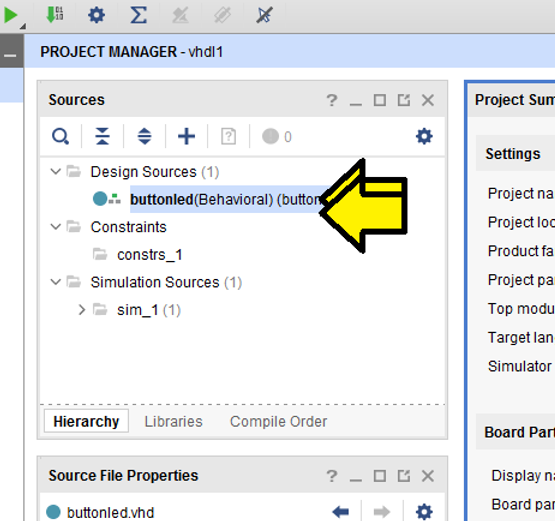
Step 9: Double click buttonled
You should see:
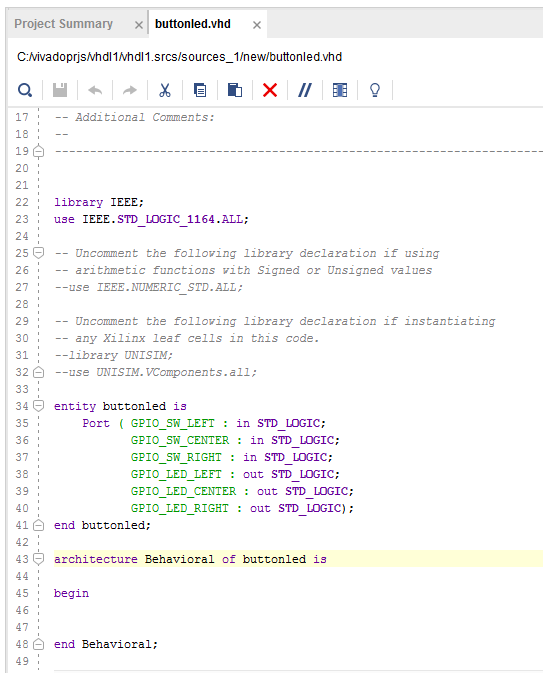
Step 10:
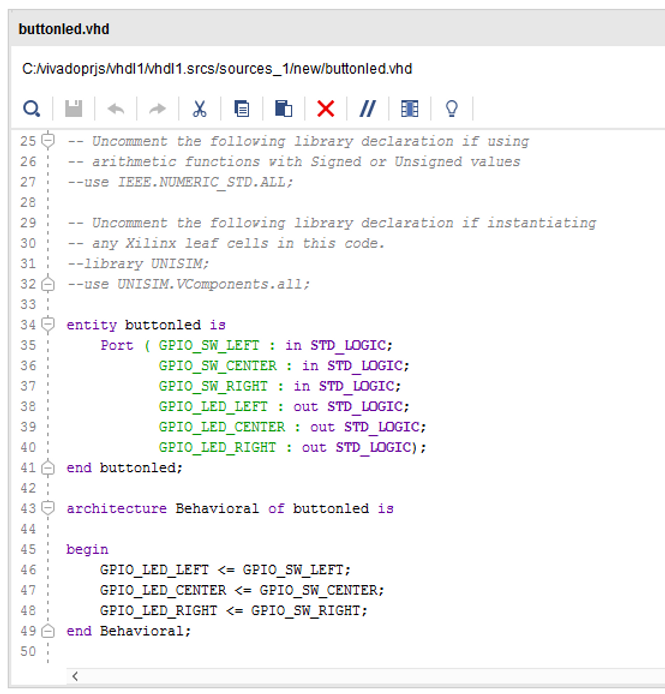
Enter the following between begin and end Behavioral;
GPIO_LED_LEFT <= GPIO_SW_LEFT; GPIO_LED_CENTER <= GPIO_SW_CENTER; GPIO_LED_RIGHT <= GPIO_SW_RIGHT;
buttonled.vhd should look like this:
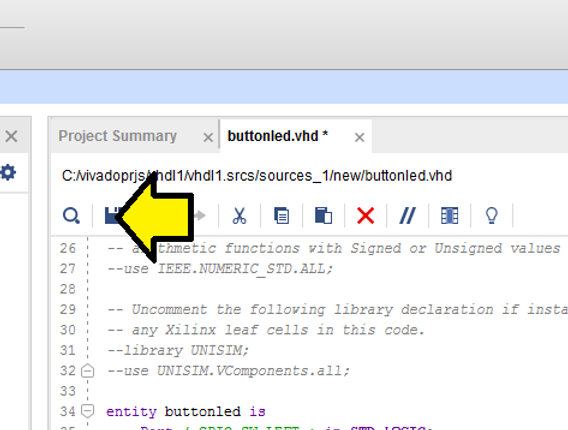
Step 11: Click save
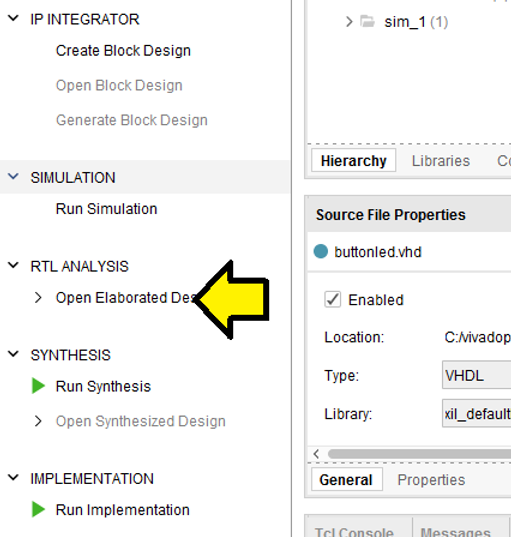
Step 12: Click Open Elaborated Design
Step 13: Click OK
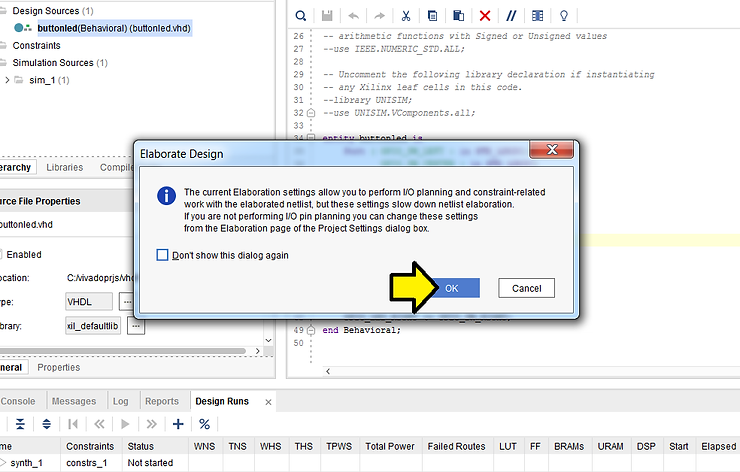
You should see pop-up status windows like:
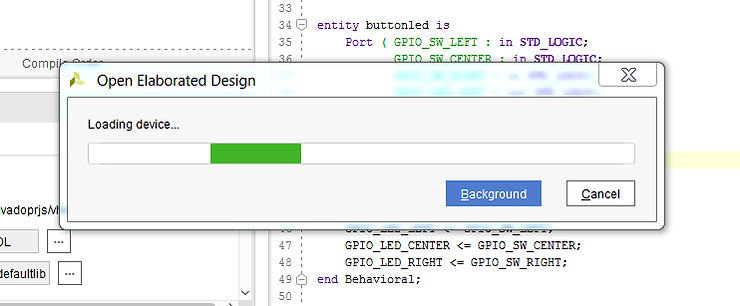
…and then:
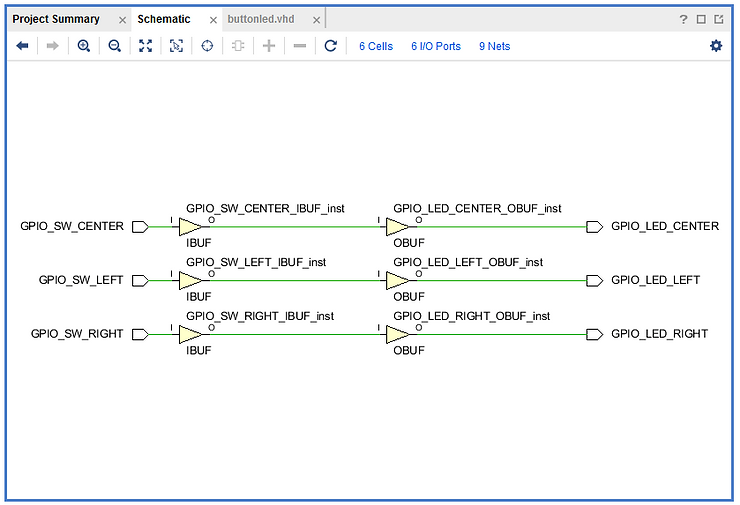
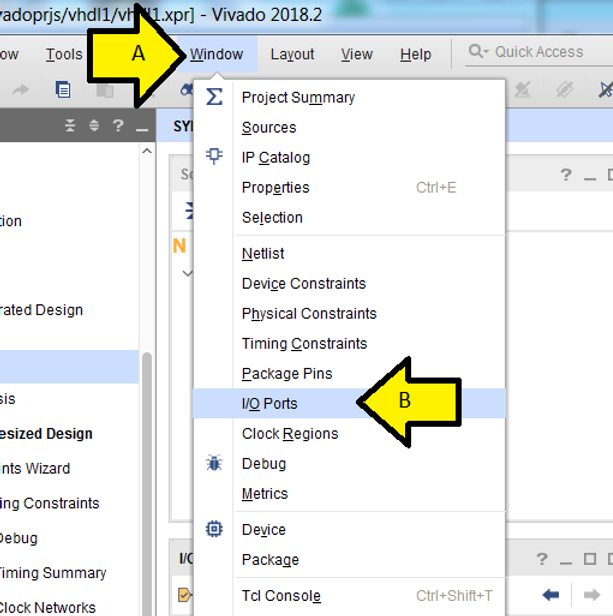
Step 14: (A) Click Window and (B) click I/O Ports
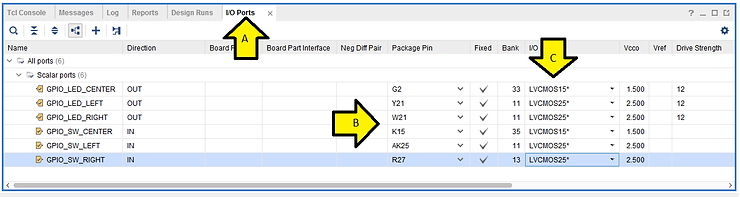
Step 15: (A) Click I/O Ports, (B) fill in the Package Pin as listed and (C) set in the I/O Std to LVCMOS15 for the CENTER ports and LVCMOS25 for the other ports (as shown above):
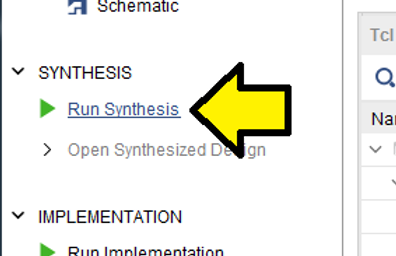
Step 16: Click Run Synthesis
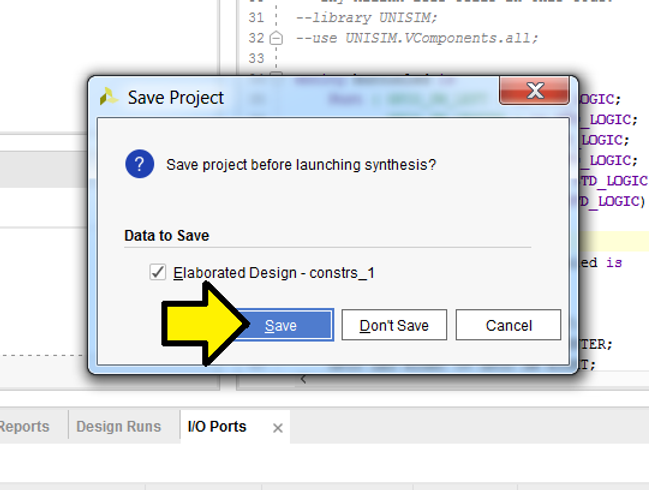
Step 17: Click Save
Step 18: (A) Set File name: to constraints0 and (B) click OK
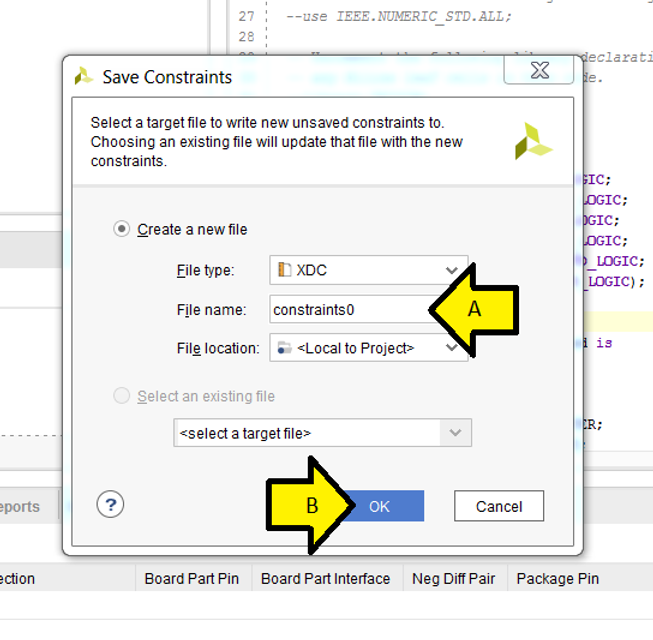
Step 19: Accept the defaults and click OK
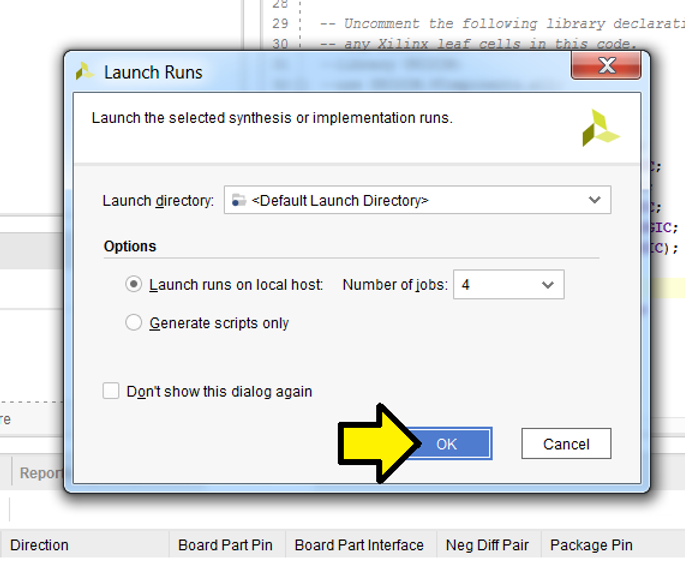
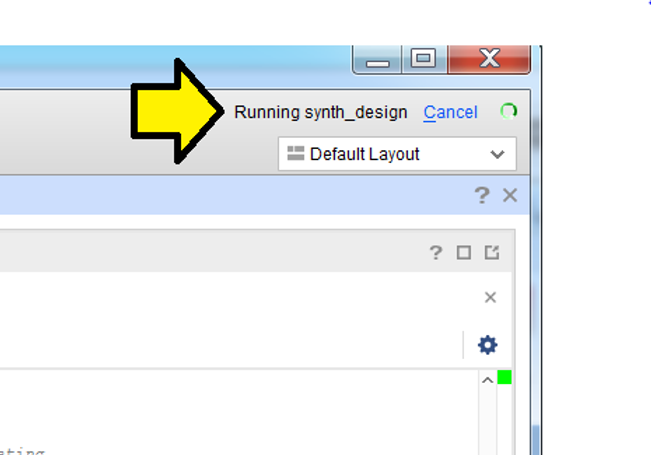
You should see some status in the upper right corner:
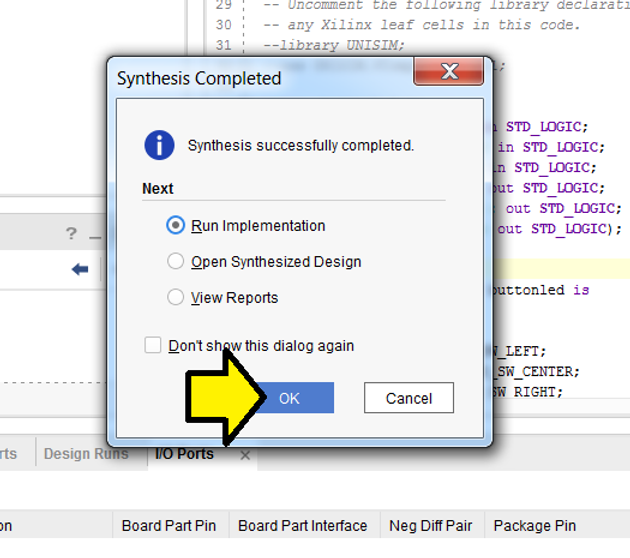
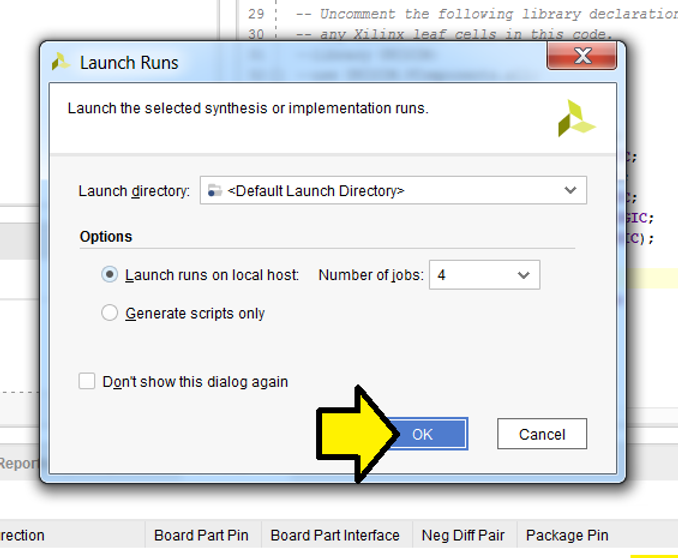
Step 20: Click OK to Run Implementation
Step 21: Accept defaults and click OK
You should see the status of Implementation in the upper right corner:
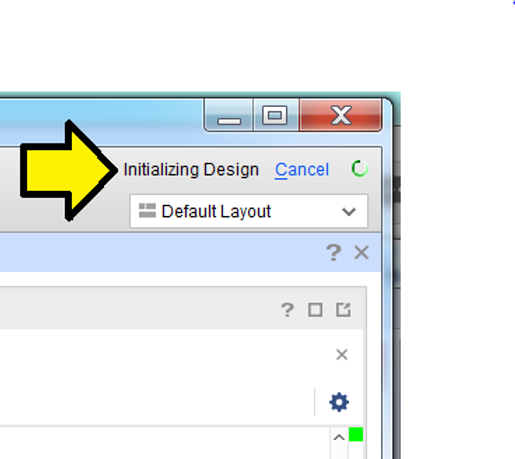
Note: implementation will take longer than synthesis
Step 22: (A) Select Generate Bitstream and (B) click OK
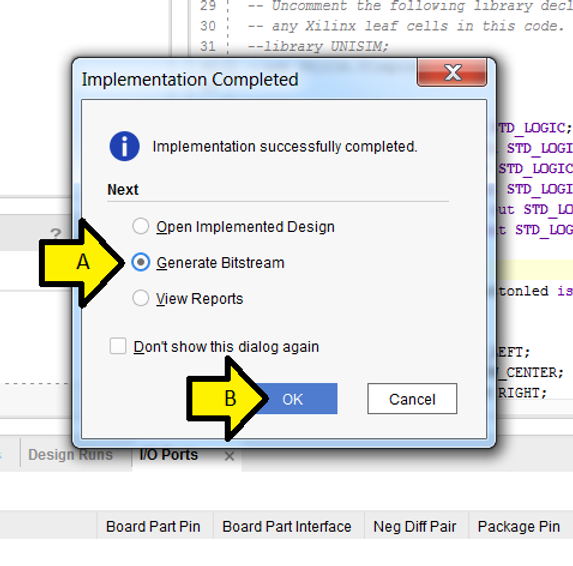
Step 23: Accept defaults and click OK
You will see the status of Generate Bitstream in the upper right corner
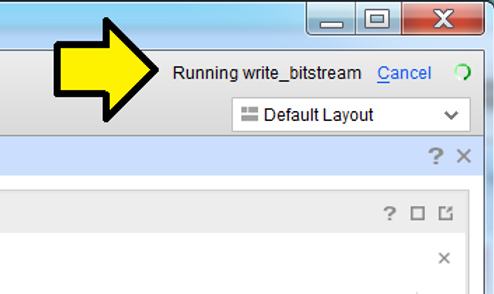
Note: This will take a little bit of time to complete (not as much as Implementation)
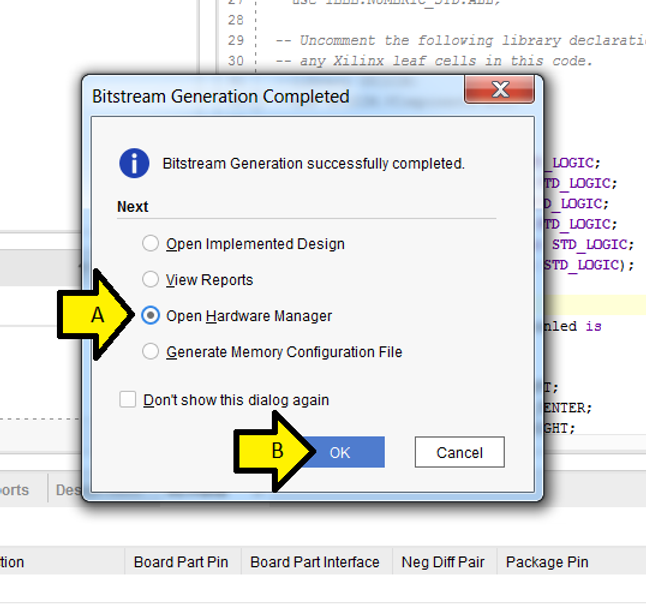
Step 24: (A) Click Open Hardware Manager and (B) click OK
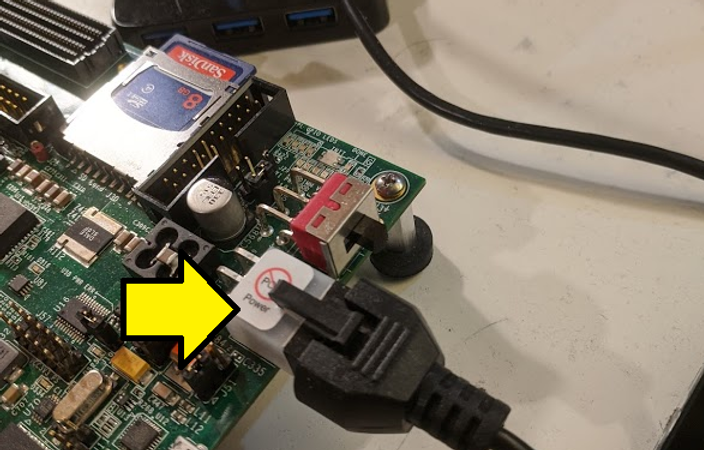
Step 25:
Plug the power supply into the board:
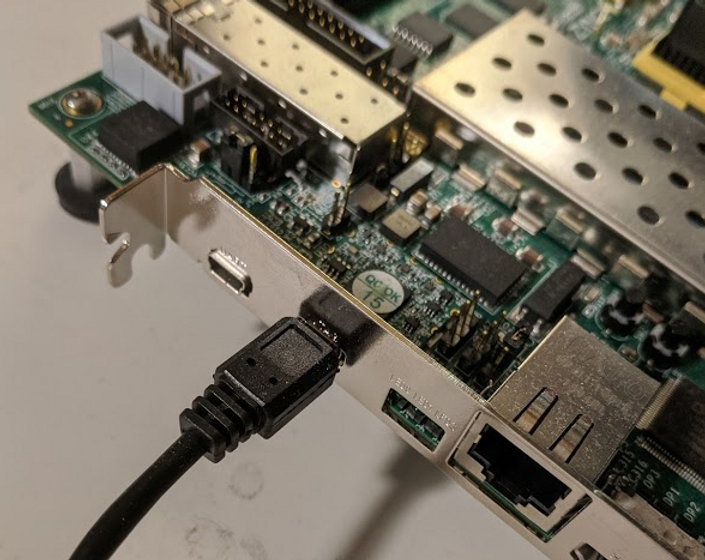
Plug the Micro-B end of a Micro-B to Standard-A USB cable into the Digilent USB-to-JTAG interface:
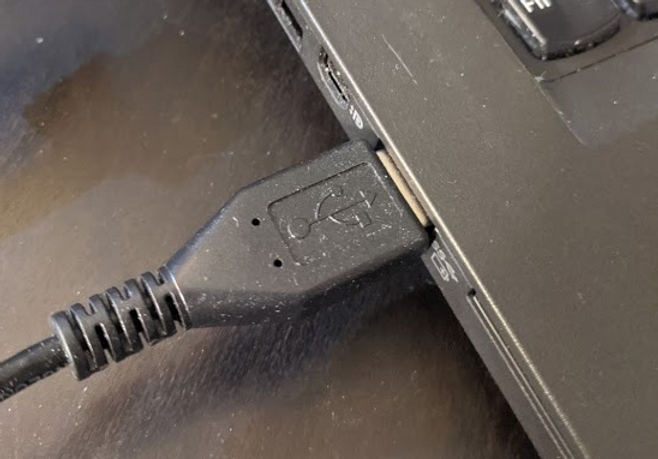
Plug the Standard-A end of a Micro-B to Standard-A USB cable into the computer
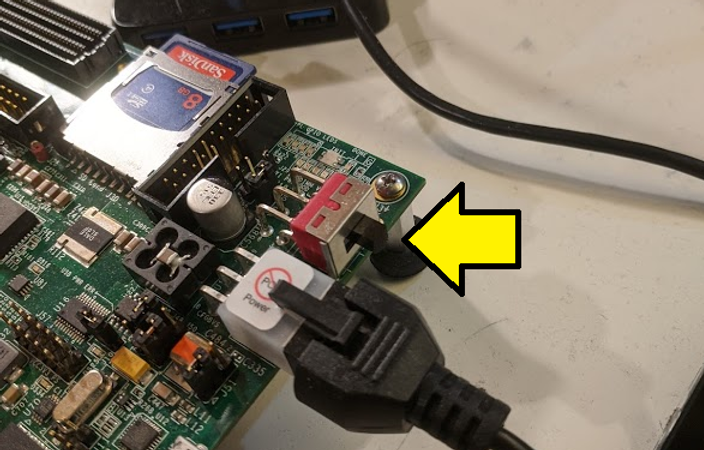
Power on the ZC706
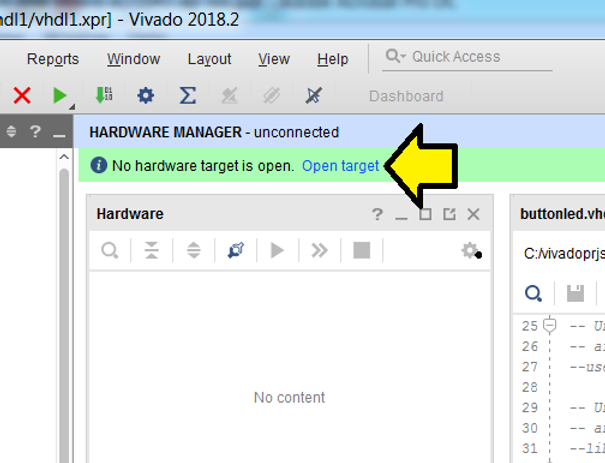
Step 26: Click Open target
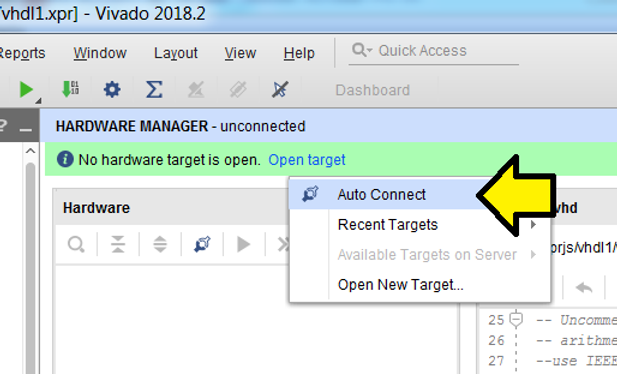
Step 27: Click Auto Connect
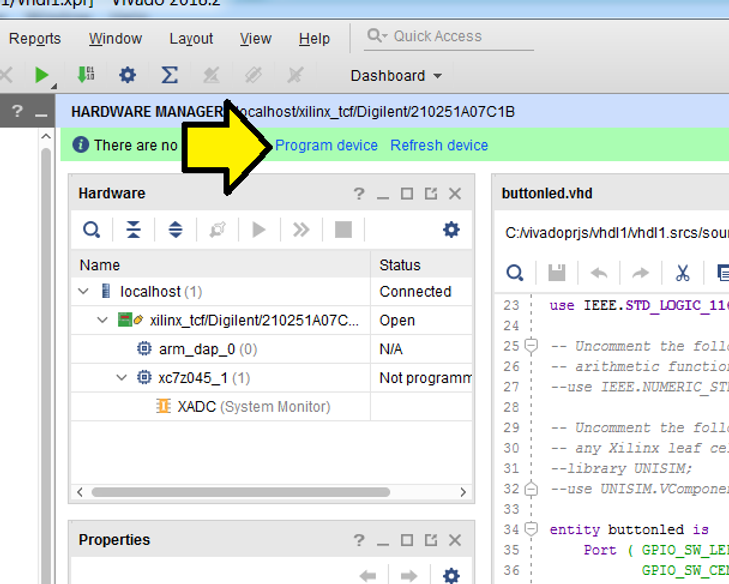
Step 28: Click Program device
Step 29: Click Program
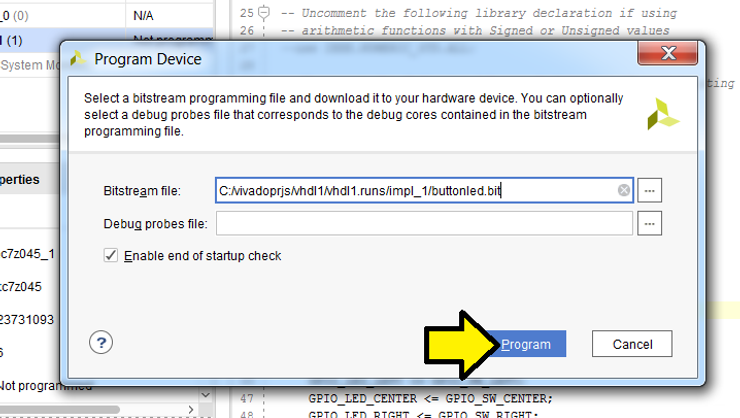
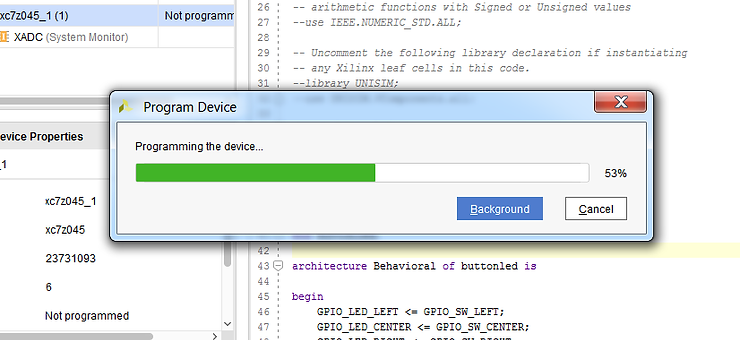
You should see:
Now when you press SW7, SW9 and SW 8, the PL LEDs will light up as seen here:
Extra
To see the constraints that get saved:
A) Click PROJECT MANAGEMENT
B) Expand Constraints (1)
C) Double click on constraints0.xdc (target)
D) Examine
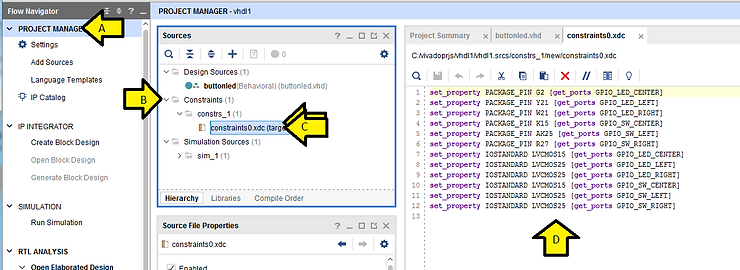
Here is the content of constraints0.xdc as text:
set_property PACKAGE_PIN G2 [get_ports GPIO_LED_CENTER] set_property PACKAGE_PIN Y21 [get_ports GPIO_LED_LEFT] set_property PACKAGE_PIN W21 [get_ports GPIO_LED_RIGHT] set_property PACKAGE_PIN K15 [get_ports GPIO_SW_CENTER] set_property PACKAGE_PIN AK25 [get_ports GPIO_SW_LEFT] set_property PACKAGE_PIN R27 [get_ports GPIO_SW_RIGHT] set_property IOSTANDARD LVCMOS15 [get_ports GPIO_LED_CENTER] set_property IOSTANDARD LVCMOS25 [get_ports GPIO_LED_LEFT] set_property IOSTANDARD LVCMOS25 [get_ports GPIO_LED_RIGHT] set_property IOSTANDARD LVCMOS15 [get_ports GPIO_SW_CENTER] set_property IOSTANDARD LVCMOS25 [get_ports GPIO_SW_LEFT] set_property IOSTANDARD LVCMOS25 [get_ports GPIO_SW_RIGHT]
References
-
Xilinx ZC706 User Guide [link] (no login required)
-
Xilinx ZC706 Schematics [link] (login required)
-
Xilinx logo from https://twitter.com/xilinxinc